Cyrisma Self-Onboarding Guide
Last updated: April 2, 2026
This guide provides a complete onboarding path for new Cyrisma users, from first login through deploying agents, running scans, managing risk, and generating reports. It is intended for MSPs and administrators onboarding new customer environments
1. Log In to Cyrisma
Access the Cyrisma MSP portal at:
If this is your first time logging in:
Select Forgot Password
Enter the email address associated with your account
Follow the password reset instructions sent to your inbox
Create a new password and log in
Upon first login, administrators can create additional users and assign roles through the Admin panel.
2. Agent-Based vs. Agentless Scanning Models
Cyrisma supports two deployment models, which can be used independently or together:
Agent-Based Scanning
Provides continuous visibility
Supports vulnerability, secure baseline, and data sensitivity scans
Required for patching and remediation actions
Agentless Scanning
Uses a network-based sensor
Suitable for discovery and assessment without installing software on every endpoint
Commonly used for unauthenticated vulnerability scanning
3. Create Your First Customer Instance
Video Guide: Create a New Instance
Each customer environment is managed within its own Cyrisma instance. Instances isolate data, scans, agents, and remediation actions for each customer.
From the MSP Instances dashboard:
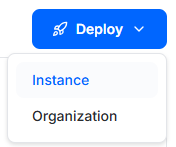
Click the blue Deploy button.
Select Instance.
Complete the Add Instance drawer:
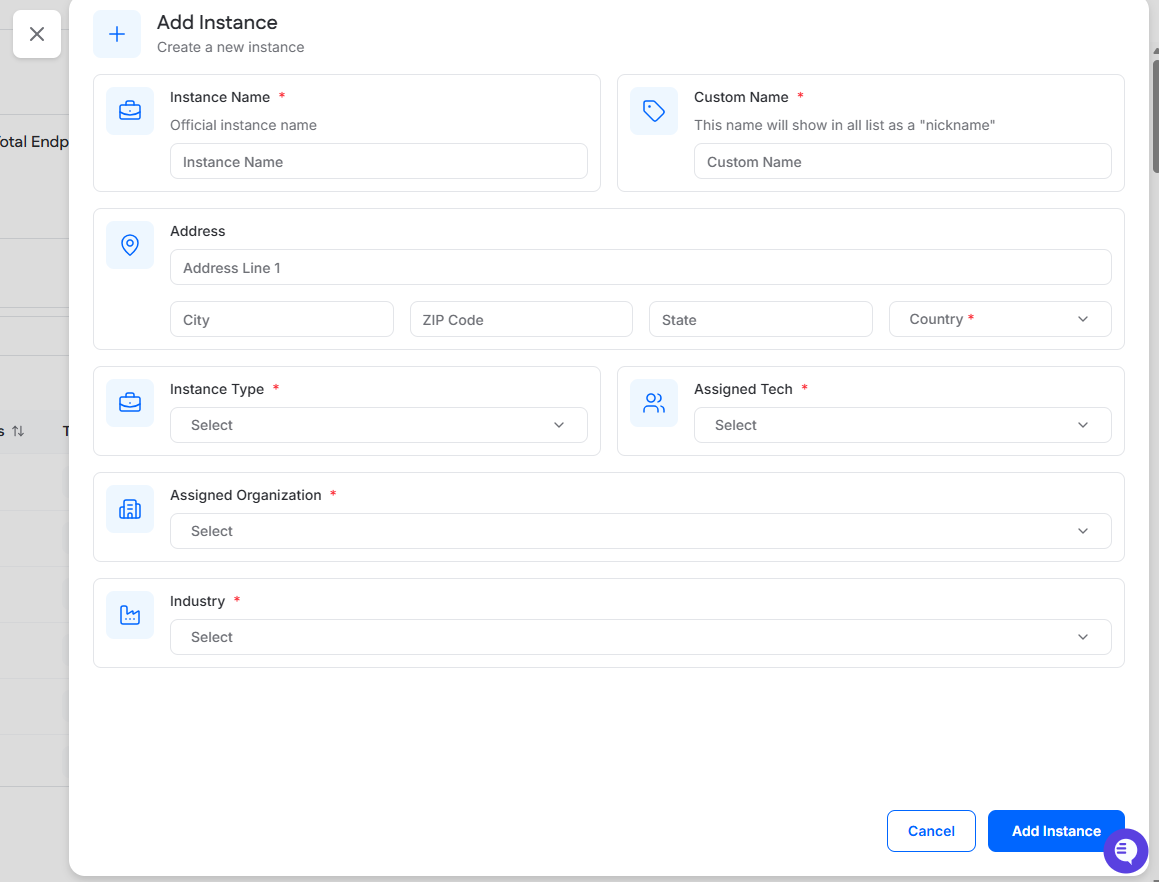
Instance Name: Enter the official instance name.
Custom Name: Enter the name that will appear in lists as a nickname for the instance.
Address: Enter the instance address.
Instance Type: Select the instance type. Available options are Managed and Consulting.
Assigned Tech: Select the MSP user responsible for the instance.
Assigned Organization: Select the organization this instance should belong to.
Industry: Select the industry that best describes the instance.
After all required fields are completed, click Add Instance.
Video Guide: Create a New Instance
4. Log In to the Deployed Instance
Once an instance has been created, access it using one of the methods below, depending on your user type.
Accessing an Instance as an MSP User
MSP users can access client instances directly from the MSP portal:
Log in to the MSP portal at msp.cyrisma.com.
In the Instances dashboard, select the Instances tab and locate the instance in the list.
In the row for that instance, click the arrow button in the Go to Instance column.
This launches the instance using single sign-on (SSO) from the MSP portal.
Accessing an Instance as a Non-MSP User
Non-MSP users can log in directly using the instance-specific login URL:
https://ccxxxxxx.cyrisma.com/login
Replace xxxxxx with the unique identifier assigned to the instance.
From this page, users can authenticate using their Cyrisma username and password to access the instance.
5. Deploy Agents or Sensors
After creating an instance, deploy agents or sensors based on the chosen scanning model.
Agent-Based Deployment
Install the Cyrisma agent on endpoints
Supports local vulnerability, baseline, and data scans
Video Guide: How to install a Windows agent using PowerShell
Agentless Deployment (Sensor)
Install a Cyrisma sensor on a Windows system
Enables network-based scanning of Windows, macOS, and Linux systems
Sensor Prerequisites
Sensor Installation Requirements
Must be installed on Windows Server (2012 R2, 2016, 2019) or Windows 10/11 workstations.
Ensure communication with the cyrisma.com domain (configure web filters/firewalls to allow access).
Anti-virus should exempt
C:\Cyrisma_Agent, and Anti-Spam should allow mail from cyrisma.com..NET Framework 4.7.2 is required; install this prior to setup if not already present.
Create a local network admin account with necessary rights to perform scans on network machines.
Sensor Installation Steps
Log in to the Cyrisma instance and open the Agent Setup page. In the Deployment section, locate the Agent Installation Key and Setup URL.
Download and run the installer on the target machine. When prompted during installation, enter the Installation Key and Setup URL.
Optionally deploy via command line using the /verysilent and /role=sensor options for silent install or network scanning mode.
After installation, the agent will appear on the Agent Setup page in the Provisioning section and be ready for provisioning.
Optional Feature – Auto Provisioning
By default, agents are deployed using Manual Provisioning. With this option, newly installed agents appear in the Provisioning tab and must be reviewed and approved before they become active in the instance.
Auto Provisioning can be selected during deployment to automatically add agents to the instance as soon as installation is complete.
For Windows deployments, the Deployment tab provides both Non-PowerShell Script and PowerShell Script options. Each script includes an Auto Provision dropdown with the following choices:
Auto Provision
The agent is added directly to the instance during installation.
Manual Provision
The agent appears in the Provisioning tab and must be manually approved before becoming active in the instance.
To deploy an agent with PowerShell:
Go to Agent Setup.
On the Deployment tab, select Windows.
Open the PowerShell Script option.
Choose either Auto Provision or Manual Provision from the Auto Provision dropdown.
Review the generated script, which includes the instance-specific Installation Key and Setup URL.
Click Copy to copy the script.
Run the script through your RMM or other deployment method.
Auto Provisioning is useful for large-scale deployments, but it should be used carefully to avoid unintended agent installations.
Agent Provisioning
The Provisioning tab lists agents that were installed using Manual Provisioning and are awaiting approval before becoming active in the instance.
To provision an agent:
Go to Agent Setup.
Open the Provisioning tab.
Select the checkbox next to one or more agents to enable provisioning actions.
Before provisioning, you can optionally complete either of the following actions for the selected agents:
Add Agent(s) to Scan(s)
Use Add Agent(s) to Scan(s) to assign selected agents to existing recurring scans, including:
Internal Authenticated Vulnerability scans
Secure Baseline scans
These scan enrollments are applied when the agent is provisioned.
Configure Credentials
Use Configure Credentials to configure the selected agent for remote scanning.
You can define the following details as needed:
agent type
username
password
domain for Windows credentials, when applicable
Configured credentials allow the agent to remotely scan systems it can access on the network.
After any optional configuration is complete:
Click Provision.
In the confirmation dialog, review the action and confirm provisioning.
Once provisioned, the agent becomes active in the instance, configured scan enrollments are applied, and the agent no longer appears in the Provisioning tab.
A provisioned agent may take up to 15 minutes to begin checking in to the instance. Once it starts checking in, the status icon next to the agent name changes from red to green, and the Last Check-in timestamp is populated.
6. Endpoint Protection Compatibility
Adjust security policies to exclude or allow Cyrisma components (C:\Cyrisma_Agent) in endpoint protection.
Endpoint protection software may block scanning or remediation activity. Recommended exclusions include:
C:\Cyrisma_AgentExecutables such as:
DataSpotliteAgent.exe
psexec.exe
cytcp.exe
fileconv.exe
Installation Guide
For step-by-step instructions and important notes on integrating CYRISMA with your environment, please review the official CYRISMA Agent Installation Guide here:
7. Schedule and Run Scans
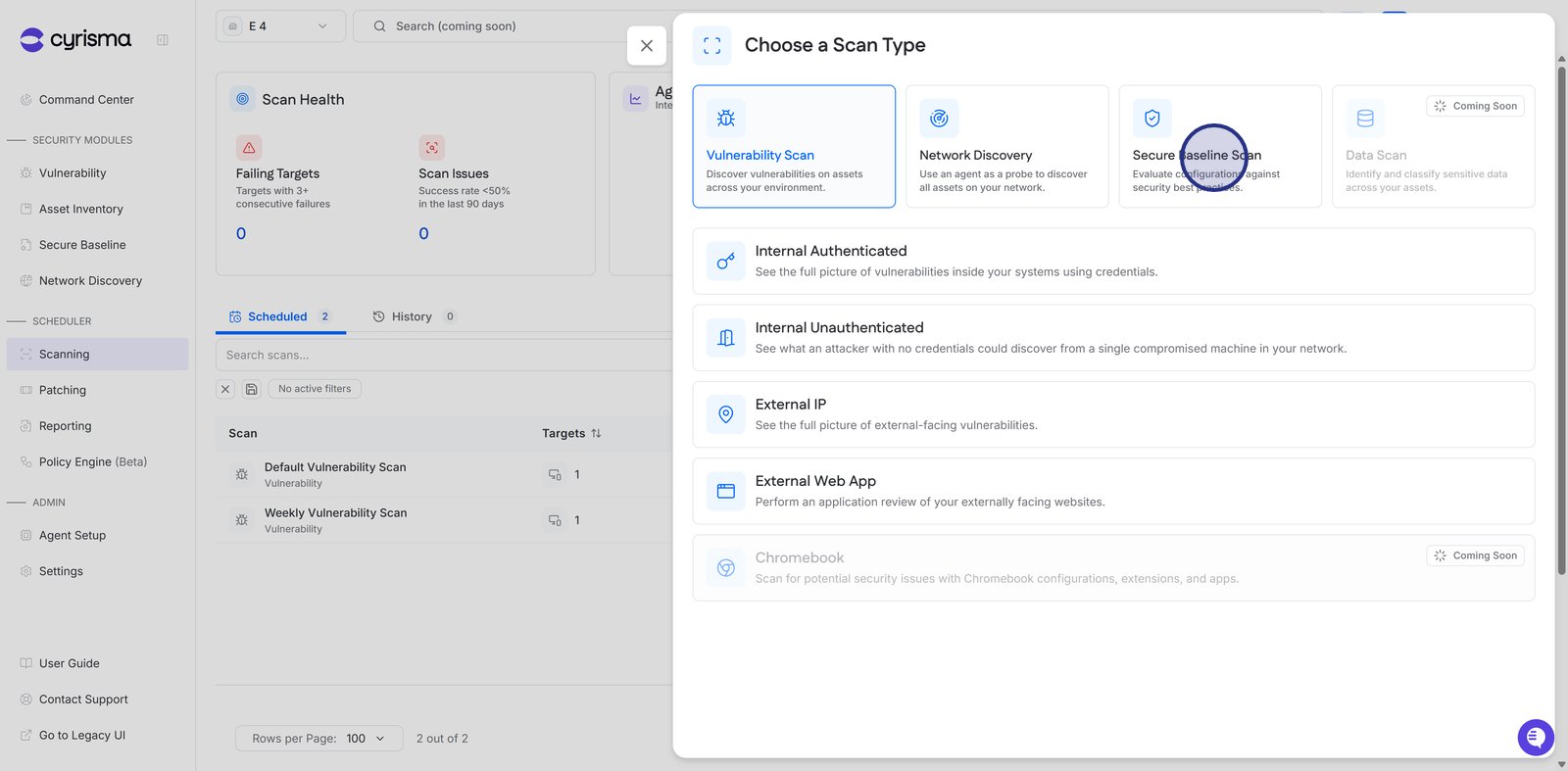
Cyrisma supports multiple scan types based on environment and data source.
Guided Scan Setup Resources
11. Chromebook Scanning
Cyrisma supports vulnerability scanning for Chromebook environments through a dedicated deployment process that differs from traditional operating systems.
8. Risk-Based Vulnerability Management
Cyrisma supports multiple vulnerability assessment methods:
Internal authenticated scanning
Internal unauthenticated scanning
External IP scanning
Web application URL scanning
Patch Management integrates with vulnerability findings to support remediation workflows.
9. Data Classification Setup
Configure data sensitivity scans for:
On-premise environments
Cloud platforms
These scans identify and classify sensitive files and communications to support data protection and compliance initiatives.
10. Secure Baseline Scanning
Secure Baseline scans evaluate operating system configuration settings against established security benchmarks to identify misconfigurations and policy gaps.
Video Guide: How to Schedule a Secure Baseline Scan
11. Dark Web Monitoring
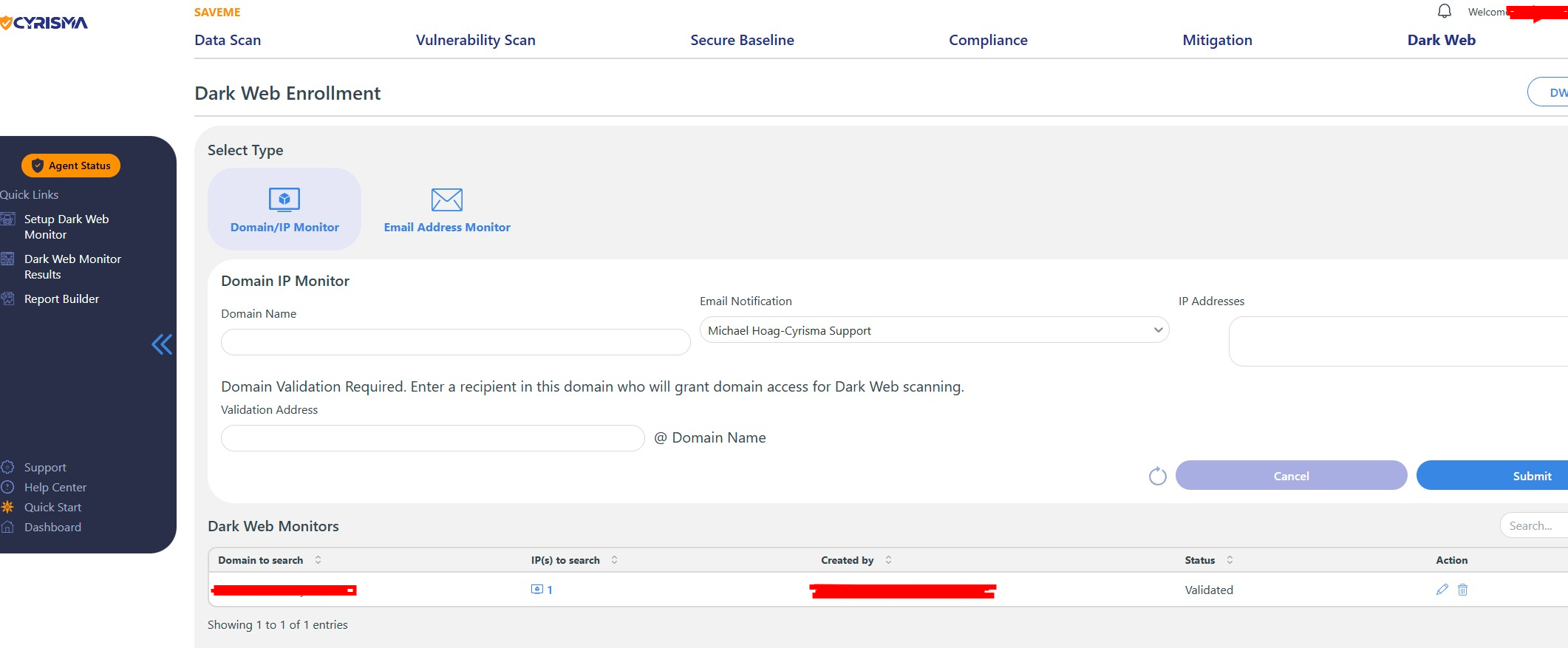
Configure Dark Web monitoring to identify exposed credentials or compromised data associated with monitored domains and users.
📄 How to setup a Dark Web Monitor
12. Compliance Monitoring and Assessments
Cyrisma supports compliance monitoring and assessment for frameworks including:
HIPAA
PCI
NIST
📄 How to Create a Compliance GRC Assessment
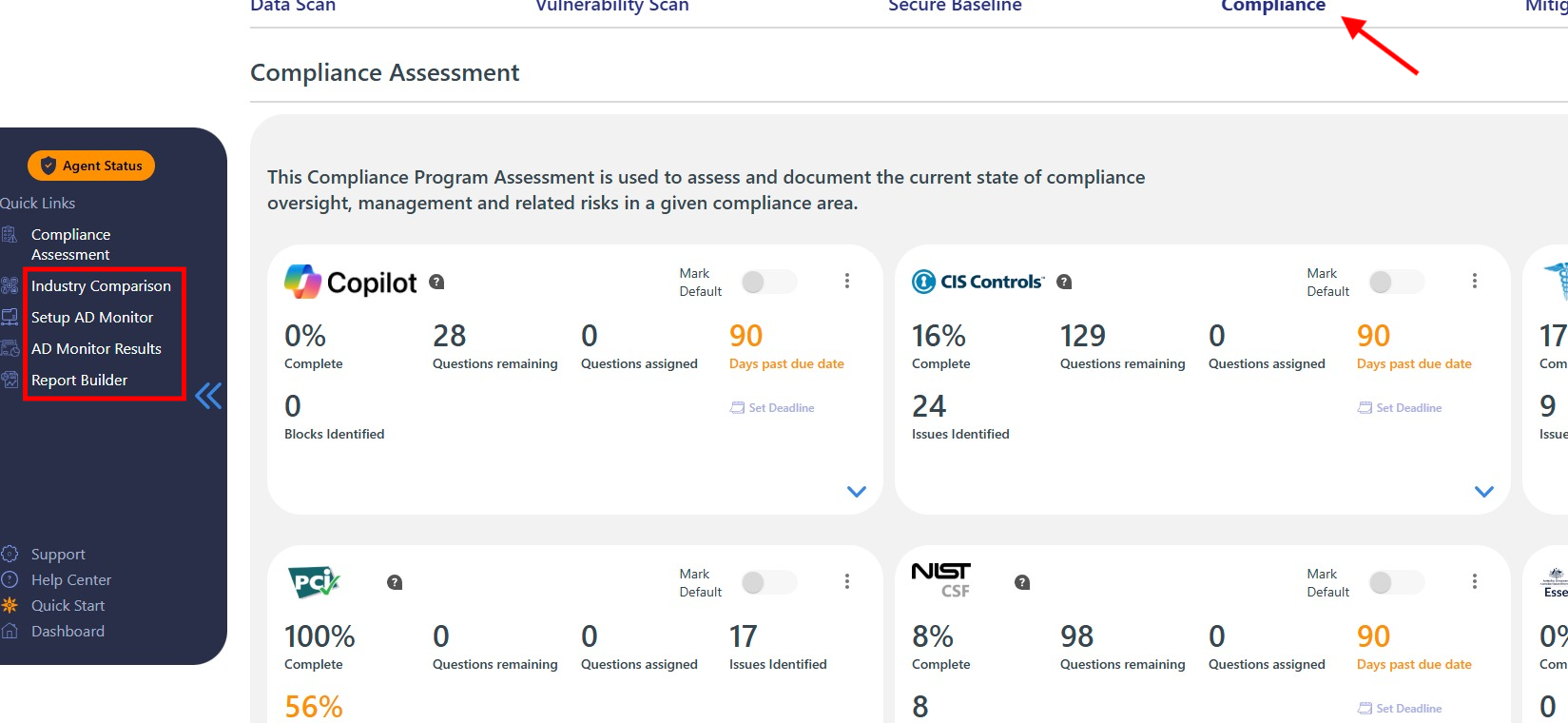
Additional compliance-related tools include:
Industry comparison benchmarks
Active Directory monitoring
Microsoft Secure Score integration
13. Mitigation Plans
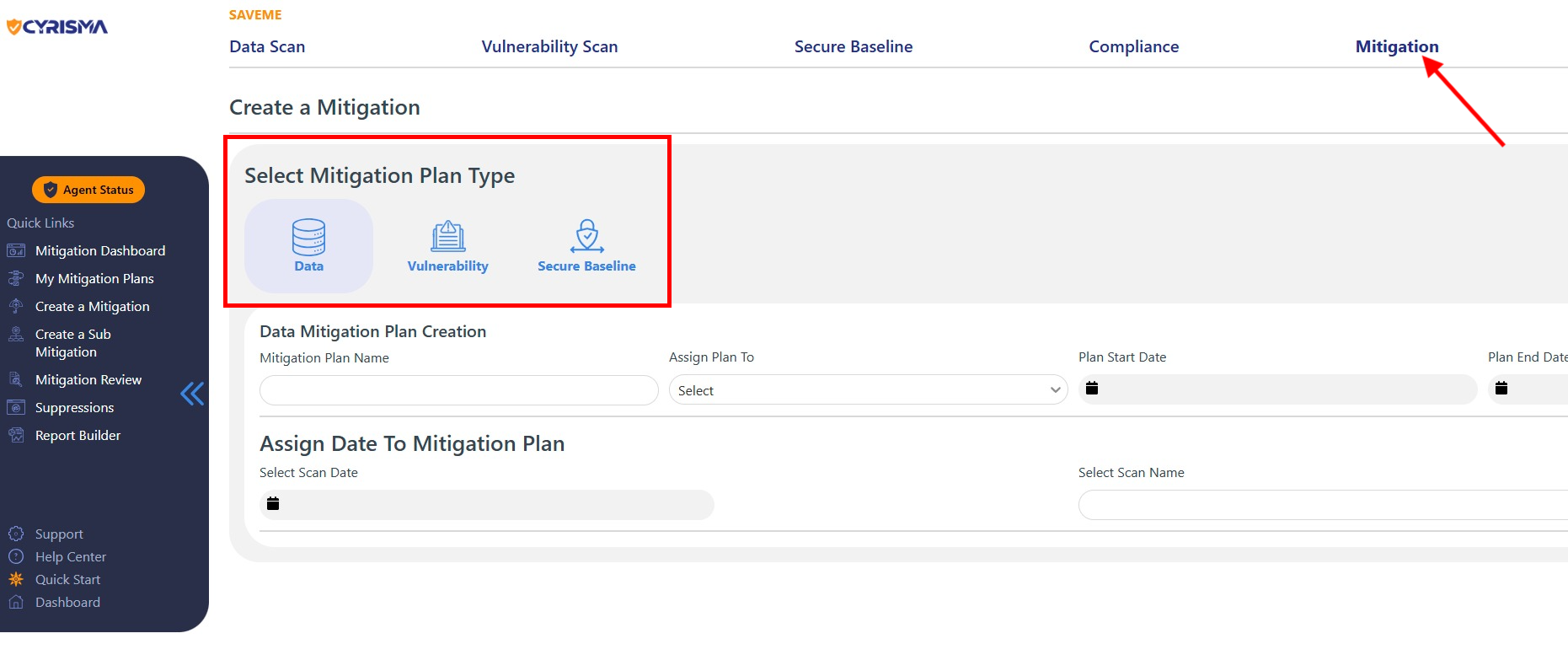
Mitigation Plans allow teams to assign, track, and document remediation efforts for:
Vulnerability findings
Secure baseline findings
Data sensitivity findings
Plans provide accountability and audit-ready documentation for remediation activities.
14. Reporting and Dashboards
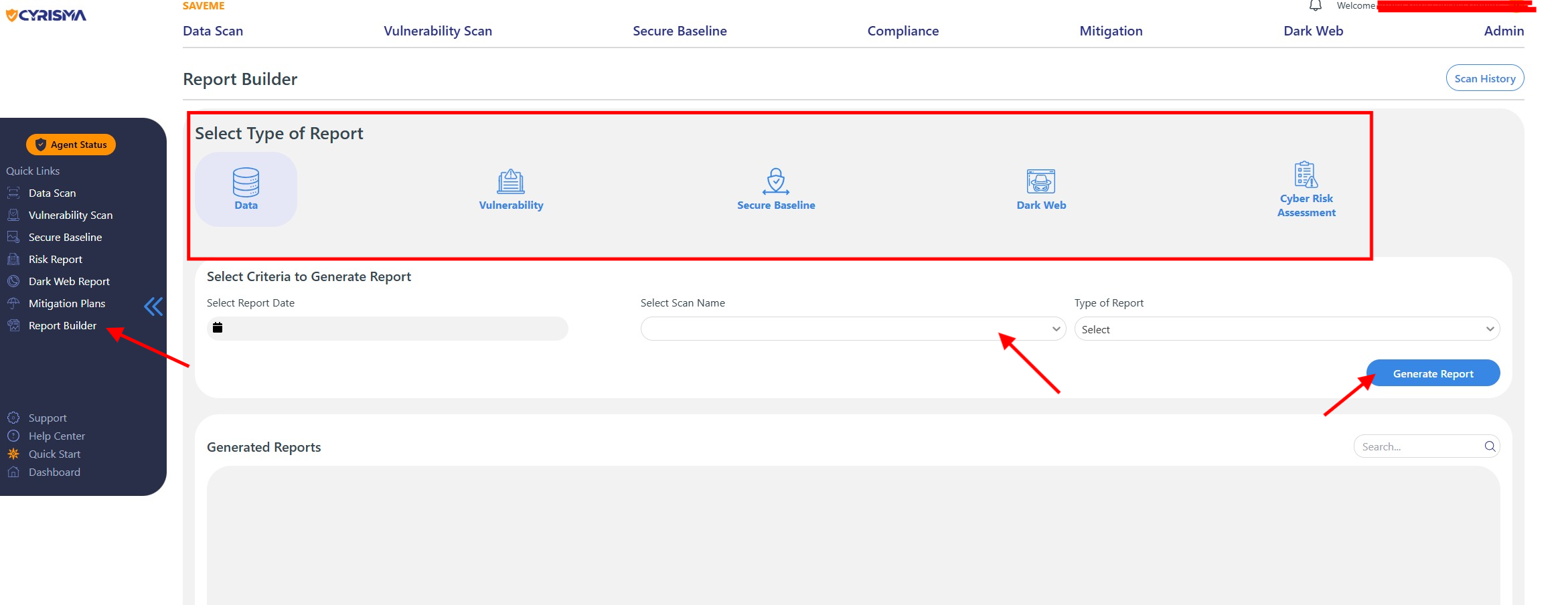
Cyrisma includes a report builder for generating:
Scan reports
Assessment reports
Dashboard summaries
Reports can be customized and exported in formats such as PDF and CSV.
15. System Configuration
Administrators can configure platform-wide settings including:
Secure file locations
Memory usage limits
Agent and target management
Cloud integrations such as AWS, Azure, and Google Cloud
16. PSA Integrations
Cyrisma integrates with popular PSA platforms including:
ConnectWise
Autotask
HaloPSA
N-able
Syncro
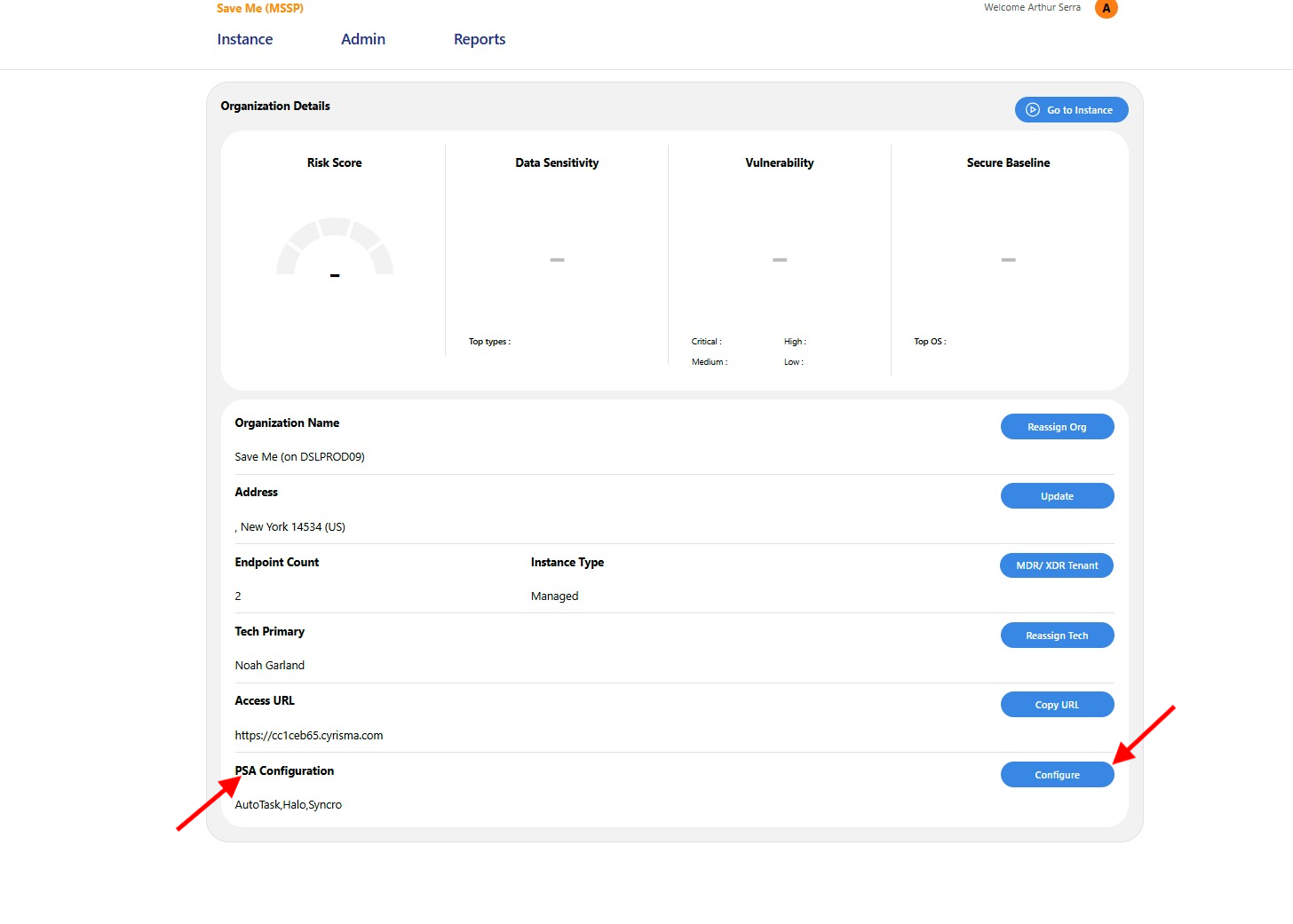
For MSPs:
Configure PSA integrations in the MSP dashboard
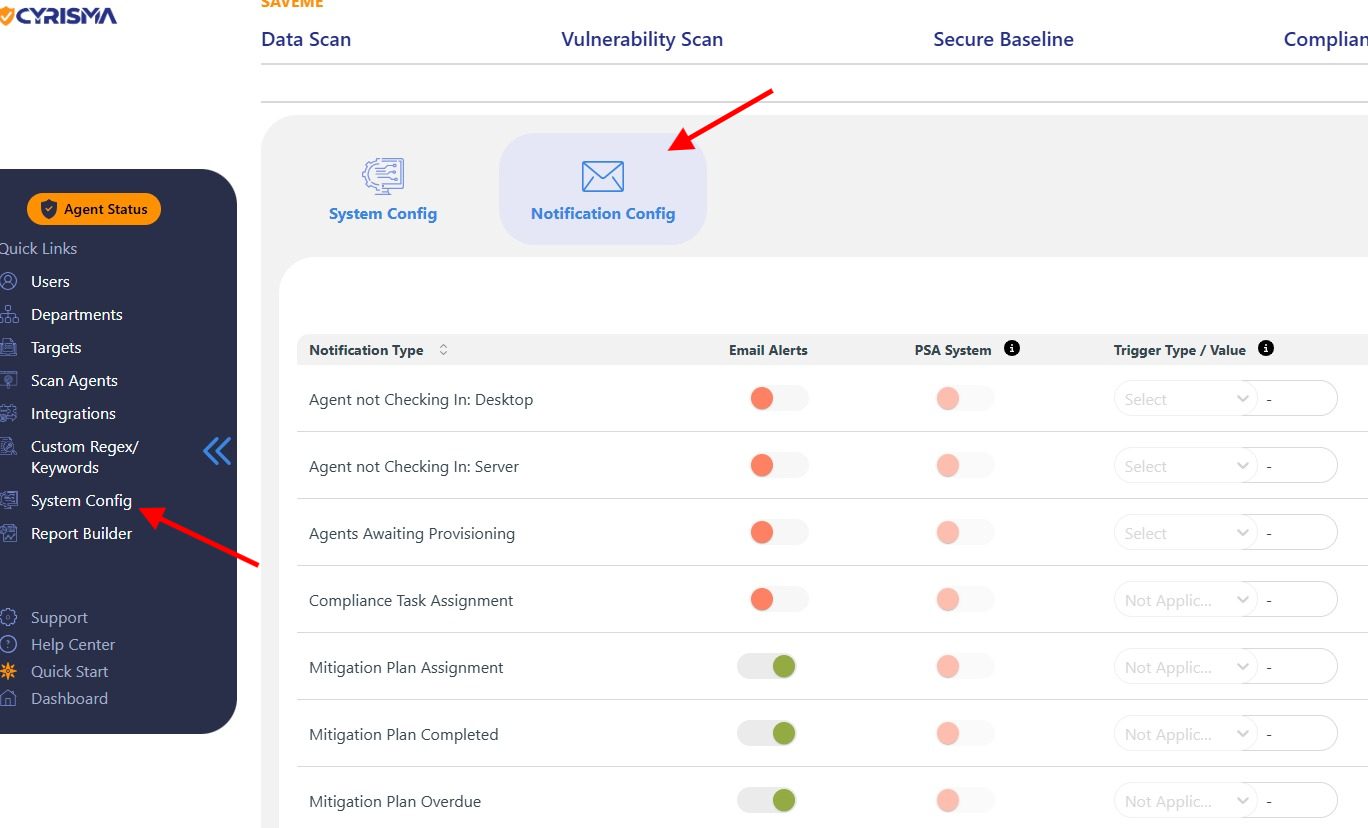
For client instances:
Configure API credentials per instance to enable ticket creation and synchronization
Full Video Library
For additional guidance, refer to the complete video library: