How to Create a Data Scan
Last updated: December 23, 2025
Video Guide
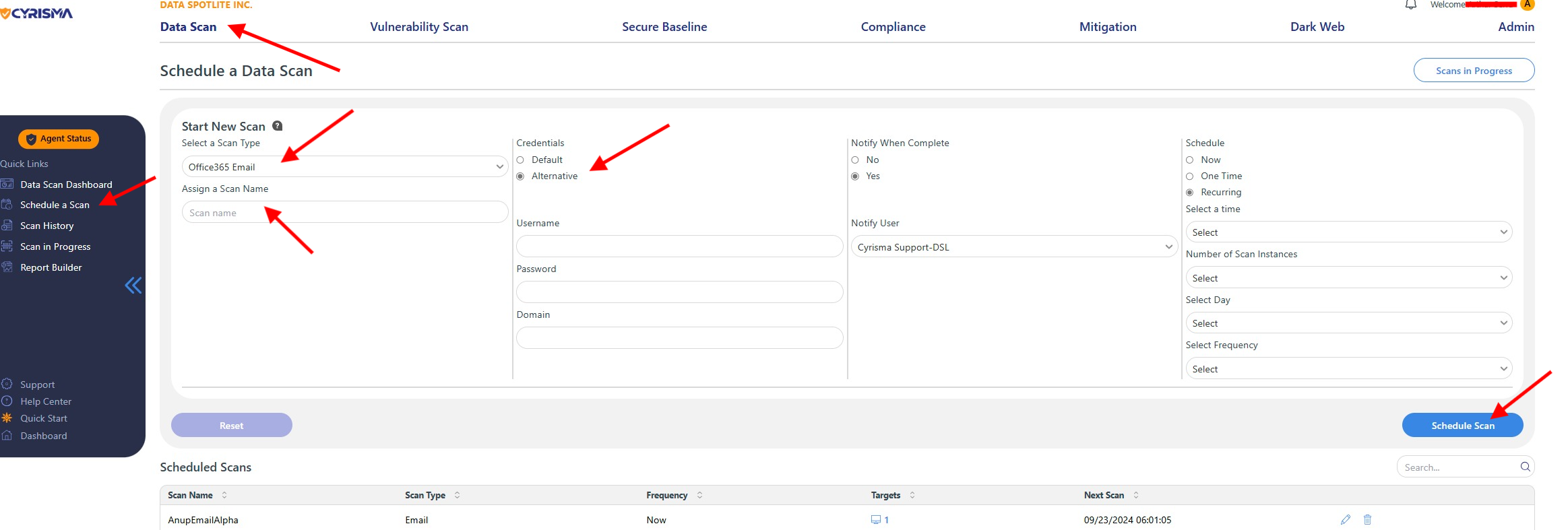
Click on Data Scan and Schedule Scan
Click on Data Scan and select Schedule Scan.
Assign a Scan Name
Enter a descriptive name for your scan in the Scan Name field.
Select Scan Type
Use the dropdown menu under Select Scan Type to choose from the following options:
Local
O365 Email
O365 OneDrive
SharePoint
Gmail
Google Drive
Set Credentials
Choose the credential to be used for the scan:
Use Default: This option uses the credential previously assigned to the agent during setup.
Use Alternative: If the agent requires different credentials to access the target data, select this option and provide the necessary credentials. Make sure to include the NetBIOS domain name in the domain field. If the agent is standalone (not on a domain), enter the agent’s NetBIOS name instead.
Select Notification Preference
Indicate whether you want to receive an email notification upon scan completion by selecting Yes.
Schedule the Scan
Choose when the scan should run:
Run Now: The scan will begin as soon as the agent is available.
One-time: Schedule the scan for a specific future date and time.
Recurring: Select your preferred recurrence schedule from the dropdown options.
By following these steps, you can effectively set up a data scan to evaluate and monitor your data environment.