How to setup a Dark Web Monitor
Last updated: December 23, 2025
Video Guide
Domain Monitoring Setup
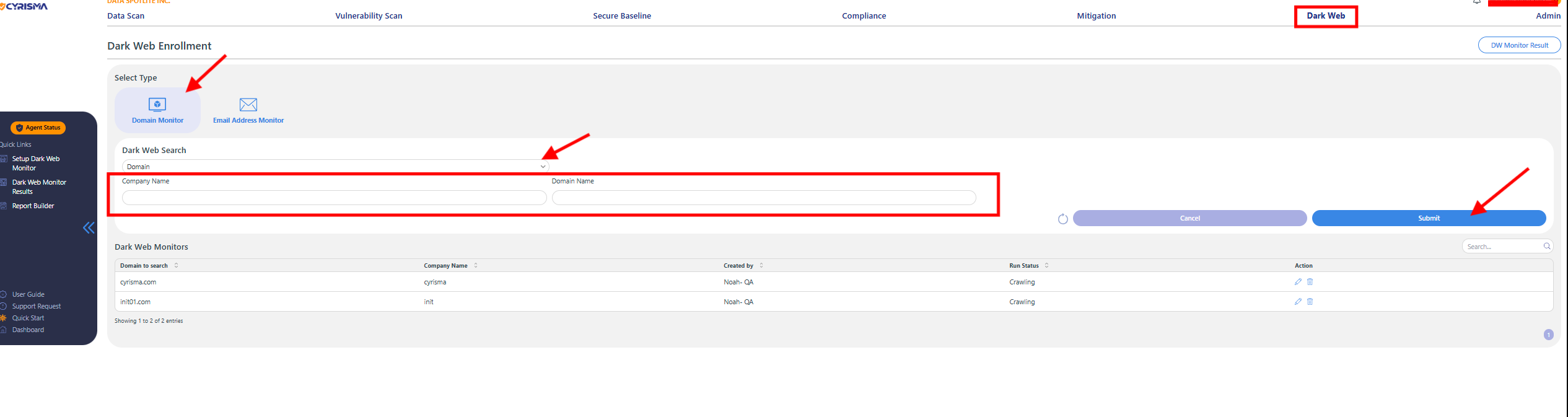
Step 1: Access Dark Web Domain Monitor
Navigate to Dark Web → Setup Dark Web Monitor.
Choose the Domain Monitor option.
Step 2: Enter Domain Details
Input Domain: Enter your organization’s primary domain (e.g., yourcompany.com).
Company Name: Enter the company name associated with the domain you want to monitor.
Step 3: Activate Domain Monitor
Click Submit to activate Domain Monitoring.
Your organization's domain will now be continuously monitored for any compromised information appearing on the dark web.
Email Address Monitoring Setup
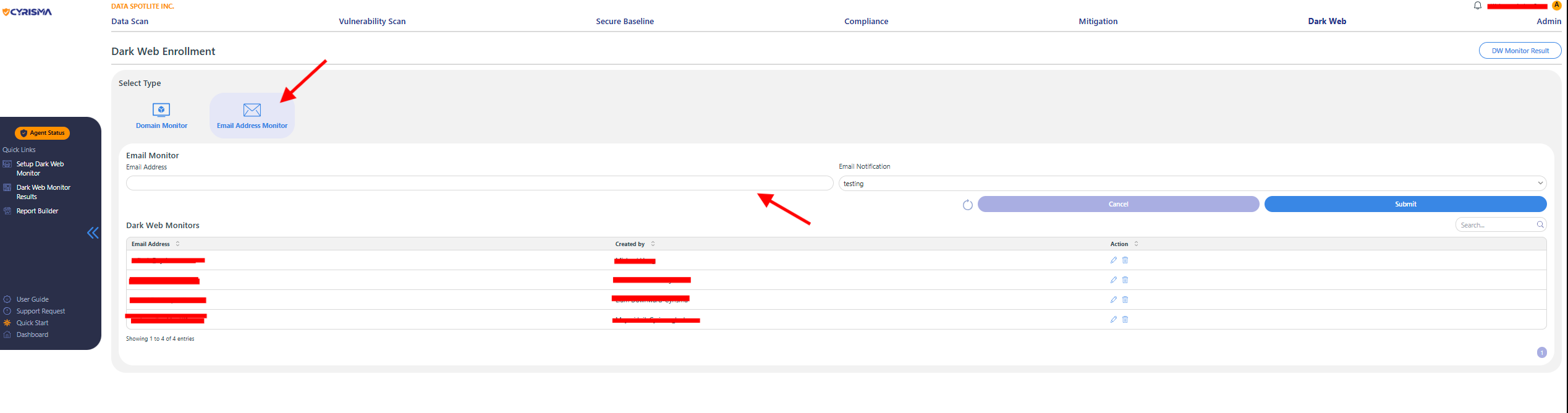
Step 1: Access Dark Web Email Monitor
Navigate to Dark Web → Setup Dark Web Monitor.
Select the Email Address Monitor option.
Step 2: Enter Email Address Details
Input Email Address(es): Enter specific email addresses you wish to monitor (e.g., johndoe@yourcompany.com).
You can add multiple email addresses separated by commas or by uploading a CSV file if available.
Company Name: Enter the company name associated with these email addresses.
Step 3: Activate Email Monitor
Click Submit to activate Email Address Monitoring.
Cyrisma will now monitor the specified email addresses and notify you if they appear compromised on the dark web.
Dark Web Monitor Results Overview
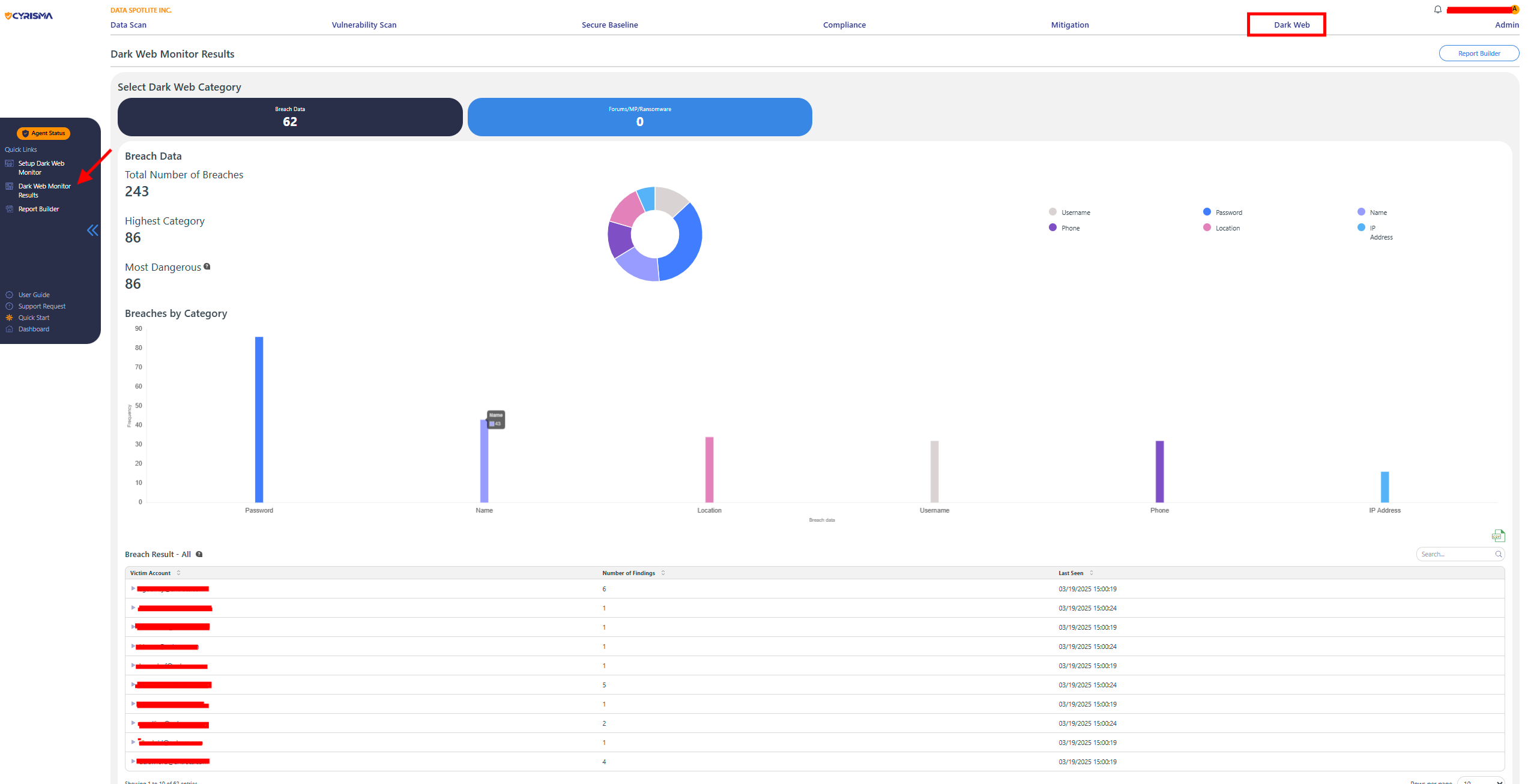
The Dark Web Monitor provides critical insights into the security of your organization's data by tracking breaches involving personal or sensitive information.
Total Number of Breaches
The Total Number of Breaches number gives a sense of the scale of exposure and alerts you to the frequency of incidents related to your organization.
Most Dangerous Breach
Password indicates password-related breaches that are the most significant concern for your organization, potentially representing a large portion of exposed credentials.
Breach Data Visualization
The color-coded pie chart and bar graph categorize the type of information exposed in each breach:
Password (purple)
Name (blue)
Location (pink)
Phone (purple)
Username (gray)
IP Address (light blue)
Victim Accounts and Findings
Under each breach category, victim accounts are listed, showing which specific accounts were affected.
For example, the Password category lists accounts with each showing a number of findings, indicating how many times the account’s data was exposed.
The Last Seen column shows the most recent time the data was found on the dark web, helping track when the breaches were identified.
Recommended Actions
Focus on Critical Breaches: Pay close attention to the category with the highest number of breaches, as this represents the most significant area of concern.
Monitor Exposed Data: Even if certain categories show fewer instances, exposed personal or identifying information can still pose a risk and should be mitigated.
Account Monitoring: Continuously monitor accounts that appear in the breach results and implement security measures such as changing passwords, enabling multi-factor authentication, or other protective actions.
By analyzing the dark web monitor results, you can prioritize security efforts and take steps to protect your organization from the risks associated with exposed data.