Running, Scheduling, and Reviewing Scans
Last updated: September 17, 2026
Use the Scanning page to configure scans, run scans immediately, create recurring schedules, and review scan history.
At the MSP level, scans can be configured for tenants within your access scope.
At the tenant level, scans are scoped to the current tenant.
Choose a Scan Type
Select New Scan and choose the type of scan you want to run.
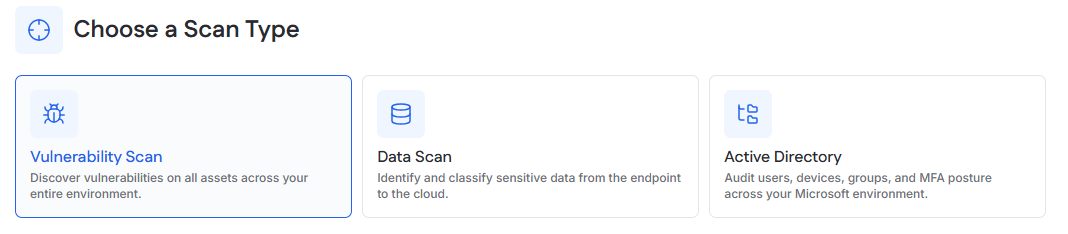
1. Vulnerability Scans
Network Vulnerability Scan
Discovers assets and vulnerabilities across an internal network.
Off-cycle External Vulnerability Scan
Scans public IP addresses for external vulnerabilities.
Off-cycle Web Application Scan
Scans websites and web applications for vulnerabilities.
2. Data Scans
Cloud Scan – Scans supported Microsoft 365 or Google Workspace services for sensitive data.
3. Active Directory
AD Scan – Scans Active Directory or Entra ID for identity-related risks.
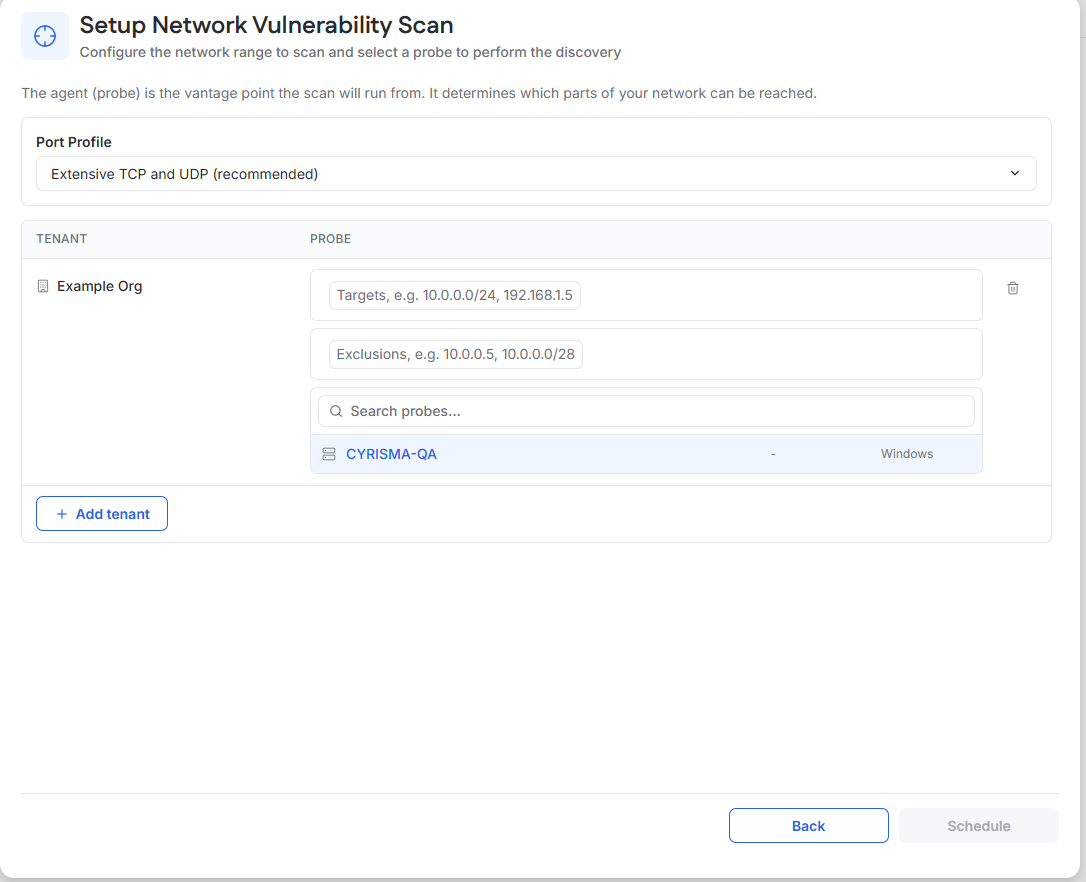
Configure a Network Vulnerability Scan
Select a port profile.
Enter the network range to scan.
Add any addresses or ranges that should be excluded.
Select an agent to use as the scan probe.
Continue to scheduling.
The selected agent acts as the probe from which the network scan is performed.
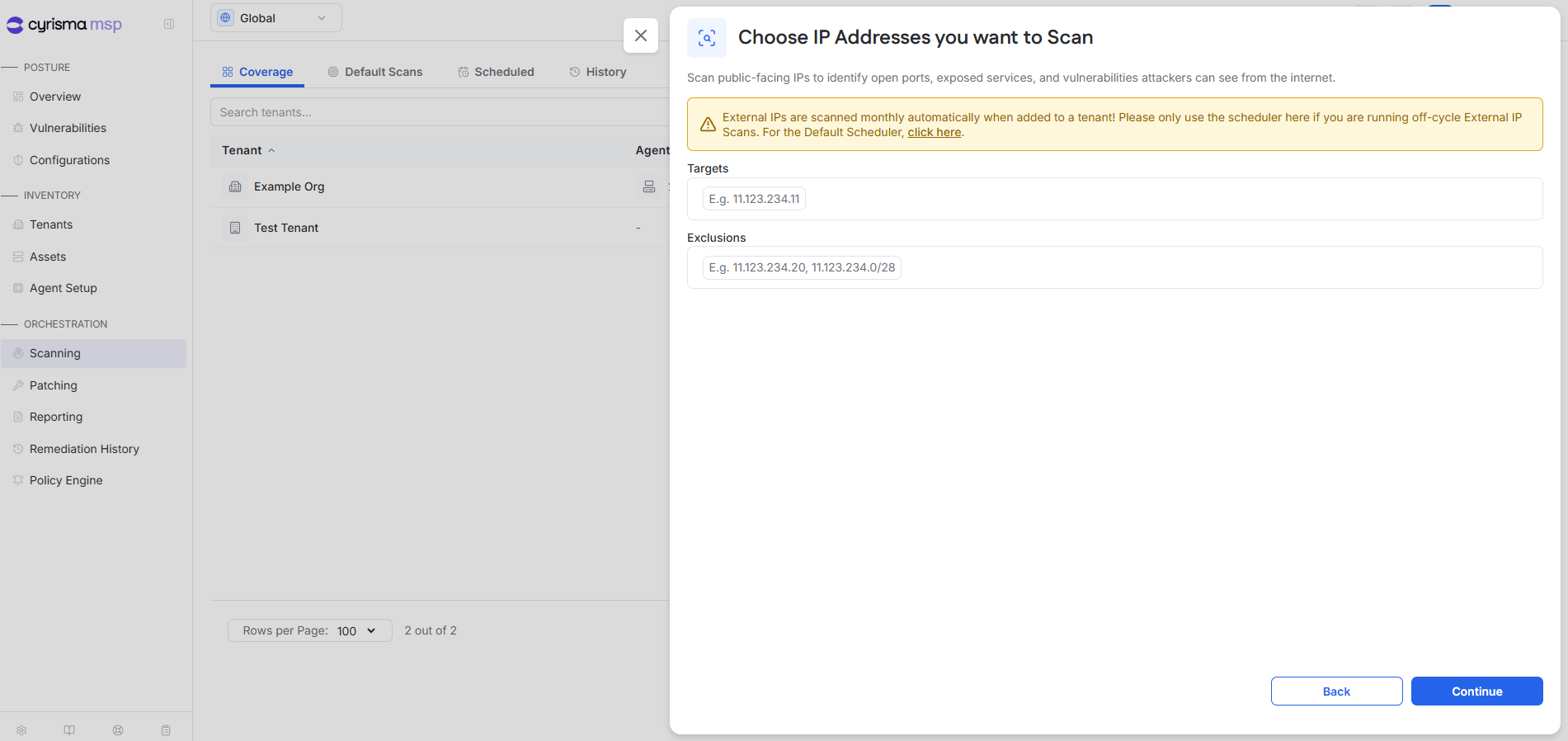
Configure an External Vulnerability Scan
Enter the public IP addresses you want to scan and any addresses or ranges that should be excluded.
External IPs added to a tenant are automatically scanned monthly. Use an off-cycle scan when you need to run an additional scan outside the default schedule.
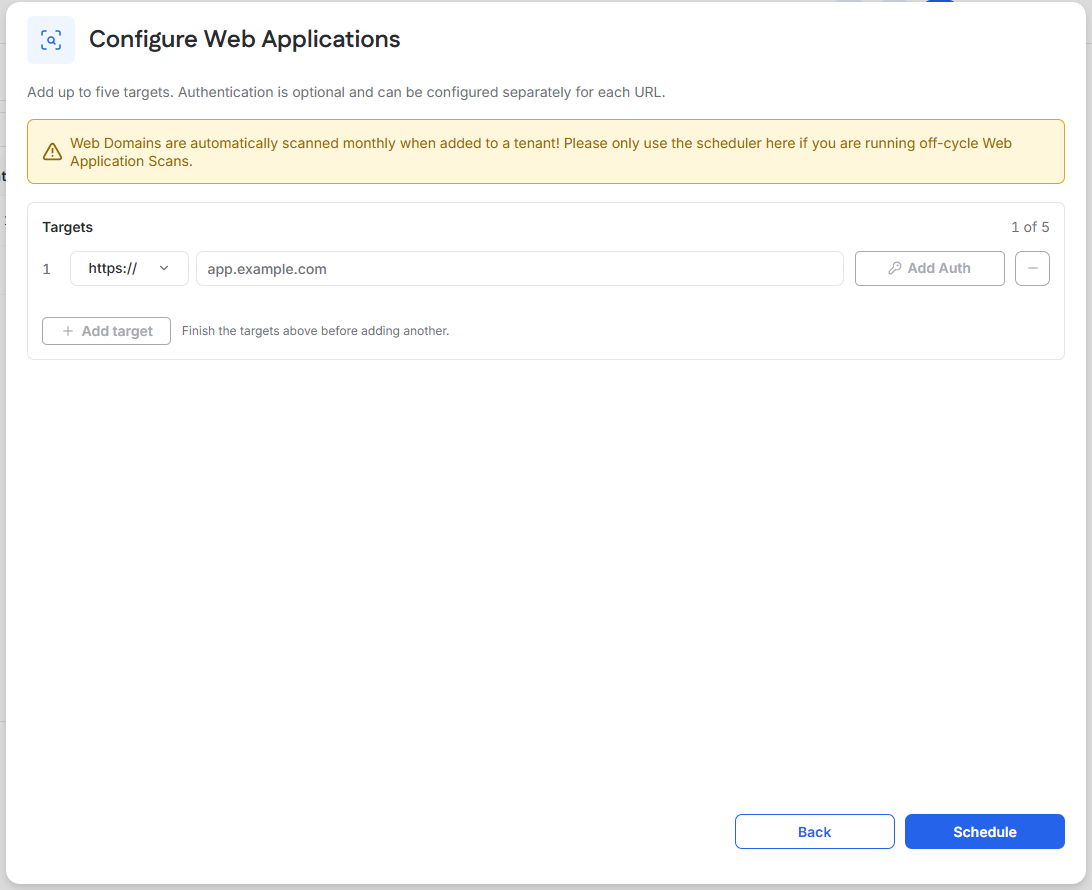
Configure a Web Application Scan
Enter the web application URL.
Add additional targets if needed.
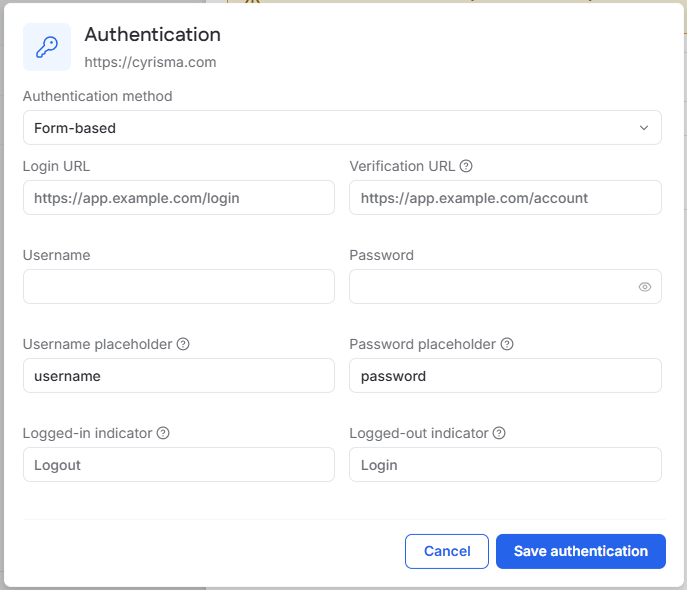
If authentication is required, select Add Auth and enter the authentication information.
Continue to scheduling.
Authentication can be configured separately for each URL.
Domains added to a tenant are automatically scanned monthly. Use an off-cycle scan when you need to run an additional scan outside the default schedule.
Configure a Cloud Data Scan
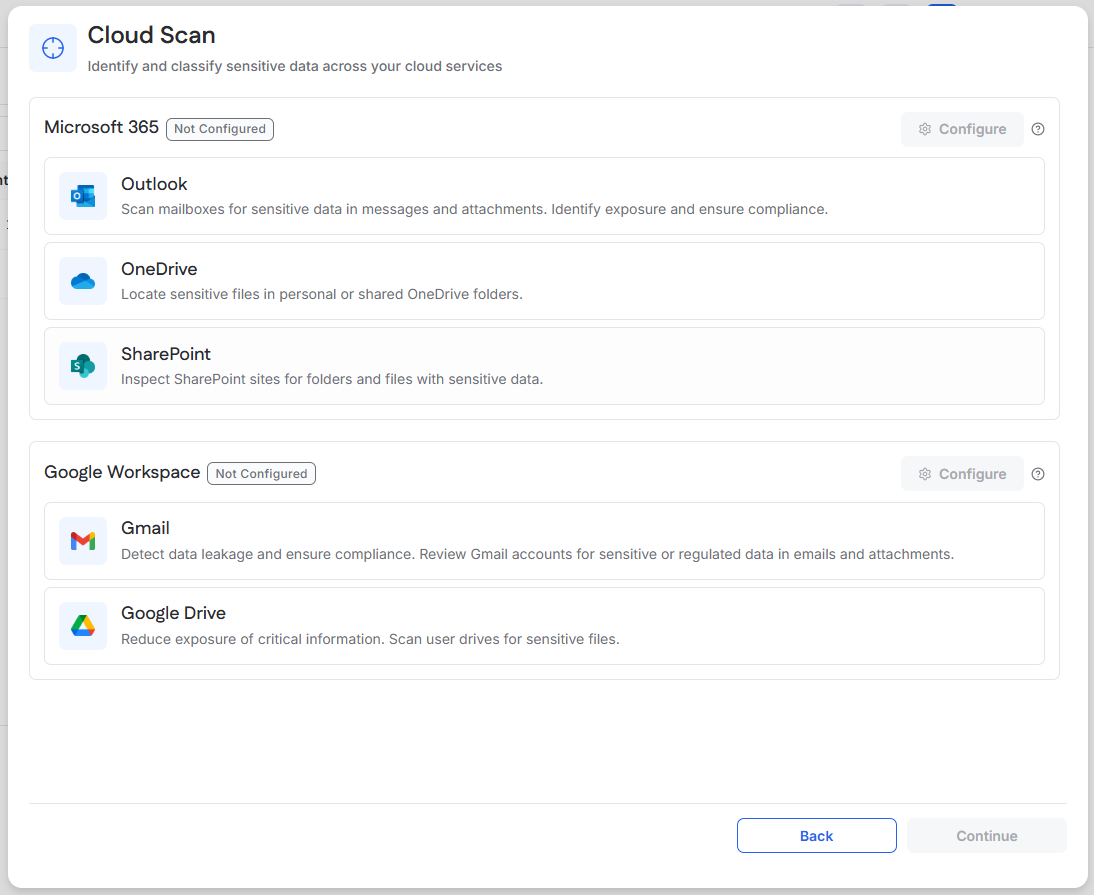
Cloud scans require a configured Microsoft 365 or Google Workspace integration.
See Microsoft 365 Integration Guide or Google Workspace Integration Guide.
Select the service you want to scan:
Microsoft 365 – Outlook, OneDrive, or SharePoint
Google Workspace – Gmail or Google Drive
Select Data Categories
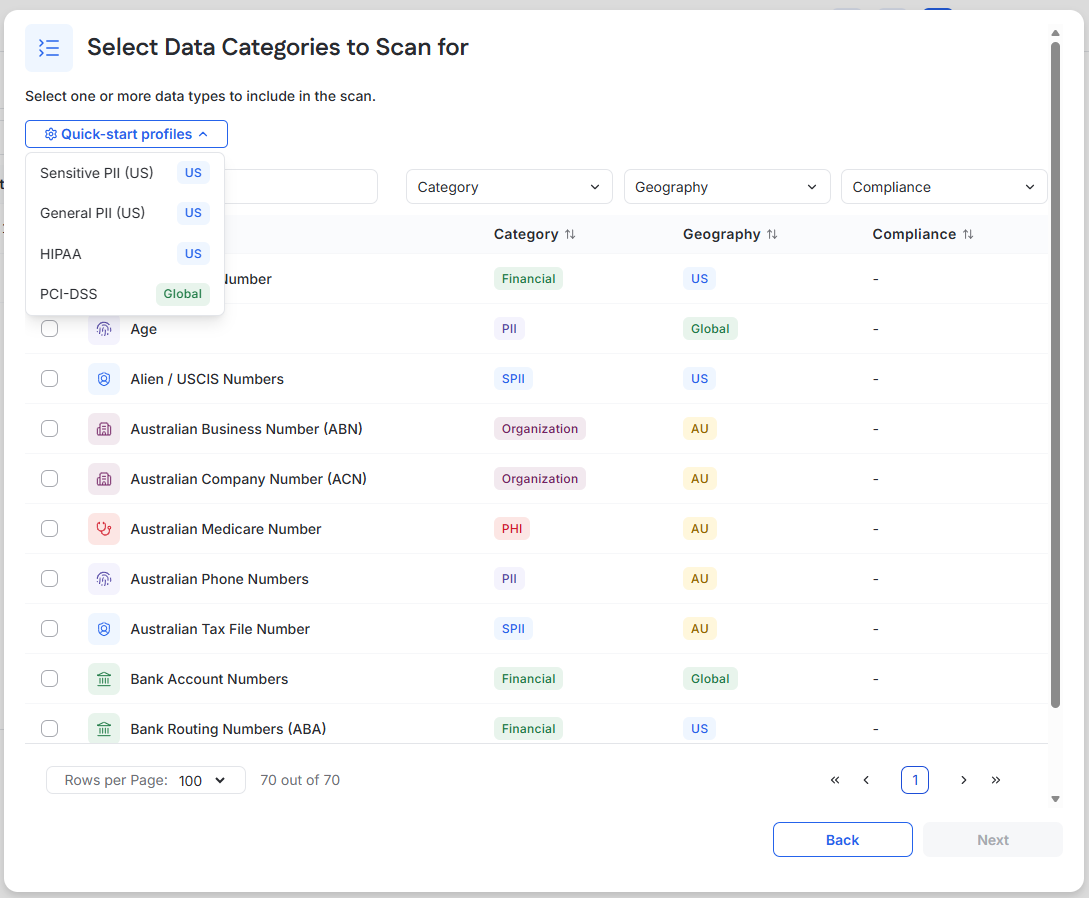
Choose the sensitive data types you want the scan to identify.
You can select individual data elements or use a quick-start profile such as:
Sensitive PII
General PII
HIPAA
PCI-DSS
Select Scan Targets
Select the locations or accounts to include in the scan.
Available targets depend on the selected service. For example, an Outlook scan can target specific mailboxes or all mailboxes and include a selected history range.
Run or Schedule a Scan
After configuring the scan:
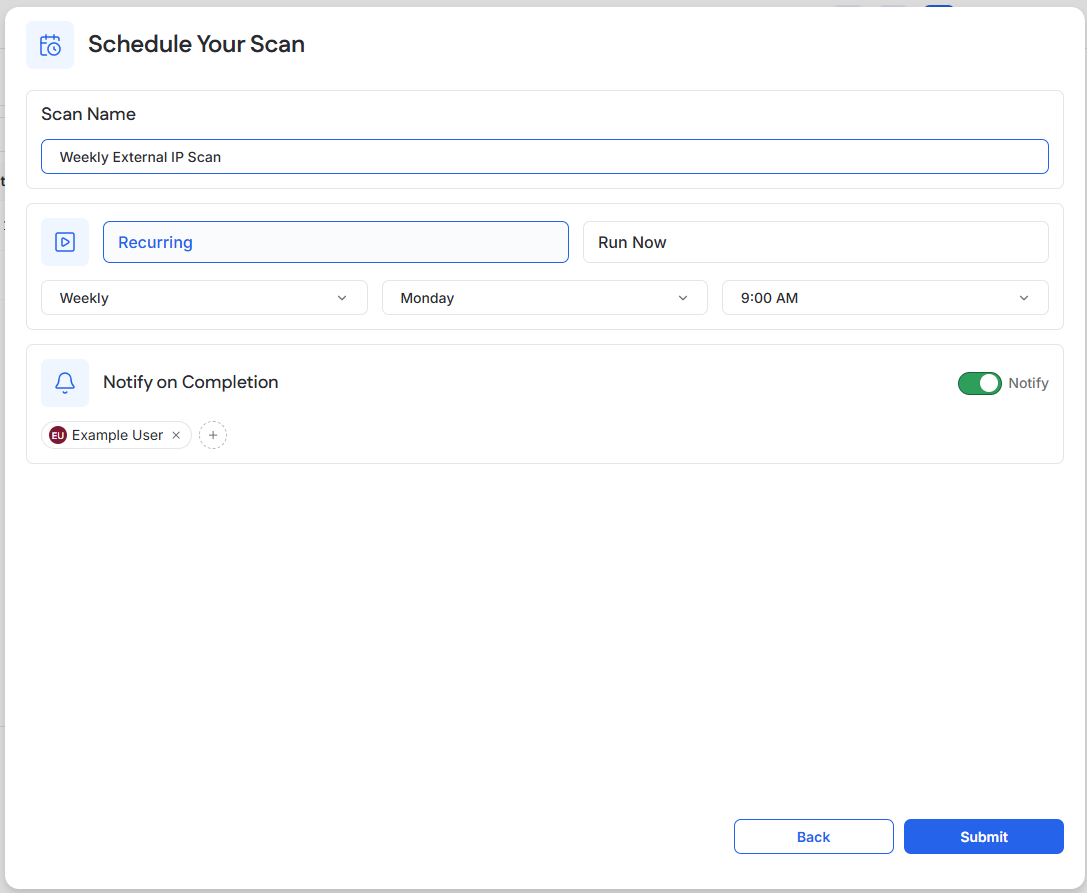
Enter a name for the scan.
Select Run Now for a one-time scan or configure a recurring schedule.
Enable notifications if you want to be notified when the scan completes.
Save or start the scan.
Review Scheduled Scans
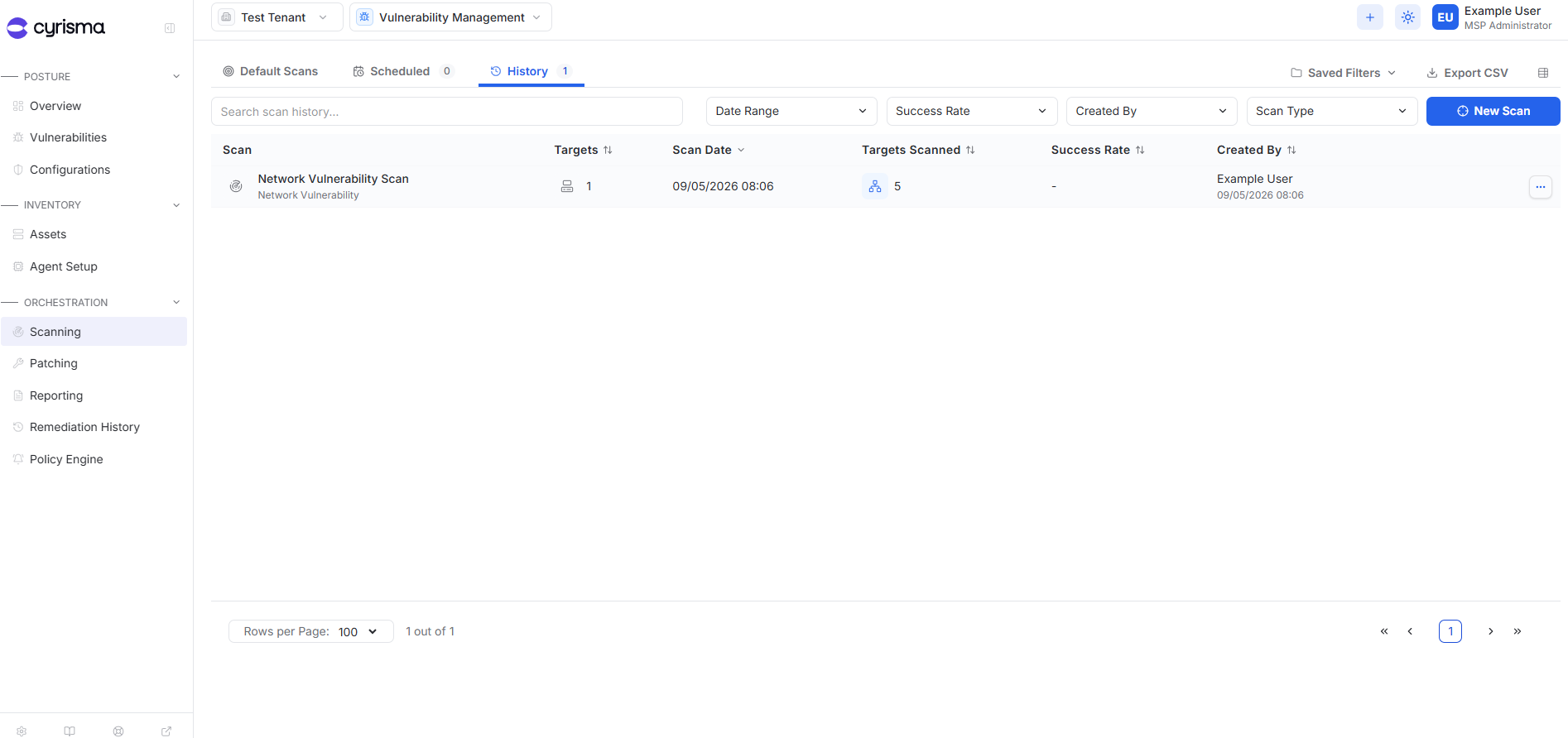
Open Scheduled to review and manage recurring scans.
Review Scan History
Open History to review scan activity and results.
Select a scan to view its status and available results.