Create an Active Directory Scan
Last updated: September 17, 2026
Use an Active Directory scan to review users, devices, groups, and MFA status across Active Directory and Microsoft Entra ID.
Tenant users create scans for their current tenant. MSP users create scans from Global and select one tenant to scan.
Before creating an Active Directory scan, Microsoft 365 must be configured for the tenant. For setup instructions, see the Microsoft 365 Integration Guide.
Start a New Scan
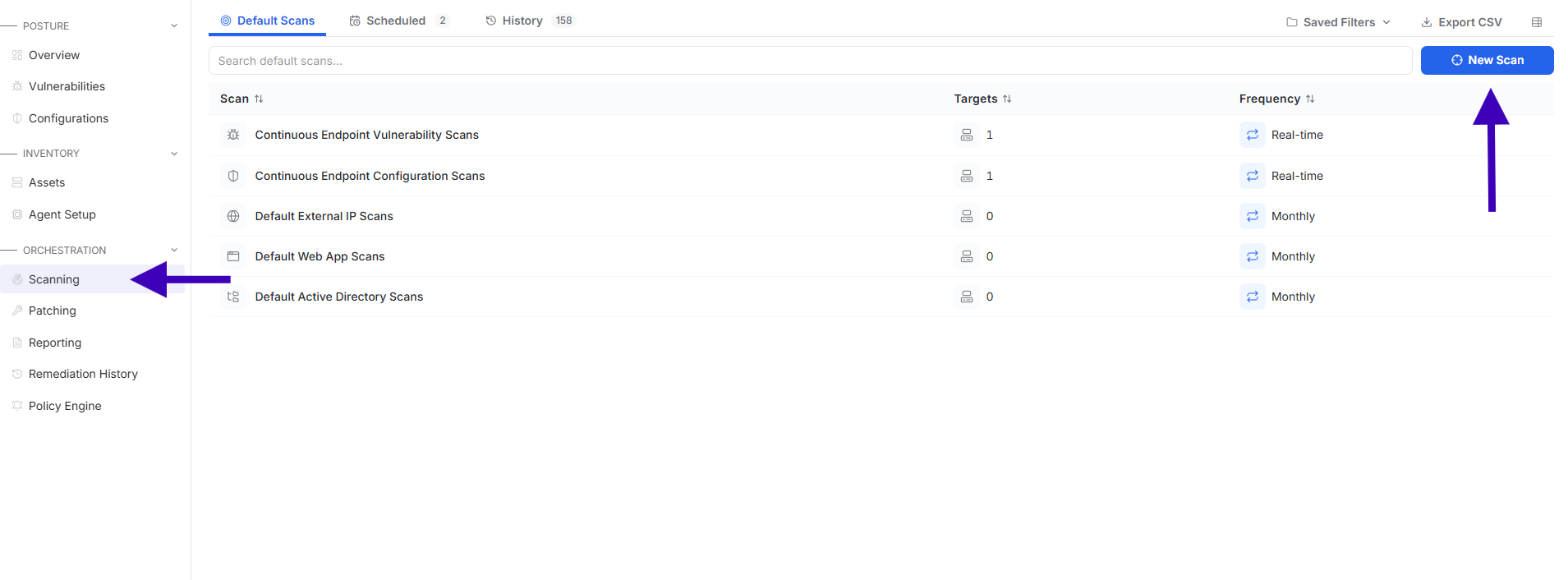
Select Scanning.
Select New Scan.
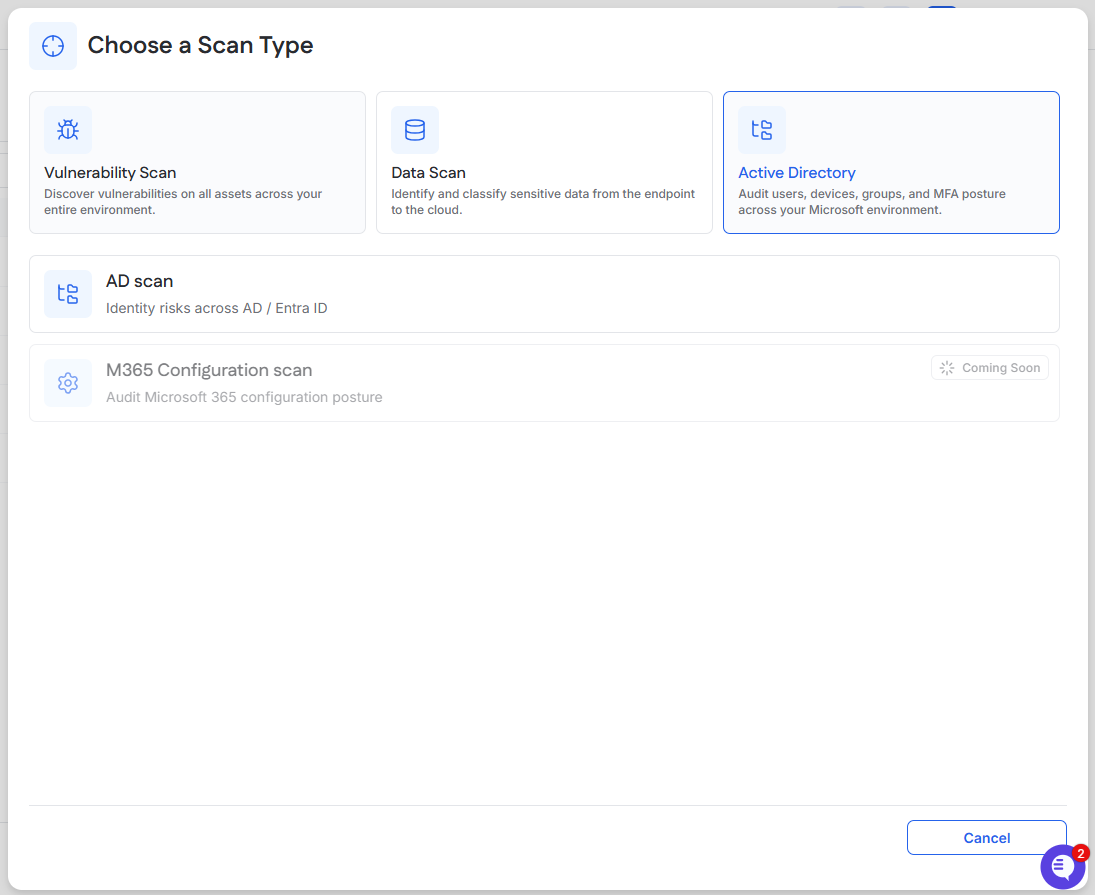
Select Active Directory.
Select AD scan.
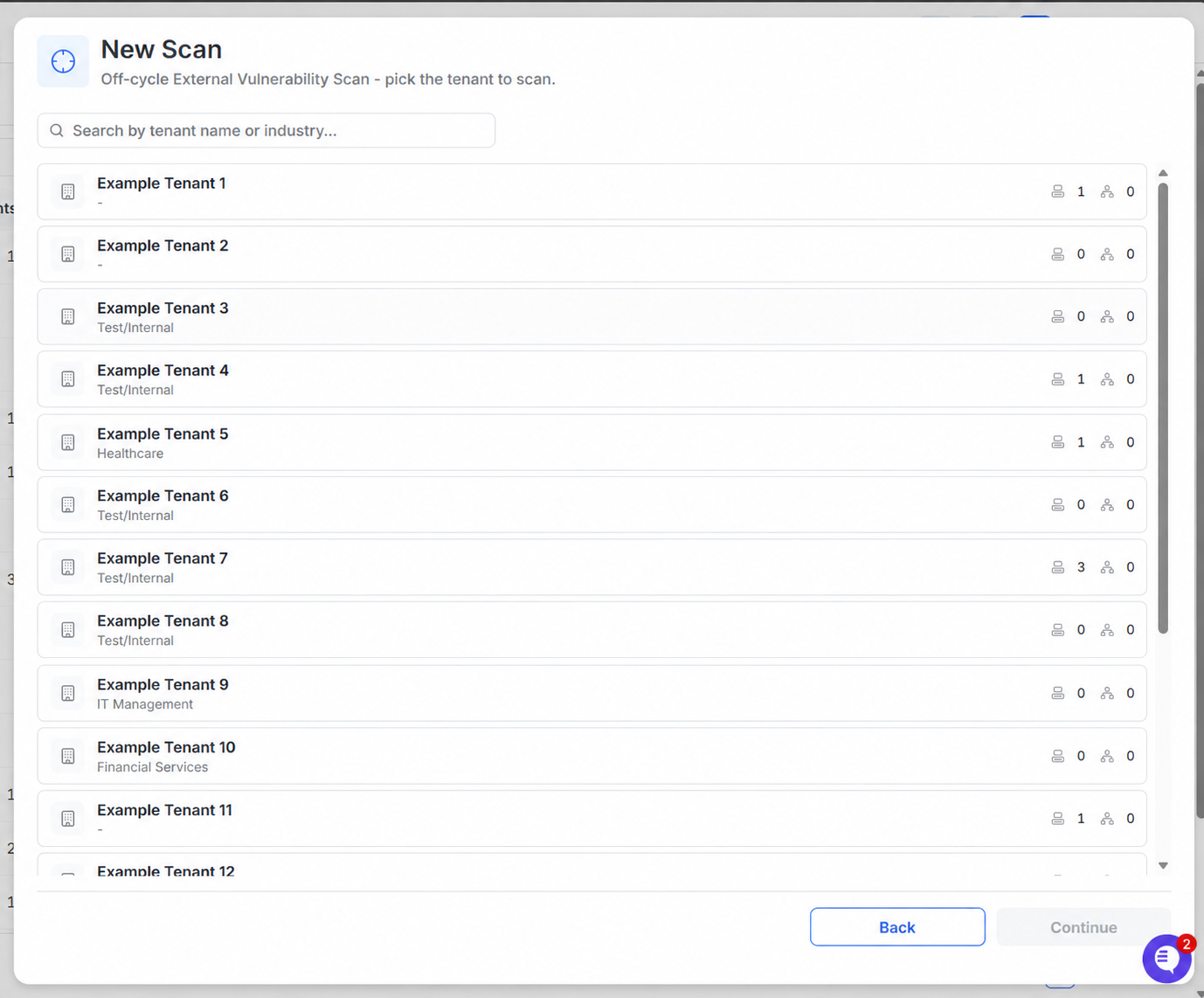
MSP Users: Select a Tenant
Search for or select the tenant you want to scan.
Select Continue.
The scan will be scoped to the selected tenant.
Tenant users will not see this screen.
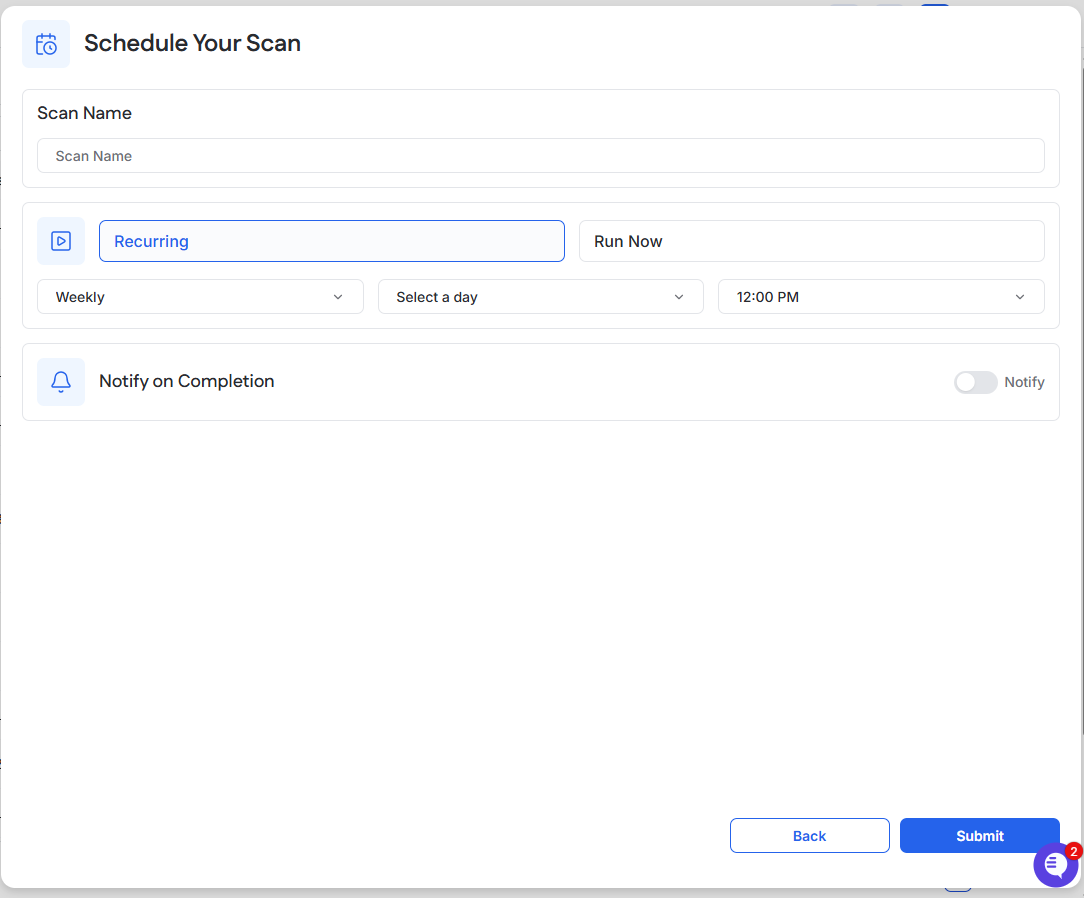
Schedule the Scan
Enter a Scan Name.
Choose one of the following:
Recurring: Select the frequency, day, and time.
Run Now: Run the scan one time.
To notify a user when the scan finishes, turn on Notify on Completion.
Select Submit.
View the Results
After the scan completes:
Open the module menu at the top of the page on the tenant level.
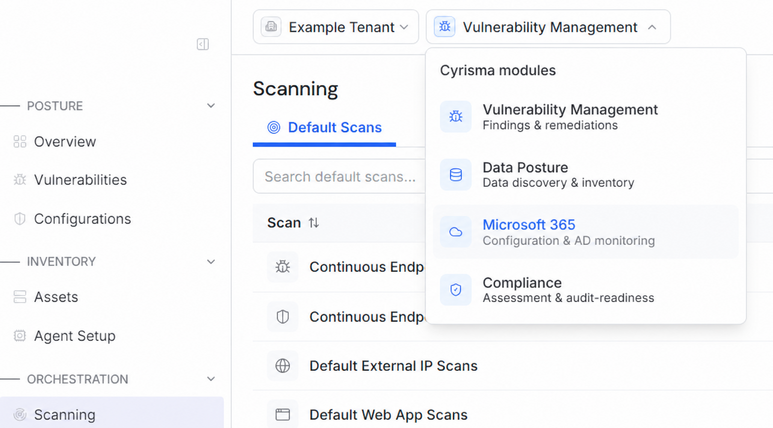
Select Microsoft 365.
Select AD Monitoring to view scan results.
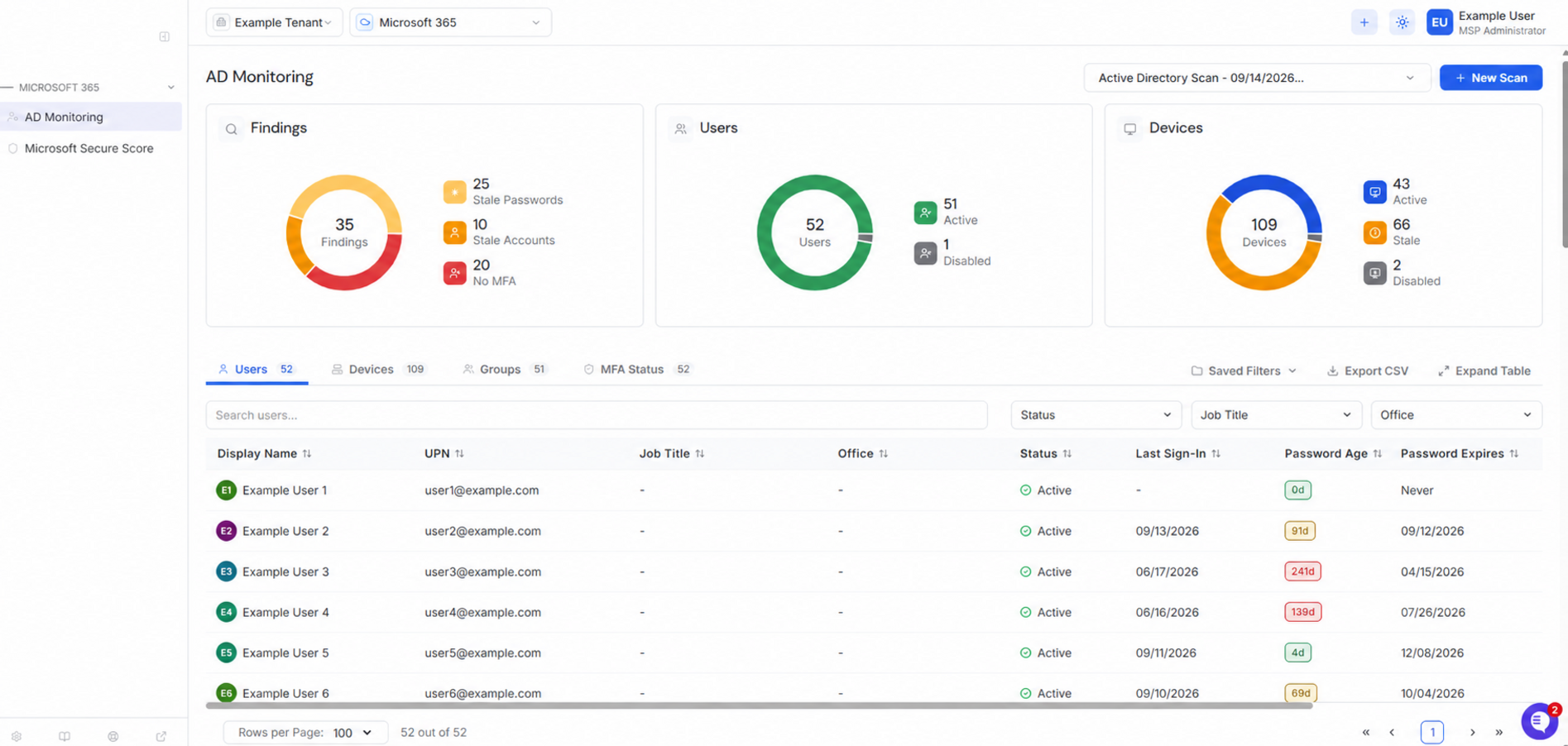
Open the scan list next to New Scan
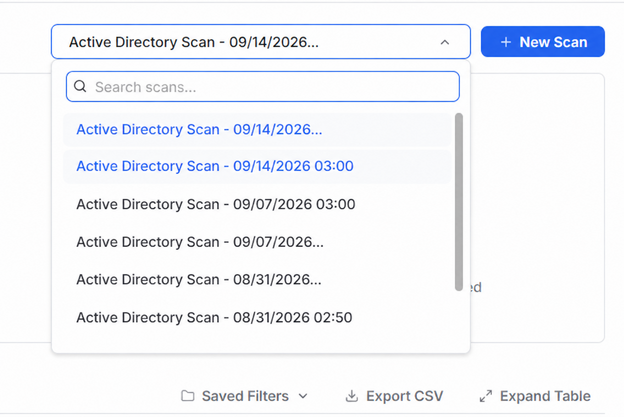
Select the scan you want to view.
The AD Monitoring page will update to display the results of the selected scan.
Use the Users, Devices, Groups, and MFA Status tabs to review the scan results.