Create a Vulnerability Scan
Last updated: September 17, 2026
Use a vulnerability scan to discover vulnerabilities across your network, public IP addresses, or web applications.
Tenant users create scans for their current tenant. MSP users create scans from Global and select the tenant or tenants to scan.
Start a New Scan
Select Scanning.
Select New Scan.
Select Vulnerability Scan.
Choose a scan type:
Network Vulnerability Scan
Off-cycle External Vulnerability Scan
Off-cycle Web Application Scan
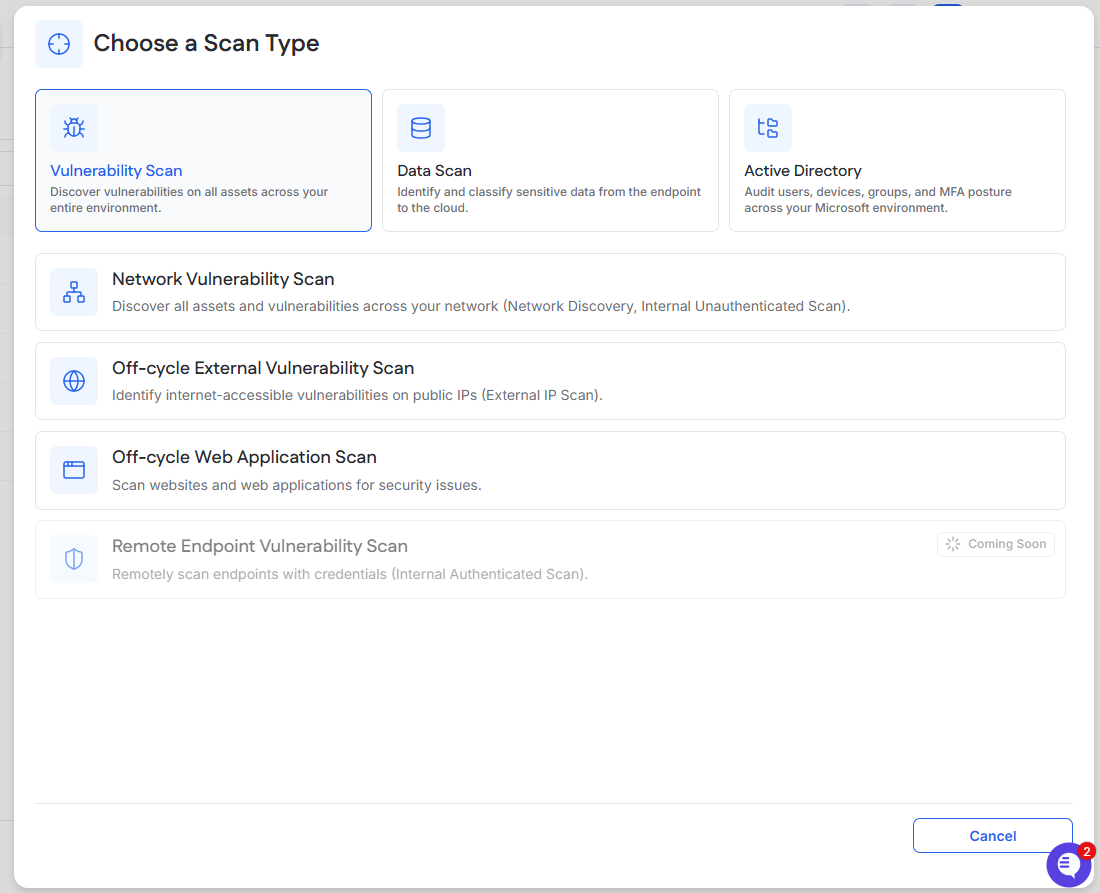
Network Vulnerability Scan
Use this scan to discover assets and vulnerabilities across an internal network.
Select Network Vulnerability Scan.
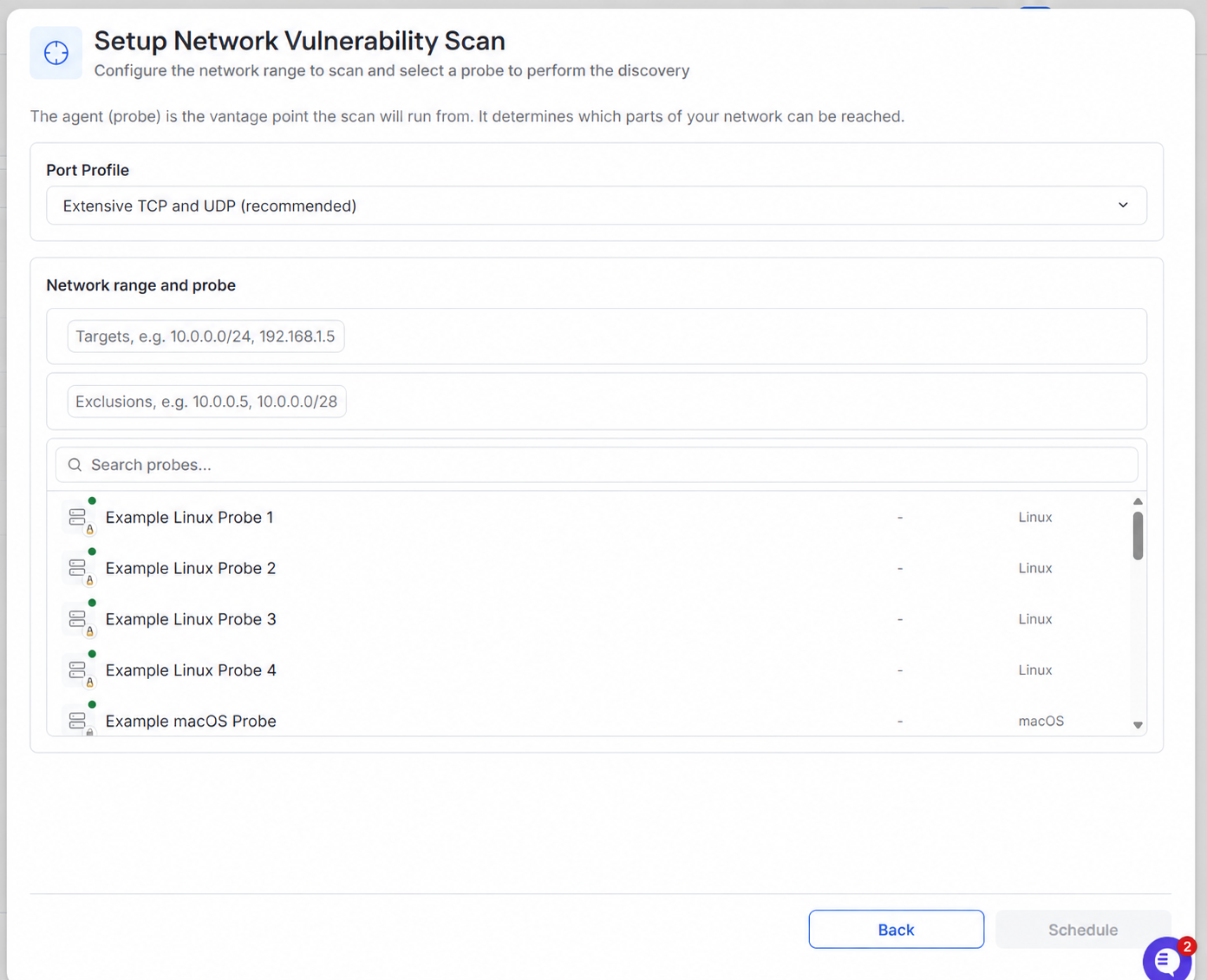
Select a Port Profile.
Individual Tenant Users
In Tenant View, you can scan the network of the current tenant only.
Enter the IP addresses or network ranges under Targets.
Add any Exclusions.
Select the agent that will act as the probe.
Select Schedule.
The probe is the device from which the scan will run.
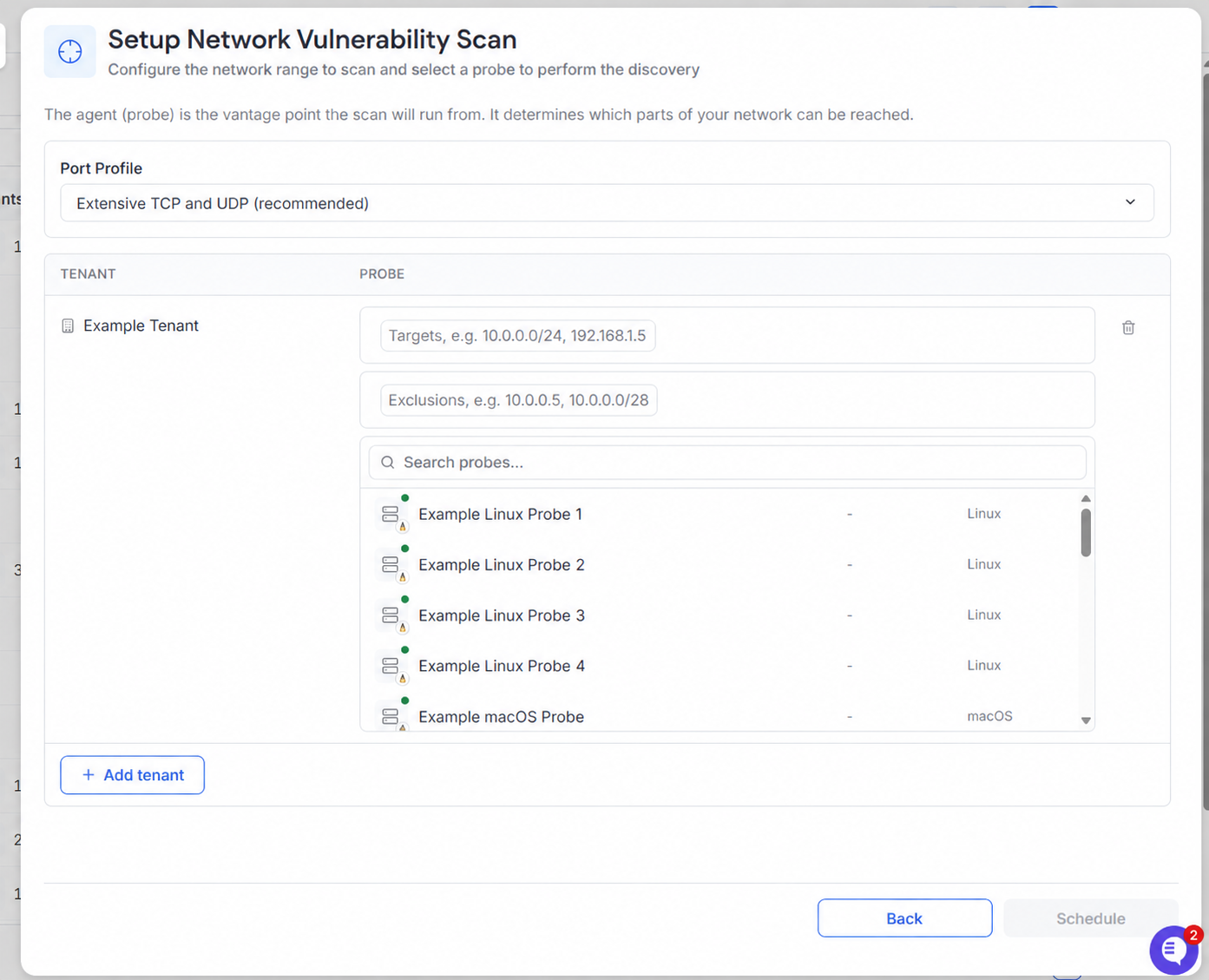
Global MSP View Users
In MSP View, you can scan the networks of one or more managed tenants in a single scan.
Select Add tenant.
Choose a tenant.
Enter the IP addresses or network ranges for that tenant.
Add any Exclusions.
Select the agent that will act as the probe.
To include another tenant, select Add tenant and repeat these steps.
Select Schedule.
Off-cycle External Vulnerability Scan
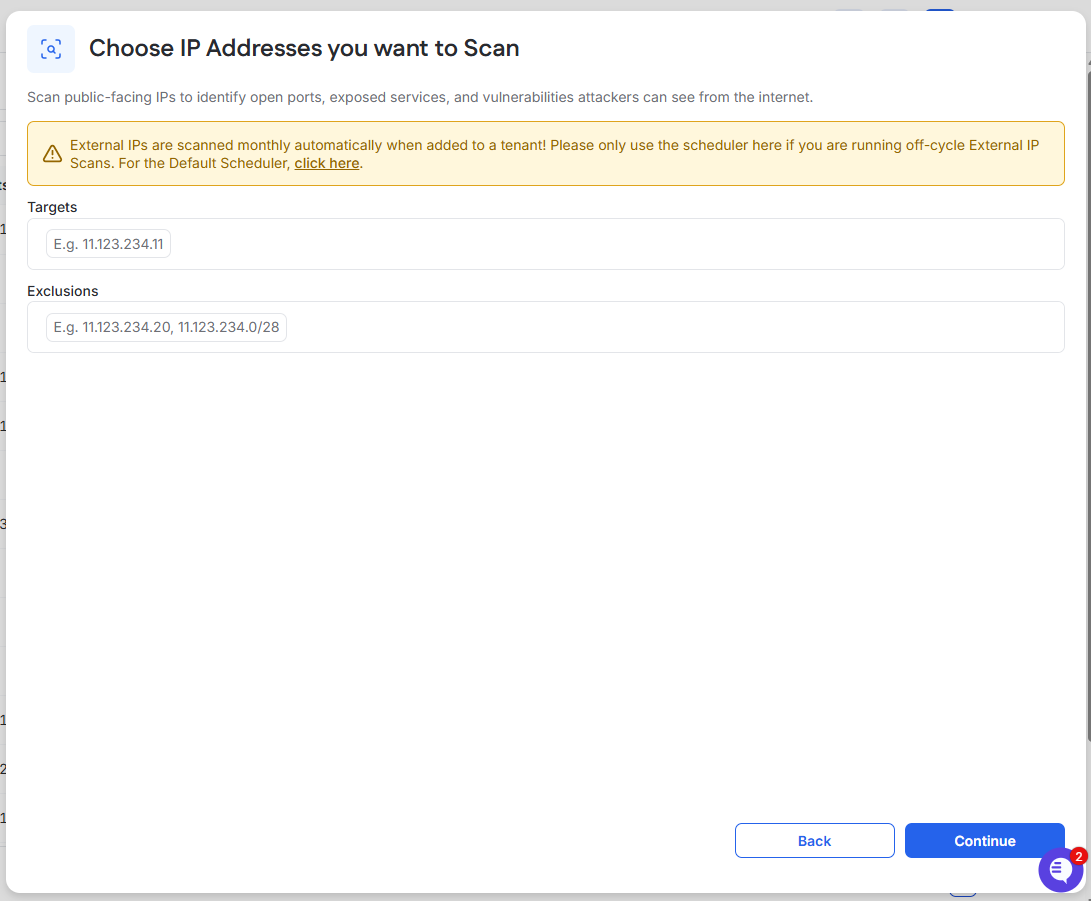
External IPs added to a tenant are already scanned monthly. Use this option when you need an additional scan.
Select Off-cycle External Vulnerability Scan.
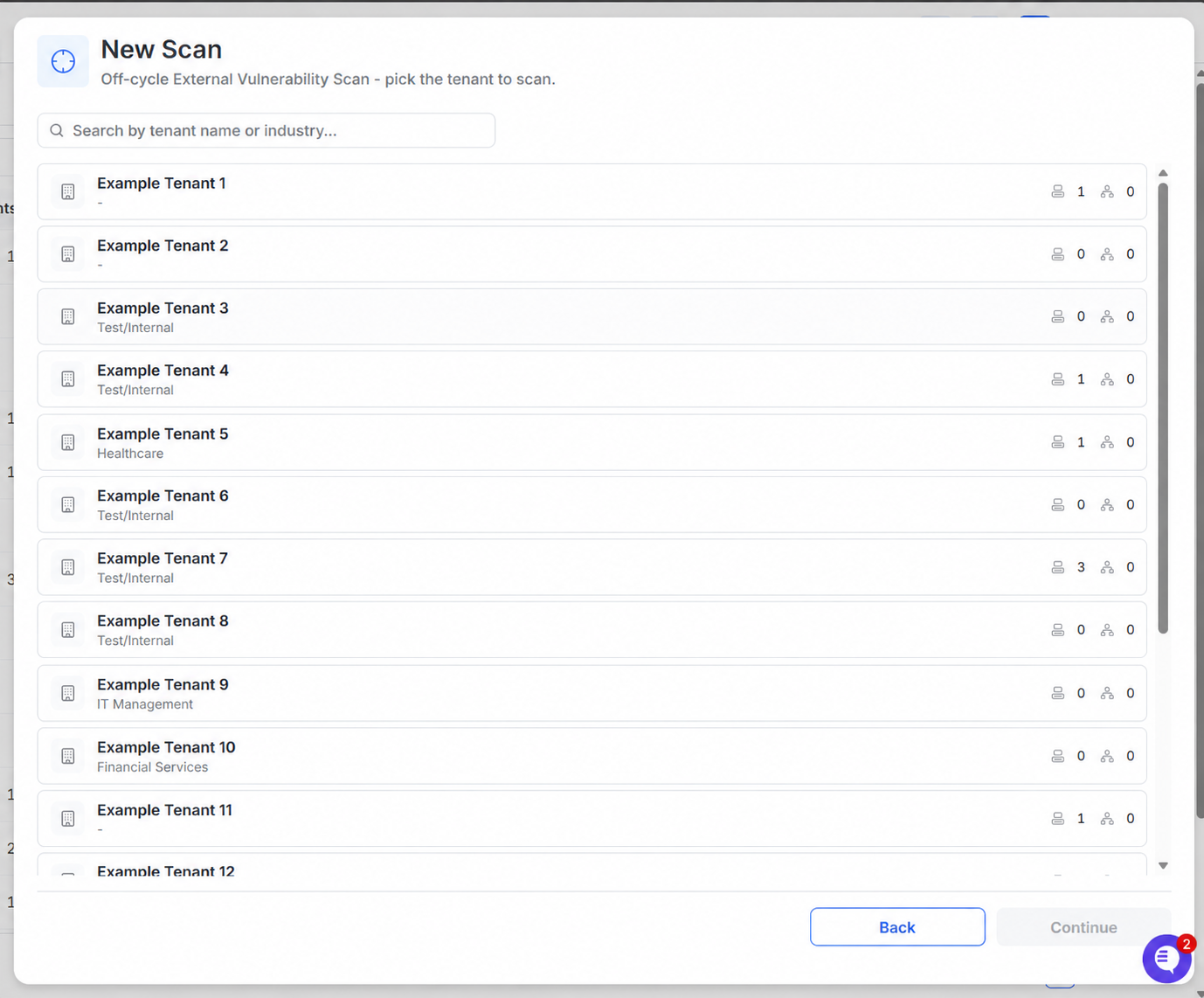
MSP Users
Select the tenant you want to scan, then select Continue.
Tenant users will not see this screen.
Configure the Scan
Enter the public IP addresses under Targets.
Add any Exclusions.
Select Continue.
Off-cycle Web Application Scan
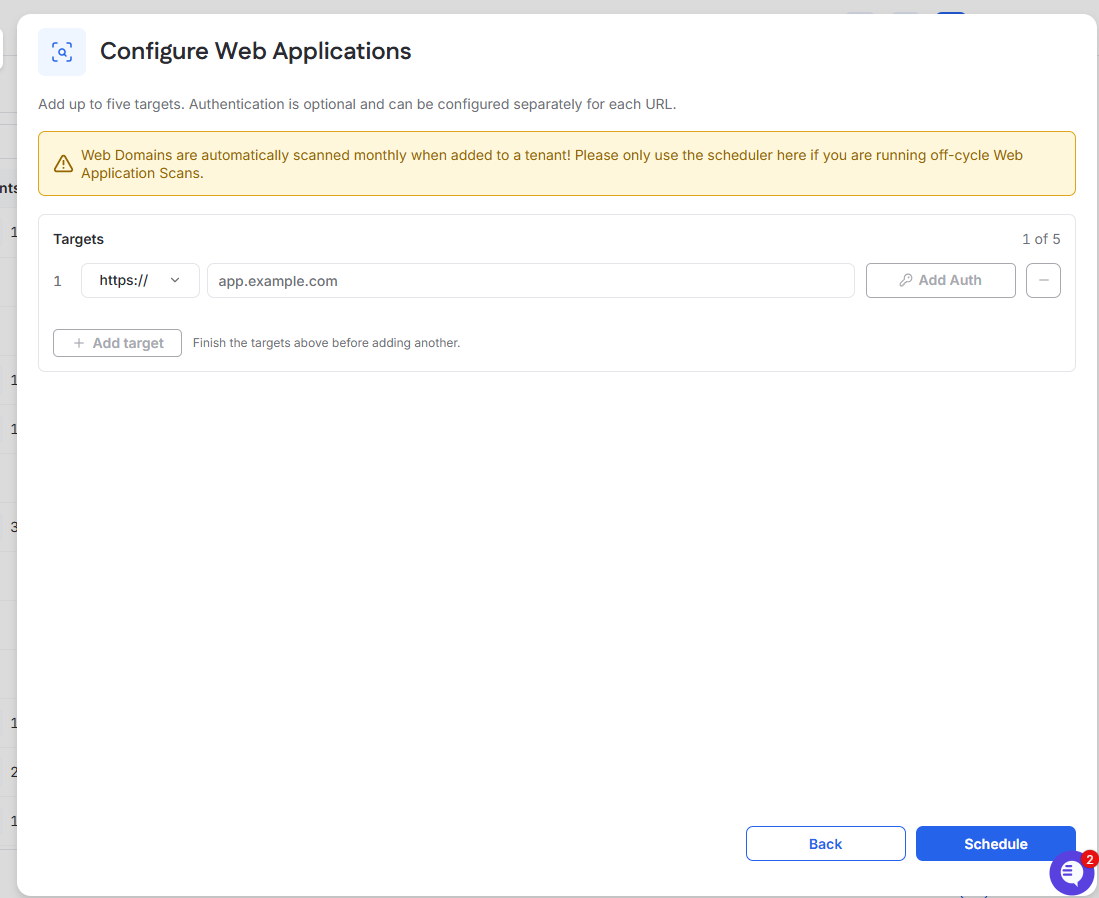
Web domains added to a tenant are already scanned monthly. Use this option when you need an additional scan.
Select Off-cycle Web Application Scan.
MSP Users
Select the tenant you want to scan, then select Continue.
Tenant users will not see this screen.
Configure the Scan
Select the protocol.
Enter the domain.
To add authentication, select Add Auth.
To scan another domain, select Add target.
Select Schedule.
You can add up to five targets.
Schedule the Scan
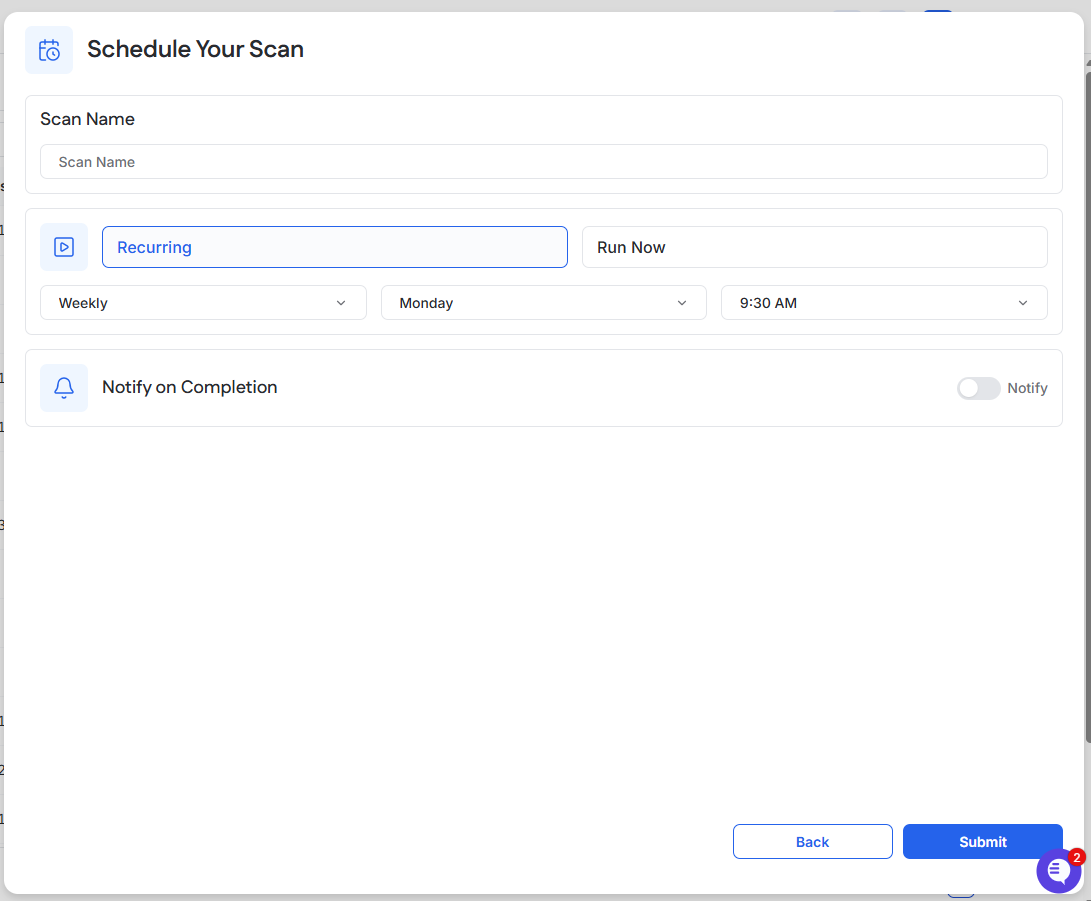
Enter a Scan Name.
Choose one of the following:
Recurring: Select the frequency, day, and time.
Run Now: Run the scan one time.
To notify a user when the scan finishes, turn on Notify on Completion.
Select Submit.
View the Scan
Open Scheduled to view recurring scans.
Open History to view completed scan activity.