Microsoft 365 Integration Guide
Last updated: September 9, 2026
The Microsoft 365 integration allows Cyrisma to access Microsoft 365 email and file data for cloud data scanning.
Configuration requires setup in both Cyrisma and Microsoft. Begin by opening the integration in Cyrisma to review the required credentials. You will then configure an application in Microsoft Entra ID, assign the required Microsoft Graph permissions, create a client secret, and collect the identifiers needed by Cyrisma. After completing the Microsoft configuration, return to Cyrisma to enter and verify the credentials.
1. Open the Microsoft 365 Integration in Cyrisma
Access the Cyrisma tenant where you want to configure Microsoft 365.
Open Settings.
Select Integrations.
On the Microsoft 365 row, select Configure.
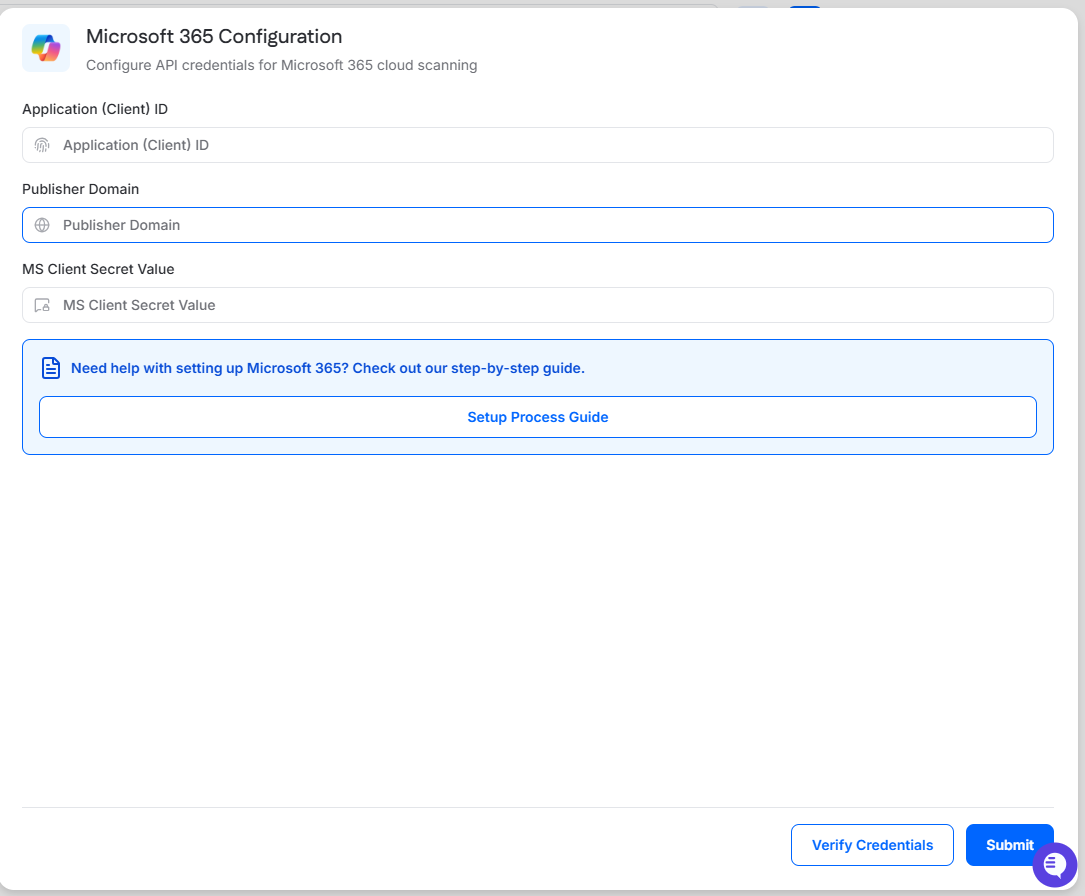
The Microsoft 365 Configuration drawer requires the following information:
Application (Client) ID
Publisher Domain
MS Client Secret Value
The following Microsoft configuration steps provide the values and permissions required to complete these fields.
Setting up and running a data scan in your Office 365 (O365) environment involves configuring integrations and assigning permissions. Follow the detailed guide below to ensure a seamless process.
Set Up Process for Office 365 Credentials
Azure Configuration
Log in as a local administrator to the organization’s Azure Portal at portal.azure.com.
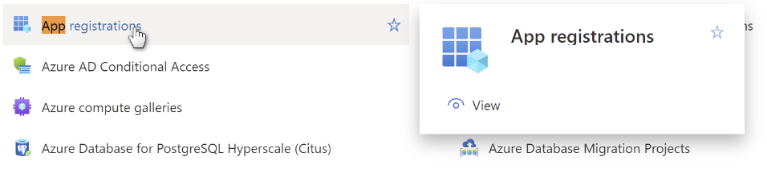
Search for App → App registrations.
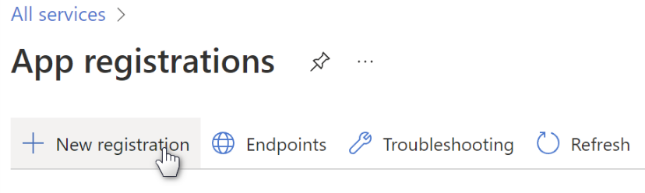
Click on + New registration.
Name it Cyrisma.
Select:
Accounts in this organizational directory only ([organization_Name].com only – Single tenant)
as shown here, and then click the Register button at the bottom of the page.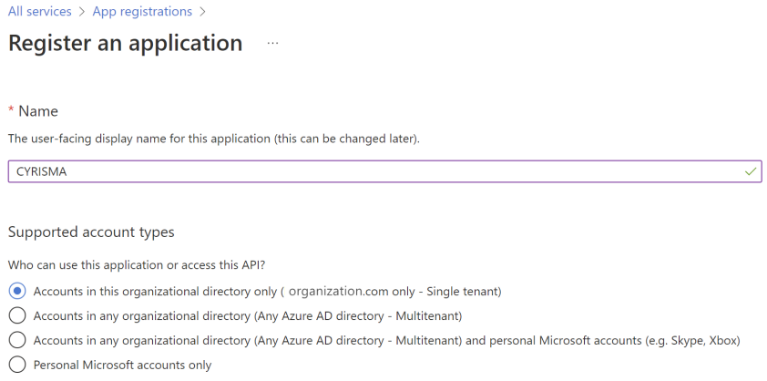
A registration object has been created. Now assign it appropriate permissions.
Assign API Permissions
On the left Azure menu, follow the link:
API Permissions → Add a Permission
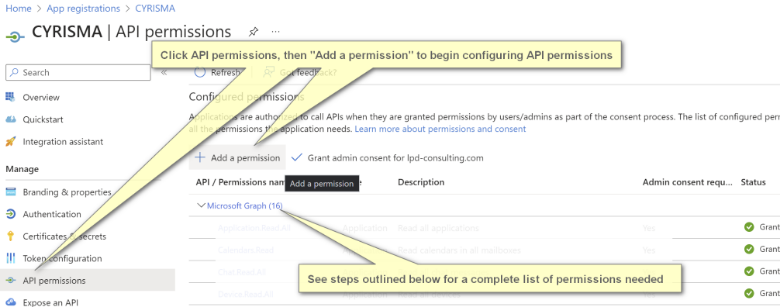
Select Microsoft Graph API.
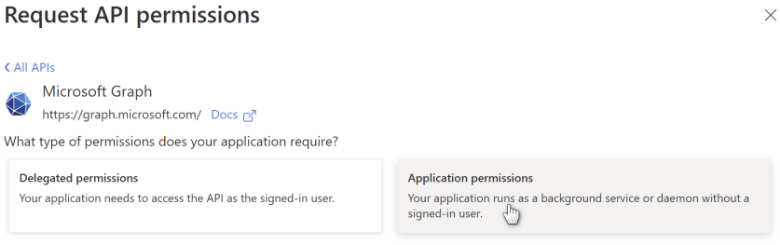
A list of application permissions is offered. Open EACH REQUIRED permission and select the checkbox for Read All as shown to the right.
For example:
Open Application, select Read All
Open AuditLog, select Read All
Open Calendars, select Read All
Continue FOR EACH required permission
The complete list of required permissions that must be set to Read All is shown below.
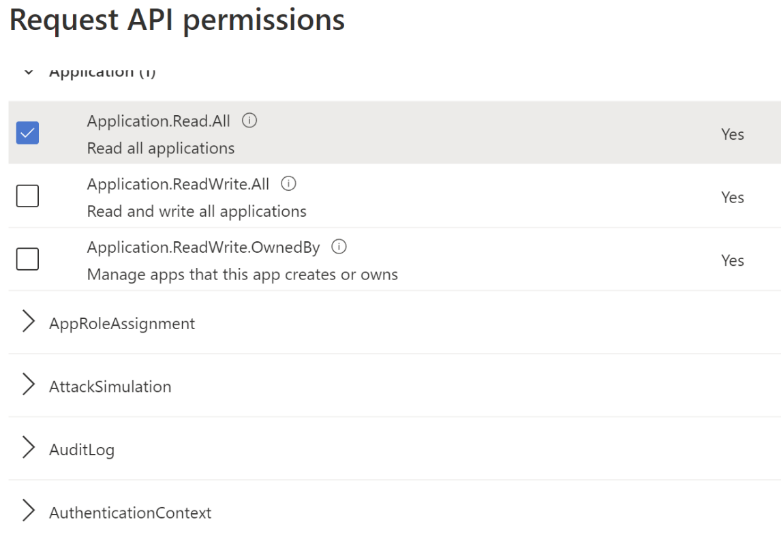
Continue through the API permission list and make sure the following have been selected.
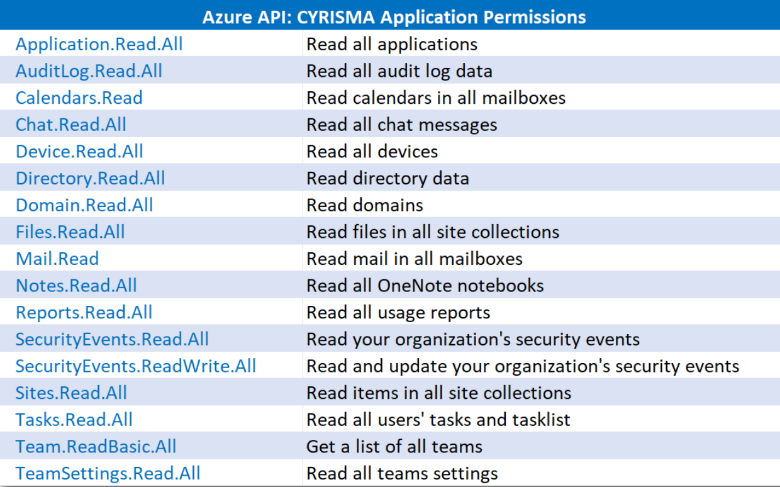
When all permissions have been assigned, click on the Grant Admin link to accept all permission changes. Permission indicators will turn into green checkmarks.
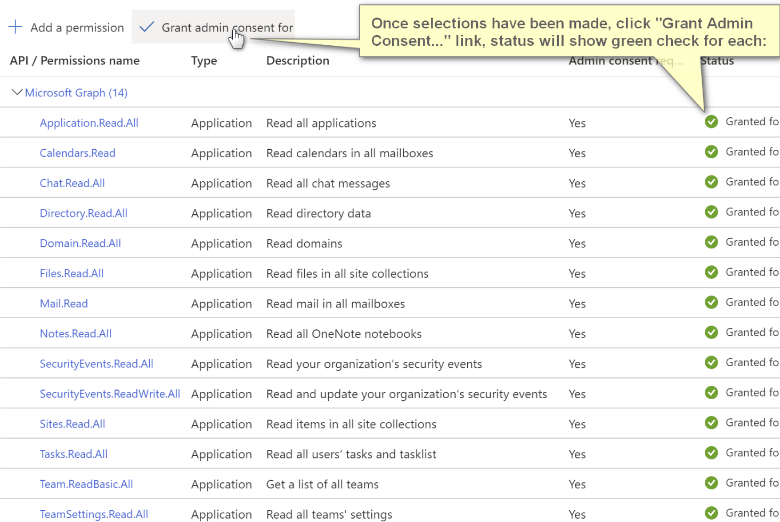
Generate Client Secret
Generate a Client Secret which will be needed by the agent to authorize its access.
Go to Certificates and Secrets
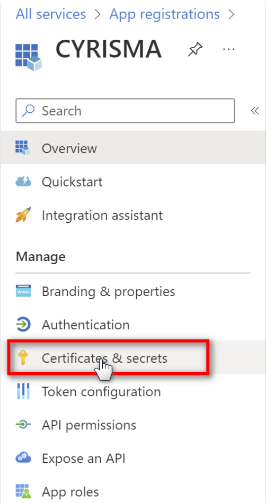
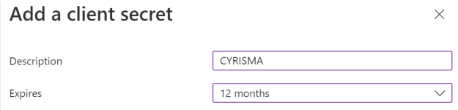
Click + New client secret
Provide the name Cyrisma
Set expiration to 12 months, as shown
IMPORTANT NOTE:
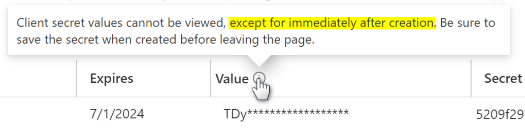
When a secret is generated, it is only shown ONE TIME at the time of generation.
PLEASE RECORD this secret
Do NOT copy the secret ID
Copy the secret VALUE
Collect Required Identifiers
Along with the secret recorded above, collect the following:
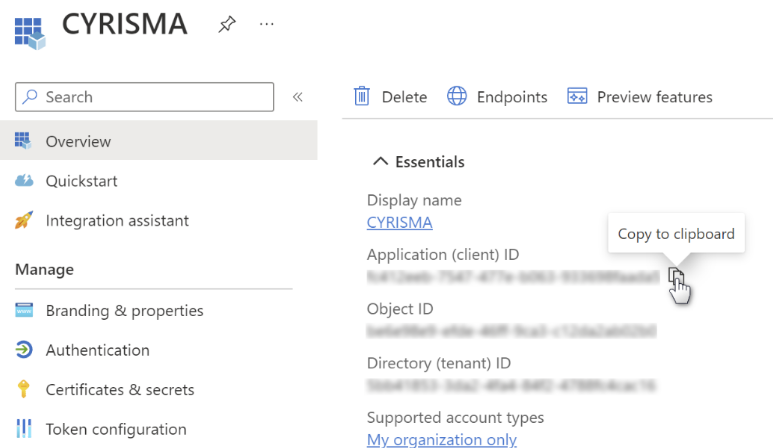
Client ID
Click Overview on the left menu
Copy the Application (client) ID
Paste and record this value for future use
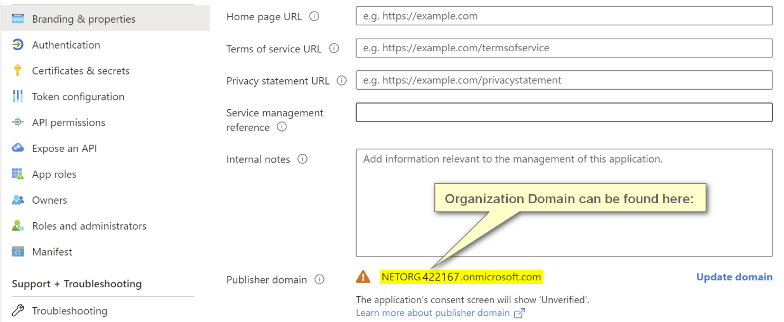
Netorg URL
Found at the upper right of the Azure web page under the user name
A convenient copy can also be found by clicking Branding & Properties on the left menu
Enter Credentials in Cyrisma
In the Microsoft 365 Configuration drawer, enter the following:
Application (Client) ID
Publisher Domain
MS Client Secret Value
After entering the required values, select Verify Credentials to validate the configuration, then select Submit to save it.