Configure Single Sign-On with Microsoft Entra ID
Last updated: October 14, 2026
Configure Cyrisma single sign-on (SSO) with Microsoft Entra ID by using OpenID Connect or SAML 2.0.
This article covers both methods. Complete the section for the protocol you want to use, then configure access, enable the connection, and test sign-in.
Before You Begin
You need:
Administrator access to the Cyrisma MSP or tenant where SSO will be configured
Permission to create and configure applications in Microsoft Entra ID
A test user whose Cyrisma email address matches their email address or sign-in identifier in Entra ID
Access to your organization's DNS records if you are configuring SSO in the MSP view
To open the SSO settings in Cyrisma:
Select the settings icon.
Open Authentication.
Select OpenID Connect or SAML 2.0.
How Cyrisma Routes SSO Sign-In
Cyrisma uses the domain in a user's email address to identify the applicable SSO connection.
Where SSO is configured | Where it applies | Domain setup |
|---|---|---|
MSP view | The MSP portal and its tenant URLs | Verify each email domain that should use the connection. |
Tenant view | The tenant currently open in the portal | The connection is scoped to that tenant. The MSP Verified domains section is not shown. |
When SSO is configured in the MSP view, a verified domain can be used for sign-in through msp.cyrisma.com and the MSP's tenant URLs.
Configure OpenID Connect
1. Copy the Cyrisma Redirect URL
In Cyrisma, open Settings > Authentication.
Select OpenID Connect.
Select Copy beside Redirect URL.
You will add this URL to the Entra application after registering it.
2. Register the Application in Entra ID
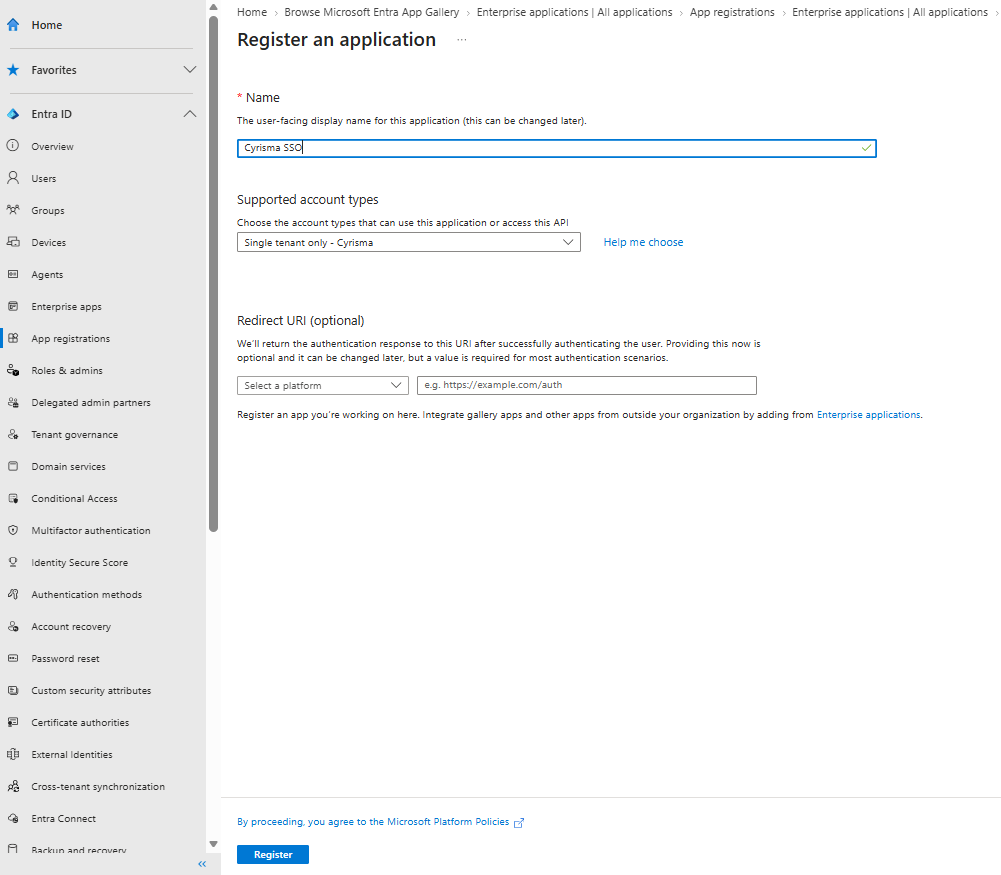
Sign in to the Microsoft Entra admin center.
Go to Identity > Applications > App registrations.
Select New registration.
Enter a recognizable name, such as
Cyrisma SSO.Select Accounts in this organizational directory only for a single-tenant configuration.
Leave Redirect URI blank.
Select Register.
3. Add the Redirect URL
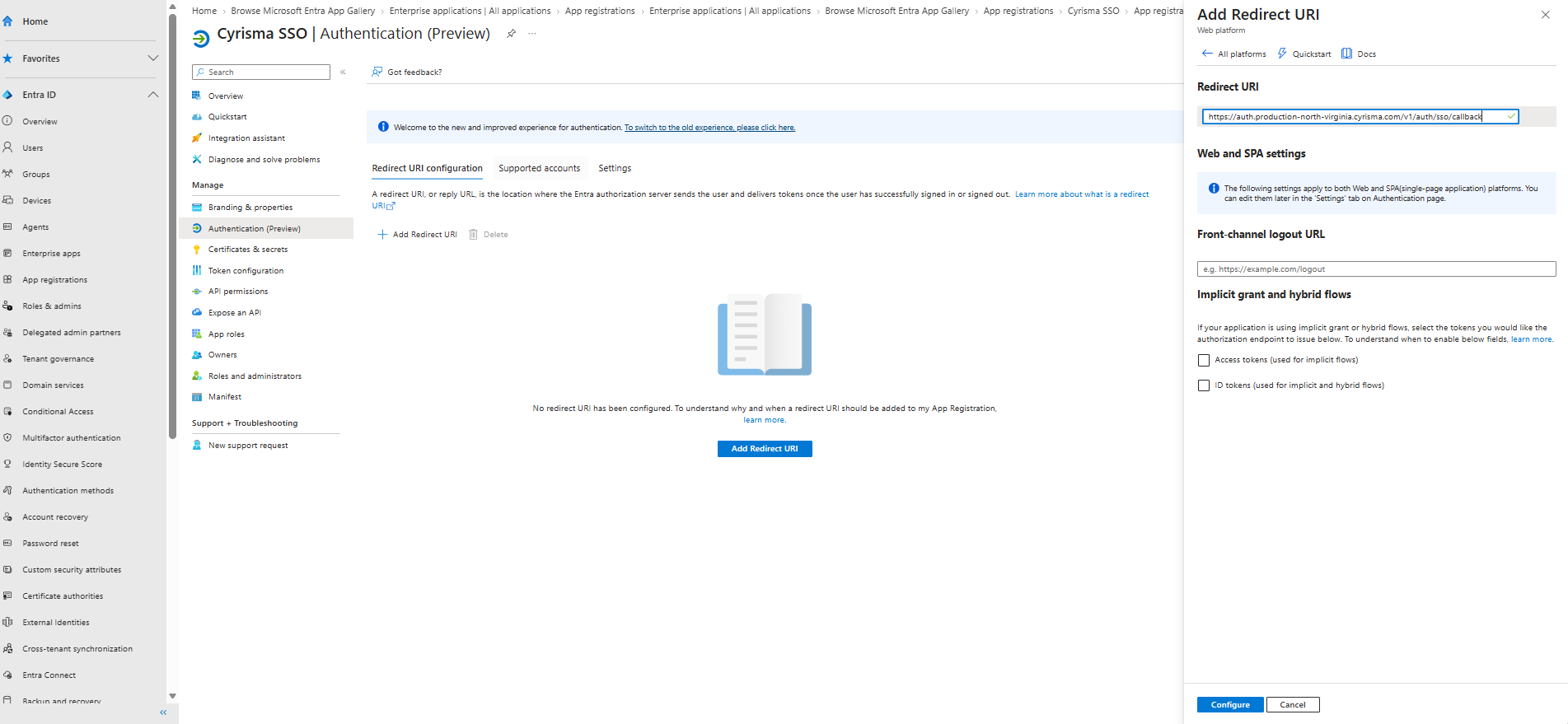
From the application Overview page, open Authentication.
Select Add a platform or Add Redirect URI.
Select Web.
Paste the Redirect URL copied from Cyrisma.
Select Configure.
Copy the URL exactly as Cyrisma displays it, including the protocol and complete path.
4. Create a Client Secret
Open Certificates & secrets.
Under Client secrets, select New client secret.
Enter a description.
Select an expiration period that follows your organization's policy.
Select Add.
Copy the secret Value immediately.
Use the secret Value in Cyrisma. Do not use the Secret ID. Microsoft displays the Value only once.
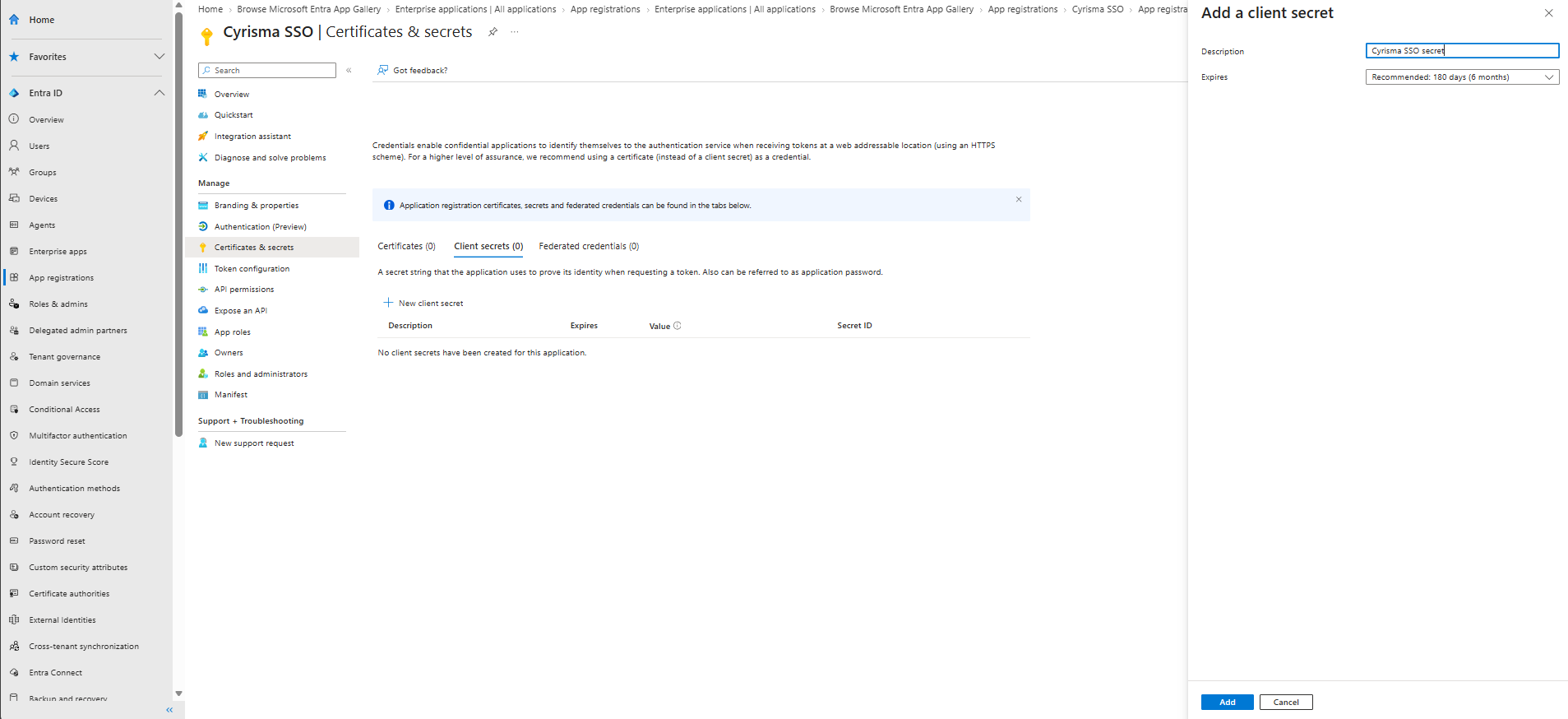
Record the expiration date so the secret can be replaced before it expires.
5. Copy the Client ID
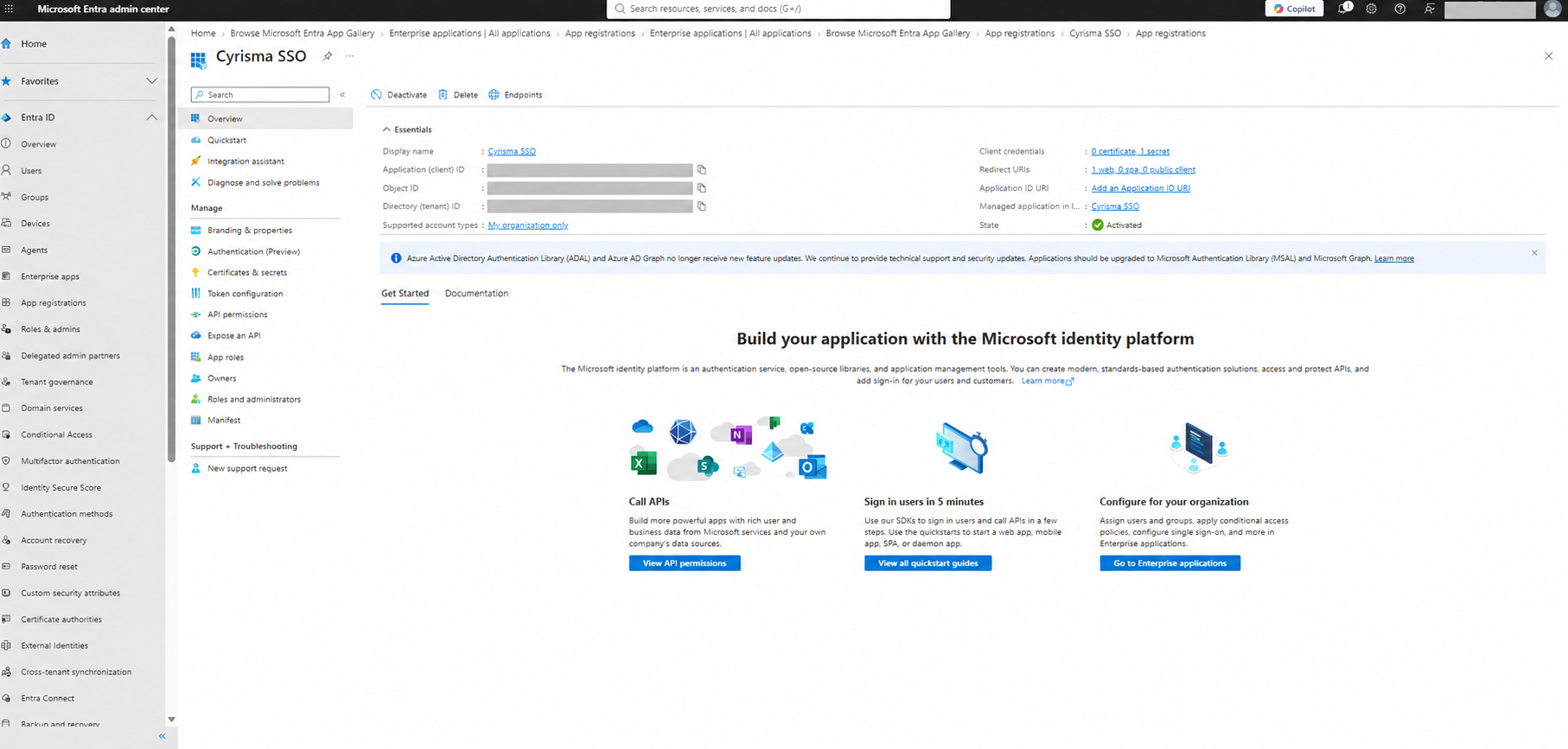
Return to the application's Overview page.
Copy the Application (client) ID.
6. Find the Issuer URL
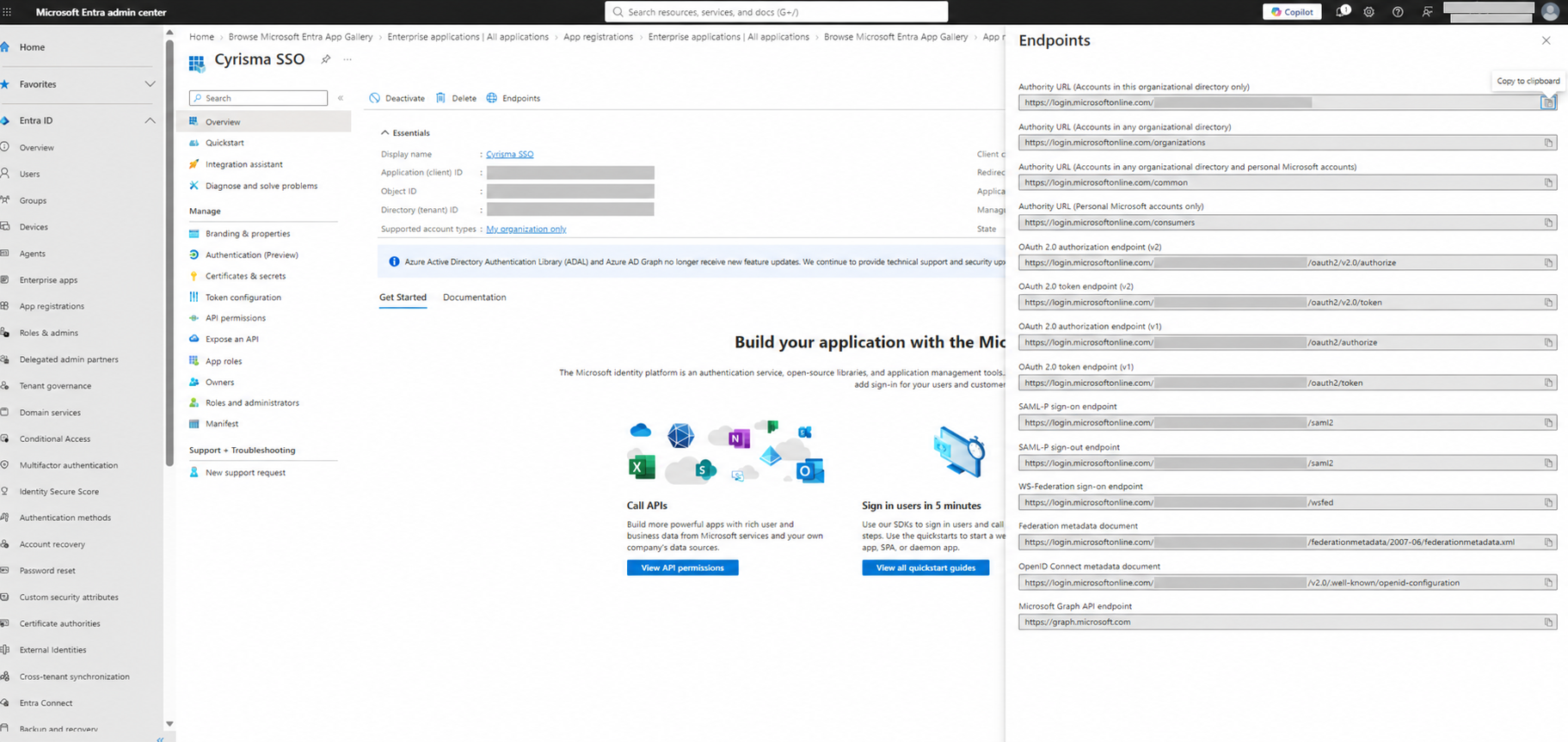
On the application Overview page, select Endpoints.
Find the OpenID Connect metadata document URL.
Copy the URL only through
/v2.0. Do not include/.well-known/openid-configuration.
The resulting Issuer URL has this format:
https://login.microsoftonline.com/<tenant-id>/v2.0
7. Enter the OpenID Connect Values in Cyrisma
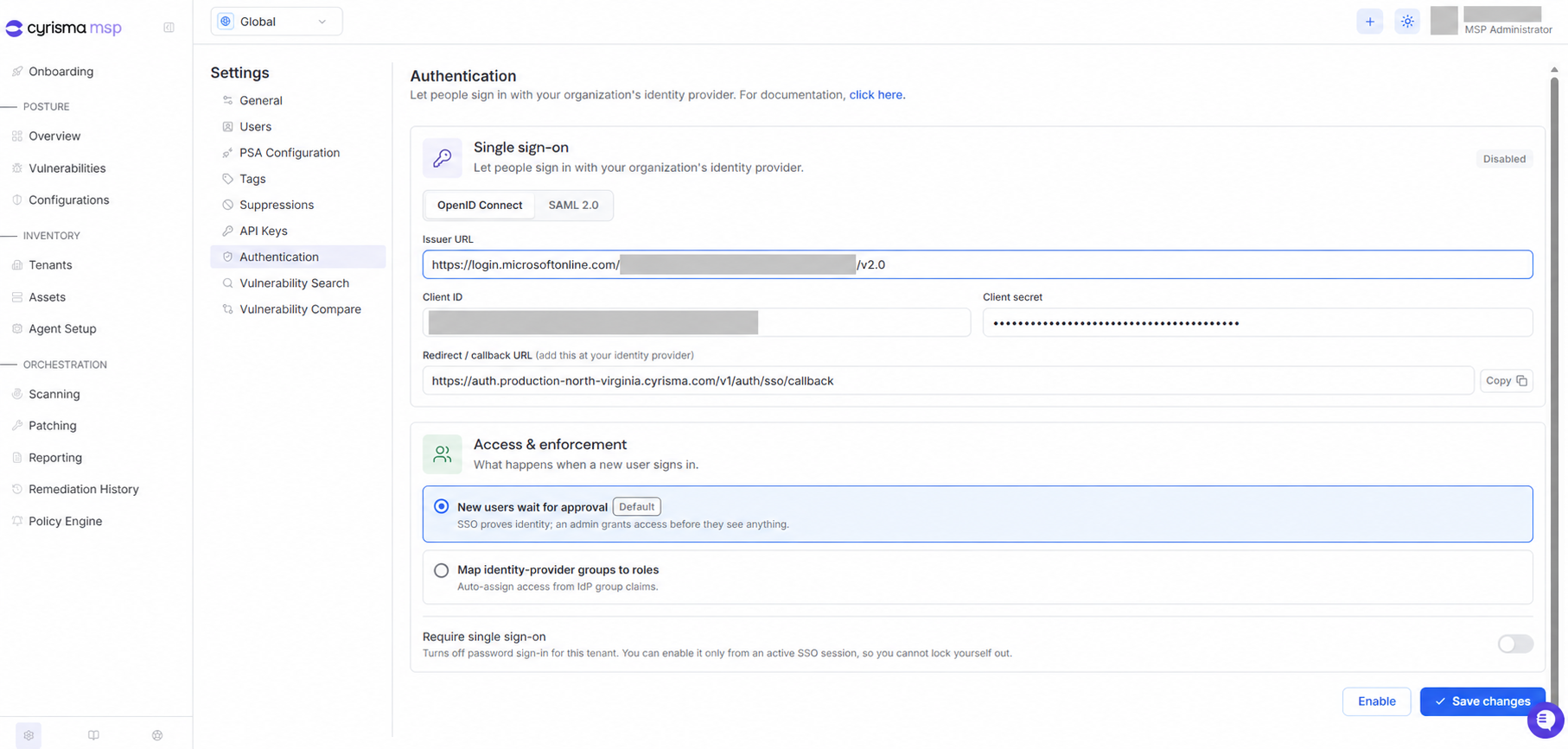
Enter the values collected from Entra ID:
Cyrisma field | Microsoft Entra value |
|---|---|
Issuer URL | The metadata document URL through |
Client ID | Application (client) ID |
Client Secret | Client secret Value |
Configure SAML 2.0
1. Copy the Cyrisma Service-Provider Values
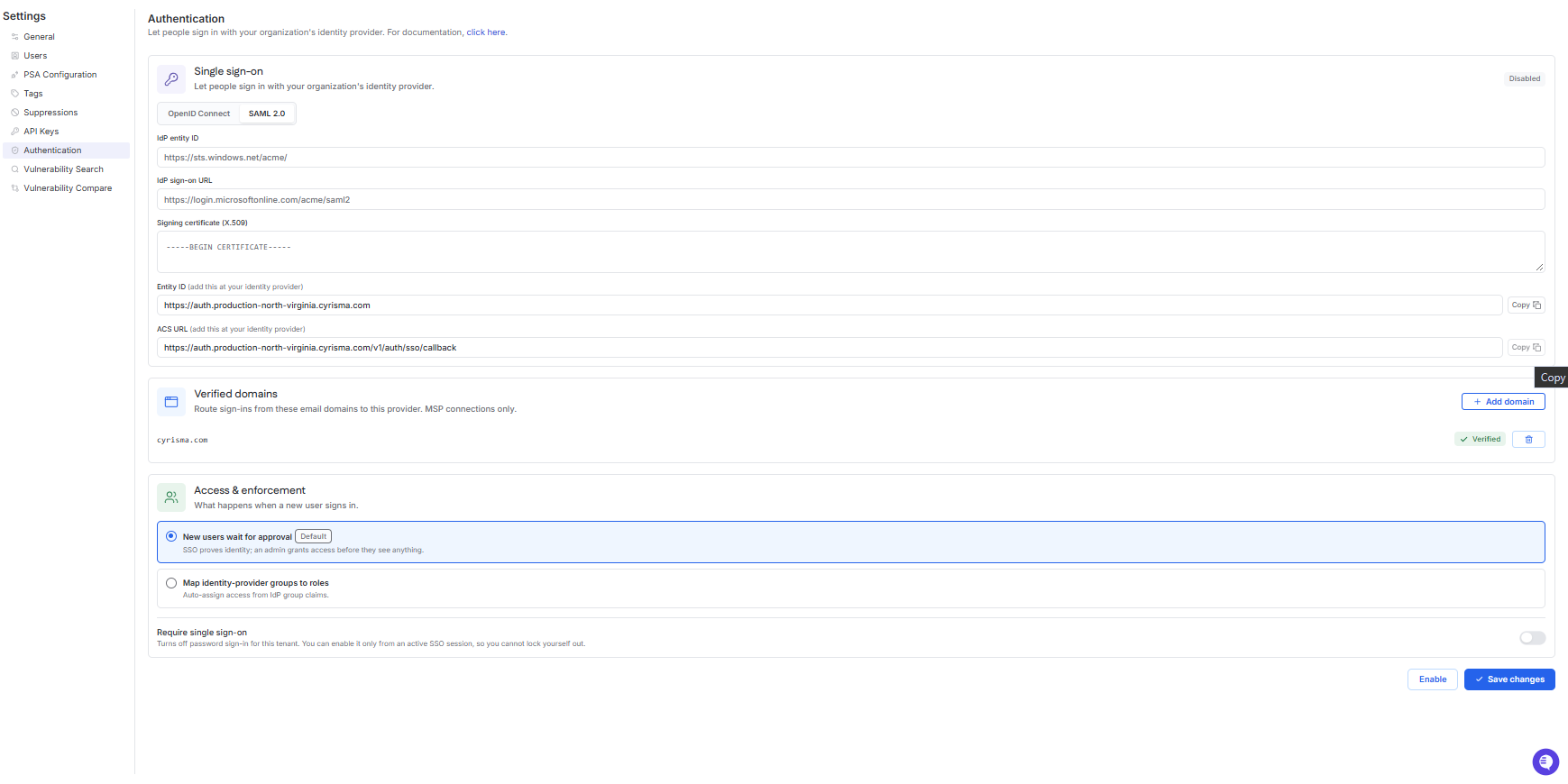
In Cyrisma, open Settings > Authentication.
Select SAML 2.0.
Copy the Entity ID.
Copy the ACS URL.
You will enter both values in the Entra enterprise application.
2. Create an Enterprise Application
Sign in to the Microsoft Entra admin center.
Go to Identity > Applications > Enterprise applications.
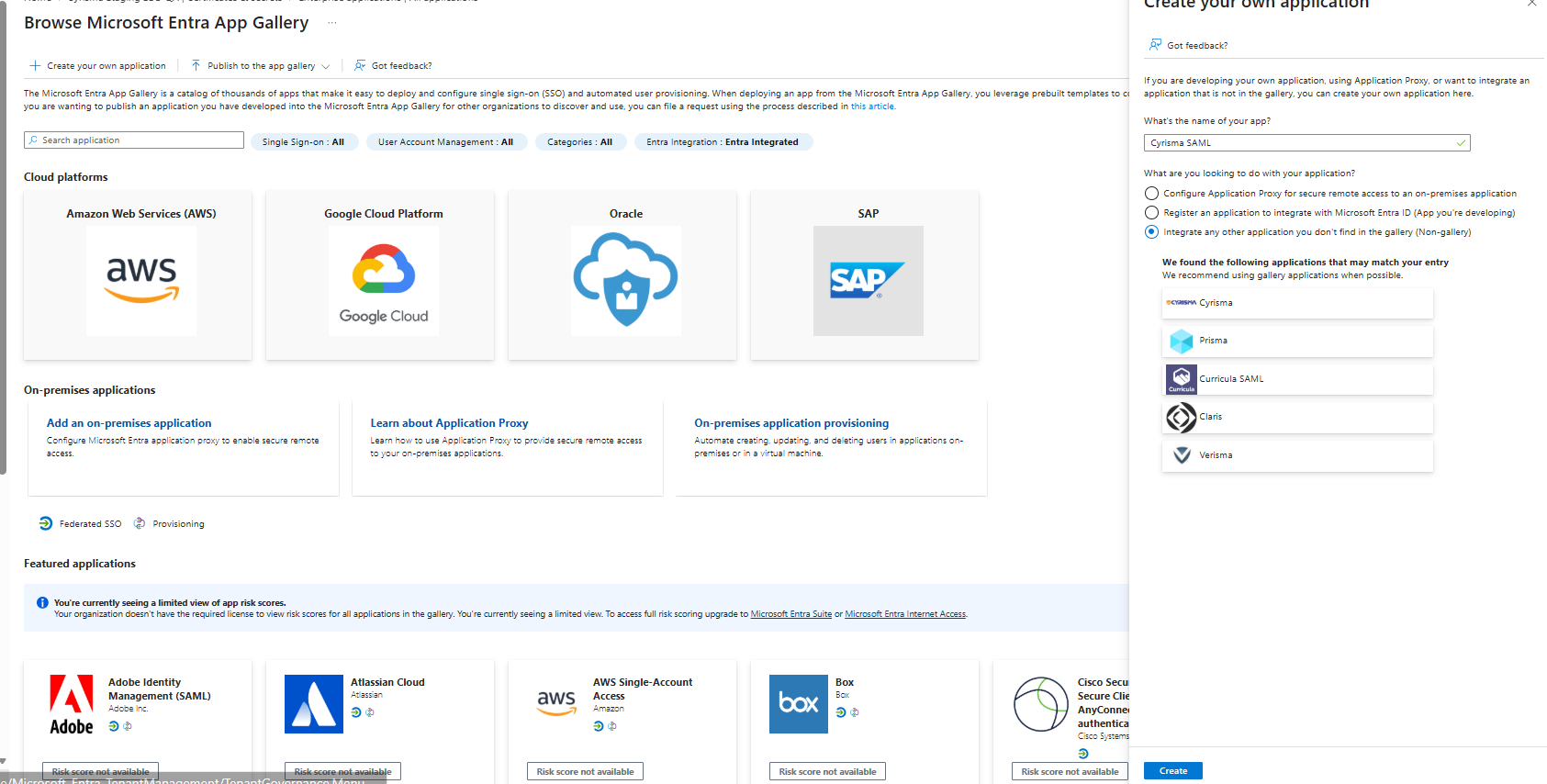
Select New application.
Select Create your own application.
Enter a recognizable name, such as
Cyrisma SAML.Select Integrate any other application you don't find in the gallery (Non-gallery).
Select Create.
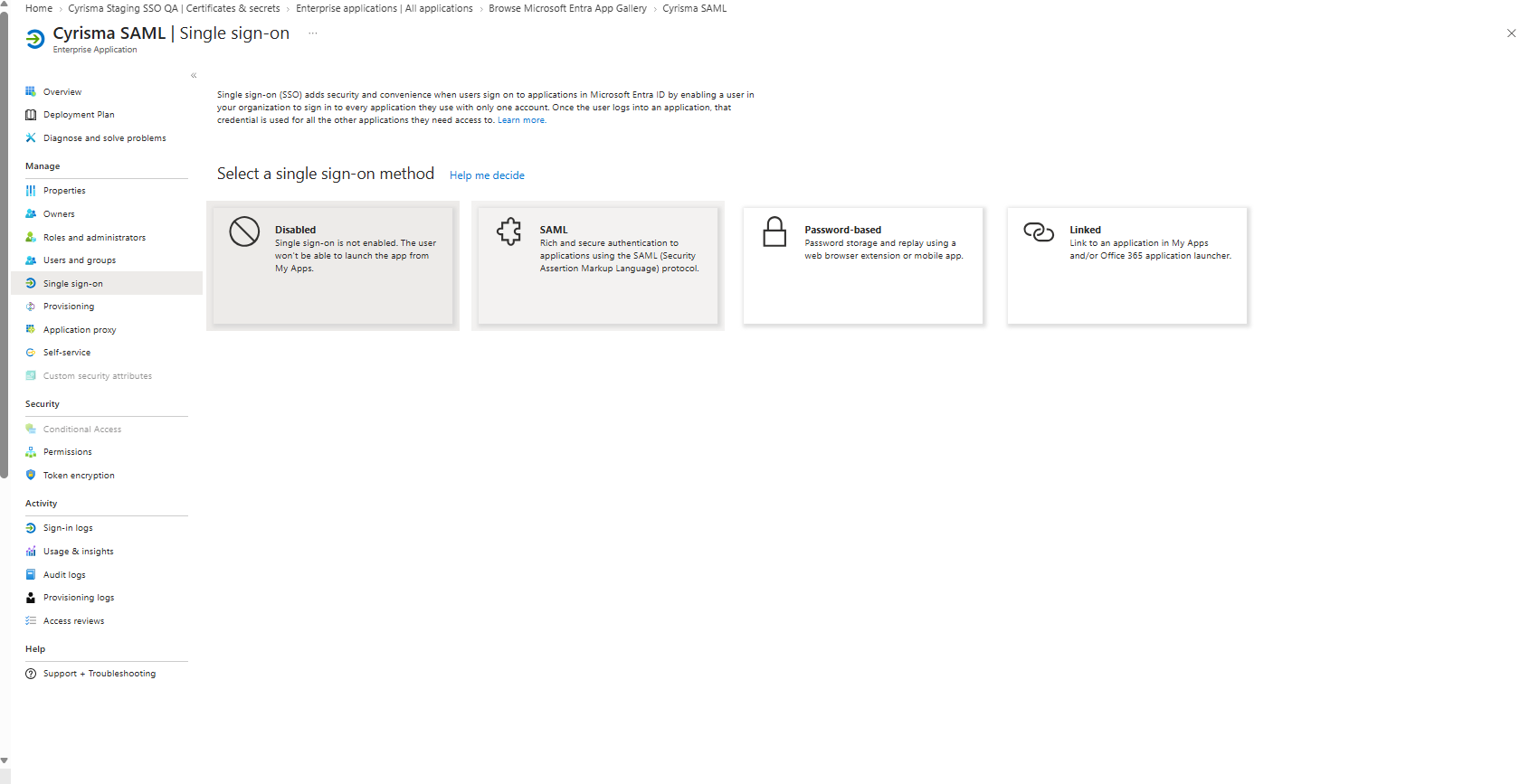
3. Select SAML as the Sign-On Method
Open Single sign-on for the enterprise application.
Select SAML.
4. Configure the Cyrisma Entity ID and ACS URL
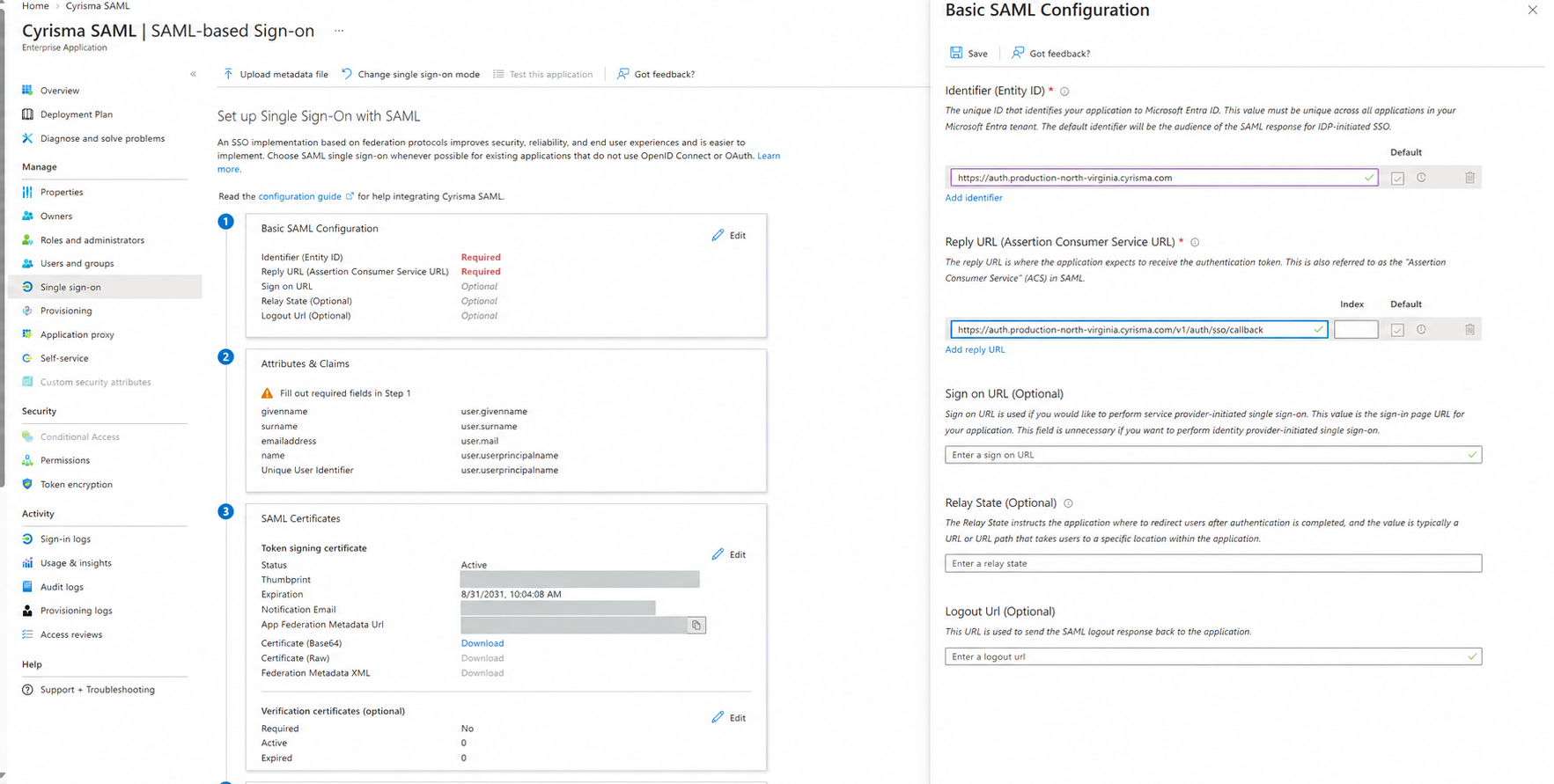
In Basic SAML Configuration, select Edit.
In Identifier (Entity ID), paste the Entity ID copied from Cyrisma.
In Reply URL (Assertion Consumer Service URL), paste the ACS URL copied from Cyrisma.
Select Save.
Sign-on URL, Relay State, and Logout URL can remain blank.
5. Confirm the Name ID Claim
In Attributes & Claims, confirm that Unique User Identifier (Name ID) returns the email address users have in Cyrisma.
The tested configuration used user.userprincipalname. If a user's Entra user principal name differs from their Cyrisma email address, map Name ID to the Entra attribute that contains the matching email address.
6. Copy the Entra Identity-Provider Values
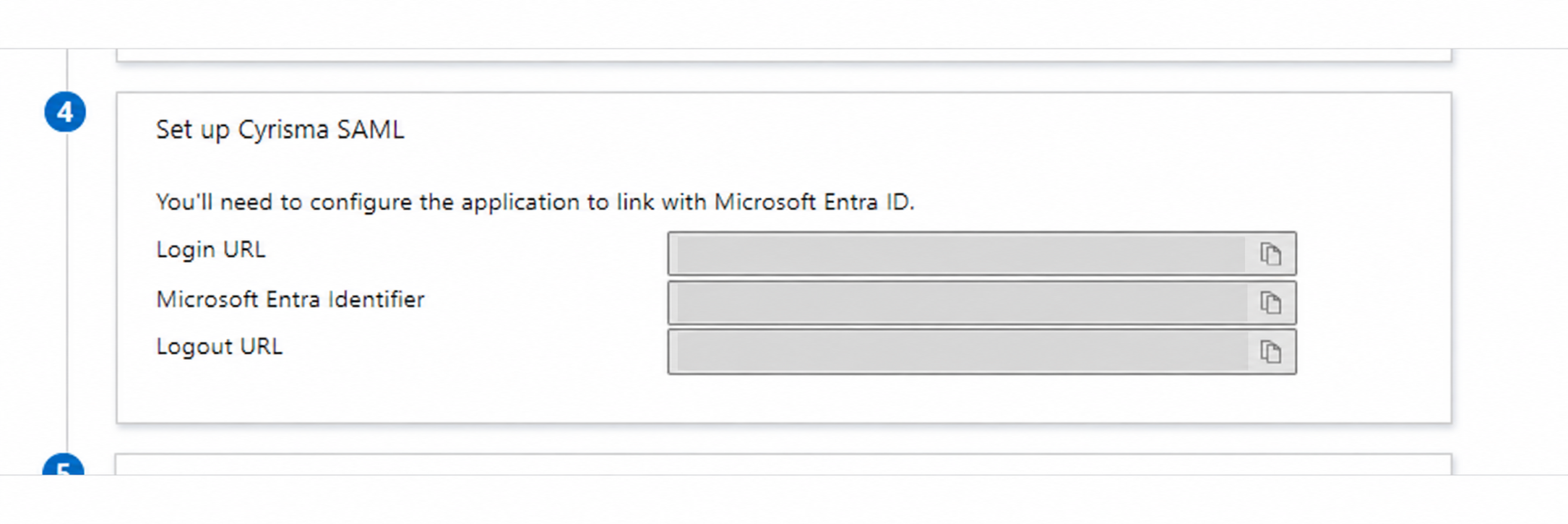
In the Set up Cyrisma SAML section, collect the following values:
Microsoft Entra value | Cyrisma field |
|---|---|
Microsoft Entra Identifier | IdP entity ID |
Login URL | IdP sign-on URL |
The Entra Logout URL is not required for this Cyrisma configuration.
7. Download the Signing Certificate
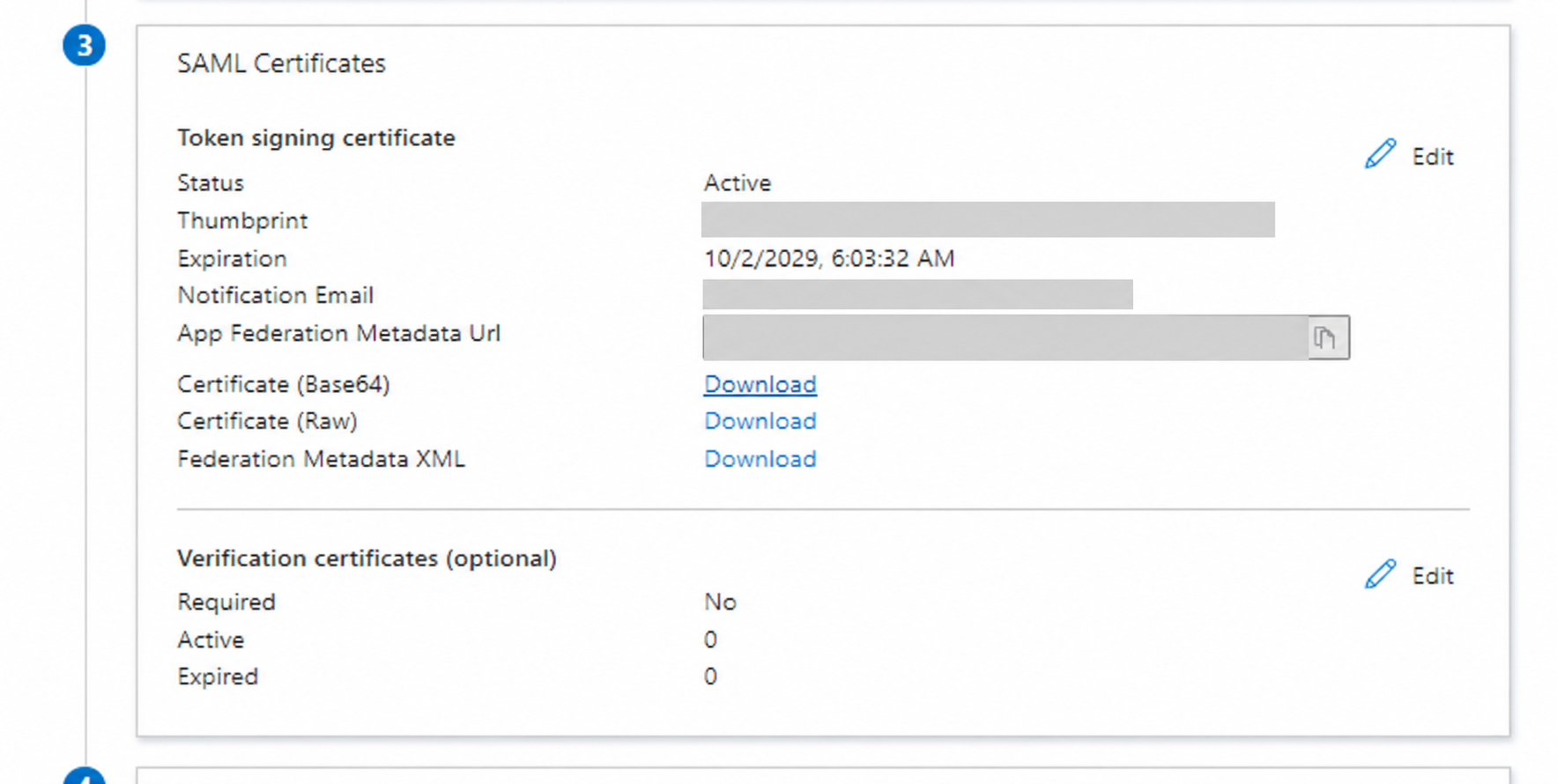
In SAML Certificates, find Certificate (Base64).
Select Download.
Open the downloaded
.cerfile in a text editor.Copy the entire certificate, including these lines:
-----BEGIN CERTIFICATE----------END CERTIFICATE-----Paste the complete certificate into Signing certificate (X.509) in Cyrisma.
8. Complete the SAML Configuration in Cyrisma
Enter the values collected from Entra ID:
Cyrisma field | Value to enter |
|---|---|
IdP entity ID | Microsoft Entra Identifier |
IdP sign-on URL | Login URL |
Signing certificate (X.509) | Complete text from the Base64 certificate |
Configure Access in Microsoft Entra ID
Complete these steps for the OpenID Connect app registration or the SAML enterprise application before testing SSO.
Require Assignment
Requiring assignment limits the application to users and groups that an Entra administrator explicitly assigns.
In Entra ID, go to Enterprise applications.
Open the application used for Cyrisma SSO.
Open Properties.
Set Assignment required? to Yes.
Select Save.
If your organization does not want to restrict the application through Entra assignment, this setting can remain off.
Assign Users or Groups
Open Users and groups for the enterprise application.
Select Add user/group.
Select the users or groups that should be allowed to sign in.
Select Assign.
Assign test users directly or through a directly assigned group. Membership in a nested group may not grant access to the application.
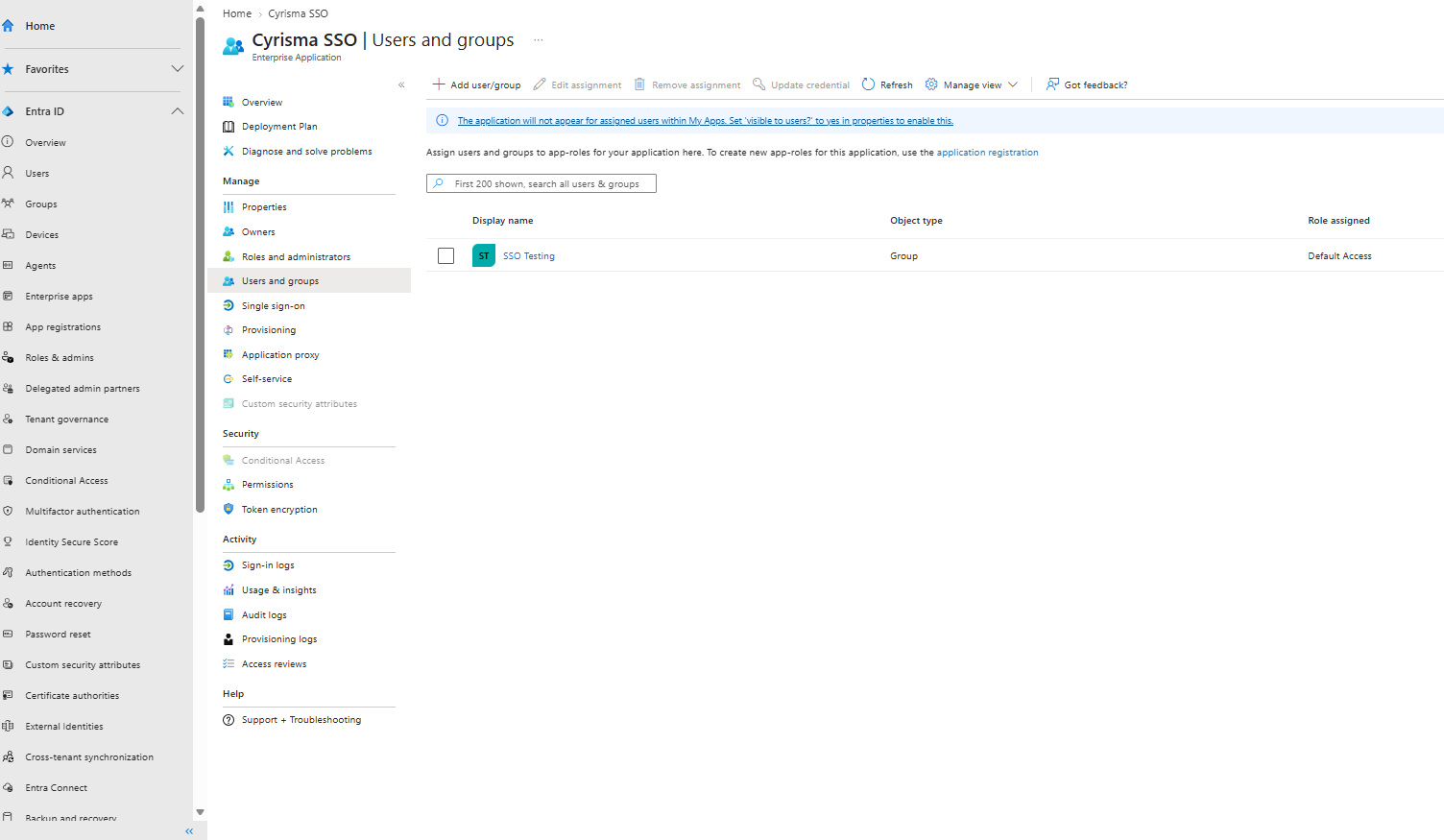
For a SAML enterprise application, the assignment process is the same.
Select How Cyrisma Handles New Users
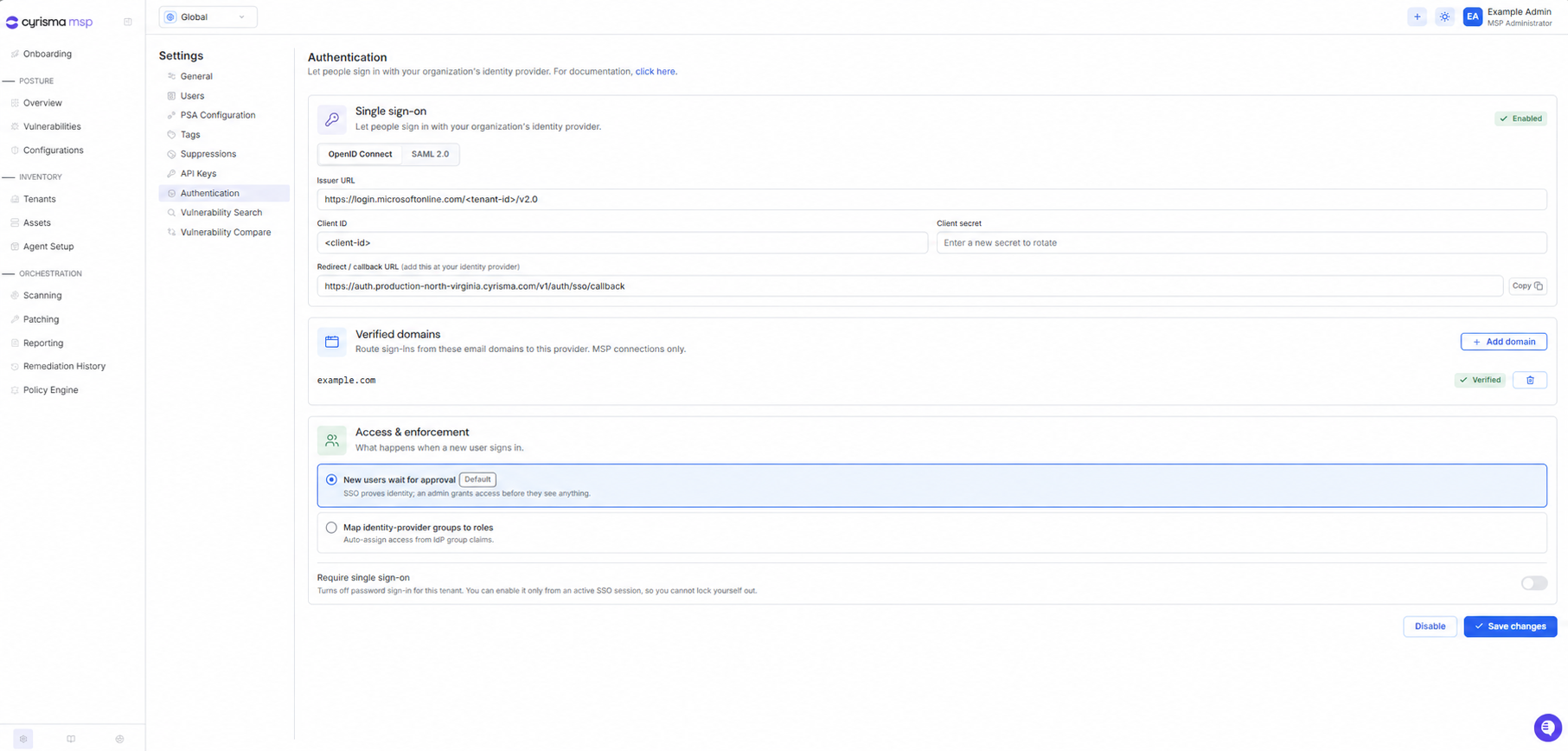
In Access & Enforcement, select one of the following options:
New users wait for approval allows the identity provider to authenticate new users, but a Cyrisma administrator must approve their access.
Map identity-provider groups to roles uses group membership from the identity provider to assign Cyrisma access automatically according to the configured mappings.
New users wait for approval is selected by default.
Enable the SSO Connection
Select Enable.
Select Save changes.
Enabling the connection makes SSO available. It does not require all users to use SSO. Leave Require single sign-on off until the connection has been tested successfully.
Verify a Domain for MSP Sign-In
This section applies when SSO is configured in the MSP view. It does not appear when SSO is configured for an individual tenant.
Under Verified domains, add the email domain that will use this connection.
Copy the TXT record details displayed by Cyrisma.
Add the TXT record to the domain's DNS configuration.
Return to Cyrisma and verify the domain.
The record has this general form:
DNS field | Value |
|---|---|
Name or host |
|
Type |
|
Value | The unique verification value displayed by Cyrisma |
Some DNS providers automatically append the domain to the host. For example.com, the completed record must resolve as _cyrisma-sso.example.com, not _cyrisma-sso.example.com.example.com.
Test SSO
Test the connection before requiring SSO for all users.
Confirm that the test user or a directly assigned group has access to the Entra enterprise application.
Open a private or incognito browser window.
Go to the Cyrisma sign-in page.
Enter the test user's email address.
Select Continue with SSO.
Complete Microsoft sign-in.
Confirm that Cyrisma opens successfully.
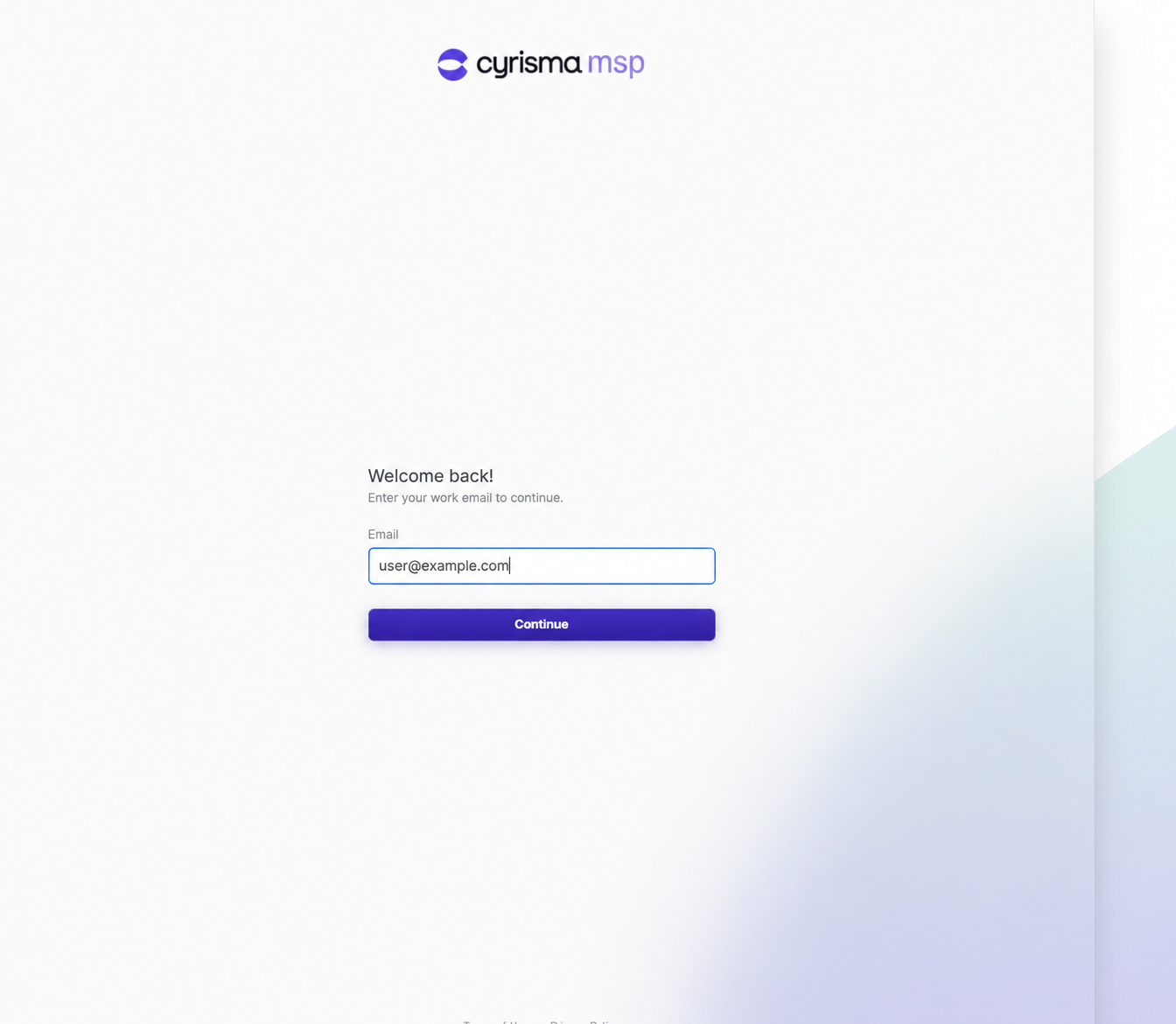
If New users wait for approval is selected, a Cyrisma administrator may need to approve the user before access is granted.
Require SSO
After testing succeeds, you can require users in the applicable scope to sign in through SSO.
Sign in to Cyrisma through the working SSO connection.
Return to Settings > Authentication.
Turn on Require single sign-on.
Select Save changes.
Require single sign-on can only be enabled from an active SSO session. This safeguard reduces the risk of locking administrators out with an untested connection.