Google Workspace Integration Guide
Last updated: October 15, 2026
Connect Google Workspace to Cyrisma to scan Gmail messages and Google Drive files for sensitive data. This setup creates a Google Cloud project and service account, authorizes access in Google Admin, and adds the credentials to your Cyrisma tenant.
Before you begin
You will need:
• Access to the Cyrisma tenant where you will configure the integration.
• A Google Cloud account with permission to create a project in your organization, enable APIs, and create a service account and JSON key.
• A Google Workspace Super Admin account to authorize domain-wide delegation.
• The email address of a Google Workspace administrator account with mailbox access in your organization.
Keep the same Google Cloud project selected throughout the Google Cloud steps. The JSON file created during setup contains a private key; store it securely and use it only for the integration.
1 Create a Google Cloud project
1. Open Google Cloud Console.
2. Open the navigation menu in the upper-left corner, then select IAM & Admin > Manage Resources.
3. Click Create project.
4. Enter a Project name, such as Cyrisma Google Integration.
5. Select your Organization.
6. Under Parent resource, select the organization or folder where the project should be created. This is the project's location in your organization's Google Cloud hierarchy.
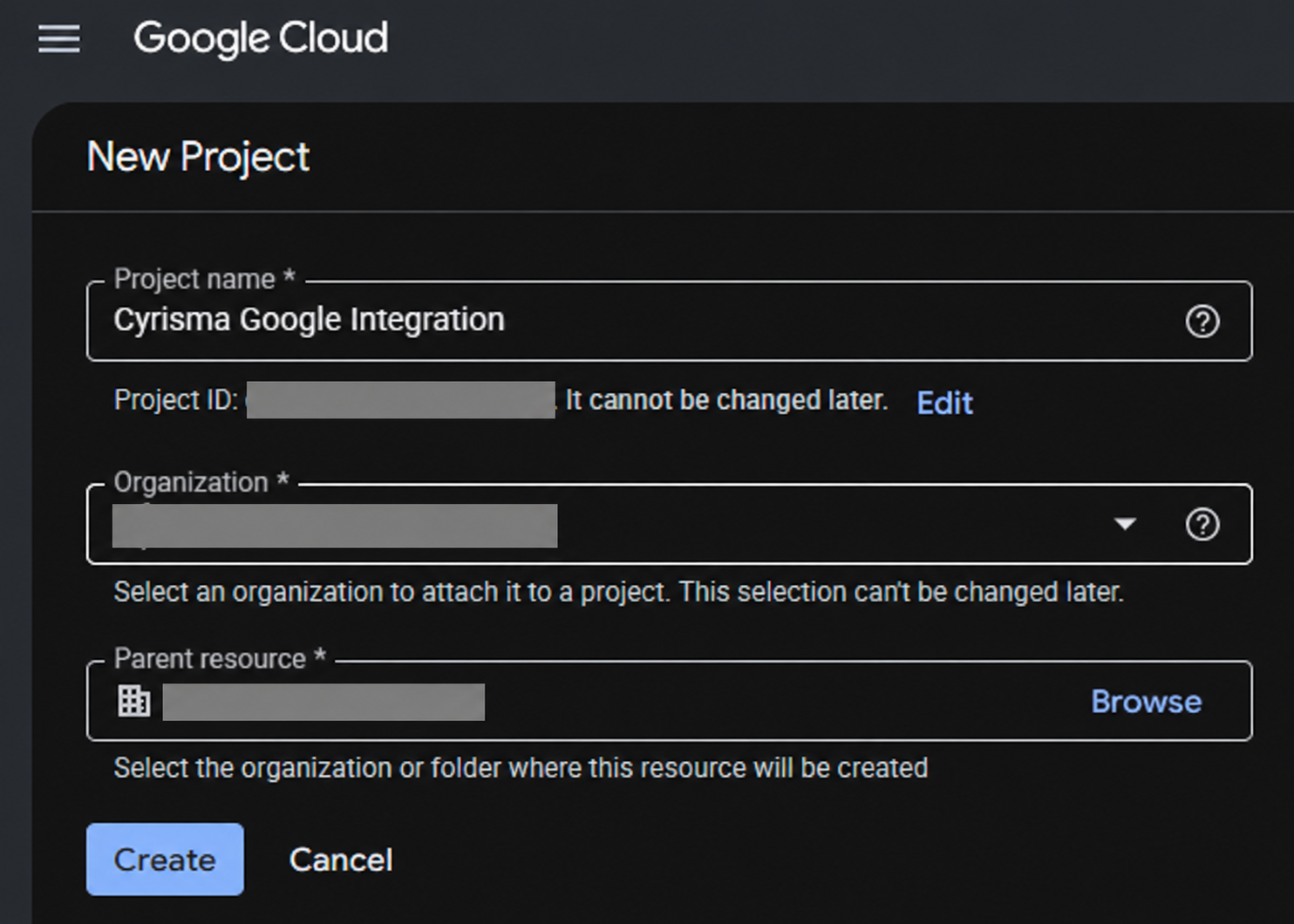
7. Click Create and wait for project creation to finish.
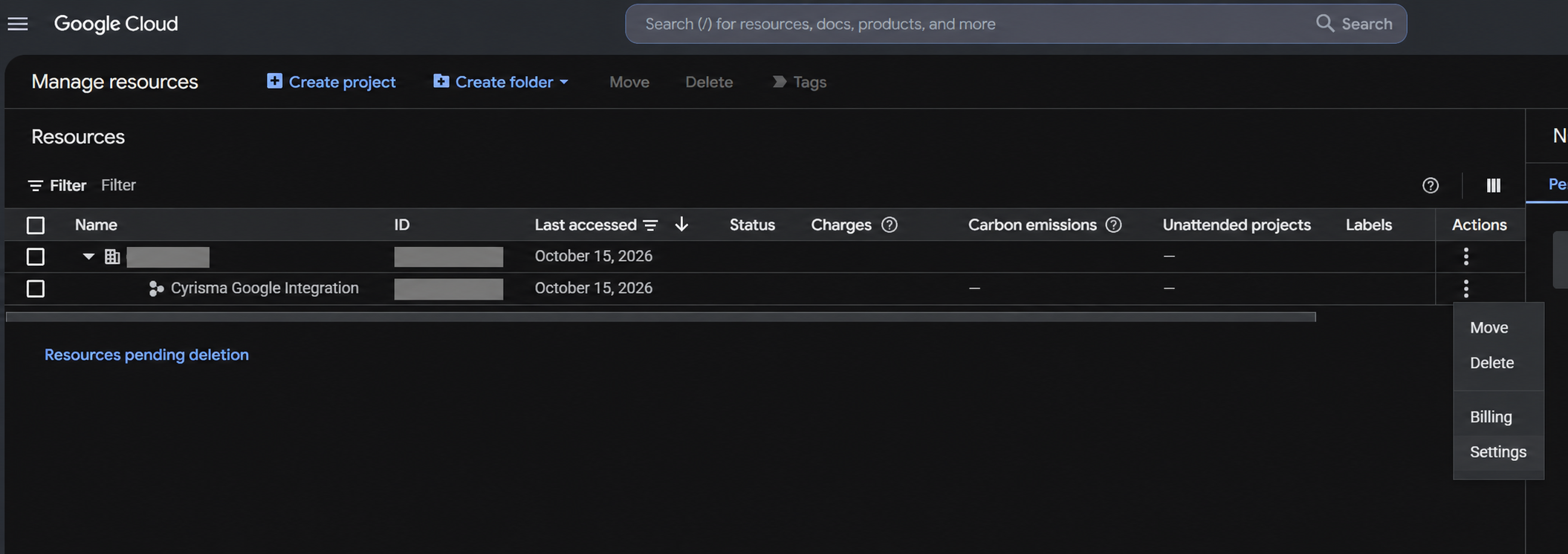
8. On the Manage resources page, locate the project you just created. In that project’s row, click the three-dot menu (⋮) in the Actions column, then select Settings.
2 Enable the required APIs
Enable these three APIs in the project you just created:
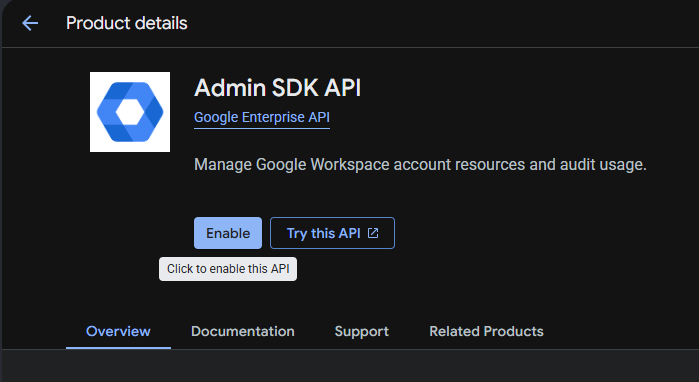
• Admin SDK API
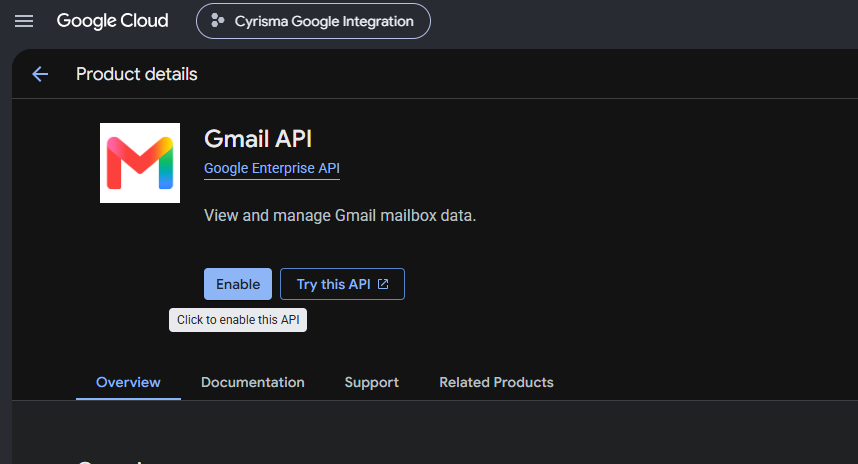
• Gmail API
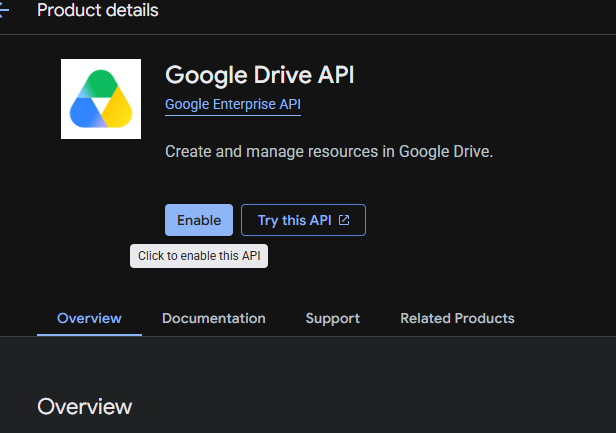
• Google Drive API
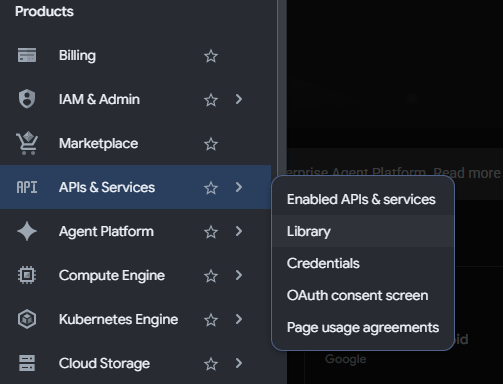
1. Open the navigation menu, then select APIs & Services > Library.
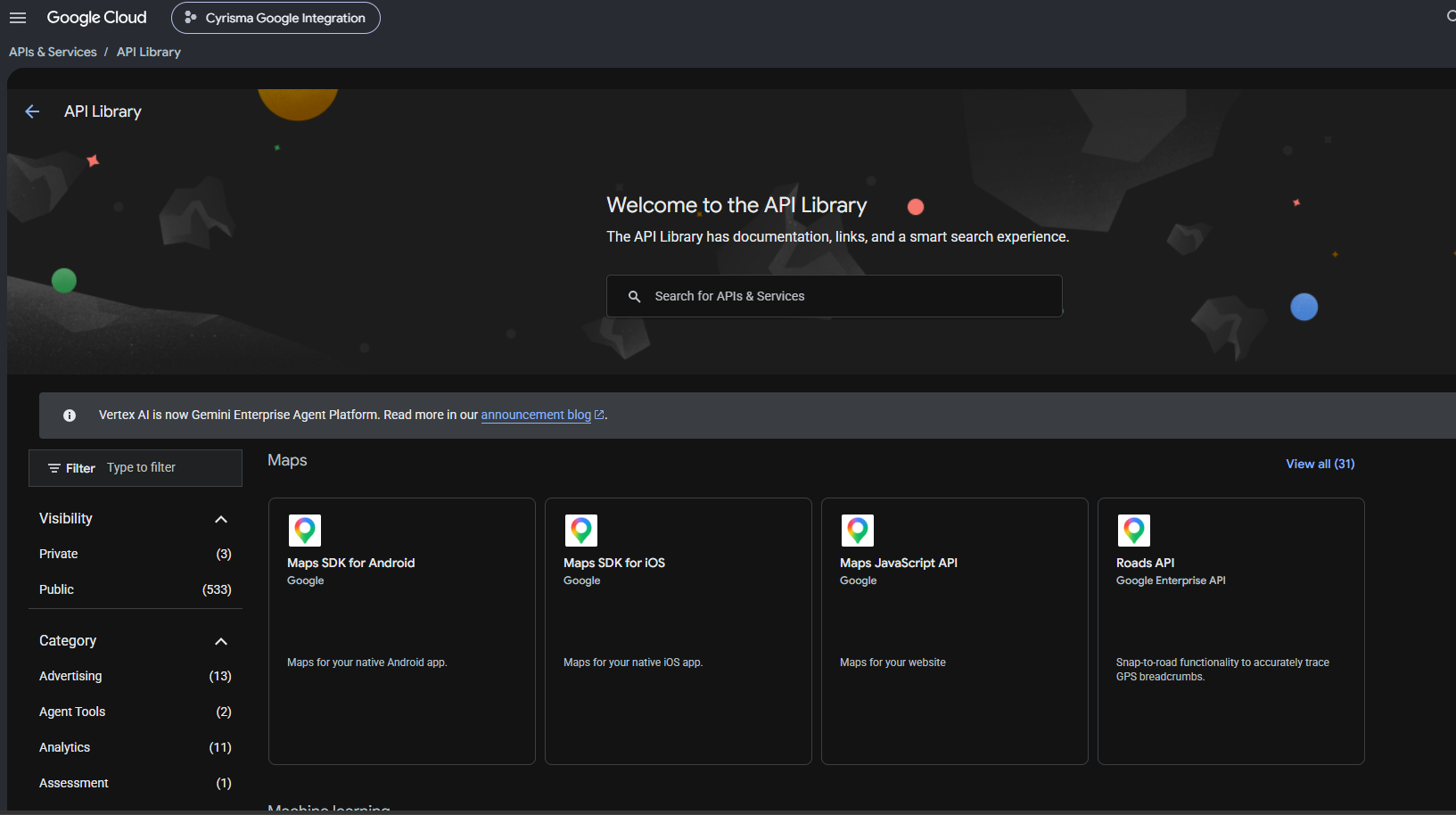
2. Use the API Library search box to search for Admin SDK API.
3. Click the matching API in the search results to open its product details page.
4. Click Enable and wait for activation to finish.
5. Return to APIs & Services > Library. Search for Gmail API, open its product details page, and click Enable.
6. Return to the Library again. Search for Google Drive API, open its product details page, and click Enable.
3 Configure the OAuth consent screen
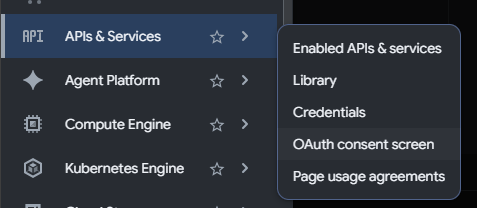
1. Open the navigation menu, then select APIs & Services > OAuth consent screen. This opens Google Auth Platform.
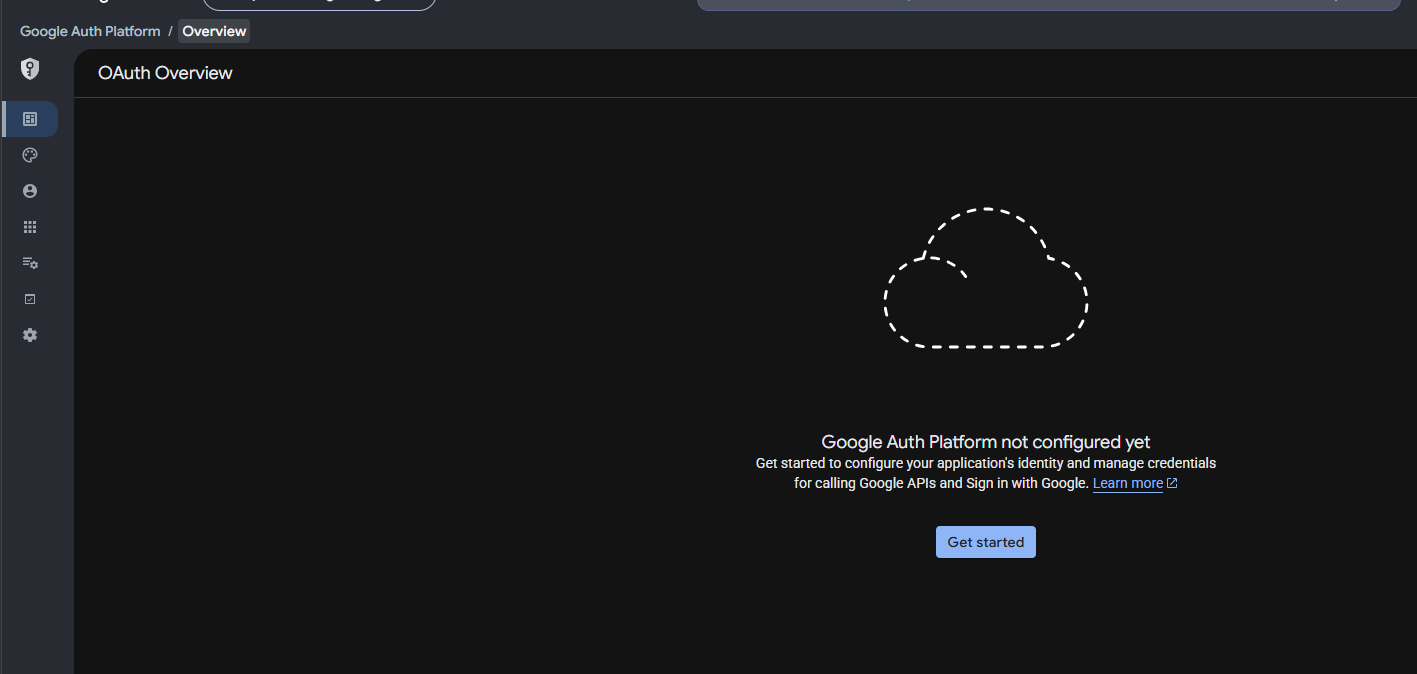
2. On OAuth Overview, click Get started.
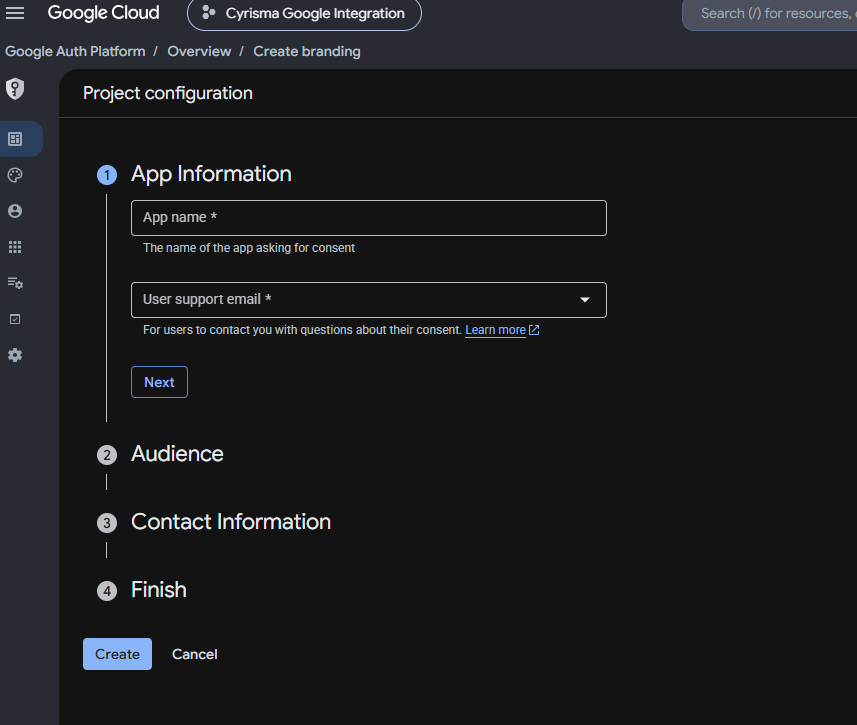
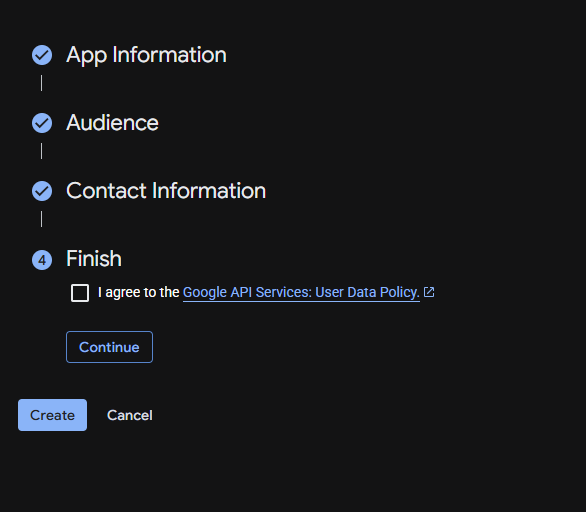
3. Under App Information, enter an App name, such as Cyrisma Google Scanning. Select a User support email, then click Next.
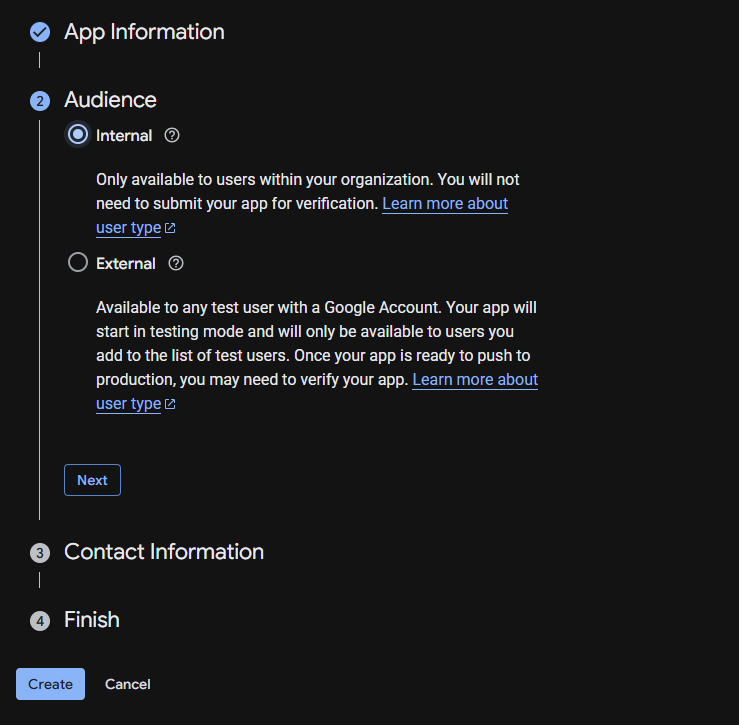
4. Under Audience, select Internal, then click Next.
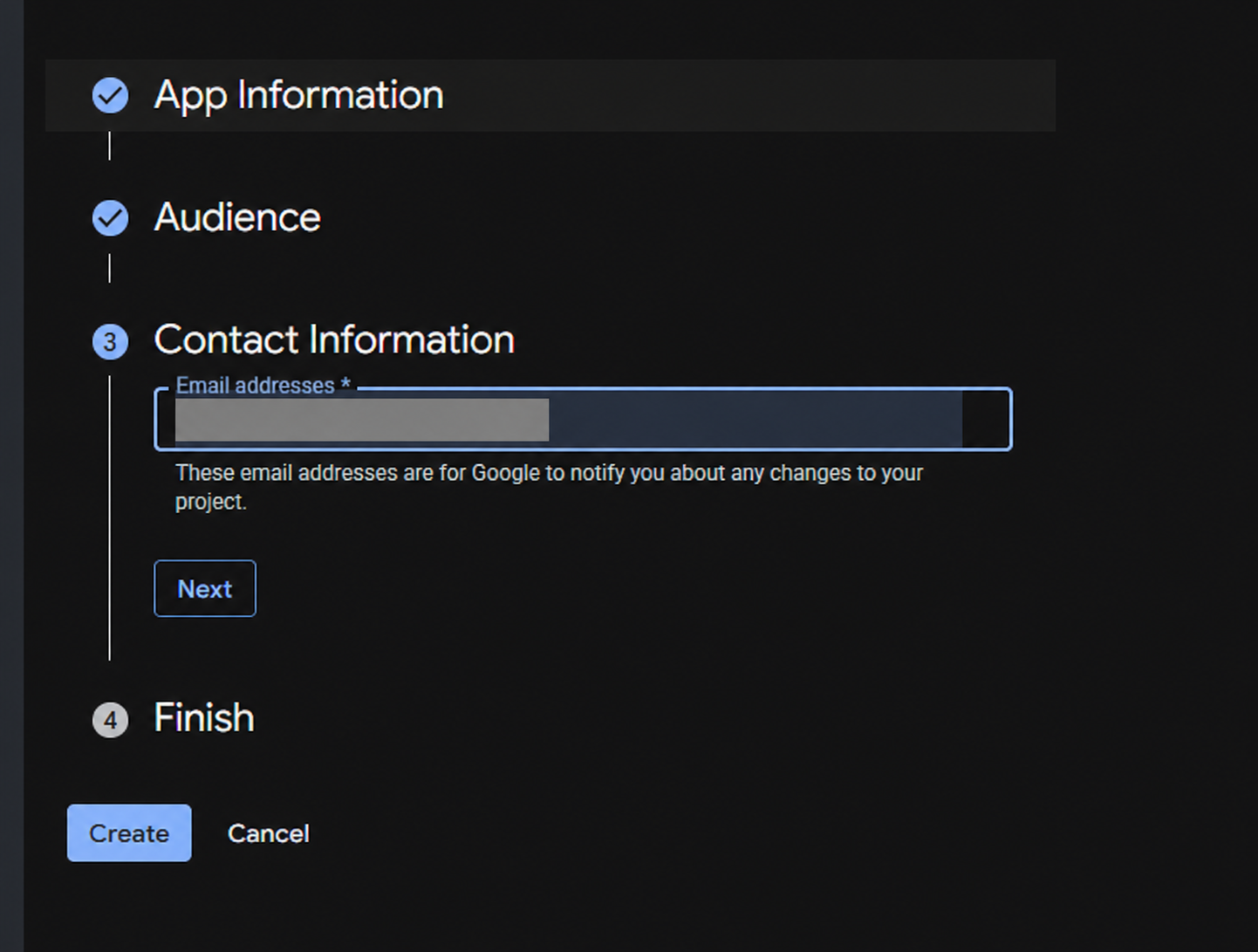
5. Under Contact Information, enter an administrator email address for Google project notifications, then click Next.
6. Under Finish, review the Google API Services User Data Policy and select the agreement checkbox if you agree.
7. Click Continue, then Create.
4 Add the required scopes
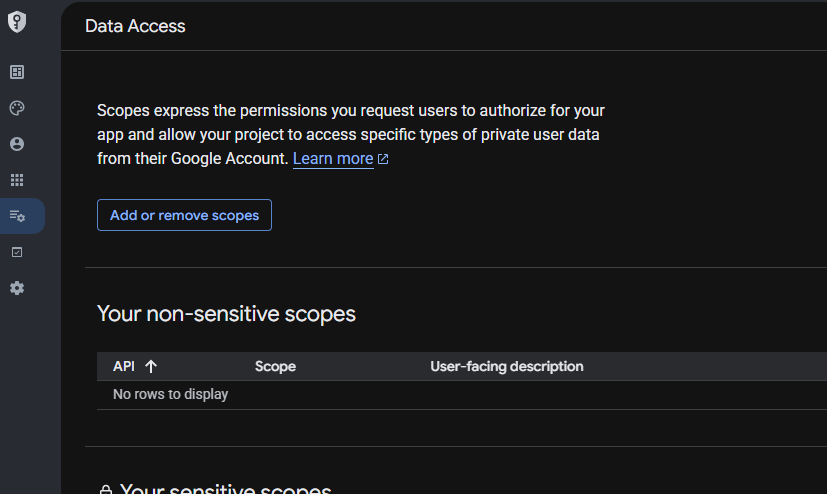
1. In the Google Auth Platform sidebar, select Data Access.
2. Click Add or remove scopes.
3. In Update selected scopes, find Manually add scopes and paste the following URLs, one per line:
https://www.googleapis.com/auth/gmail.readonly
https://www.googleapis.com/auth/admin.directory.user.readonly
https://www.googleapis.com/auth/drive.readonly
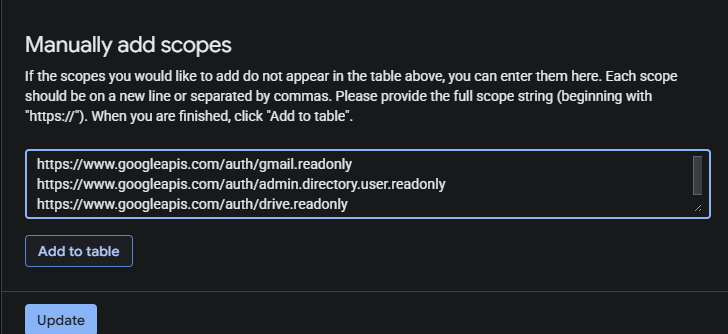
4. Click Add to table, then Update.
5. On Data Access, confirm that all three scopes are listed, then click Save.
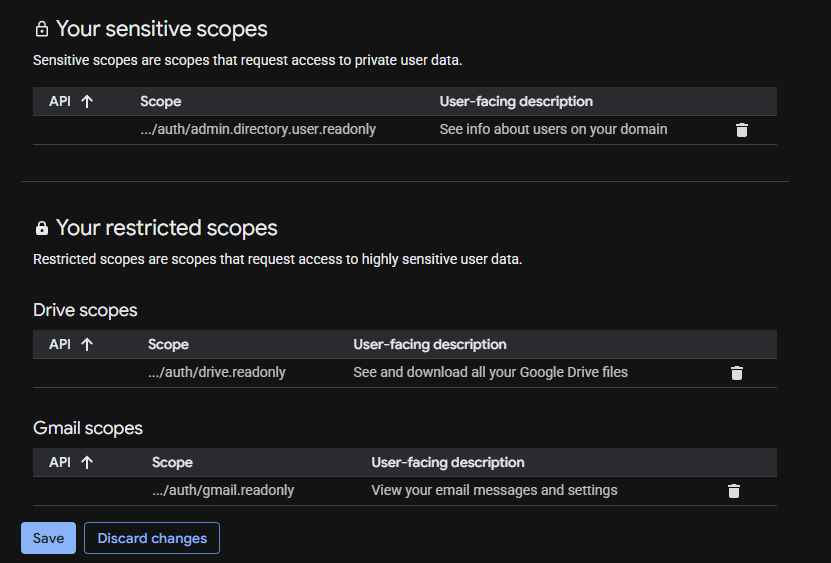
The same three scopes will be authorized for the service account in Google Admin later in this guide.
5 Create a service account
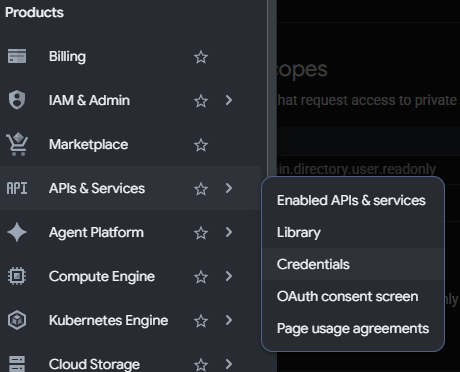
1. Open the navigation menu, then select APIs & Services > Credentials.
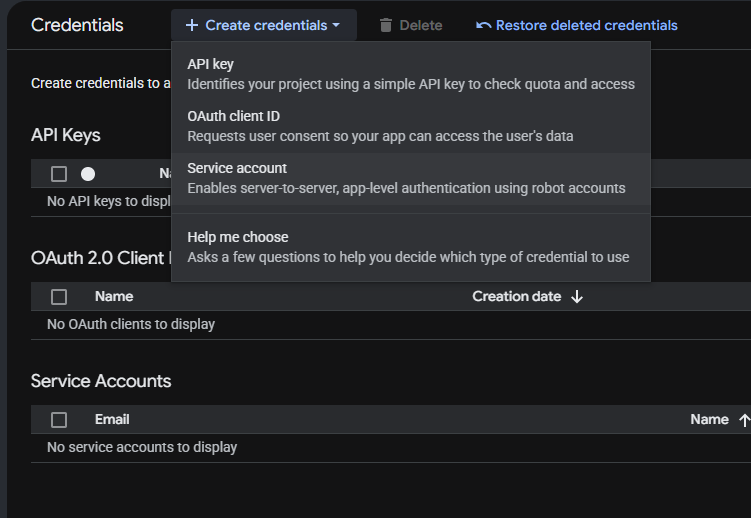
2. Click Create credentials > Service account.
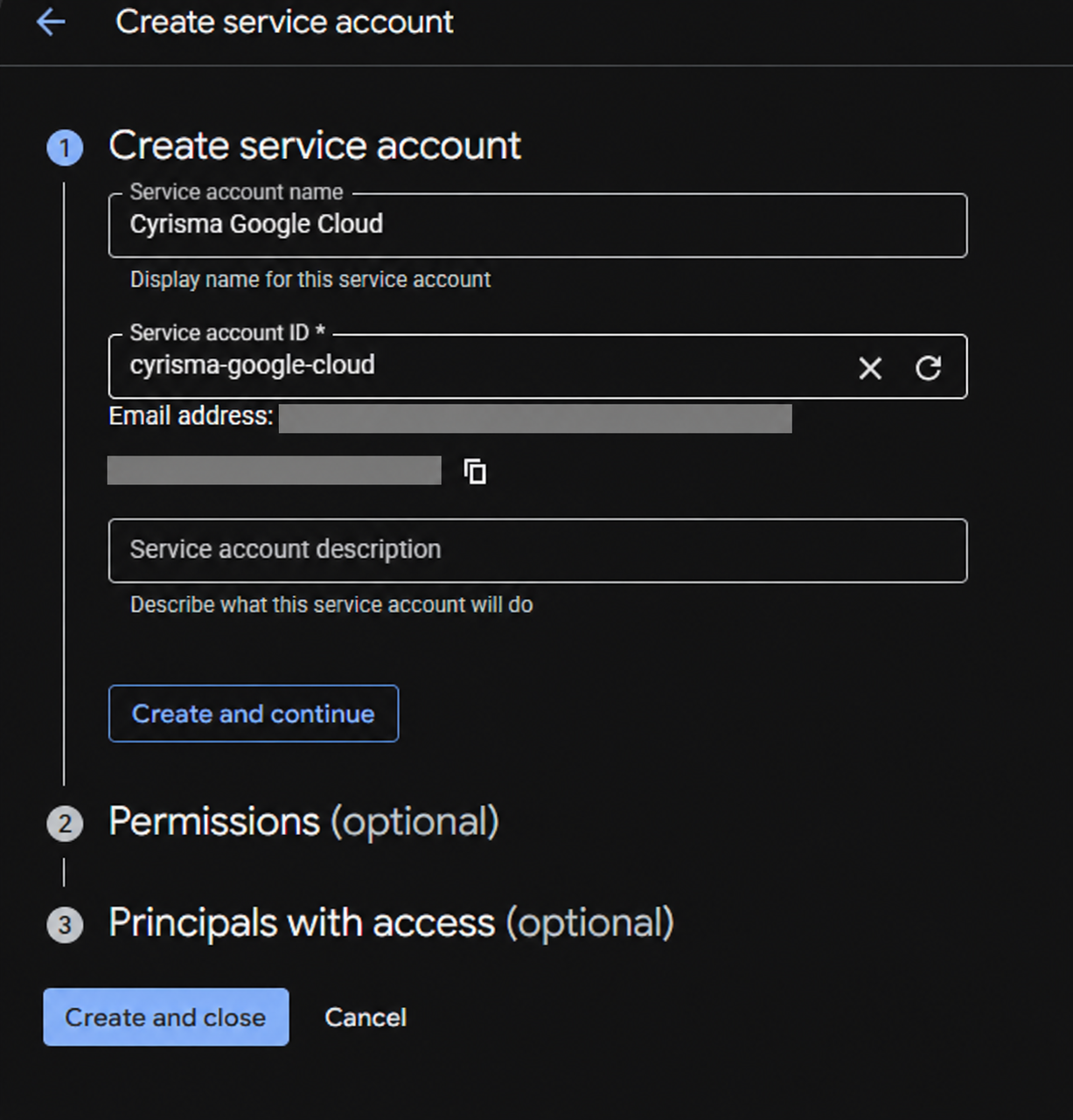
3. Enter a Service account name, such as Cyrisma Google Cloud.
4. Leave the automatically generated Service account ID unchanged. Enter a Service account description if desired.
5. Click Create and continue.
6. Under Permissions (optional), leave Select a role blank and click Continue.
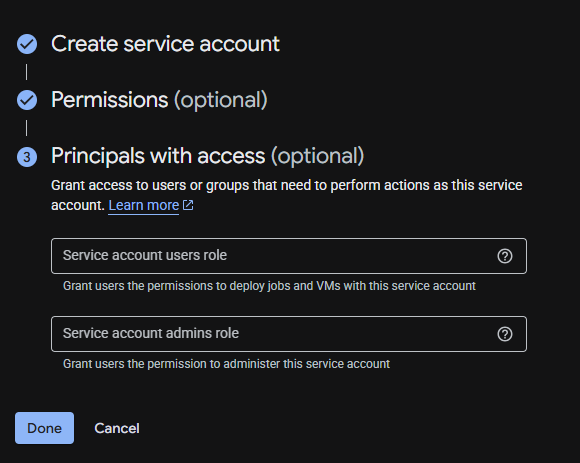
7. Under Principals with access (optional), leave Service account users role and Service account admins role blank.
8. Click Done.
6 Copy the client ID and download the JSON key
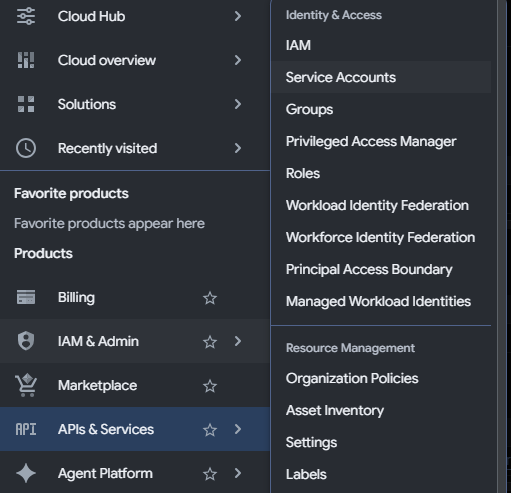
1. Open the navigation menu, then select IAM & Admin > Service Accounts.
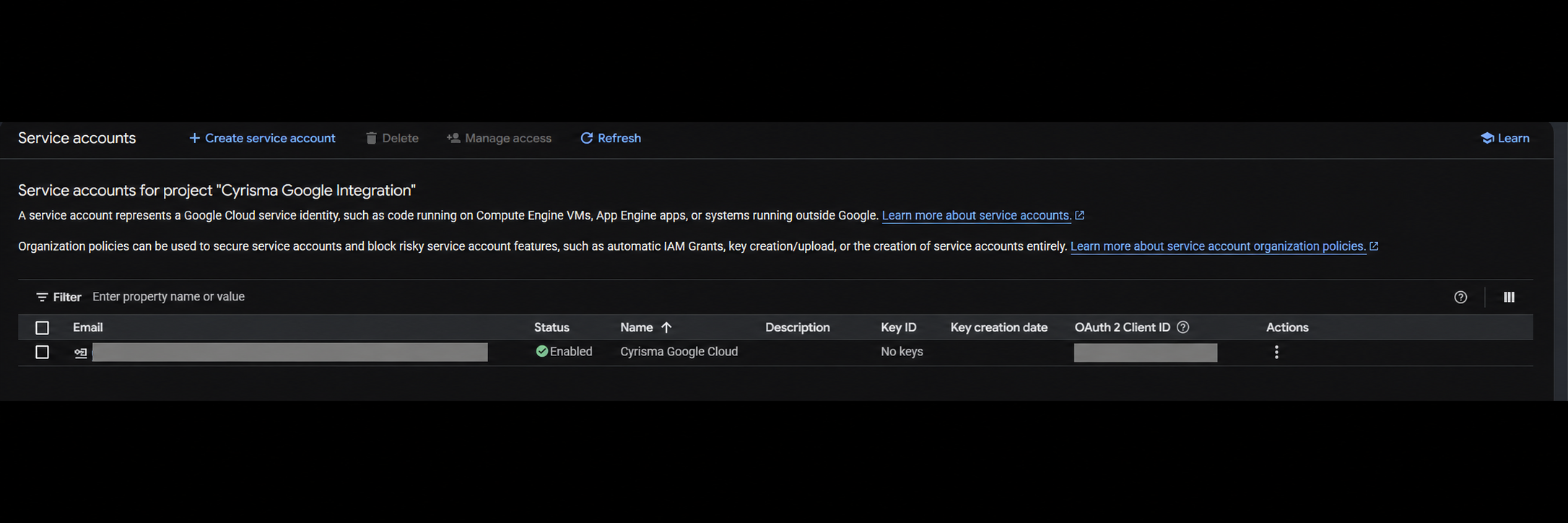
2. Find the service account you just created. Copy its numeric value from the OAuth 2 Client ID column and keep it for the Google Admin setup in section 7.
3. Click the service account's email address to open its Details tab.
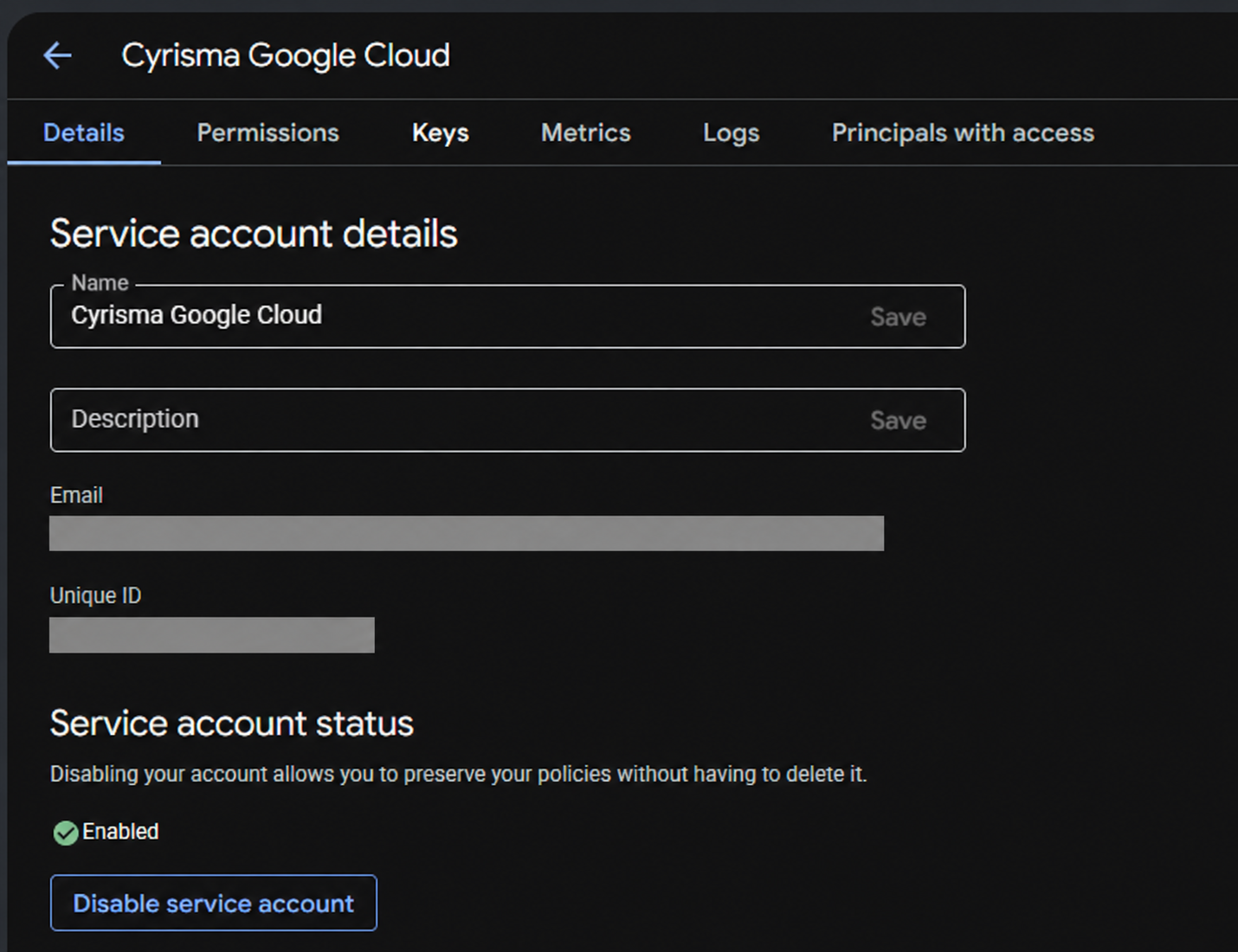
The Details tab also shows the numeric identifier as Unique ID. Use this numeric identifier for delegation, rather than the project ID or the service account's name.
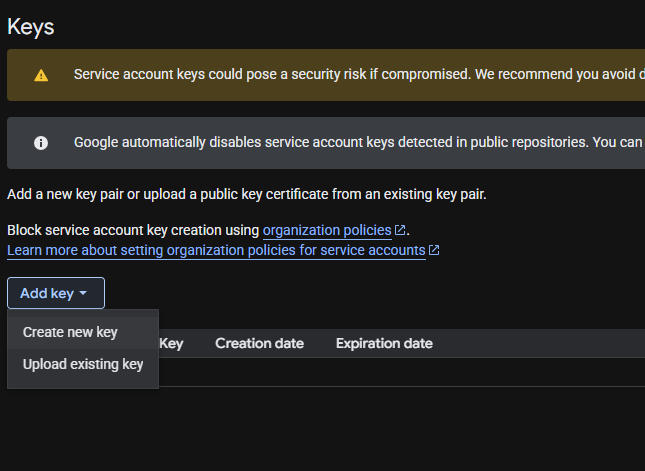
4. Open the Keys tab.
5. Click Add key > Create new key.
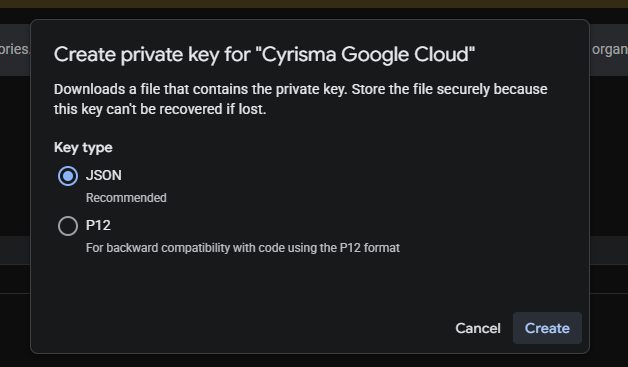
6. Select JSON, then click Create.
7. Wait for the JSON file to download. When Private key saved to your computer appears, click Close.
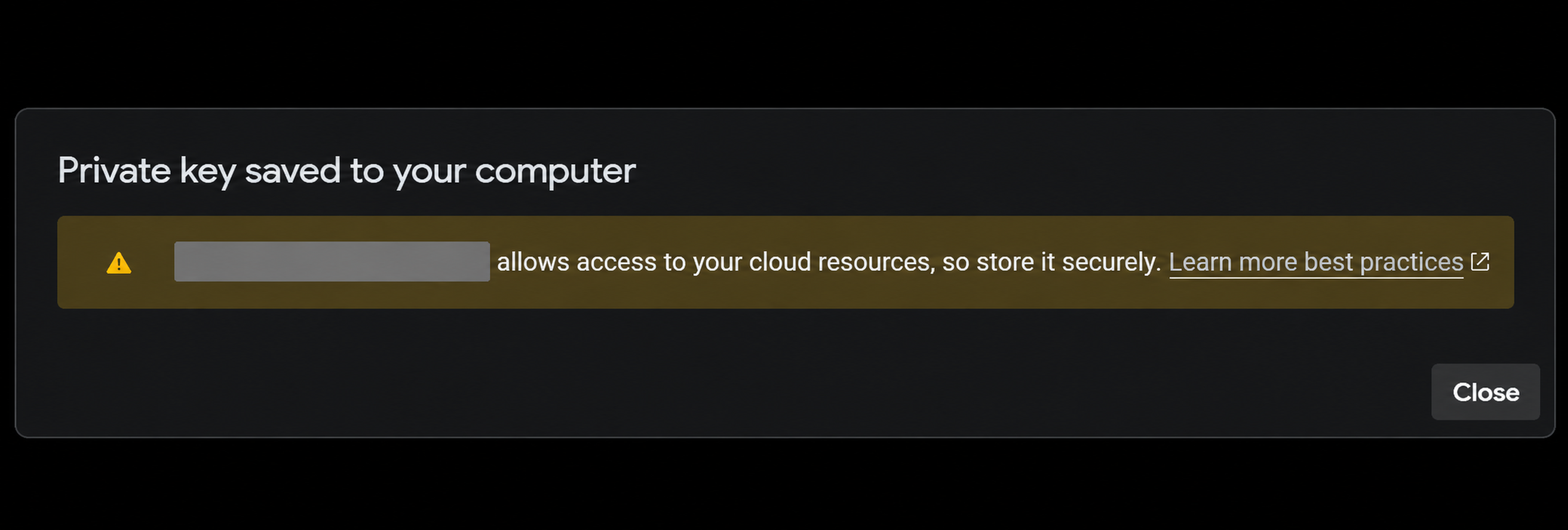
Keep the downloaded file in a secure location. You will upload this file to Cyrisma in section 8.
7 Authorize domain wide delegation
1. Open Google Admin Console and sign in with a Google Workspace Super Admin account.
2. In the sidebar, select Security > Access and data control > API controls.
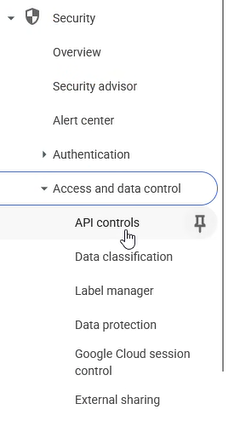
3. Click Manage Domain Wide Delegation.
4. In the API clients section, click Add new.
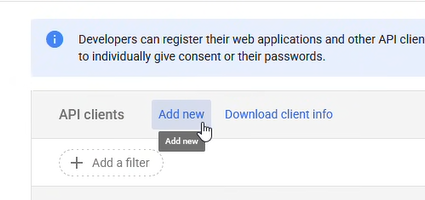
5. In Client ID, paste the numeric service-account client ID copied in section 6.
6. In OAuth scopes (comma-delimited), paste this complete comma-separated list:
https://www.googleapis.com/auth/gmail.readonly,https://www.googleapis.com/auth/admin.directory.user.readonly,https://www.googleapis.com/auth/drive.readonly7. Click Authorize.
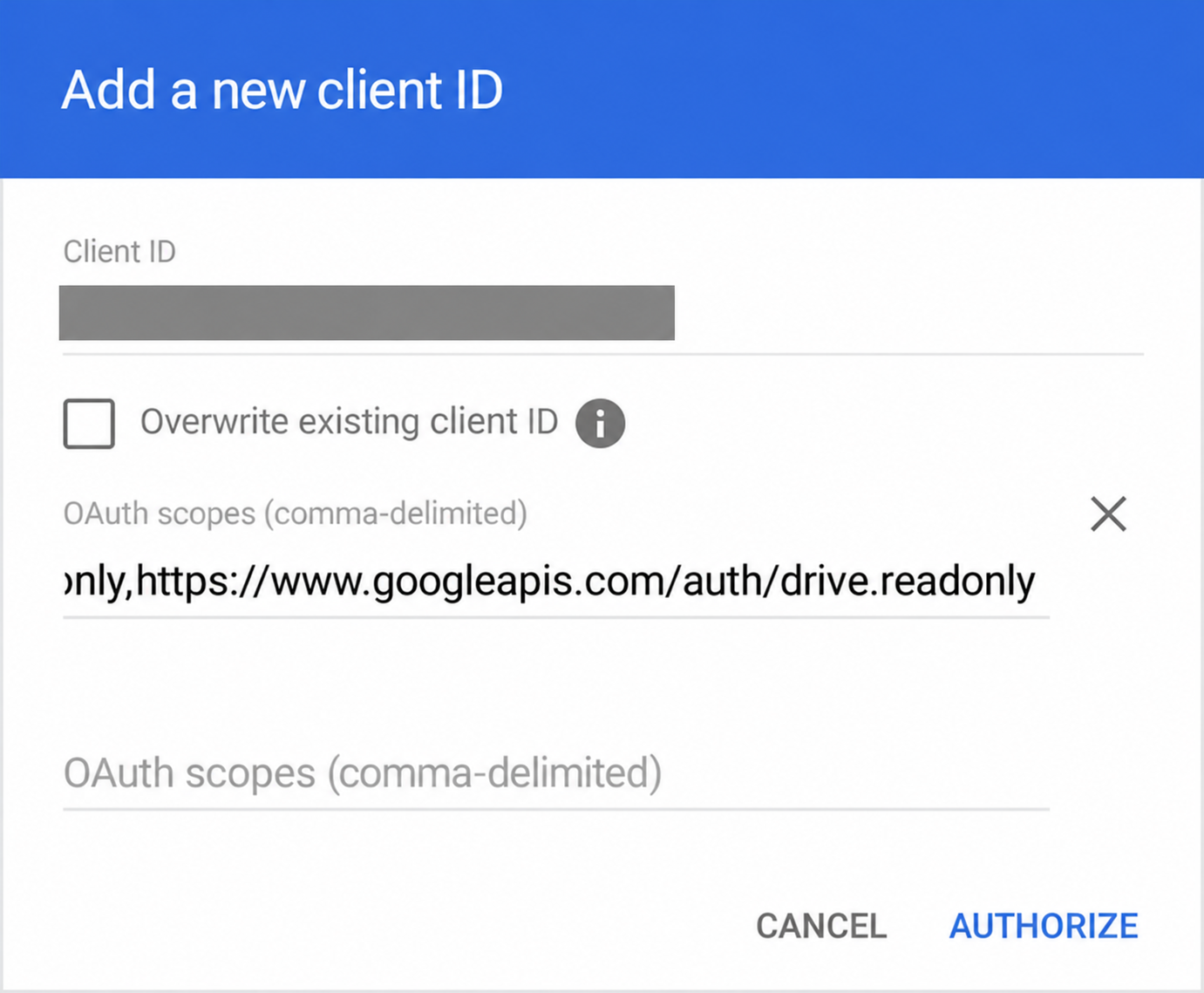
8. Open View details for the new entry and confirm that all three scopes are present:
gmail.readonly
admin.directory.user.readonly
drive.readonly
8 Complete and verify the integration in Cyrisma
1. Return to the Cyrisma tenant and open Settings > Integrations.
2. Open the Google Workspace configuration.
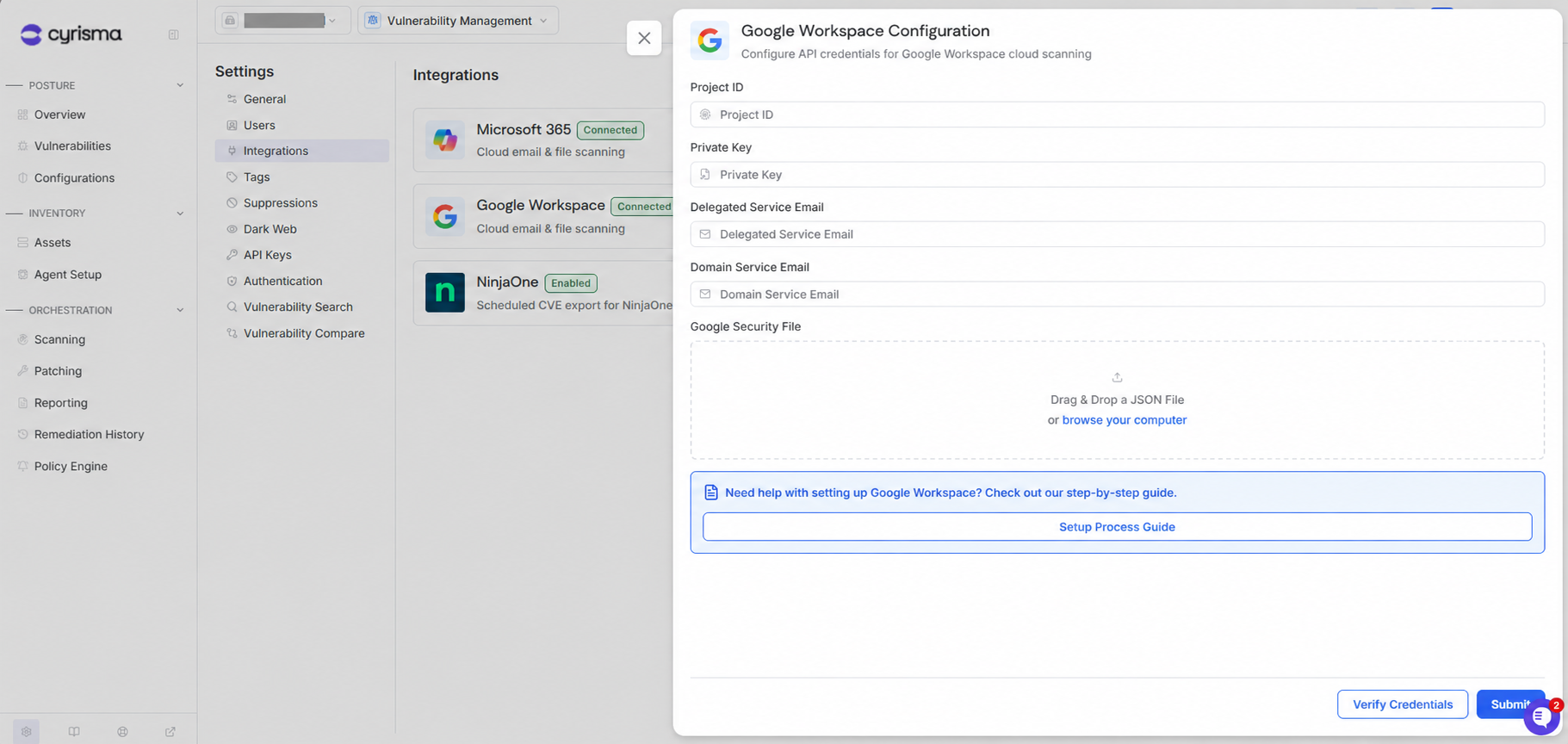
3. Under Google Security File, drag and drop the JSON file downloaded in section 6. You can also click browse your computer and select the file.
4. Confirm that Project ID, Private Key, and Delegated Service Email populate automatically.
5. In Domain Service Email, enter the email address of a Google Workspace administrator account with mailbox access in your organization.
Field | Value |
Project ID | Filled automatically from the JSON file. |
Private Key | Filled automatically from the JSON file and displayed as a masked value. |
Delegated Service Email | The service-account email address, filled automatically from the JSON file. |
Domain Service Email | Your organization's Google Workspace administrator email address, entered manually. |
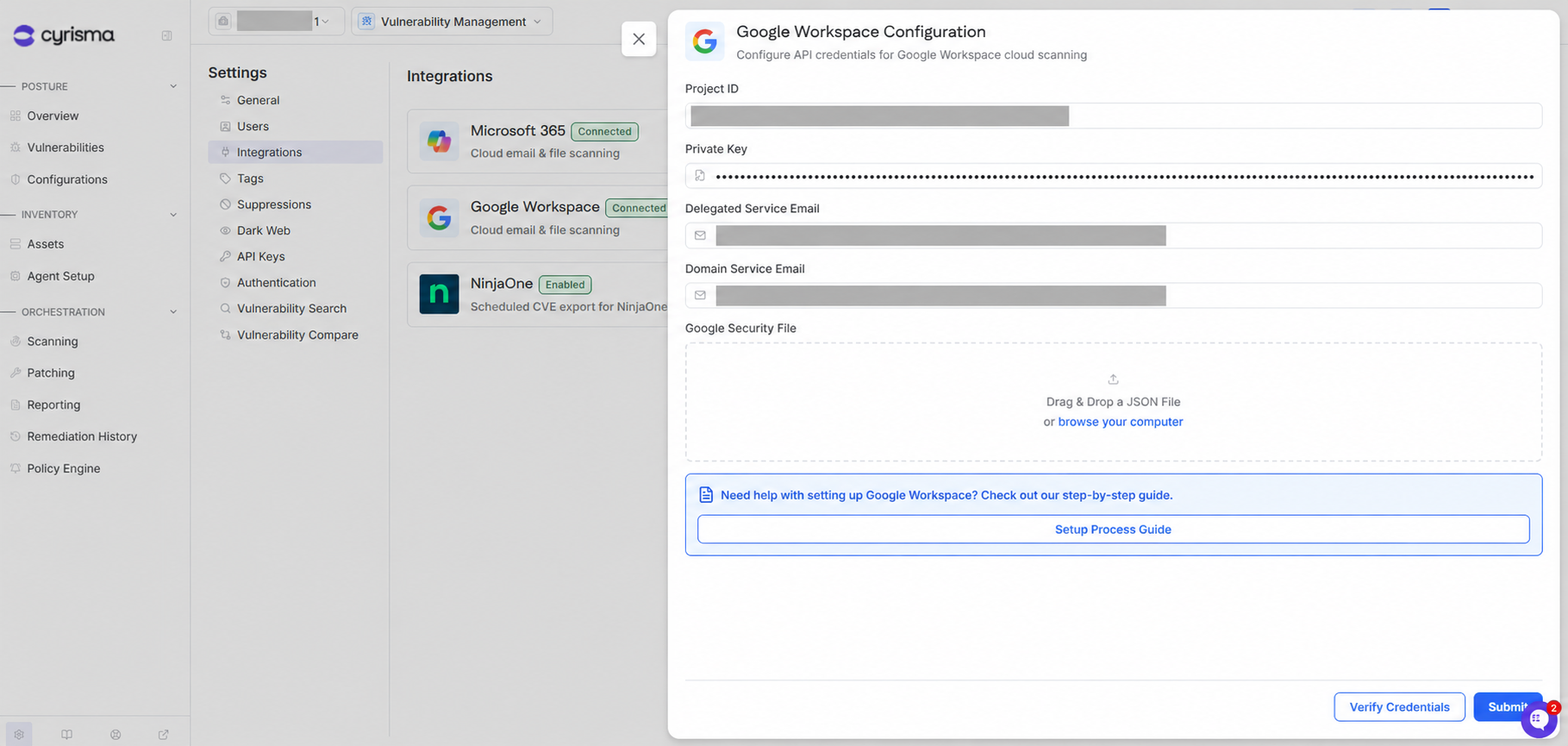
6. Click Submit to save the configuration. Confirm that Credentials updated successfully appears.

7. Click Verify Credentials and review the result. Complete any required corrections and verify again before starting a scan.
Once verification succeeds, the integration is ready to use when configuring a Google Workspace cloud data scan.
Troubleshooting
Credential verification fails
Confirm that all three APIs are enabled in the integration project, that domain-wide delegation uses the numeric client ID for the service account associated with the uploaded JSON file, and that all three scope URLs are present. Check that Domain Service Email contains the correct administrator email address. If delegation was just authorized, allow time for it to take effect and try verification again.