Single sign-on Documentation
Last updated: September 28, 2026
Configuring Single Sign-On in the MSP Portal
Single sign-on allows MSP users to sign in to Cyrisma through their organization’s identity provider. Cyrisma supports OpenID Connect and SAML 2.0.
This article explains how to configure an SSO connection, control access for users who sign in through SSO, test the connection, and require SSO after testing is complete.
Context
SSO can be configured on three levels:
Your Top-level Organization
Any Sub-Organization
Individual Tenant
SSO is domain-based. When you configure SSO at the MSP level, this is applied to logins both on https://msp.cyrisma.com as well as any tenant level domains (e.g. cn123456.cyrisma.com) when a user enters an @domain.com email from your configured domain.
When SSO is configured on a sub-organization or tenant-level, the same logic applies.
Before You Begin
You need:
Administrative access to your identity provider
Permission to create or configure an application in the identity provider
A test user who can be assigned to the application
The connection values required for OpenID Connect or SAML 2.0
Keep your current Cyrisma administrator session open while configuring and testing SSO. Do not require SSO until an administrator has successfully signed in through the connection.
The labels used by your identity provider may differ from the labels used in Cyrisma. Match each value by its purpose and the direction in which it must be copied. Consult your identity provider’s documentation if you are unsure where to locate a value.
1. Open the Authentication Settings
Sign in to the MSP portal.
Select the gear icon in the lower-left corner to open Settings.
Select Authentication.
Select Set up single sign-on.

The Single sign-on page provides setup options for OpenID Connect and SAML 2.0.
2. Choose a Single Sign-On Protocol
Select the protocol used by your identity provider:
OpenID Connect – Uses an issuer URL, client ID, client secret, and redirect URL.
SAML 2.0 – Uses an identity provider entity ID, sign-on URL, X.509 signing certificate, and Assertion Consumer Service URL.
Only configure the protocol used by your identity provider. The connection must be configured in both Cyrisma and the identity provider.
3. Configure OpenID Connect
OpenID Connect requires three values from your identity provider and a callback URL generated by Cyrisma.
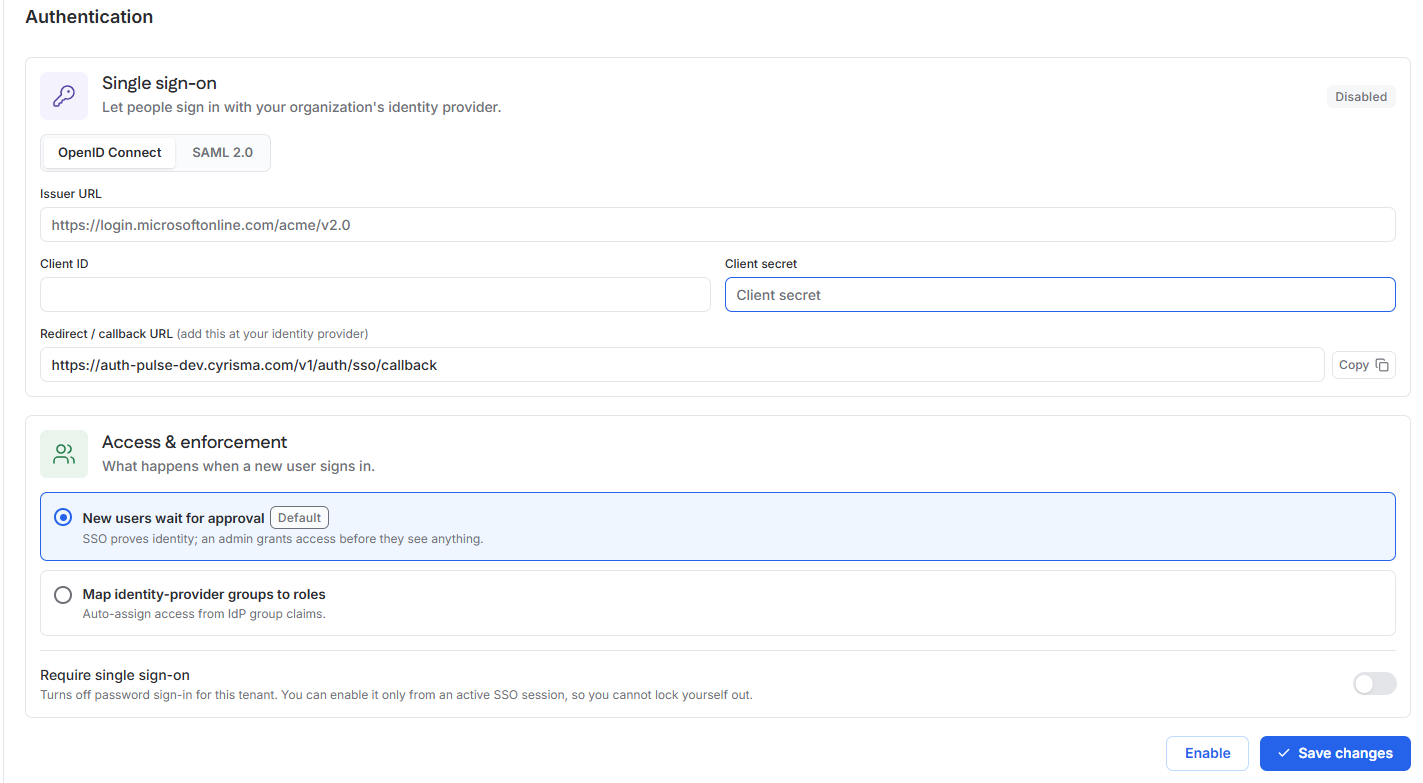
Understanding the OpenID Connect Fields
Cyrisma field | Direction | Description |
|---|---|---|
Issuer URL | Identity provider to Cyrisma | Identifies the identity provider or authorization server. Your provider may call this an issuer, authority, or authorization server URL. Enter the issuer URL rather than a discovery or metadata URL unless your provider documents them as the same value. |
Client ID | Identity provider to Cyrisma | Identifies the application created for Cyrisma. Your provider may call this an application ID. |
Client secret | Identity provider to Cyrisma | A confidential credential for the OpenID Connect application. Cyrisma uses it with the client ID to authenticate itself to the identity provider when requesting tokens. Enter the actual secret value, not its label or identifier. |
Redirect / callback URL | Cyrisma to identity provider | Specifies where the identity provider returns the user after authentication. Your provider may call this a redirect, callback, return, or sign-in URL. |
Enter the OpenID Connect Configuration
Select OpenID Connect.
In your identity provider, create or open the application that users will use to access Cyrisma.
In Cyrisma, select Copy beside Redirect / callback URL.
Add the copied URL as an allowed redirect or callback URL in your identity provider.
Obtain the Issuer URL, Client ID, and Client secret from your identity provider.
Enter each value in the corresponding Cyrisma field.
Make sure the identity provider returns the user’s email address during authentication.
Continue to Configure Access and Enforcement.
Copy the Redirect / callback URL exactly as Cyrisma displays it, including the protocol and complete path. Do not use a URL shown in an example or screenshot.
4. Configure SAML 2.0
SAML 2.0 requires identity-provider values and Cyrisma service-provider values.
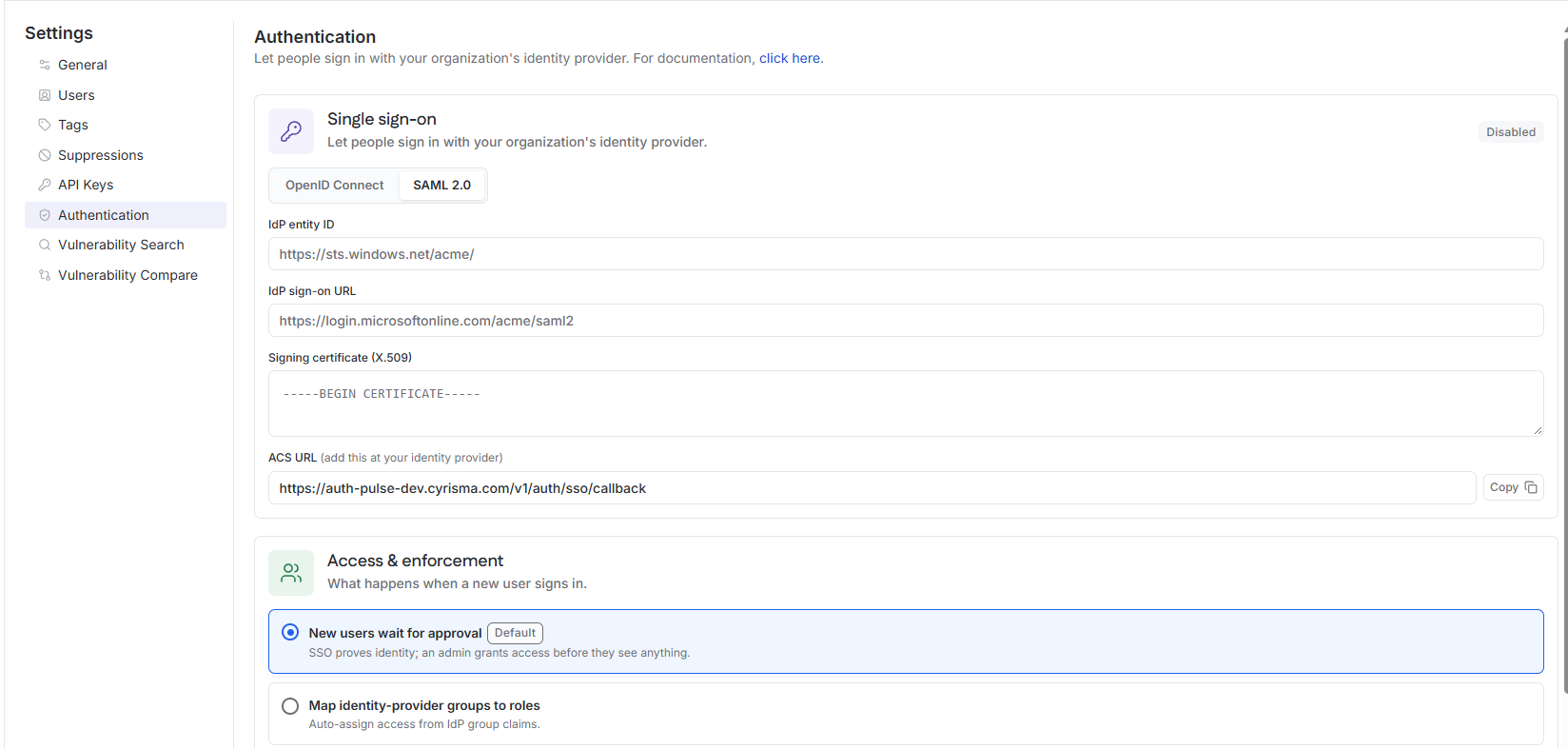
Understand the SAML 2.0 Fields
Cyrisma field or value | Direction | Description |
|---|---|---|
IdP entity ID | Identity provider to Cyrisma | Uniquely identifies the identity provider. Your provider may call this an identity provider identifier or issuer. |
IdP sign-on URL | Identity provider to Cyrisma | Identifies the provider endpoint used for authentication. Your provider may call this a login, sign-on, or SSO URL. |
Signing certificate (X.509) | Identity provider to Cyrisma | Allows Cyrisma to verify that SAML responses were signed by the trusted identity provider. Your provider may offer the certificate as text or as a downloadable certificate file. |
ACS URL | Cyrisma to identity provider | Specifies where the provider sends the SAML response. Your provider may call this an ACS, reply, recipient, destination, or single sign-on URL. |
Audience URI or SP Entity ID | Cyrisma to identity provider | Identifies Cyrisma as the SAML service provider. Some identity providers require this value even though it is not entered in a Cyrisma field. |
Enter the SAML 2.0 Configuration
Select SAML 2.0.
In your identity provider, create or open the SAML application that users will use to access Cyrisma.
In Cyrisma, select Copy beside ACS URL.
Add the copied value to the corresponding ACS, reply, recipient, destination, or single sign-on URL field in your identity provider.
If your identity provider requires an Audience URI or SP Entity ID, enter the Cyrisma service-provider value provided for your environment.
Configure the user’s email address as the SAML Name ID or primary user identifier.
Obtain the IdP entity ID, IdP sign-on URL, and X.509 signing certificate from your identity provider.
Enter each value in the corresponding Cyrisma field.
Paste the complete X.509 certificate, including the
BEGIN CERTIFICATEandEND CERTIFICATElines.Continue to Configure Access and Enforcement.
Copy the ACS URL exactly as Cyrisma displays it, including the protocol and complete path.
5. Add and Verify Domains for MSP SSO
Domain verification is required for MSP-level SSO connections. It allows Cyrisma to determine which SSO connection should be used when a user enters their email address on the MSP sign-in page.
Domain verification is not required when SSO is configured directly on an individual tenant.
For an MSP-level SSO connection, add and verify each email domain that users will use to sign in.
In Verified domains, select Add domain.
Enter the email domain, such as
example.com. Do not enter an email address or URL.Select Add.

The domain initially displays a DNS Verification Pending status. Cyrisma provides the following DNS record information:
Name – The hostname or record name to add.
Type – The DNS record type. Domain verification uses a TXT record.
Value – The unique verification value generated by Cyrisma.
To complete verification:
Sign in to the service that manages DNS for the domain.
Create a TXT record using the Name, Type, and Value displayed in Cyrisma.
Save the DNS record.
Wait for the DNS change to become available. DNS propagation time varies by provider.
Return to Settings > Authentication in Cyrisma.
Locate the pending domain and select Verify DNS.
Confirm that the domain no longer displays DNS Verification Pending.
6. Configure Access and Enforcement
The Access & enforcement section controls what happens after a user successfully authenticates through the identity provider.
Select one of the following options:
New users wait for approval – This is the default option. SSO verifies the user’s identity, but a Cyrisma administrator must grant access before the user can use the MSP portal.
Map identity-provider groups to roles – Cyrisma uses group claims received from the identity provider to assign access automatically.
New Users Wait for Approval
With this option selected:
The user authenticates with the identity provider.
Cyrisma creates a pending access request.
A Cyrisma administrator reviews the request on the Authentication page in Cyrisma and grants the appropriate role and organization access.
The user signs in again after approval.
The approval occurs in Cyrisma, not in the identity provider. Before approving a request, confirm that the user should have access to the selected organization and its client instances.
Map Identity-Provider Groups to Roles
Use this option when the identity provider is configured to send group claims and access should be assigned automatically.
Before enabling group-based access, confirm that:
The required group claim is included in the OpenID Connect token or SAML assertion.
The provider’s group values match the group mappings configured in Cyrisma.
Each mapped group grants the intended Cyrisma role and organizational access.
The identity provider may use a different label for groups or group claims. Review its documentation to determine which claim contains the values you want Cyrisma to use.
Test each mapping with a non-administrator account before using it broadly.
7. Enable and Save the Connection
Review the protocol settings and access option.
Select Enable.
Select Save changes to apply the configuration and enable the connection.
Confirm that the connection status changes from Disabled to Enabled.
Leave Require single sign-on turned off while testing. Password sign-in remains available while you verify the connection and correct any configuration problems.
8. Test Single Sign-On
Assign a test user to the Cyrisma application in your identity provider.
Confirm that the test user’s identity-provider email address is correct.
Open a private or incognito browser window.
Go to the Cyrisma sign-in page.
Enter the test user’s email address.
Cyrisma should redirect the user to the configured identity provider. A separate provider-specific SSO button may not be displayed.
Complete authentication through the identity provider.
Confirm that the user reaches the expected MSP Overviewpage or receives a pending approval message.
If approval is required, approve the request in Cyrisma with the appropriate role and organization access, and then test again.
Confirm that the user can access only the intended organizations and client instances.
Test with at least one MSP administrator and one non-administrator user. Do not require SSO until an administrator has successfully completed the entire sign-in flow.
9. Require Single Sign-On
Require single sign-on disables password sign-in for the configured MSP environment. After it is enabled, users must authenticate through the configured identity provider.
Sign in to Cyrisma through SSO using an MSP administrator account.
From that SSO-authenticated session, open Settings > Authentication.
Turn on Require single sign-on.
Select Save changes.
Open a separate private browser window and confirm that another assigned user can sign in.
Warning: Confirm that administrator SSO access works before requiring single sign-on. Incorrect identity-provider settings, an expired secret or certificate, or an unavailable identity provider could prevent users from signing in.
10. Maintain the Connection
OpenID Connect client secrets and SAML signing certificates can expire. Track their expiration dates in the identity provider and replace them before they expire.
When updating a secret, certificate, issuer, or sign-on URL:
Keep an active administrator session open.
Update the identity-provider configuration as needed.
Update the corresponding values in Cyrisma.
Select Save changes.
Test SSO in a private browser window.
Confirm that both administrator and standard-user access still work.