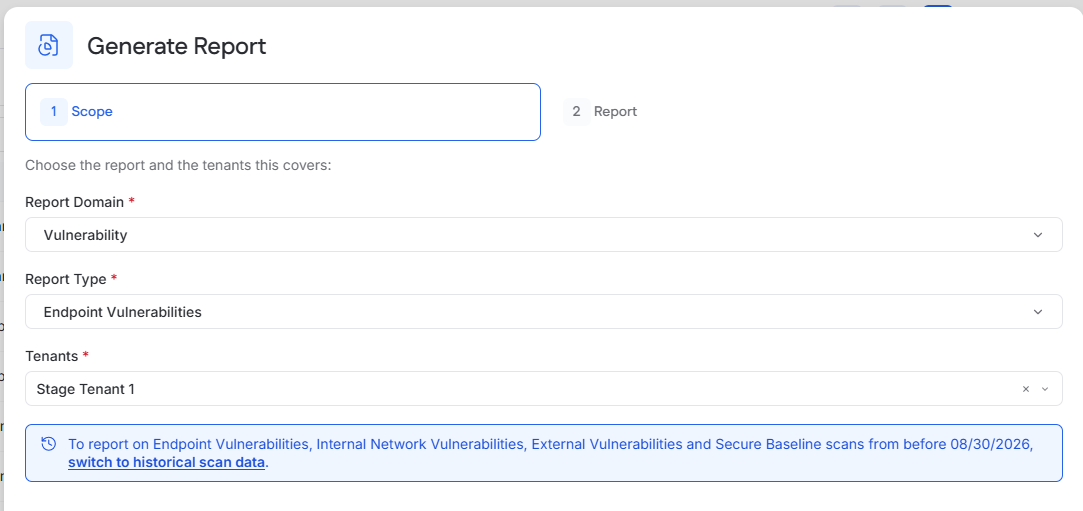
Generate a Report Now
Last updated: September 17, 2026
Use Generate Now to create a one-time report using current data or a completed scan.
Start the report
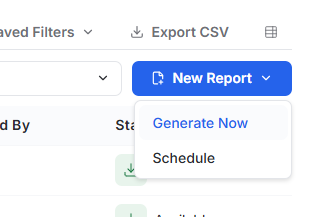
Go to Reporting.
Select New Report.
Select Generate Now.
Choose the report
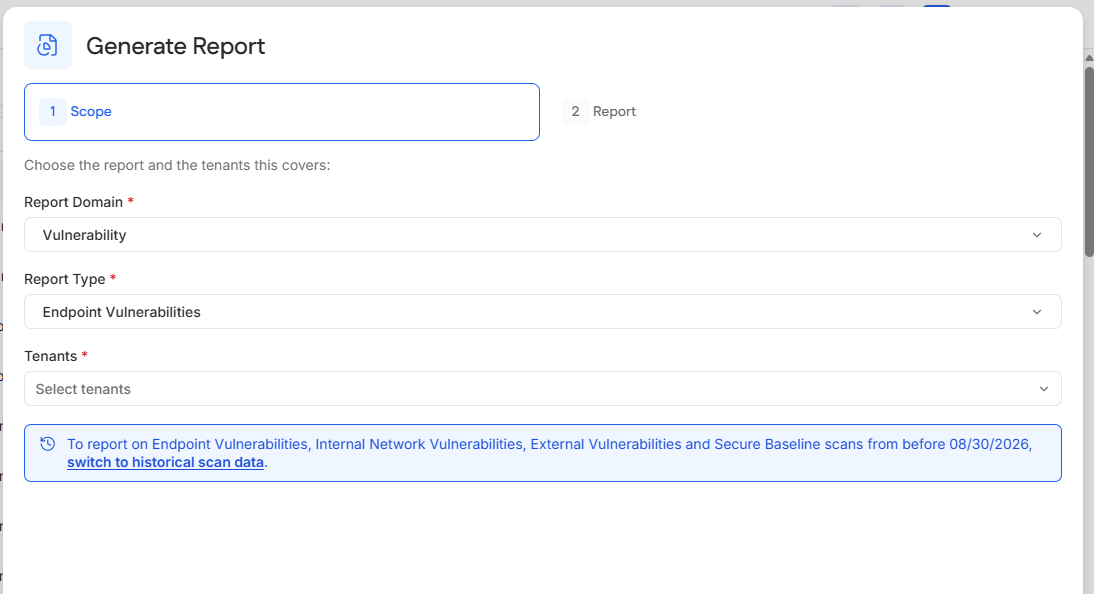
Select the Report Domain.
Select the Report Type.
MSP only: Select one or more tenants.
Select Continue.
Tenant users generate the report for their current tenant.
For help choosing a report, see Understanding Report Domains and Report Types.
Complete the report settings
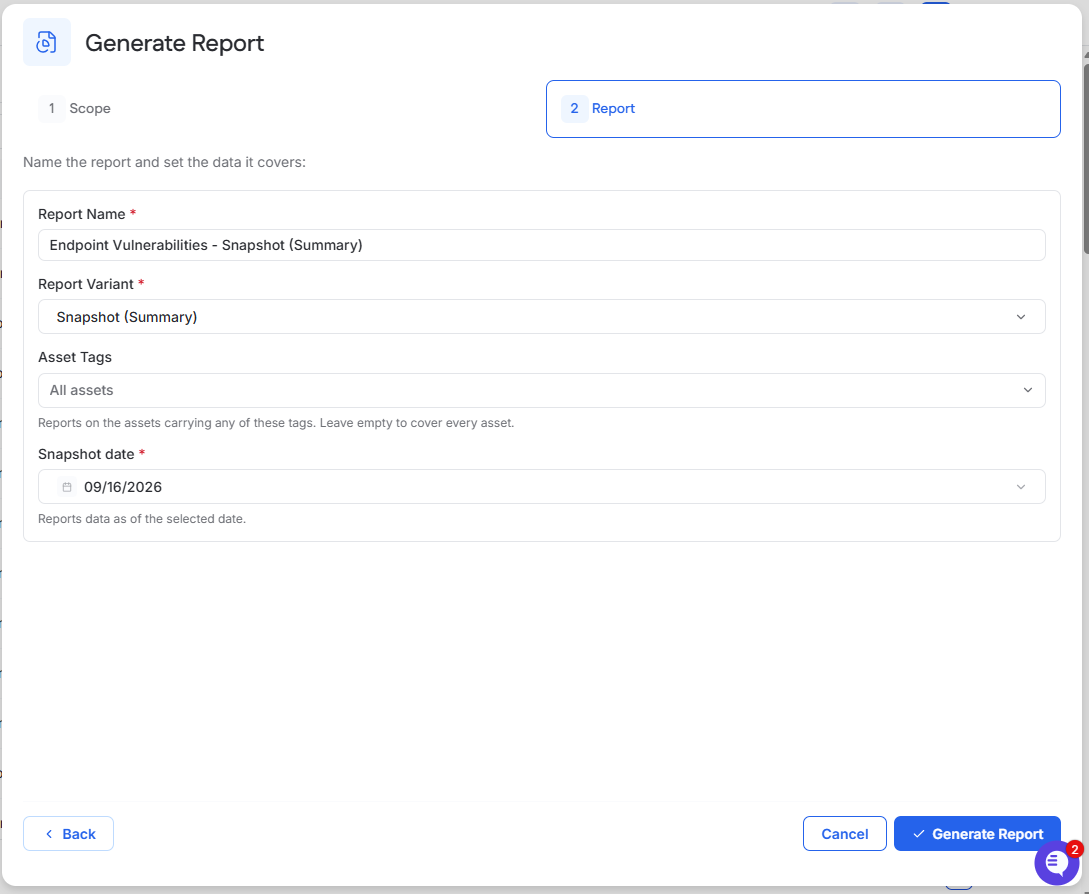
Review or change the Report Name.
Complete the fields displayed for the selected report.
Select Generate Report.
The available fields depend on the selected report type. They may include a report variant, asset tags, dates, report modules, or a completed scan.
Download the report
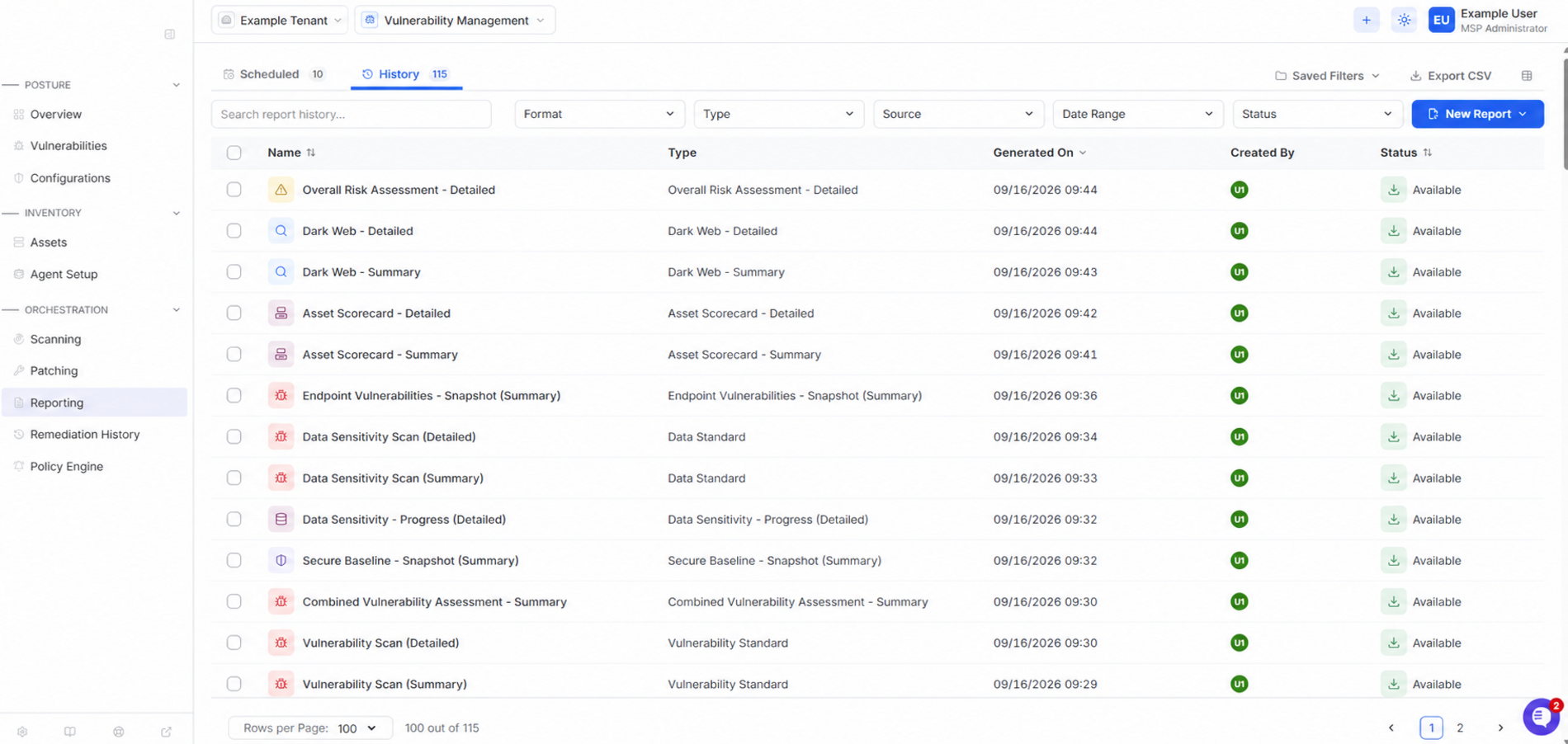
Open the History tab.
Wait for the report status to show Available.
Select the download icon.
Reports remain available to download for 24 hours. After 24 hours, the status changes to Expired.
Historical scan data
To report on Endpoint Vulnerabilities, Internal Network Vulnerabilities, External Vulnerabilities, or Secure Baseline scans completed before August 30, 2026, select switch to historical scan data on the Scope step.