Understanding Report Domains and Report Types
Last updated: September 17, 2026
Cyrisma organizes reports by domain and report type.
Report Domain identifies the area being reported on.
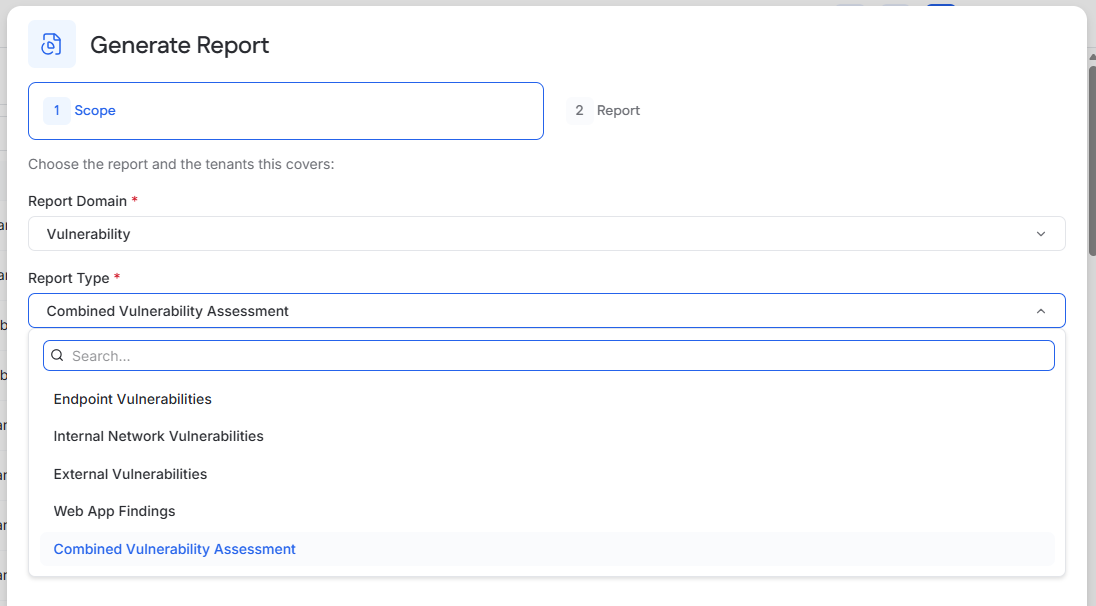
Report Type identifies the report to create.
Report Variant controls the report format or time period.
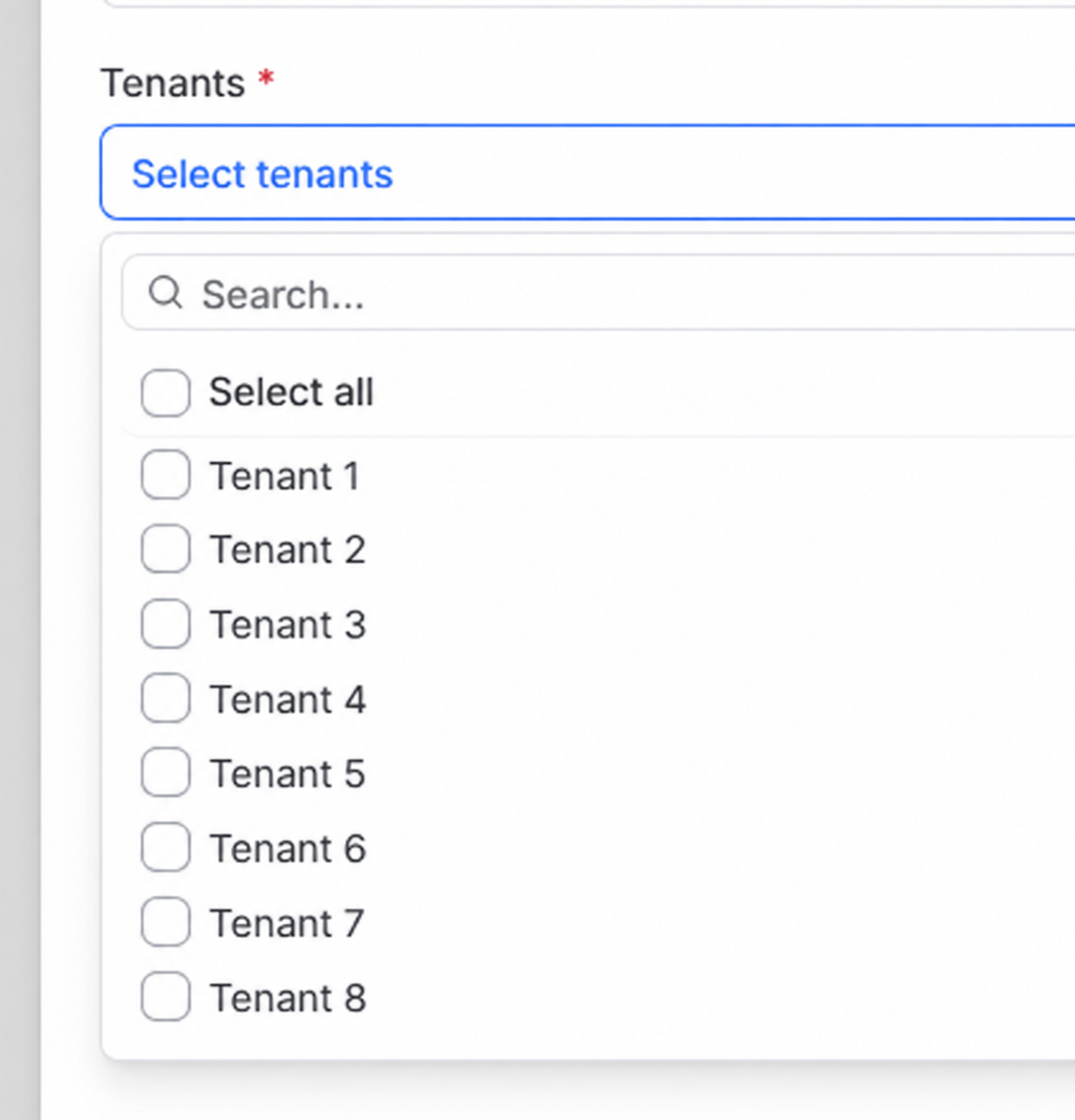
Tenant users report on their current tenant. MSP users can select one or more managed tenants.
Select a report
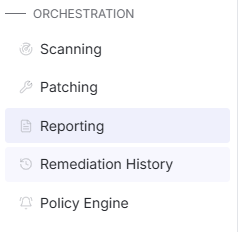
Go to Reporting.
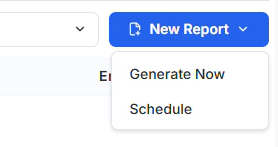
Select New Report.
Select Generate Now or Schedule.
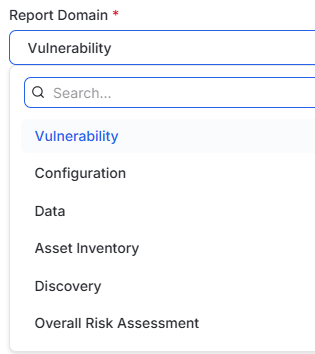
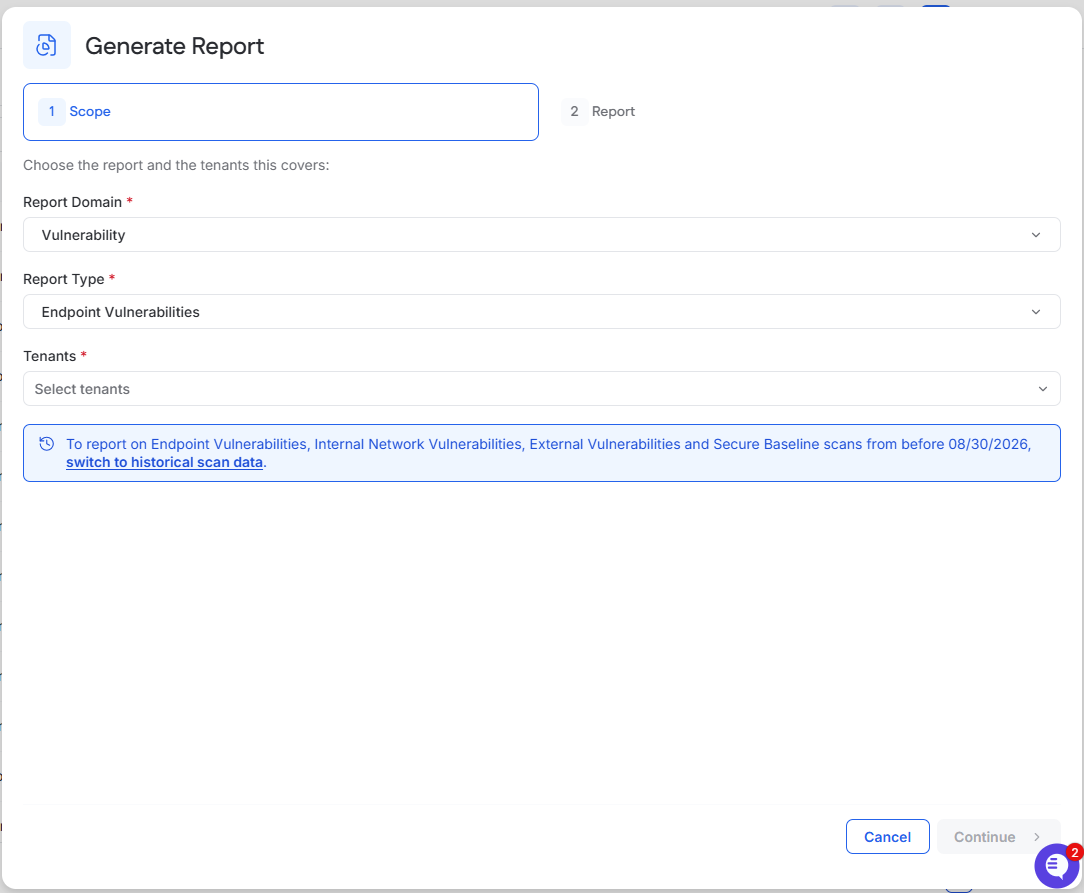
Choose a Report Domain.
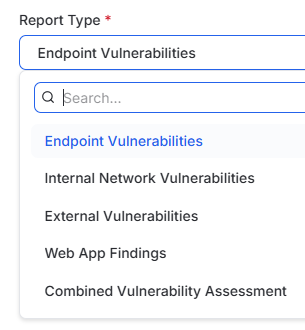
Choose a Report Type.
MSP only: Select the tenants to include.
Select Continue.
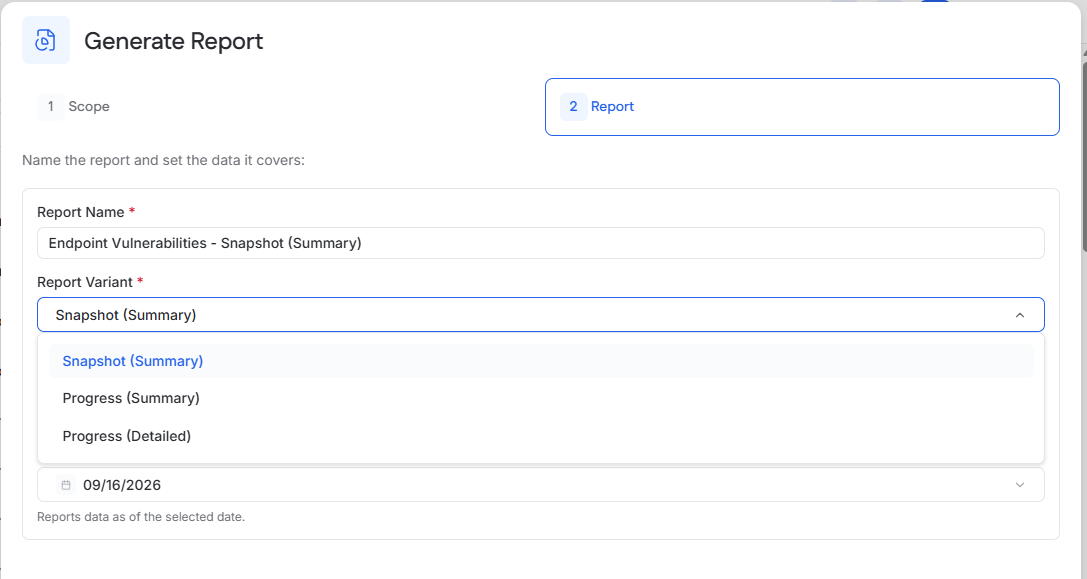
Report Variants
A report variant determines the level of detail and the data used in the report.
Level of Detail
Summary provides a high-level overview.
Detailed provides additional findings and supporting data.
Data Period or Source
Snapshot shows posture as of a selected date.
Progress shows how posture changed between two selected dates.
From scan reports the results of one selected completed scan.
Available variants depend on the selected report type.
Types of Report Domains
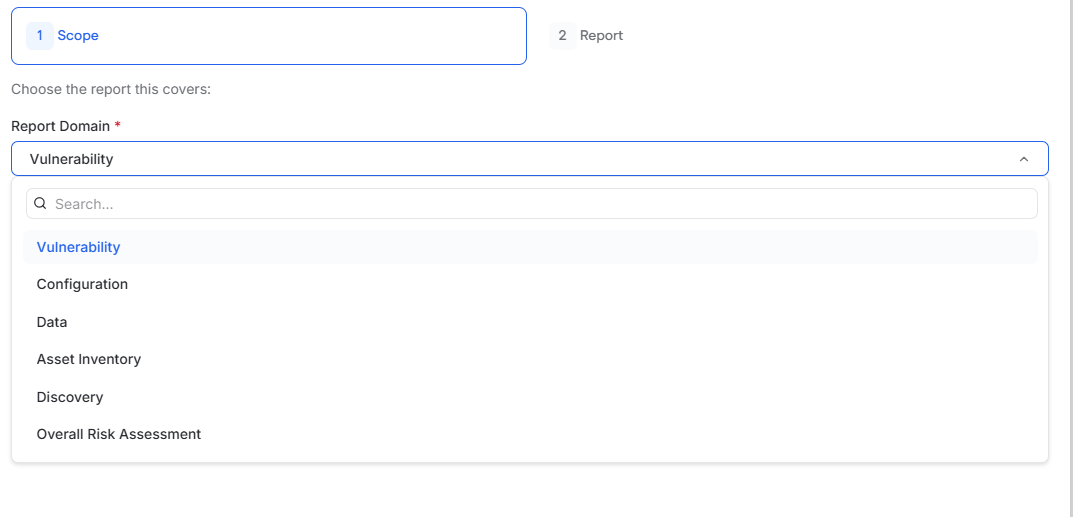
1. Vulnerability
Endpoint Vulnerabilities
Reports vulnerabilities detected on managed endpoints. The report can include the current vulnerability grade, severity counts, root causes, affected assets, and prioritized findings.
Available variants:
Snapshot (Summary)
Progress (Summary)
Progress (Detailed)
Internal Network Vulnerabilities
Reports the results of a selected internal network scan. It includes scanned IP addresses, vulnerability severity counts, findings, and detected open ports.
Available variant:
From scan (Summary)
External Vulnerabilities
Reports the results of a selected external IP scan. It summarizes vulnerabilities and exposure detected on internet-facing targets.
Available variant:
From scan (Summary)
Web App Findings
Reports the results of a selected web application scan. It includes detected findings, risk levels, and affected areas of the application.
Available variants:
From scan (Summary)
From scan (Detailed)
Combined Vulnerability Assessment
Combines endpoint, internal network, external, and web application vulnerability data into one report. It provides an overall vulnerability resilience score with grades for each available vulnerability area.
Available variant:
Summary
2. Configuration
Secure Baseline
Reports endpoint configuration posture against applicable CIS Benchmarks. It includes compliance results, passed and failed controls, security gaps, and recommended configuration improvements.
Available variant:
Snapshot (Summary)
Data
Data Sensitivity
Reports sensitive data discovered across scanned locations. It can include sensitive data categories, hit counts, scanned locations, exposure totals, and estimated data value.
Available variants:
Progress (Detailed)
From scan (Summary)
From scan (Detailed)
3. Asset Inventory
Asset Scorecard
Provides security grades for individual assets using available vulnerability, configuration, operating system, and security-control data.
The report can include:
Vulnerability grades
Configuration compliance
Operating system support status
Endpoint security software coverage
Disk encryption
Screen-lock status
Password-manager status
The Detailed variant also includes prioritized lists of assets that require attention.
Available variants:
Summary
Detailed
4. Discovery
Dark Web
Reports dark web findings associated with monitored domains, company keywords, and email addresses. It can include breached data, leaked credentials, ransomware activity, and other discovered exposure.
Available variants:
Summary
Detailed
5. Overall Risk Assessment
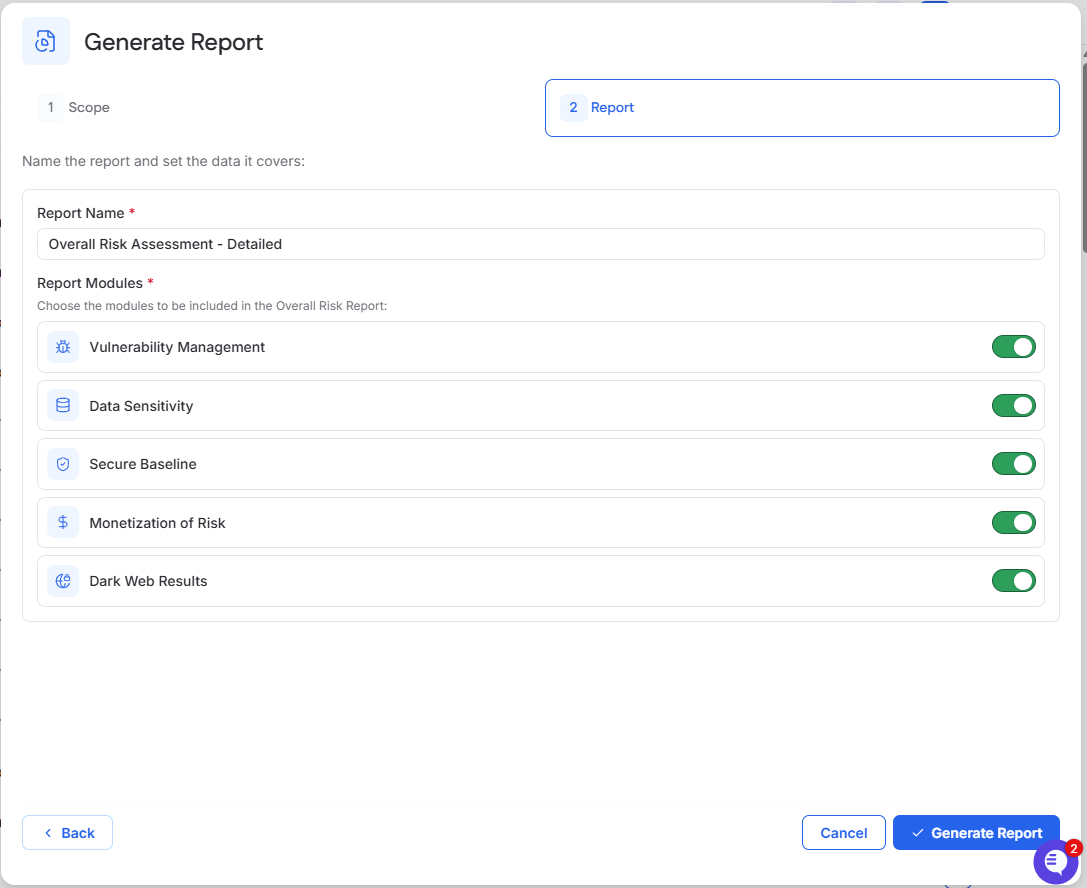
Overall Risk Assessment
Combines selected security areas into one detailed risk report.
Available report modules include:
Vulnerability Management
Data Sensitivity
Secure Baseline
Monetization of Risk
Dark Web Results
Modules can be included or excluded before generating the report.
Available variant:
Detailed
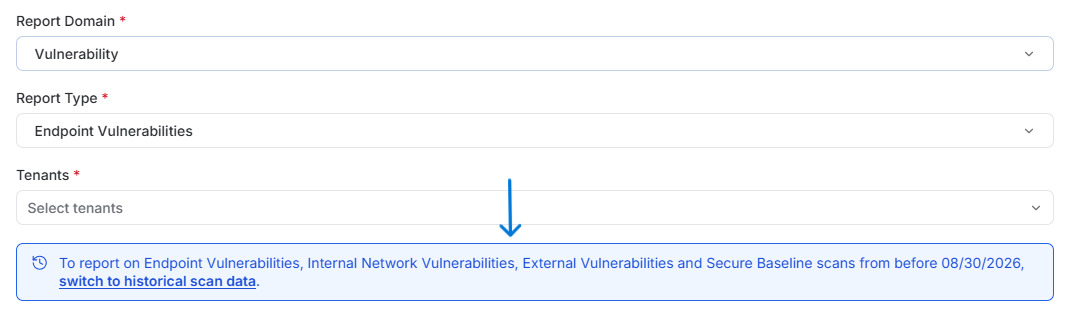
Historical scan data
To report on Endpoint Vulnerabilities, Internal Network Vulnerabilities, External Vulnerabilities, or Secure Baseline scans completed before August 30, 2026, select switch to historical scan data on the Scope step.