Schedule a Report
Last updated: September 17, 2026
Schedule a report to run automatically on a daily, weekly, or monthly basis.
Start a Scheduled Report
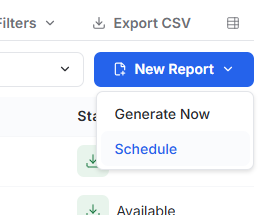
Go to Reporting.
Select New Report.
Select Schedule.
Choose the Report Scope
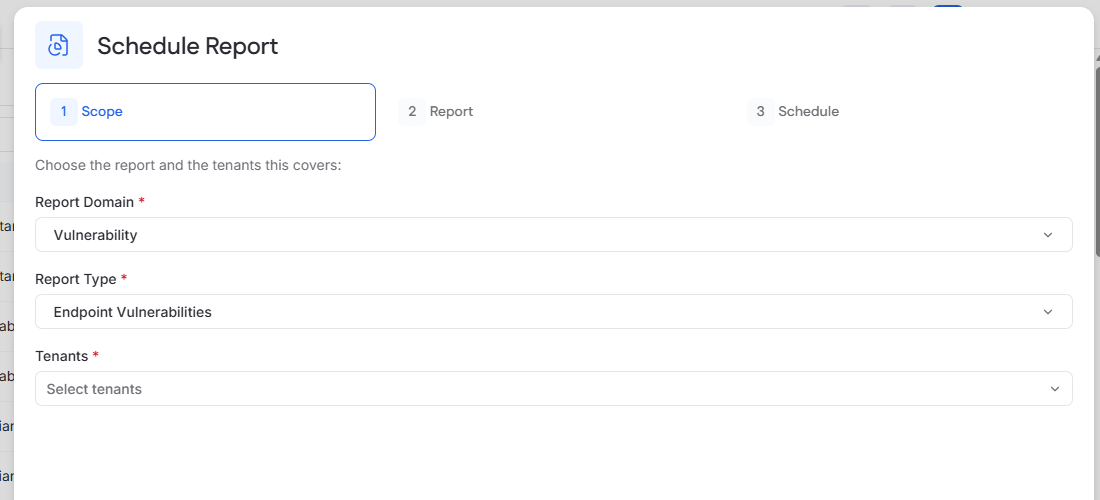
Select the Report Domain.
Select the Report Type.
MSP only: Select one or more tenants.
Select Continue.
Tenant users schedule the report for their current tenant.
For help choosing a report, see Understanding Report Domains and Report Types.
Configure the Report
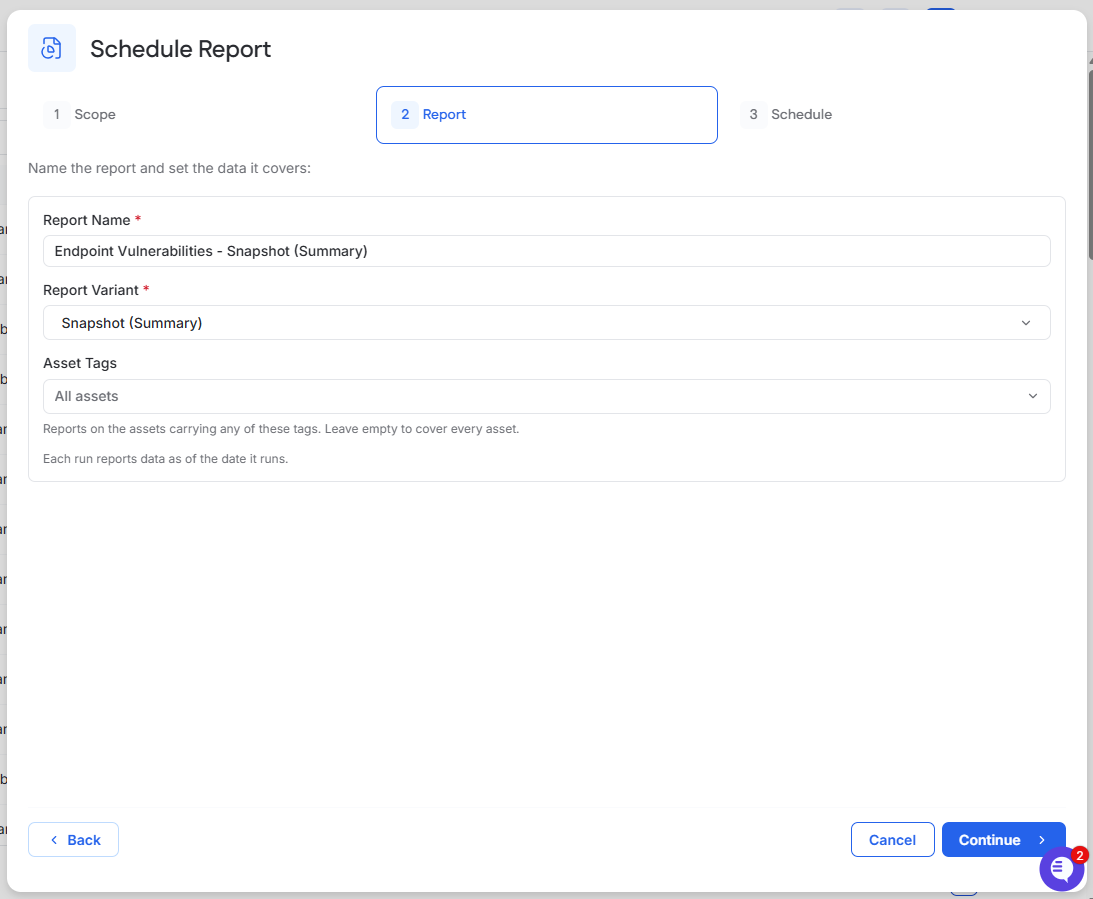
Review or change the Report Name.
Select the Report Variant, if available.
Complete any additional options displayed for the selected report.
Select Continue.
Additional options may include asset tags or report modules.
For Snapshot reports, each scheduled run reports data as of the date it runs.
Set the Schedule
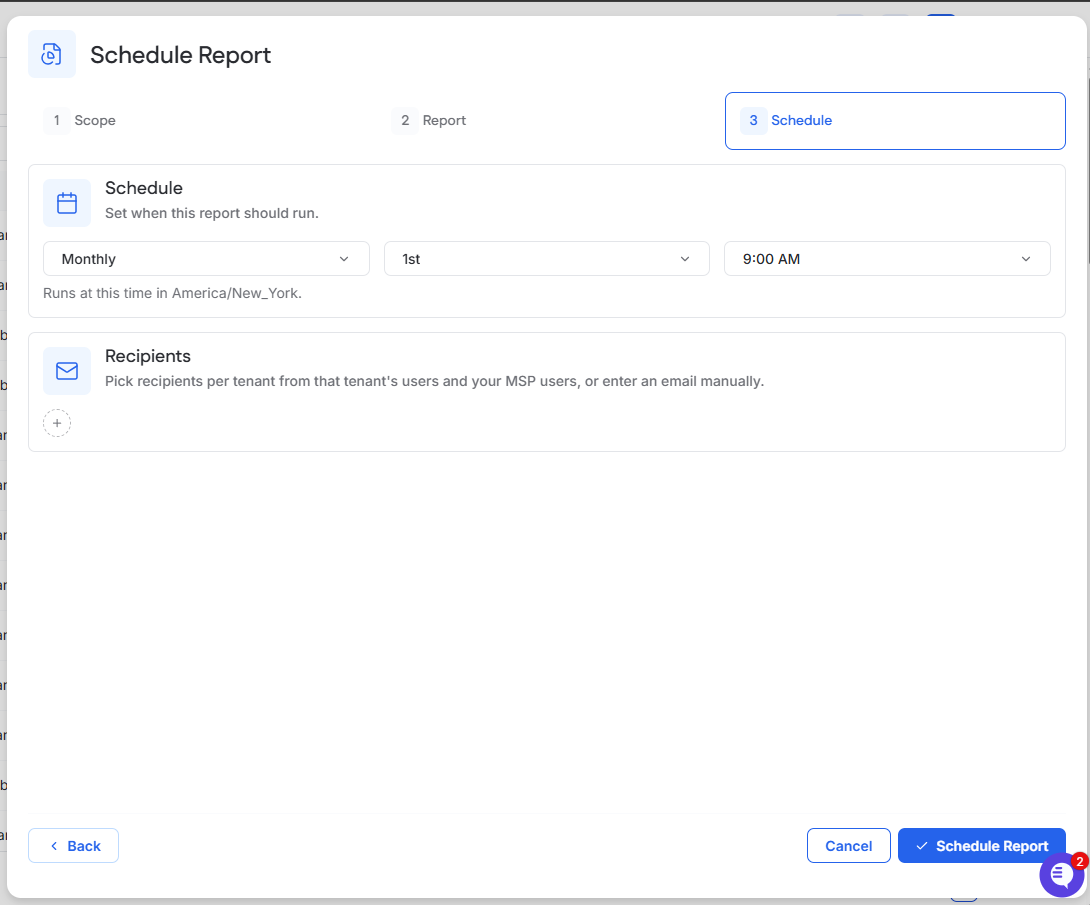
Select Daily, Weekly, or Monthly.
For a weekly or monthly schedule, select the required day or date.
Select the time.
Confirm the displayed timezone.
The timezone determines when the scheduled report runs.
Add Recipients
Adding recipients is optional.
Select the plus icon under Recipients.
Search for a user.
Select the recipient.
Repeat these steps to add more recipients.
Tenant users can select users from their tenant.
MSP users can select users from the included tenants, MSP users, or manually entered email addresses.
Save the Schedule
Select Schedule Report.
The schedule appears on the Scheduled tab. Generated reports appear on the History tab.
Use the Enabled toggle on the Scheduled tab to pause or resume the schedule.