Tenants: Managing Organizations and Instances
Last updated: September 8, 2026
Use the Tenants page to create and organize client instances within your MSP organization.
Organizations and Tenants
Organizations group tenants and can contain additional sub-organizations.
A tenant represents an individual client environment.
Create an Organization
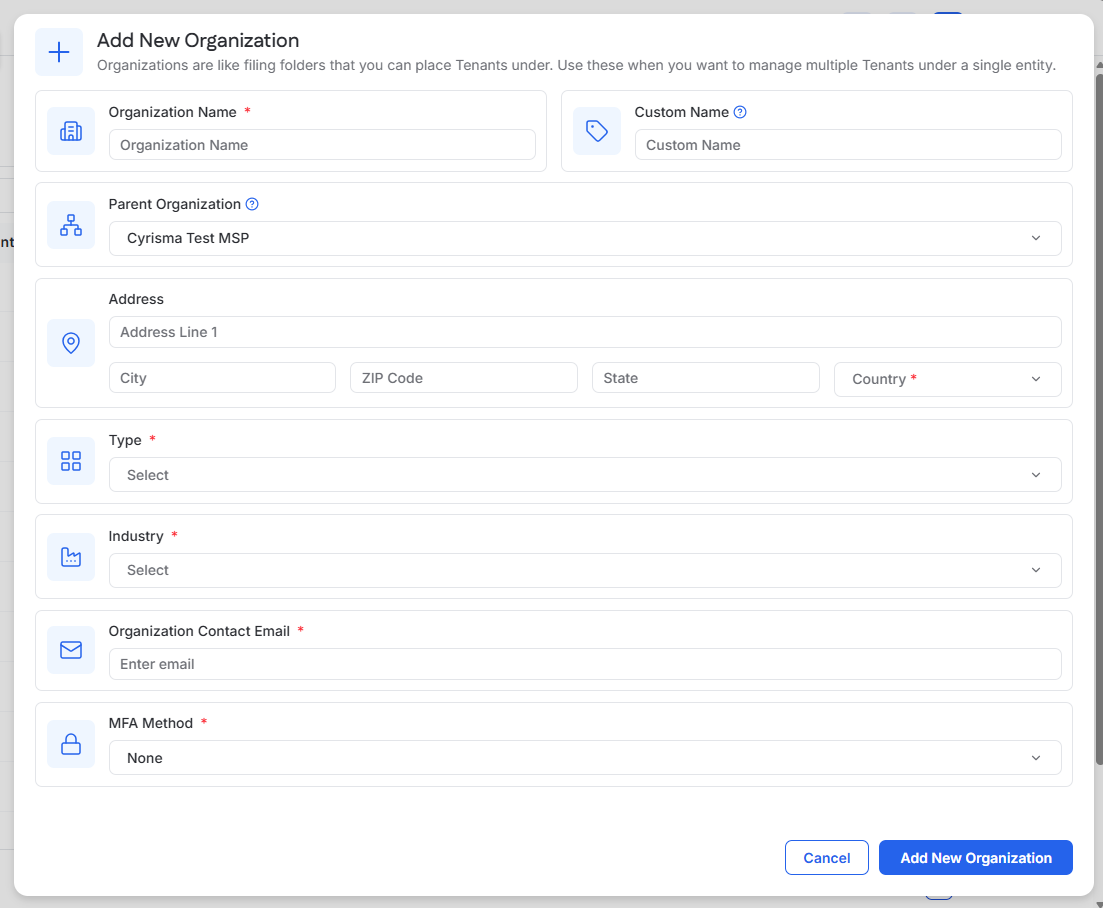
Create an organization when you need to group tenants or add another level to your organization structure.
From the MSP portal, select the plus icon.
Select Add Organization.
Enter the organization information.
Select the Parent Organization.
Select Add New Organization.
The new organization appears beneath the selected parent organization.
Create a Tenant
From the MSP portal, select the plus icon.
Select Add Tenant.
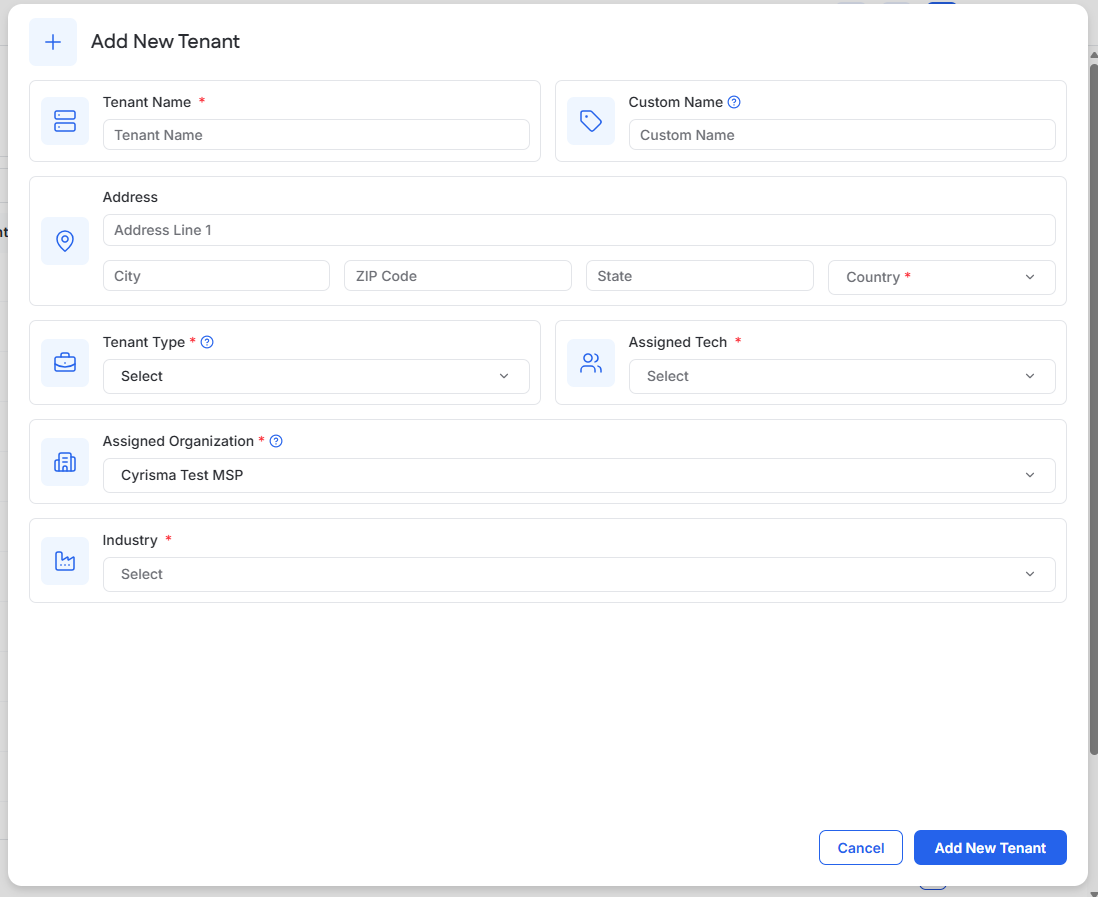
Enter the tenant information.
Select the Assigned Organization.
Select a Tenant Type:
Managed – For an ongoing managed client.
Consulting – For a scoped assessment. Consulting tenant usage does not count toward the license count for the first 30 days.
Select Add New Tenant.
The tenant appears beneath the assigned organization while it is being provisioned.
Provisioning
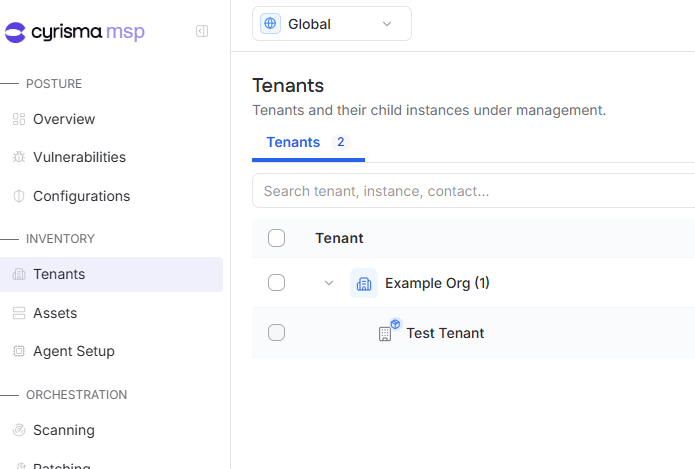
A blue icon beside a newly created tenant indicates that provisioning is still in progress.
When the icon disappears, the tenant is ready to use.
Open a Tenant
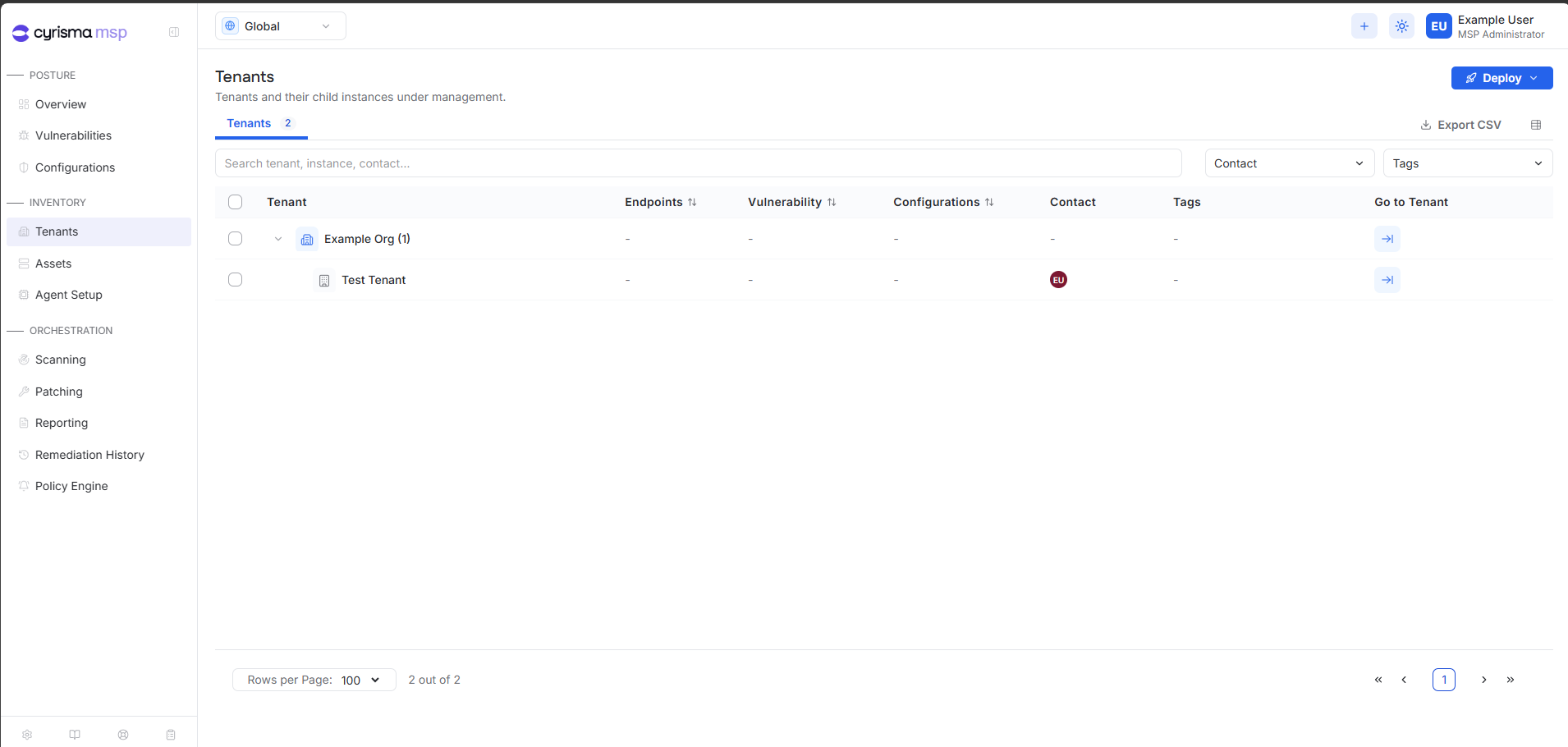
From the Tenants page, locate the tenant and select Go to Tenant.
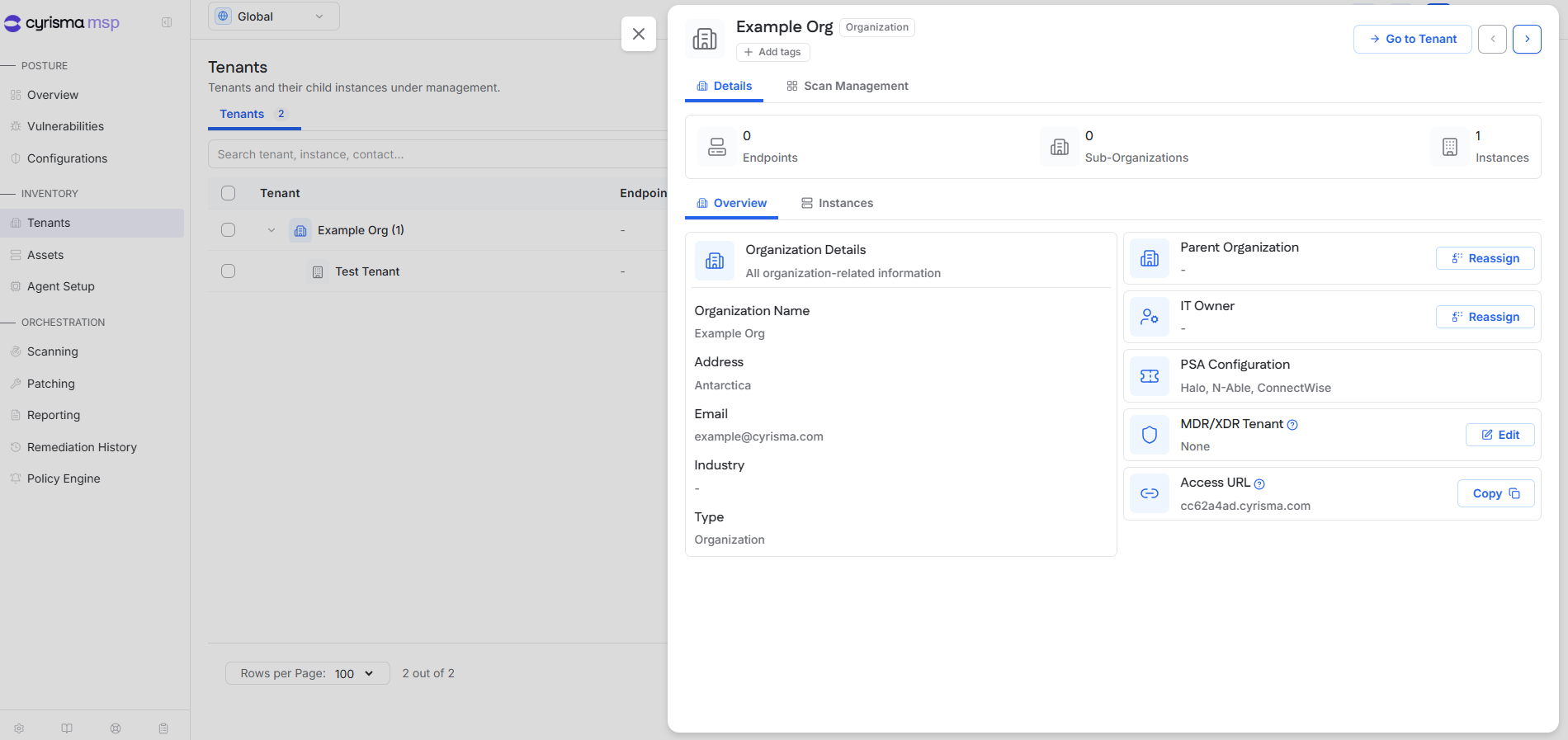
You can also select the tenant name to open its drawer and then select Go to Tenant.
The tenant opens in a new browser window.
Edit an Organization or Tenant
Locate the organization or tenant.
Select the ellipsis on its row.
Select Edit.
Update the information and save your changes.
You can also select the organization or tenant name to open its details drawer.
Delete an Organization or Tenant
Deleting an organization or tenant is permanent.
Locate the organization or tenant.
Select the ellipsis on its row.
Select Delete.
Confirm the deletion.