Managing Asset Tags
Last updated: September 9, 2026
Use tags to organize assets and create reusable groups for patch scheduling and reporting.
Create a Tag
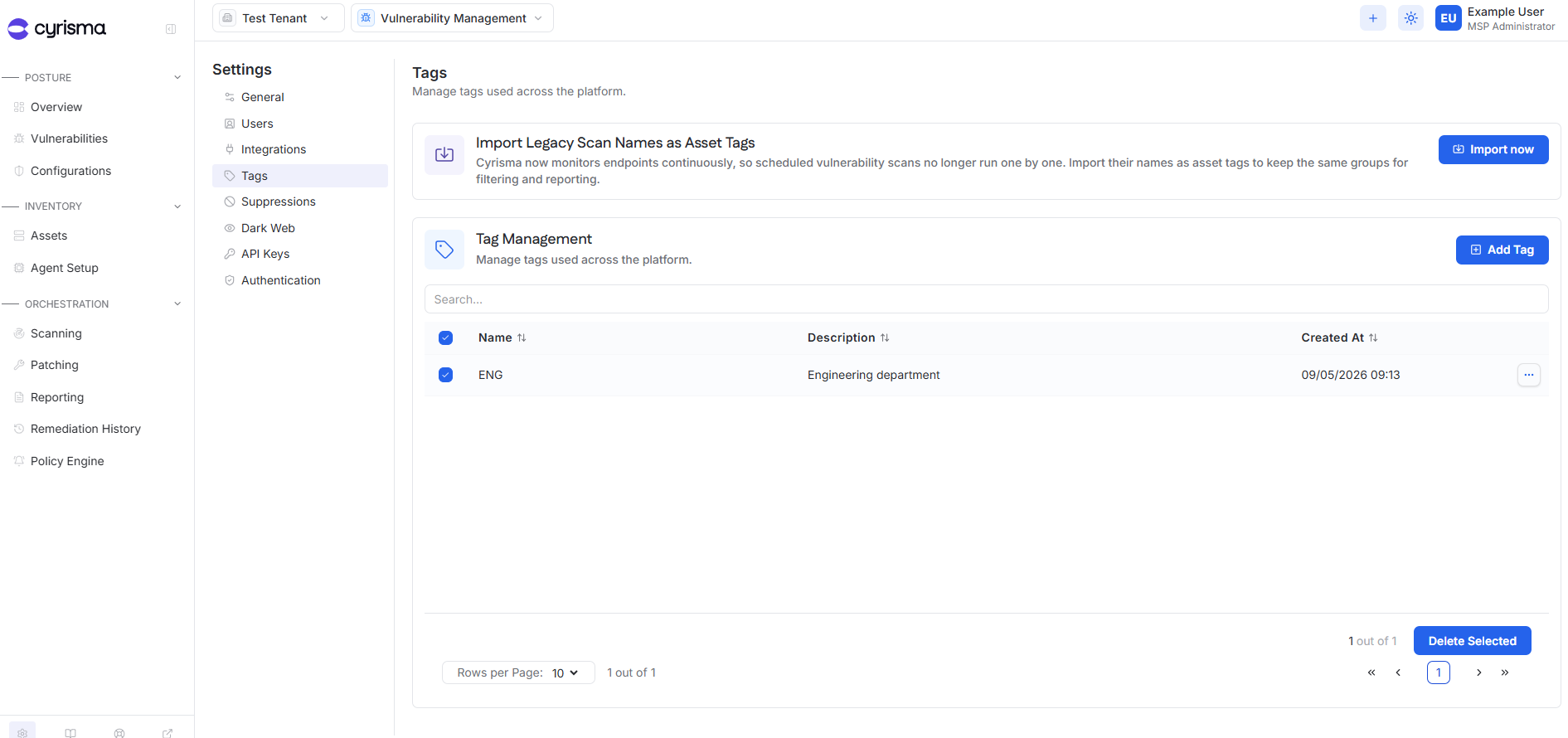
Open Settings.
Select Tags.
Select Add Tag.
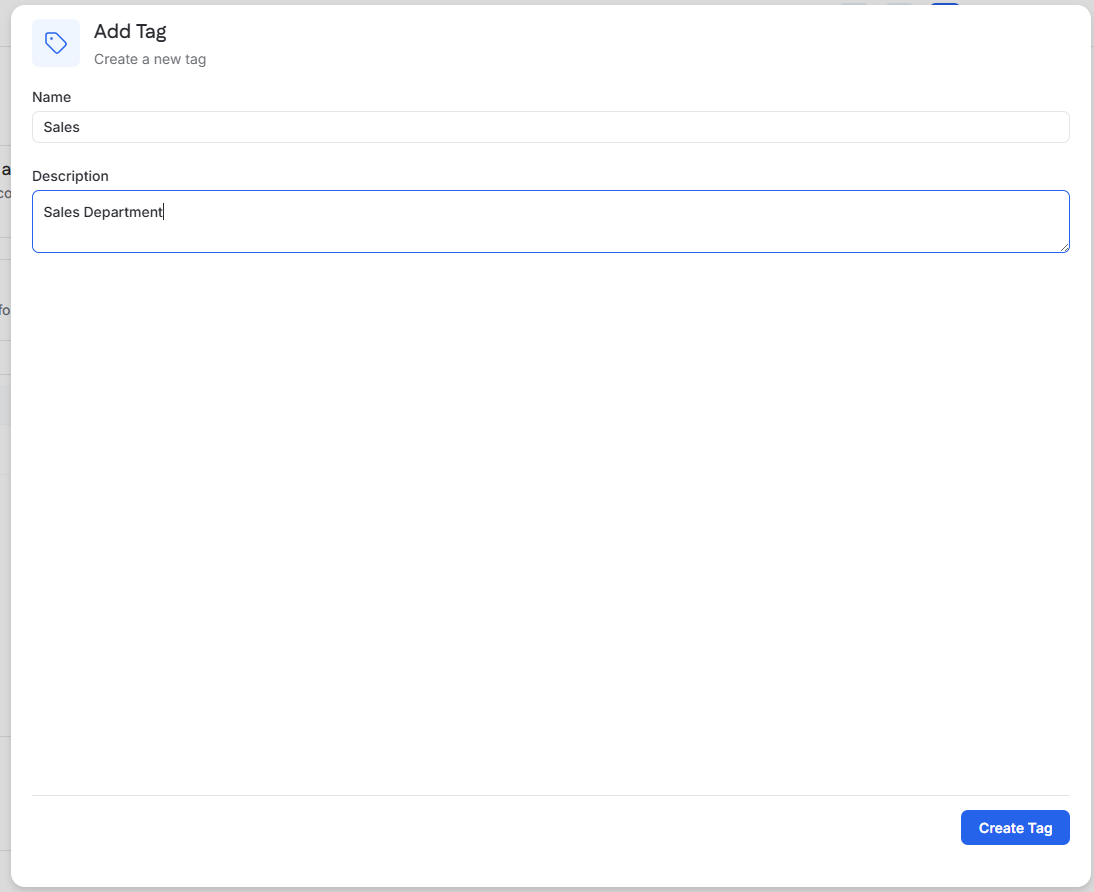
Enter a Name.
Optionally enter a Description.
Select Create Tag.
Assign Tags to Assets
Tags can be assigned from an asset's details.
Open Assets.
Select an asset.
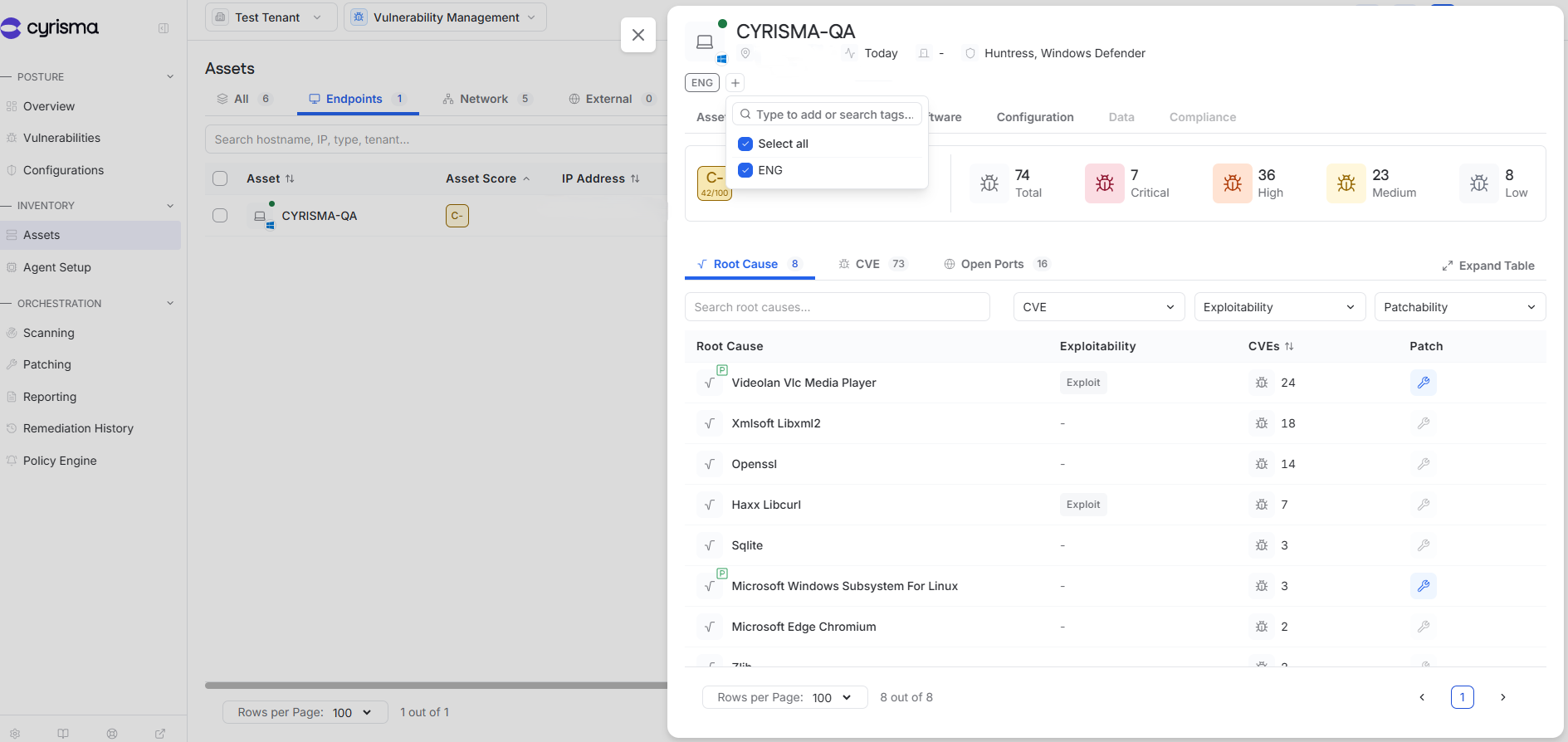
Open the tag selector near the top of the asset details.
Select the tags to assign.
Delete Tags
Open Settings > Tags.
Select one or more tags.
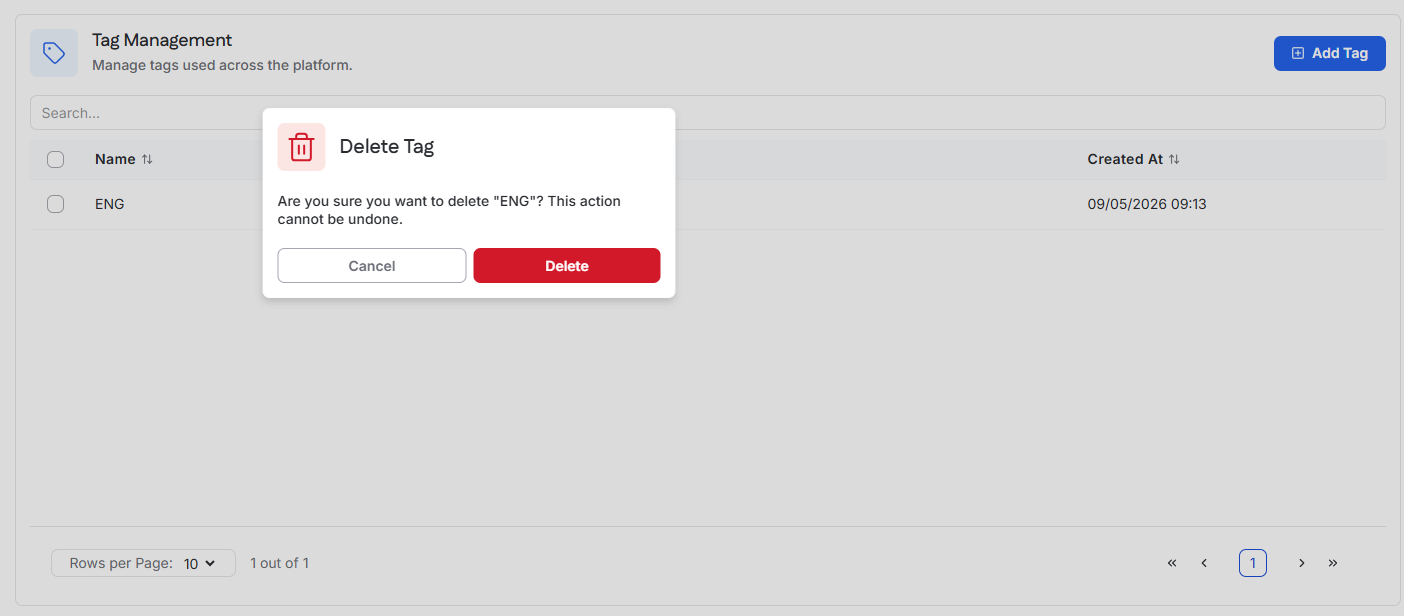
Select Delete Selected.
Confirm the deletion.
Use Tags for Patch Scheduling
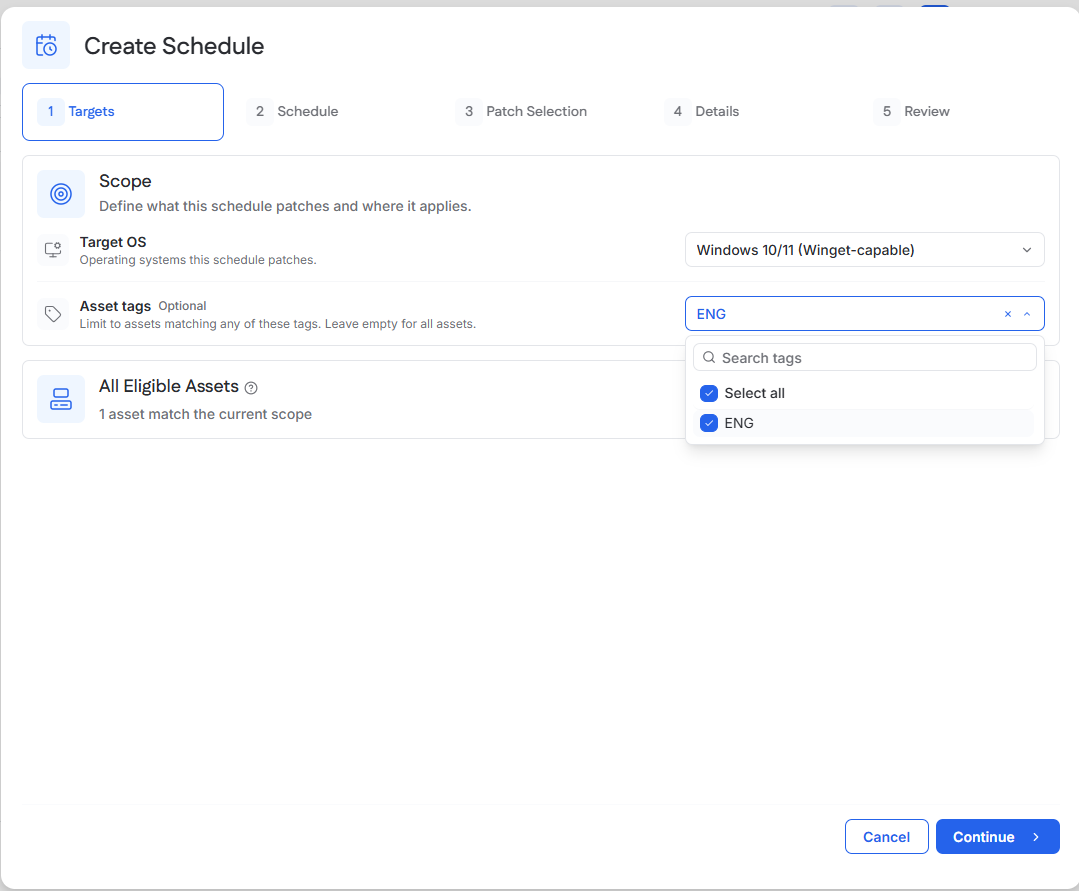
When creating a patch schedule, use Asset tags to limit the schedule to matching assets.
Open Patching and create a schedule.
In Targets, select the Target OS.
Under Asset tags, select one or more tags.
Continue configuring the schedule.
Assets matching any selected tag are included in the scope. Leave Asset tags empty to include all otherwise eligible assets.
See [Patching Vulnerabilities].
Use Tags in Reporting
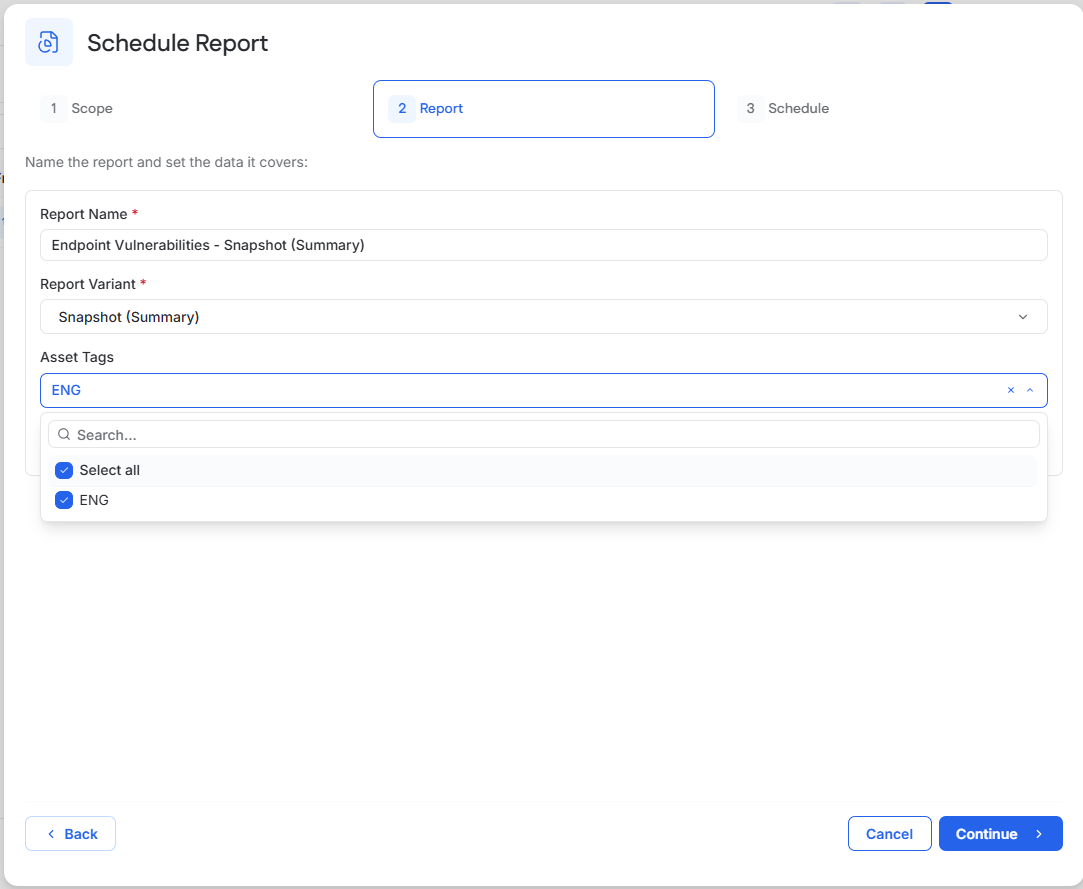
Supported reports can be limited to assets with specific tags.
Generate or schedule a supported report.
In the Report step, open Asset Tags.
Select one or more tags.
Continue configuring the report.
Leave Asset Tags set to All assets to include all applicable assets.
See [Reporting].