Users: Managing Users, Roles, and Access
Last updated: September 9, 2026
Use the Users page to create accounts, assign access, change roles, and disable users.
Open the Users Page
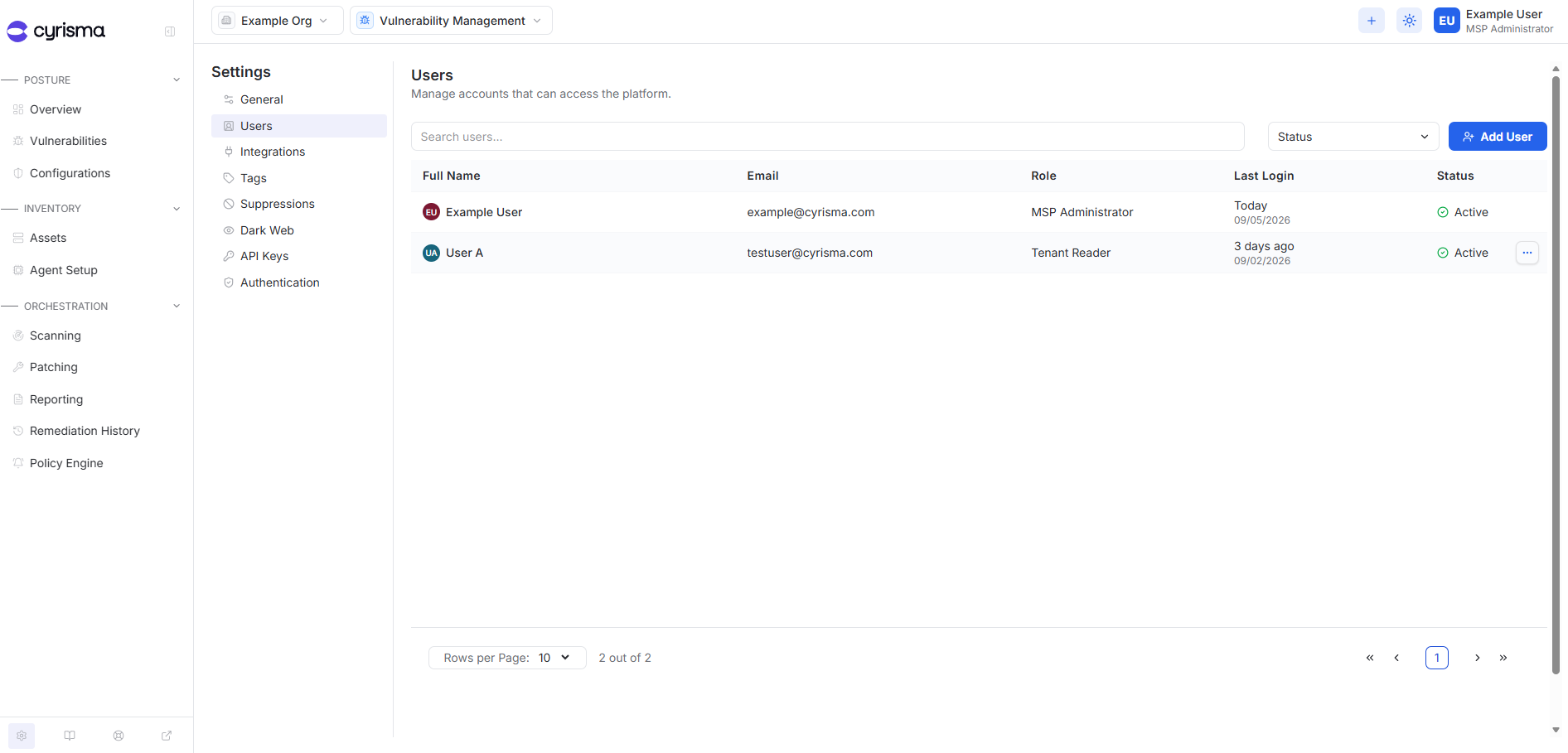
From the MSP portal, open Settings.
Select Users.
Add a User
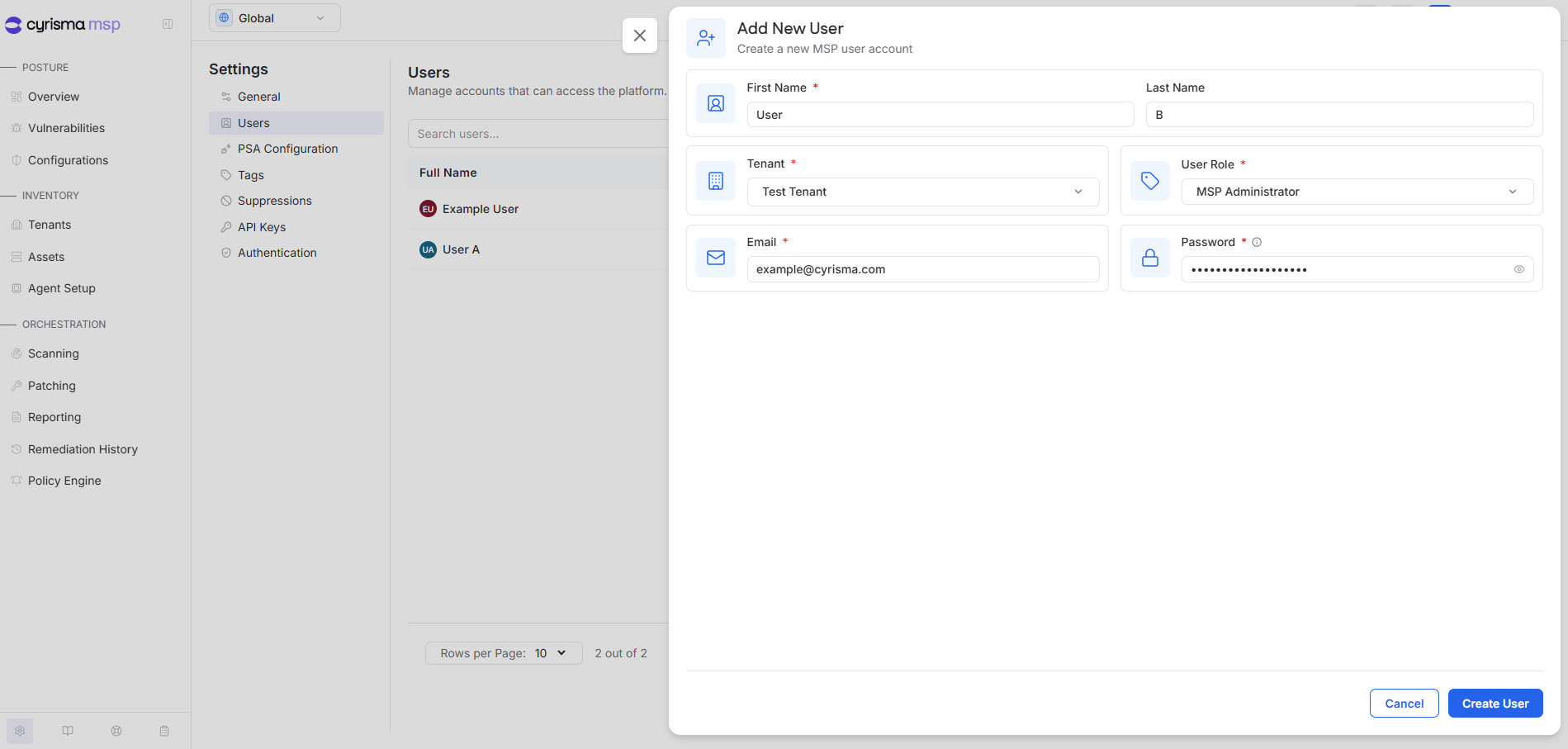
Select Add User.
Enter the user's name and email address.
Select the organization or tenant the user should be assigned to.
Select the appropriate role.
Enter an initial password.
Select Create User.
User Roles
A user's role determines where they sign in and the level of access they receive.
MSP Administrator – Signs in through the MSP portal and has administrative access to the assigned organization or tenant and the tenants beneath that assignment.
MSP Reader – Signs in through the MSP portal and has read-only access to the assigned organization or tenant and the tenants beneath that assignment.
Tenant Administrator – Signs in directly to the assigned tenant and has administrative access to that tenant only.
Tenant Reader – Signs in directly to the assigned tenant and has read-only access to that tenant only.
Edit a User
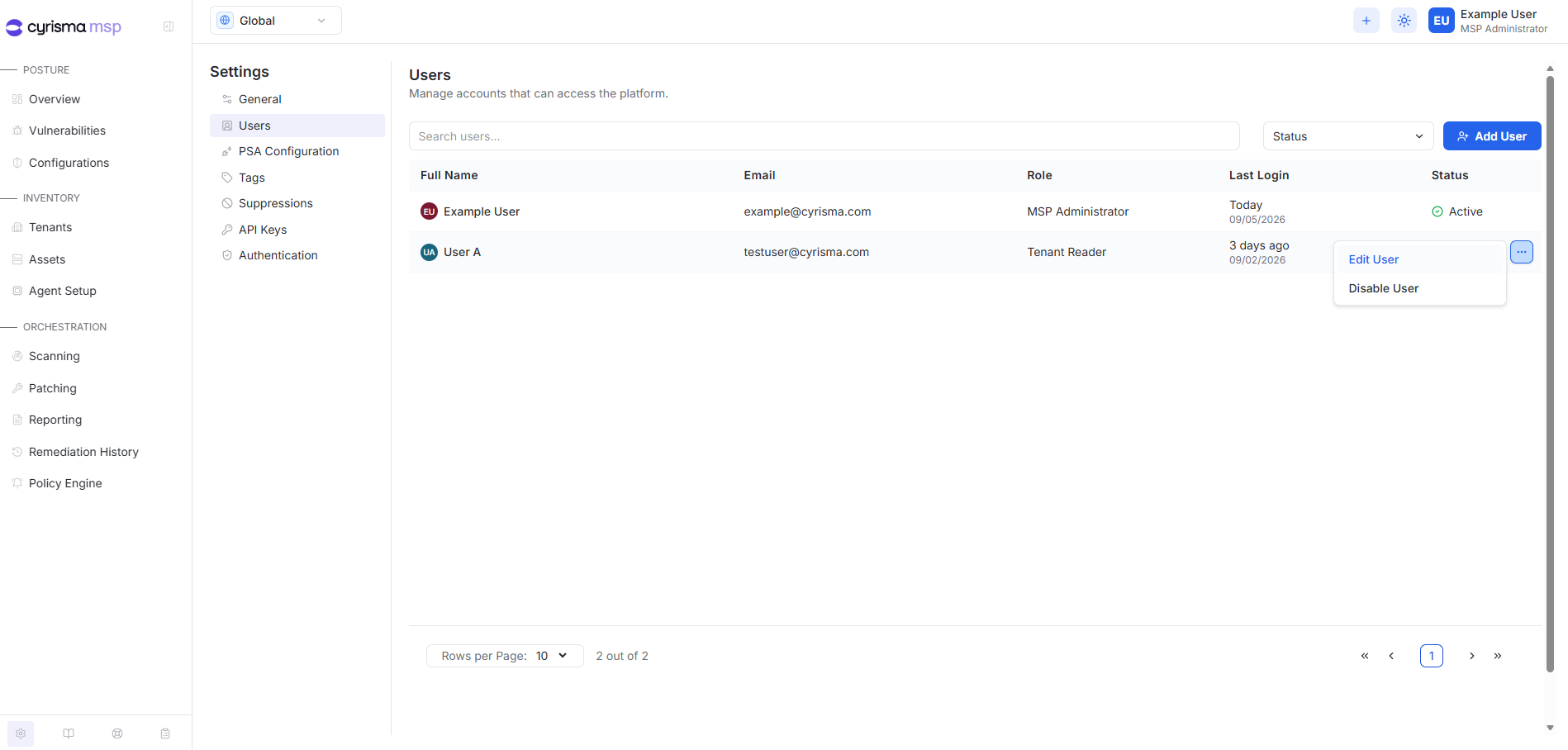
Locate the user.
Select the ellipsis on the user's row.
Select Edit User.
Update the account information, assignment, or role.
Save the changes.
Disable a User
Locate the user.
Select the ellipsis on the user's row.
Select Disable User.
Confirm the action.