Create a Google Workspace Cloud Data Scan
Last updated: September 17, 2026
See: Google Workspace Integration Guide
Use a Google Workspace Cloud Data Scan to find sensitive data in Gmail or Google Drive.
Tenant users create scans for their current tenant. MSP users create scans from the MSP portal and select one tenant to scan.
Start a New Scan
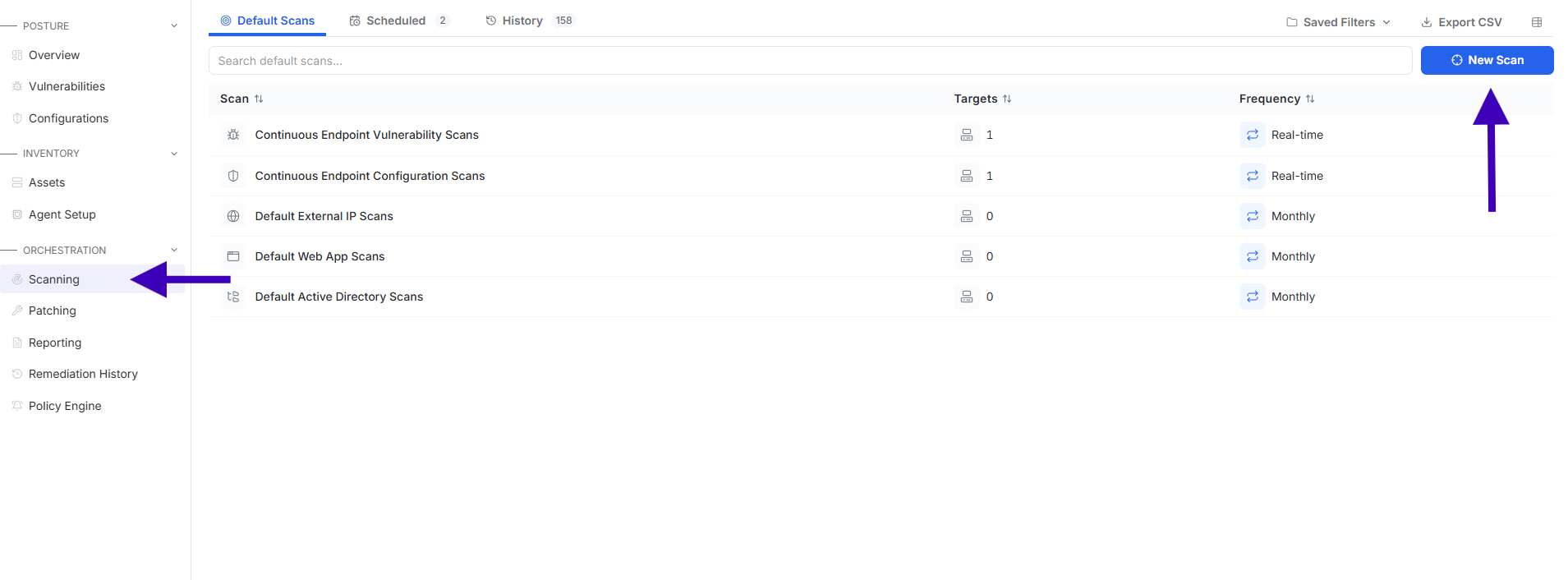
Select Scanning.
Select New Scan.
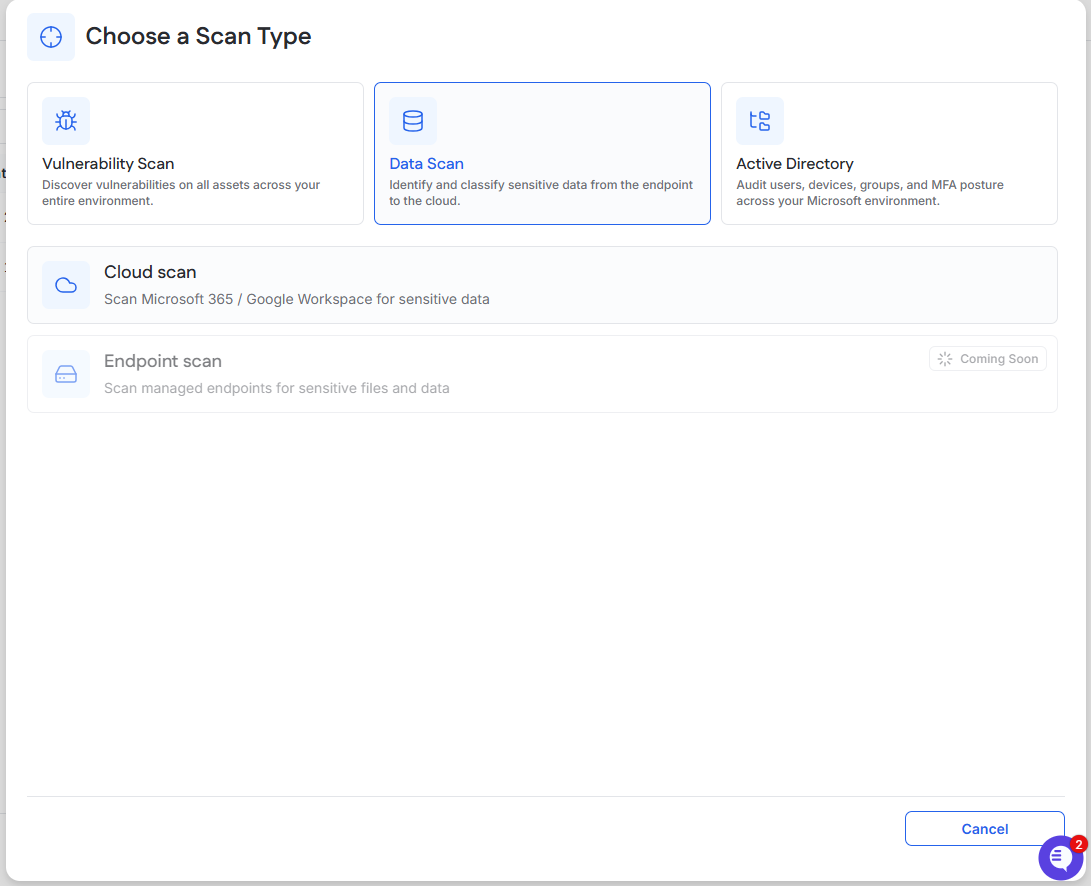
Select Data Scan.
Select Cloud scan.
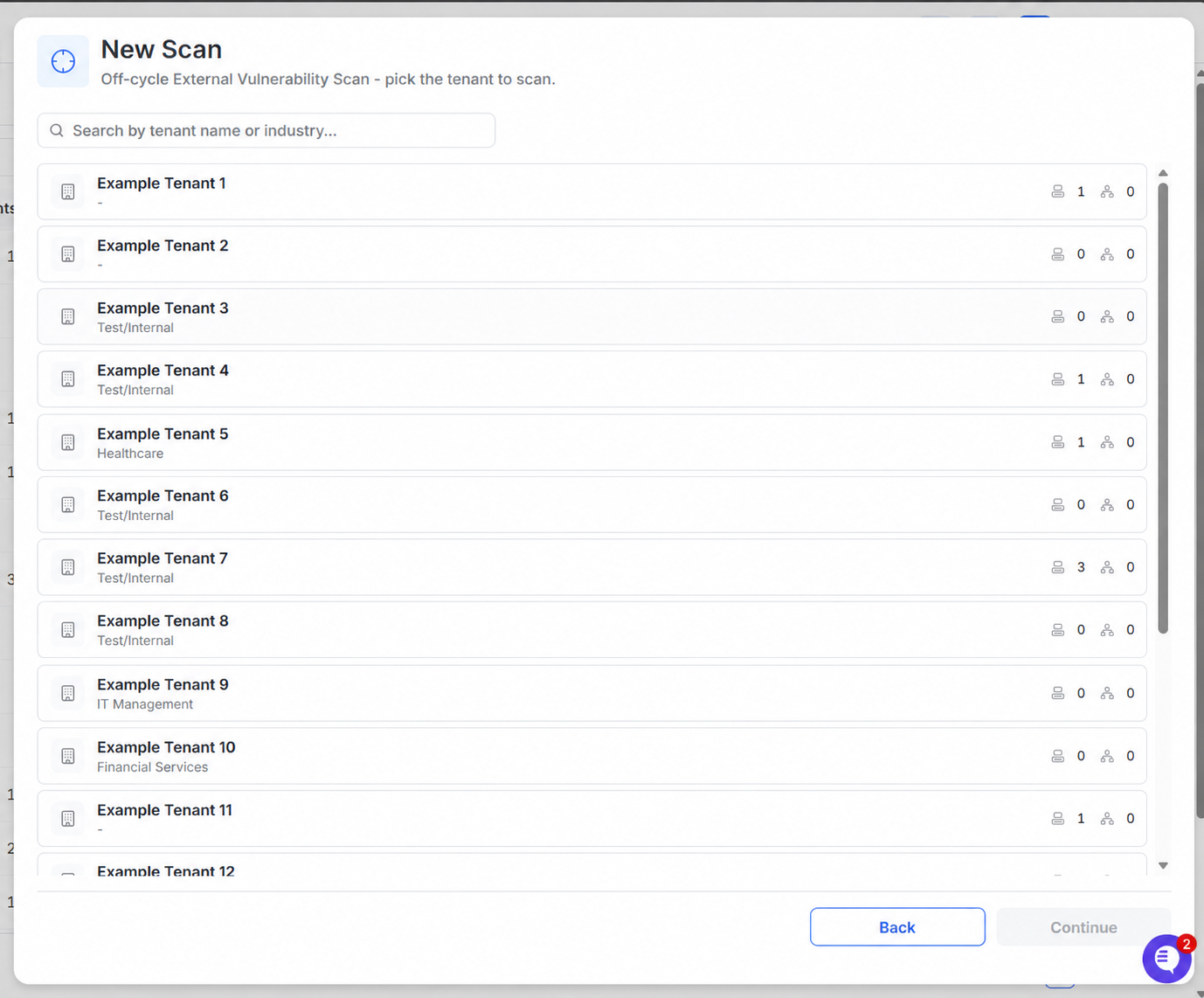
MSP Users: Select a Tenant
Search for or select the tenant you want to scan.
Select Continue.
The remainder of the scan will be scoped to the selected tenant.
Tenant users will not see this screen.
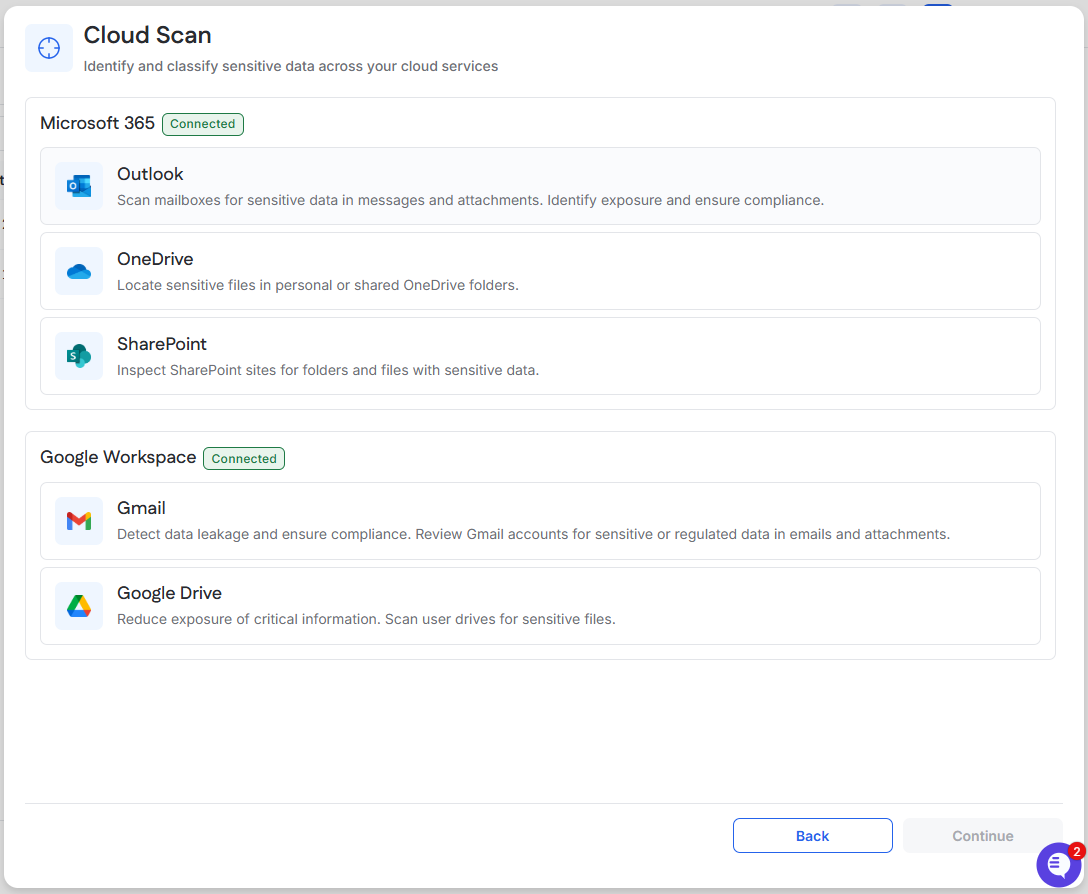
Select a Google Workspace Service
Google Workspace must show as Connected for the tenant.
Select the service you want to scan:
Gmail
Google Drive
Select Continue.
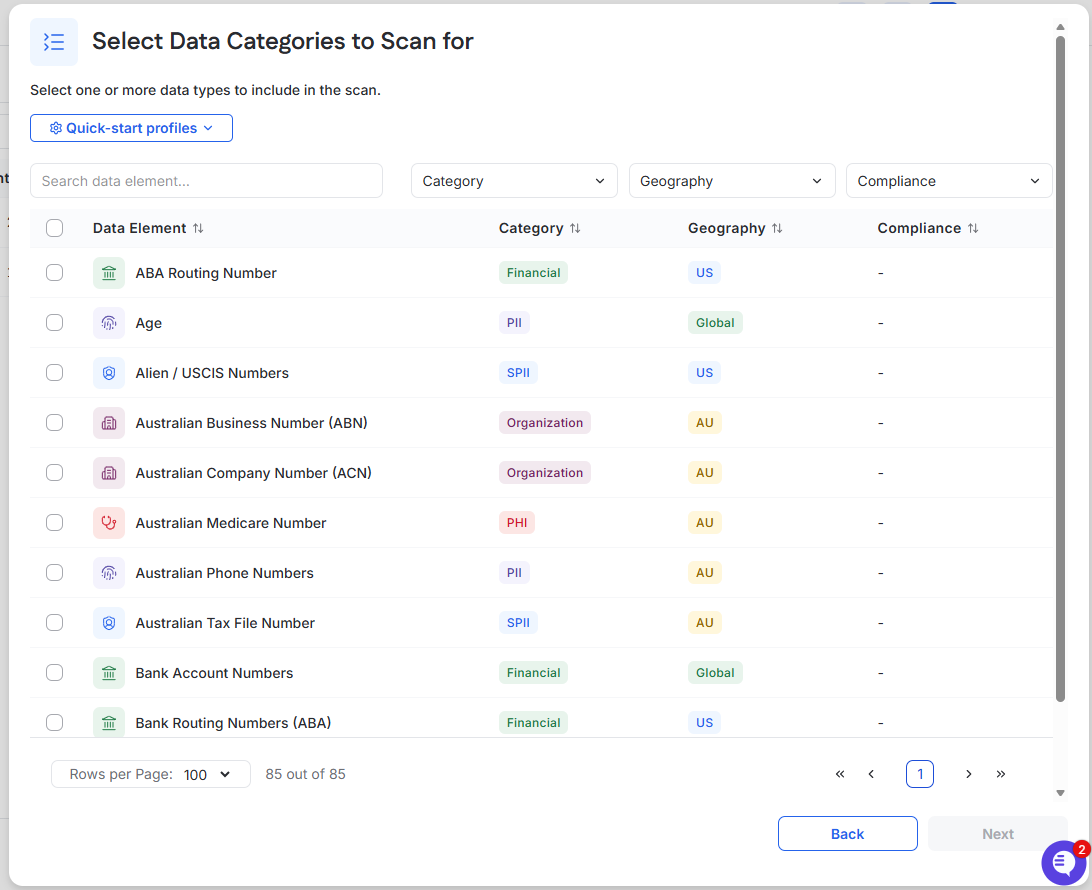
Select Data Categories
Select one or more data elements to include in the scan.
Use Quick-start profiles to select a predefined group of data elements.
You can also search or filter by Category, Geography, or Compliance.
Select Next.
Select What to Scan
The next screen depends on the Google Workspace service you selected.
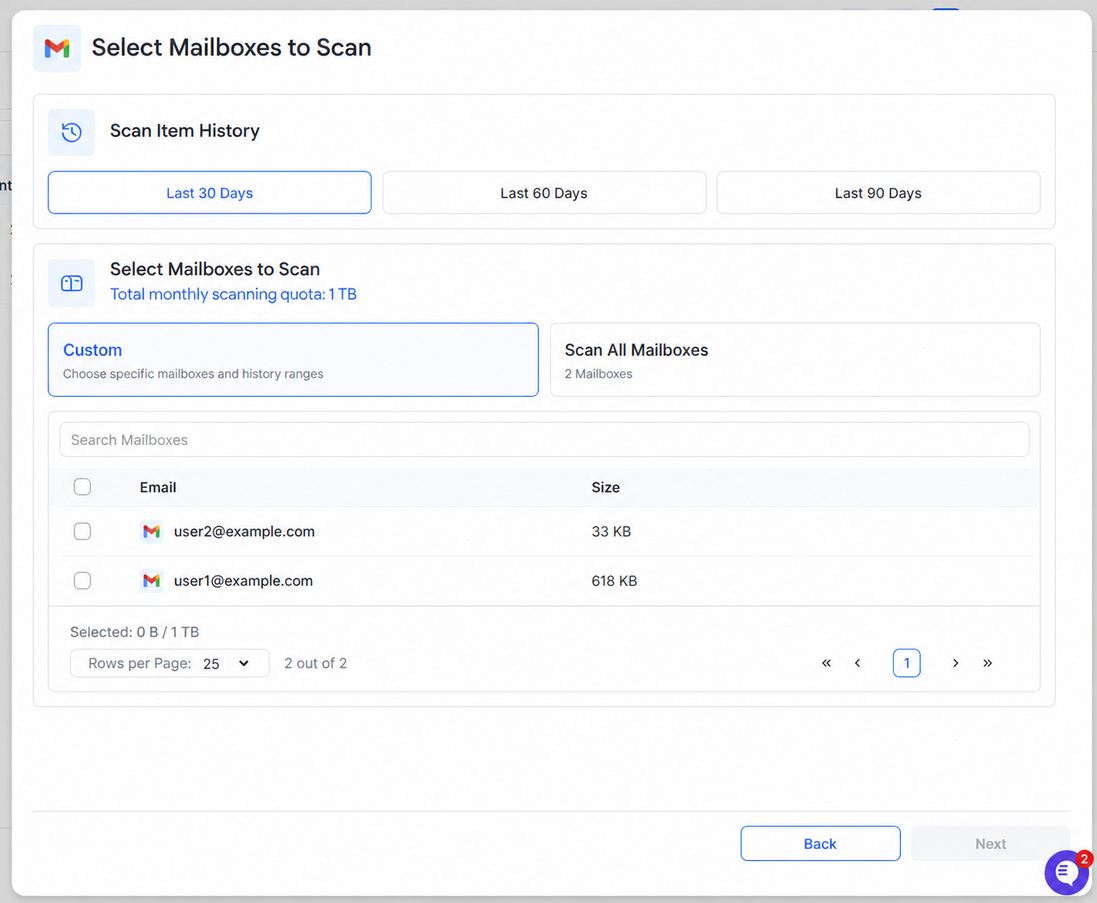
Gmail
Select the scan history range:
Last 30 Days
Last 60 Days
Last 90 Days
Choose Custom or Scan All Mailboxes.
If you selected Custom, select the mailboxes you want to scan.
Select Next.
Google Drive
Choose Custom or Scan All Drives.
If you selected Custom, select the drives you want to scan.
Select Next.
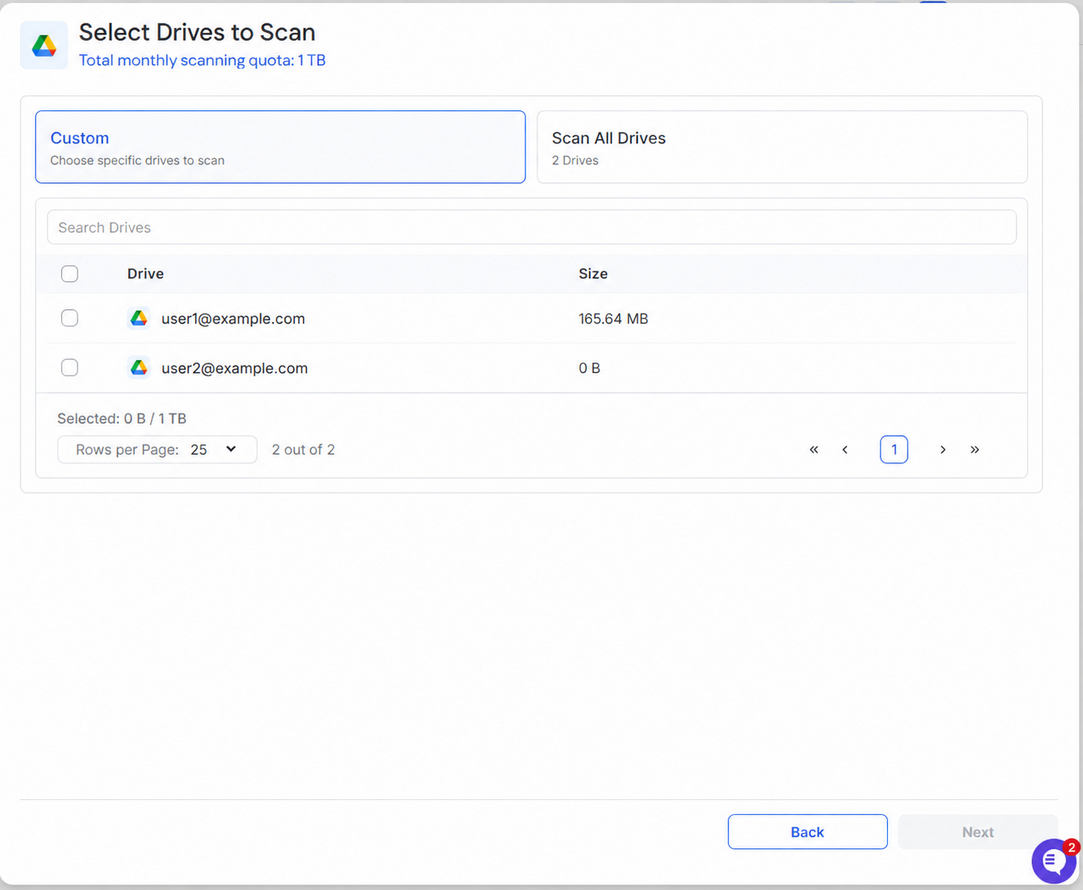
The total monthly scanning quota and the amount currently selected are displayed on each selection screen.
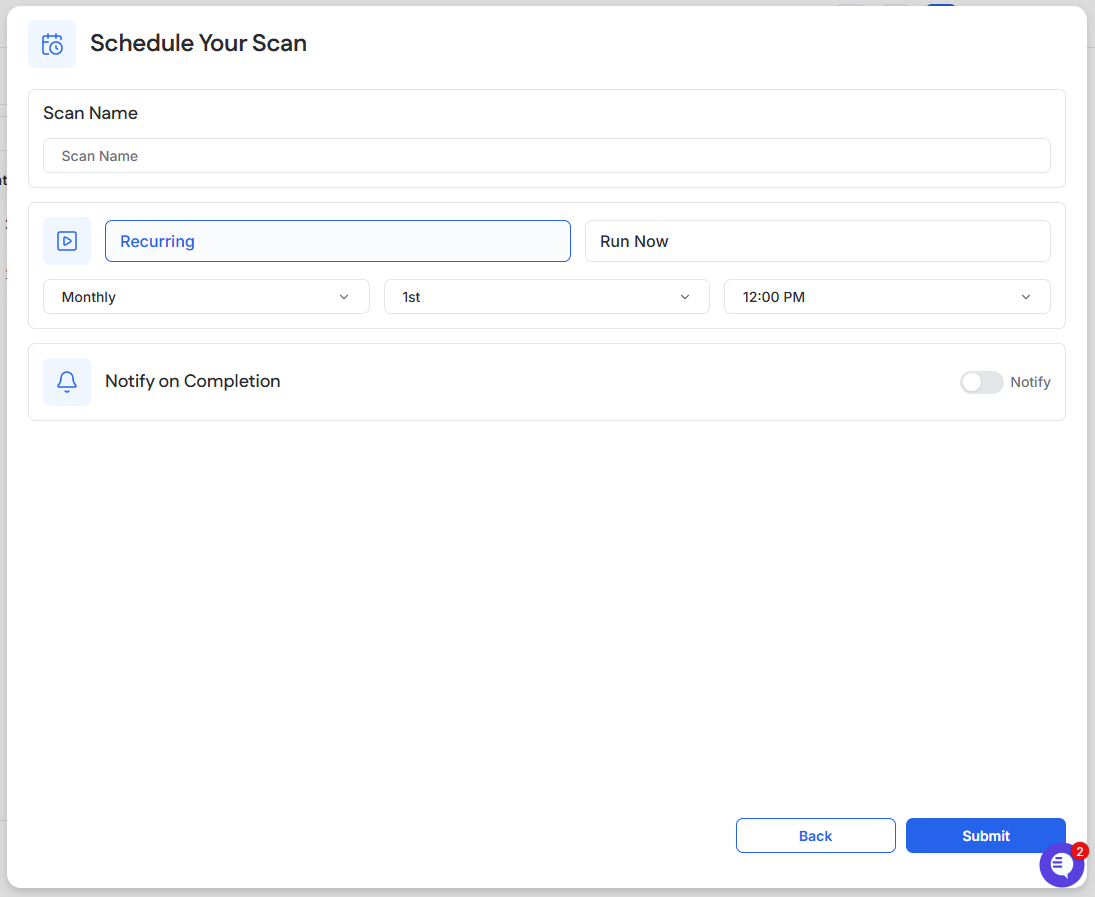
Schedule the Scan
Enter a Scan Name.
Choose one of the following:
Recurring: Select the frequency, day, and time.
Run Now: Run the scan one time.
To notify a user when the scan finishes, turn on Notify on Completion.
Select Submit.
View the Scan
Open Scheduled to view recurring scans.
Open History to view completed scan activity.