Reporting
Last updated: February 18, 2026
What you can do in Reporting
From the Reporting page you can:
Generate reports immediately (New Report → Generate Now)
Create recurring schedules (New Report → Schedule) for duration reporting
Review previously generated reports in History
Review upcoming/recurring report series in Scheduled
Export the report list to CSV
Generate a report now
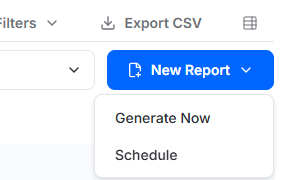
Click New Report
Select Generate Now
Choose the report category:
Data
Vulnerability
Secure Baseline
Dark Web
Overall Risk
Choose the report format (where applicable):
Standard Report (scan-based / point-in-time)
Duration Report (time-window / trend)
Choose Executive Summary or Full Detail
Click Generate Report
Schedule recurring reports
Click New Report
Select Schedule
Choose the report category:
Data
Vulnerability
Secure Baseline
Configure the schedule at a high level:
Starts (when the first report generates)
Cadence (daily/weekly/monthly/quarterly) and time
Ends (never, on date, or after a set number of runs)
Report format (Executive Summary or Full Detail)
Notify user (the instance user who is notified when the report generates)
Schedule name (label for the recurring series)
Duration report time windows and comparisons
Data and Secure Baseline duration reports use a fixed lookback window. Select the timeframe to report on the last 30, 60, 90, 180, or 365 days.
Vulnerability duration reports use a comparison period to show progress over time (for example month-over-month, quarter-over-quarter, yearly progress, or custom).
Report History
The History tab lists generated reports.
Reports can be downloaded when the status is Available.
Generated reports remain available for a limited time (for example, 4 hours after generation). After that, they may show as Expired.
Use search and filters to locate a report by type, date range, status, schedule, or creator.
Scheduled
The Scheduled tab lists report schedules configured to generate in the future.
This view shows the schedule name, report type, frequency, next run time, recipient (if configured), and who created the schedule.
Password-protected reports (Admin setting)
If Password Protect Reports is enabled in Admin → Settings, users must authenticate to view reports. This setting can be toggled on or off by an admin.