Scanning
Last updated: February 18, 2026
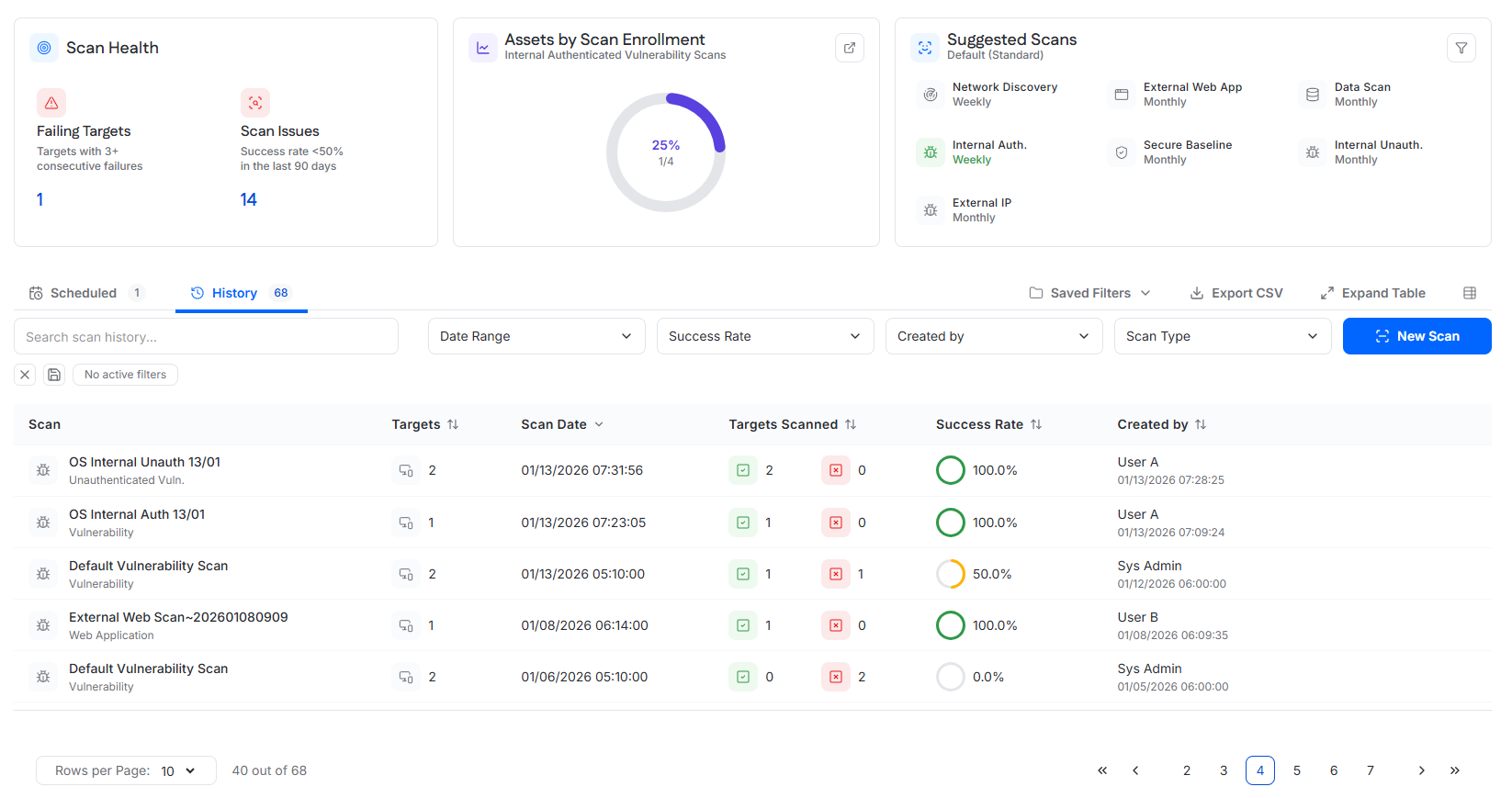
The Scan Manager provides centralized visibility and control over all scanning activity within the instance. It allows users to monitor scan health, validate scan enrollment and cadence, manage scheduled scans, review historical scan executions, and create or modify scans.
The Scan Manager supports operational oversight of:
Scan reliability and failures
Scan coverage and enrollment
Scan scheduling and execution
Historical scan outcomes
Scan Health
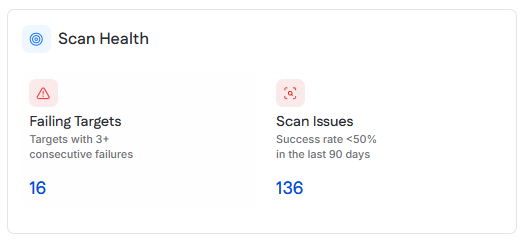
The Scan Health section highlights operational issues that may impact scan coverage or reliability. It focuses on repeated failures and consistently unsuccessful scans rather than vulnerability findings.
Failing Targets
Failing Targets shows the number of targets that have experienced repeated scan failures.
A target is considered failing when it has failed three or more consecutive scan executions across scans.
Interaction
Selecting the failing targets count opens the Failing Targets drawer.
Failing Targets Drawer
The Failing Targets drawer lists targets that meet the failing criteria and includes:
Asset name
Scan name
Last scan date
Reason for the most recent scan failure
This view helps identify issues such as unreachable targets, authentication failures, or scan timeouts.
Scan Issues
Scan Issues shows the number of scans that have had a success rate below 50 percent over the last 90 days.
Interaction
Selecting the Scan Issues count filters the Scan History table to display only scans that meet this condition.
Usage
Scan Health is used to:
Identify scanning reliability problems
Restore scan coverage
Troubleshoot configuration or connectivity issues
Assets by Scan Enrollment
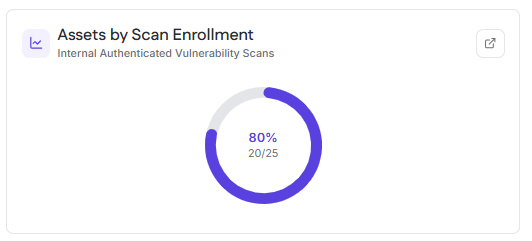
Assets by Scan Enrollment shows the percentage of assets that are currently enrolled in an internal authenticated vulnerability scan.
The chart displays both the percentage and the numeric count of enrolled assets relative to the total eligible assets.
Interaction
Selecting the action icon in the top-right corner navigates to the Asset Inventory page with the Asset Table filtered to assets that are not enrolled in an internal authenticated vulnerability scan.
Usage
This section is used to identify enrollment gaps and improve authenticated scan coverage.
Suggested Scans
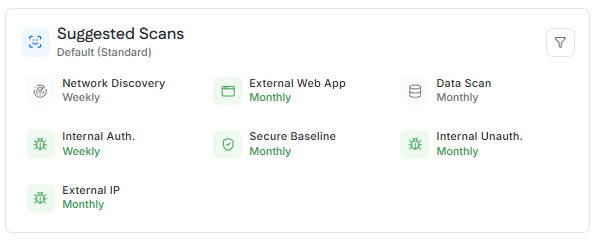
The Suggested Scans section displays recommended scan types and scan cadences based on a selected security or compliance standard. This view helps users validate whether their scheduled scans align with expected scanning frequencies.
A default standard is selected initially, and users can switch between standards to view alternative recommendations.
Scan Cadence
Scan cadences may include daily, weekly, monthly, or quarterly intervals.
If scheduled scans meet or exceed the recommended cadence for the selected standard, the scan type is displayed in green.
Supported Standards
Available standards include:
Default (Standard)
Default (Hardened)
CIS 8.1
HIPAA
PCI DSS
NIST CSF
Essential 8
Cyber Essentials
CyberSecure Canada
NIST 800-171
NIST 800-53
ISO 27001
CMMC
Usage
This section supports compliance alignment, audit preparation, and scan cadence validation.
New Scan
The New Scan feature allows users to create and schedule scans through a guided configuration workflow. It is the primary method for onboarding new scans and adjusting scan coverage.
Access
The New Scan button is available in the Scan Manager views. Selecting it opens the scan scheduling drawer.
Scan Scheduling Drawer
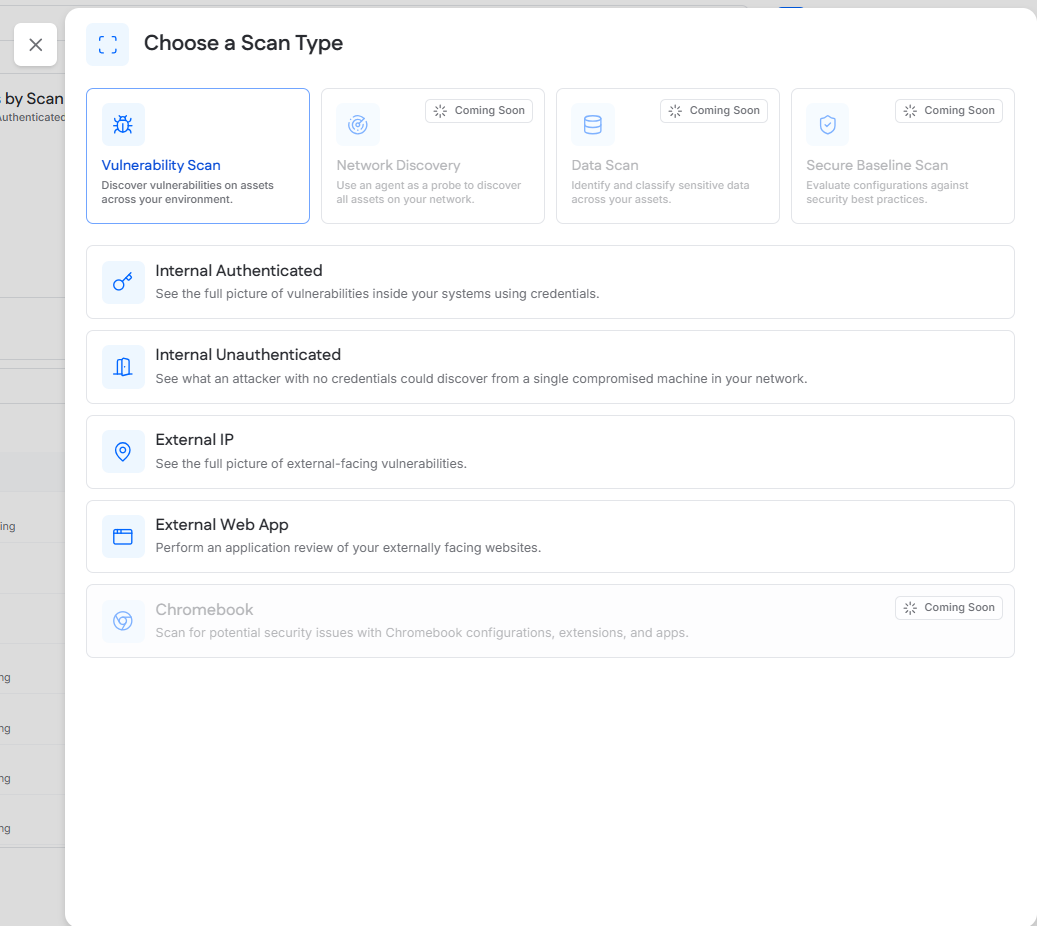
Choose a Scan Type
Users first select a scan category. Available categories include:
Vulnerability Scan
Network Discovery
Data Scan
Secure Baseline Scan
Some scan categories may be marked as coming soon and are not selectable.
Vulnerability Scan Types
When Vulnerability Scan is selected, users can choose:
Internal Authenticated
Internal Unauthenticated
External IP
External Web App
Scan Configuration
After selecting a scan type, users configure:
The agent used to run the scan, if applicable
The scan targets
Scheduling options, including one-time or recurring schedules
Additional configuration options may be available depending on scan type.
Completion
Saving the scan schedules it according to the selected options and adds it to the Scheduled Scans table.
Scheduled Scans
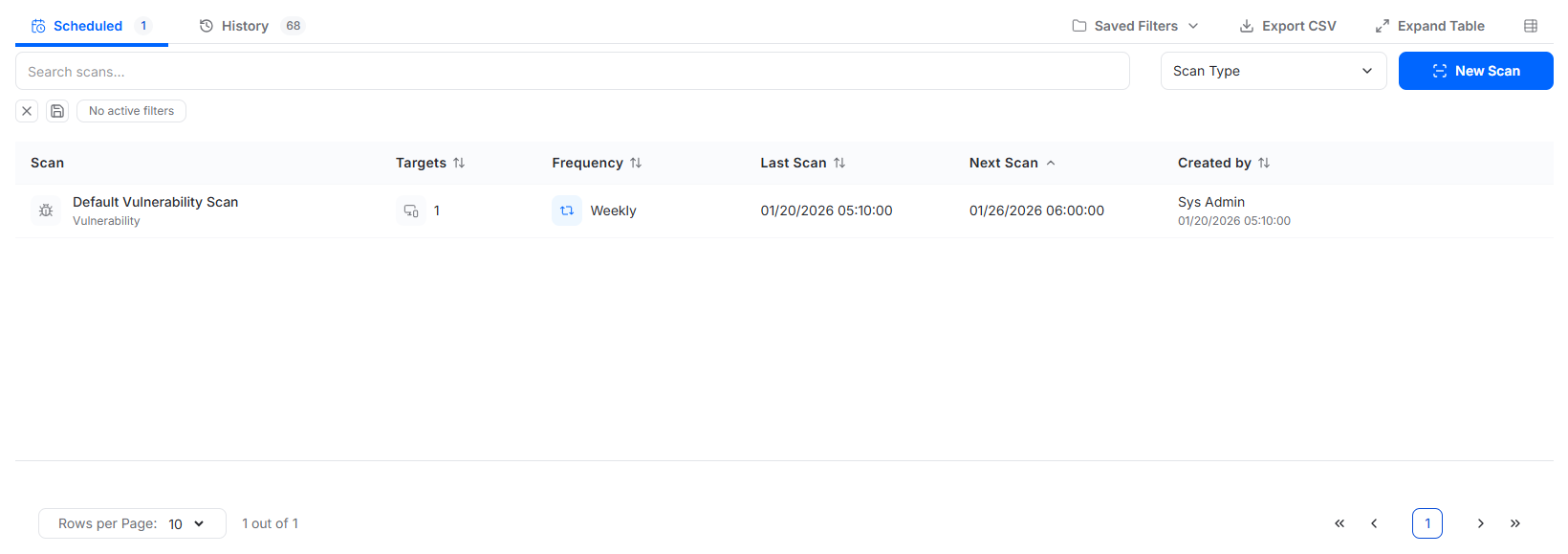
The Scheduled Scans view lists all scans configured to run on a defined schedule. It is used to manage ongoing scans and review upcoming execution.
Table Columns
Scan
The scan name and scan type.
Targets
The number of targets included in the scan.
Frequency
The scan cadence, including:
One-time
Daily
Weekly
Biweekly
Monthly
Quarterly
This column may also indicate how many scheduled executions remain.
Last Scan
The localized date and time when the scan last ran.
Next Scan
The localized date and time of the next scheduled execution.
Created by
The user who created the scan and the date and time it was created.
Row Actions
Hovering over a scan row reveals an action menu.
Available actions include:
Scan Details, which opens a drawer showing results from the most recent scan execution
Edit Scan, which opens a drawer allowing users to modify the scan name, targets, and schedule
Delete Scan, which removes the scheduled scan and prevents future executions
Scan History
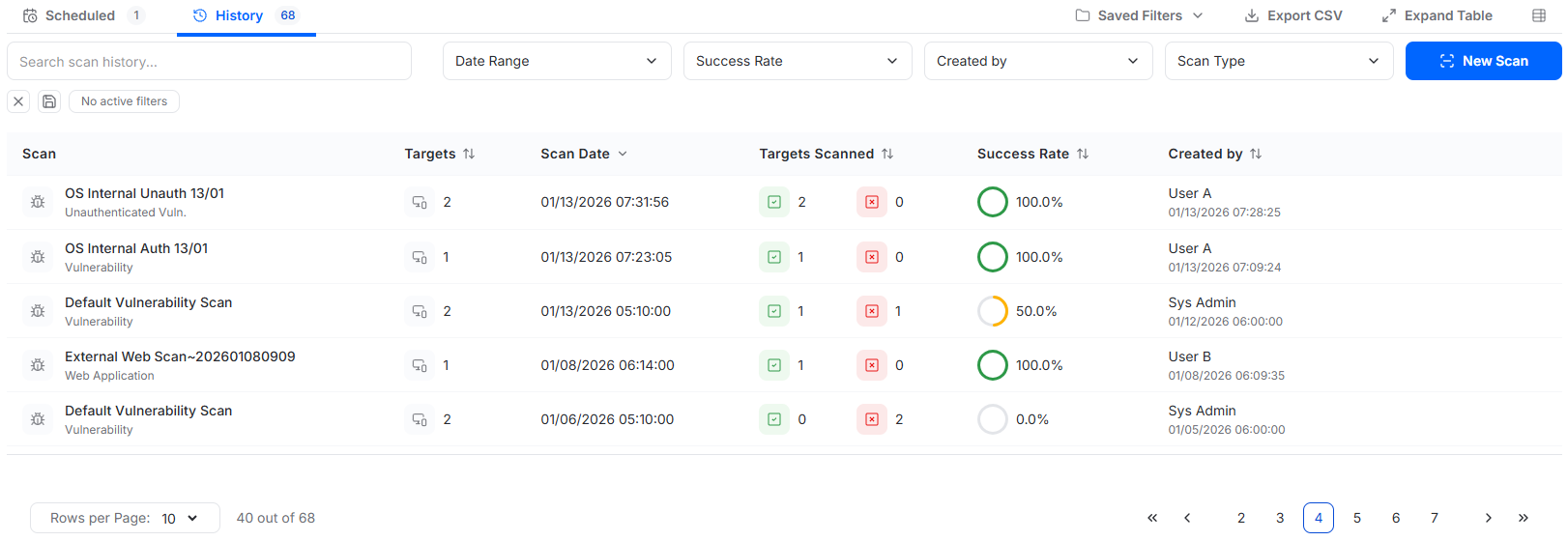
The Scan History view provides a record of all scan executions. It focuses on execution outcomes and success rates rather than scan configuration.
Table Columns
Scan
The scan name and scan type.
Targets
The total number of targets in the scan.
Scan Date
The localized date and time when the scan executed.
Targets Scanned
The number of targets that succeeded and failed during the scan.
Success Rate
The percentage of targets that were successfully scanned.
Created by
The user who created the scan and the date and time it was created.
Search and Filtering
Filters available above the table include:
Date range
Success rate
Created by
Scan type
Row Actions
Hovering over a scan row reveals an action menu. Selecting scan details opens the scan details view for the selected execution.