Policy Engine
Last updated: May 5, 2026
Policy Engine allows you to create automated policies that monitor activity across supported Cyrisma domains and send notifications when defined conditions are met. When a policy is triggered, it can generate an in-app notification, send an email alert, create a PSA ticket, or use a combination of these actions.
Use Policy Engine to stay informed about important activity such as critical vulnerabilities, exposure findings, agent events, secure baseline results, and scanning events.
Policy Engine Overview
The Policy Engine page includes two primary tabs:
Policies
Execution History
The page also includes summary cards that provide a high-level view of policy activity over the last 30 days:
Active Policies
Triggers
Notifications Sent
Emails Sent
Tickets Created
Policies Tab
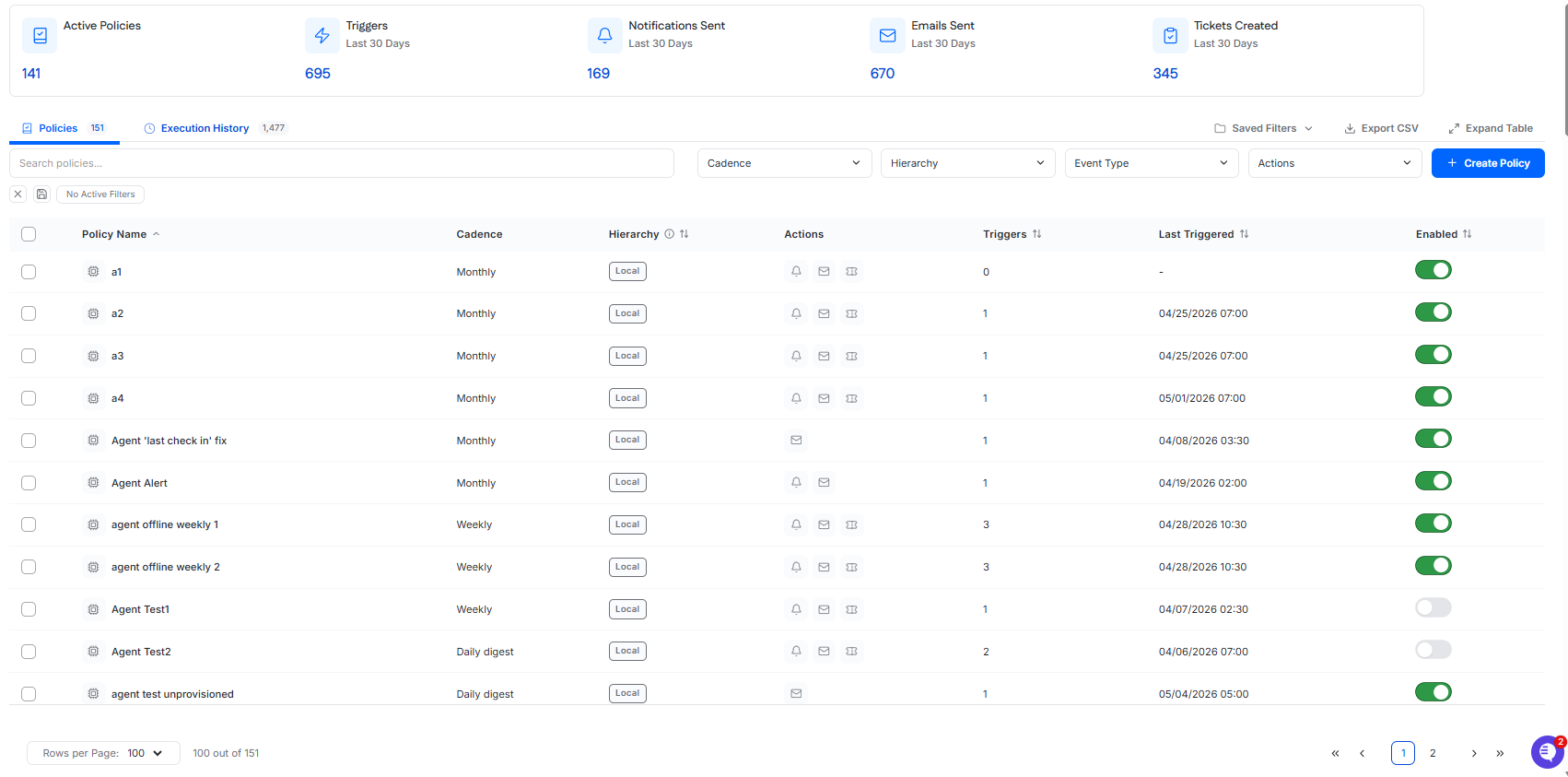
The Policies tab displays all policies created in the instance. This view allows users to review policy settings, search and filter results, monitor trigger activity, and control whether policies are active.
The table includes the following columns:
Policy Name
The name of the policy.Cadence/Frequency
The delivery schedule configured for the policy, such as Real Time, Daily Digest, Weekly Summary, or Monthly Summary.Hierarchy
Indicates where the policy originates:Local: A policy created at the tenant level.
Inherited: A policy configured at the organization level in msp.cyrisma.com that is applied to the tenant.
Event Type
The domain used for the policy, such as Vulnerability, Exposure, Agent, Secure Baseline, or Scanning.Actions
Icons showing which notification methods are configured for the policy, such as in-app notification, email alert, or PSA ticket.Triggers
The number of times the policy has been triggered.Last Triggered
The date and time when the policy was last triggered.Enabled
A toggle that determines whether the policy is active. Disabled policies remain in the table but do not trigger notifications until they are re-enabled.
The Policies tab also supports:
search
filtering
saved filters
CSV export
expanded table view
Execution History Tab
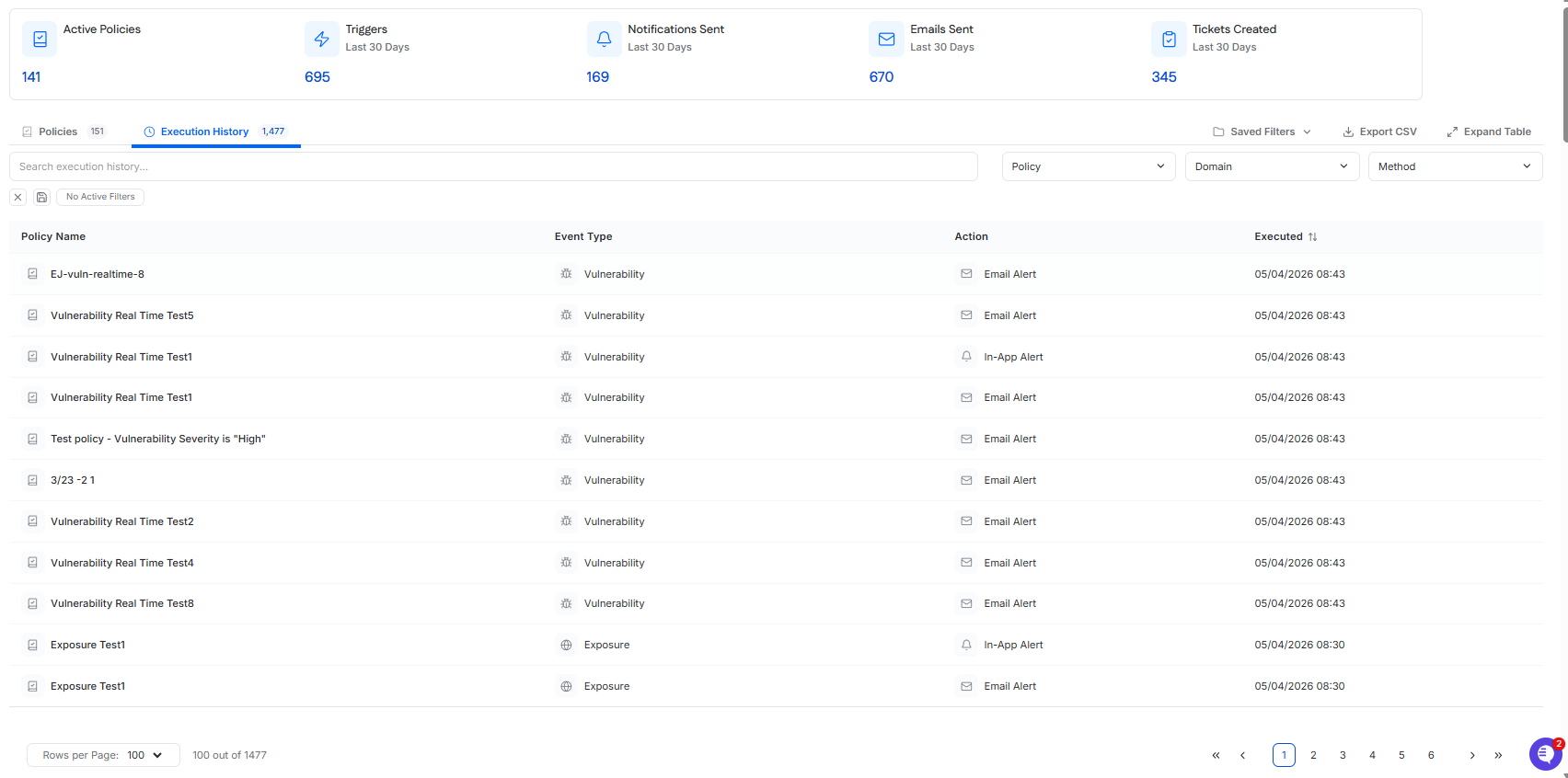
The Execution History tab shows a table of policy notifications that have already been triggered and sent. This view can be used to review recent policy activity and confirm which notifications were delivered.
The table includes:
Policy Name
The name of the policy that triggered.Event Type
The domain used for the policy, such as Vulnerability, Exposure, Agent, Secure Baseline, or Scanning.Action
The notification method that was triggered, such as In-App Alert, Email Alert, or PSA Ticket.Executed
The date and time when the notification was sent.
This tab also supports search, filtering, saved filters, CSV export, and expanded table view.
Create a Policy
To create a policy:
Go to Policy Engine.
Click Create Policy.
This opens the Create Policy drawer, which guides you through five steps:
Domain
Conditions
Cadence
Notifications
Summary
Step 1: Domain
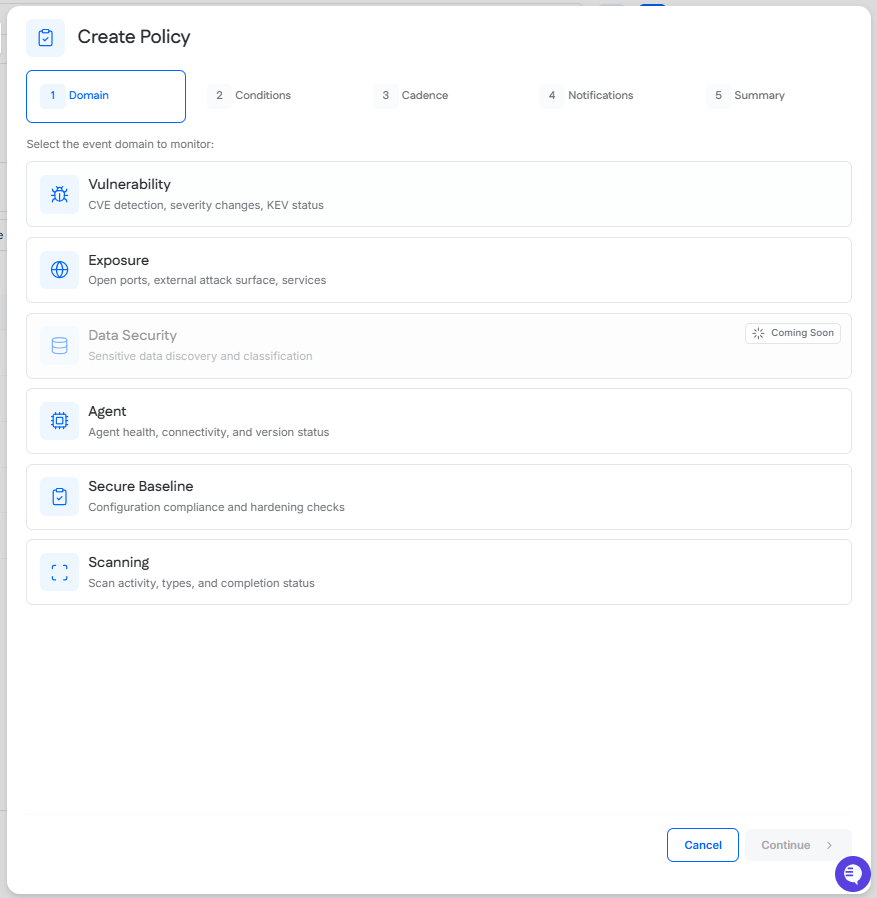
In the Domain step, select the event domain you want the policy to monitor.
Available domains include:
Vulnerability
Exposure
Agent
Secure Baseline
Scanning
Each domain supports different condition variables, cadence options, and aggregation options. Select the domain that best matches the type of activity you want to monitor.
Step 2: Conditions
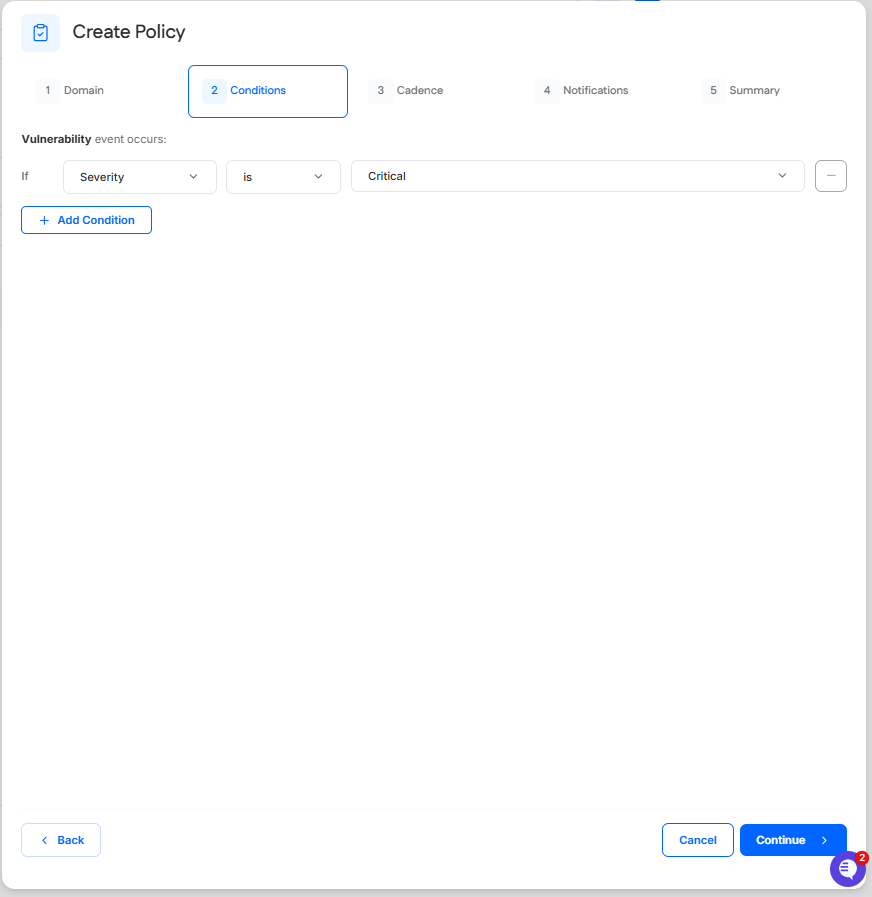
In the Conditions step, define the criteria that must be met for the policy to trigger.
Each policy starts with one condition row. For each condition, select:
a variable
an operator
a value
Click Add Condition to include additional conditions for the same policy.
For example, a Vulnerability policy might use the condition Severity is Critical. In this case, the policy triggers when a vulnerability event matches that condition. For example, if a vulnerability scan identifies a finding with Critical severity, the policy triggers.
Available condition options depend on the selected domain. The available operators and values also change based on the selected variable.
Vulnerability Variables
For the Vulnerability domain, condition variables include:
Severity
CVSS Score
EPSS Score
KEV Status
Finding Age
Asset Tags
CVE ID
Scan Type
These variables support different input types depending on the selection. For example:
Severity uses values such as Critical, High, Medium, and Low
CVSS Score and Finding Age support numeric comparisons
EPSS Score supports decimal comparisons
KEV Status uses predefined values such as Actively Exploited (KEV) and Not in KEV
Asset Tags and Scan Type support multi-select logic
CVE ID supports text-based matching
Exposure Variables
For the Exposure domain, condition variables include:
Open TCP Ports
Open UDP Ports
Severity
Finding Age
Agent Variables
For the Agent domain, condition variables include:
OS Type
Asset Tags
Provisioning Status
Last Check-in
Scanning Variables
For the Scanning domain, condition variables include:
Scan Type
Scan Status
Failed Targets
Scanned Targets
Total Targets
Scan Success Rate
Because domain behavior varies, the available conditions shown in the drawer should be used as the source of truth for the selected policy type.
Step 3: Cadence
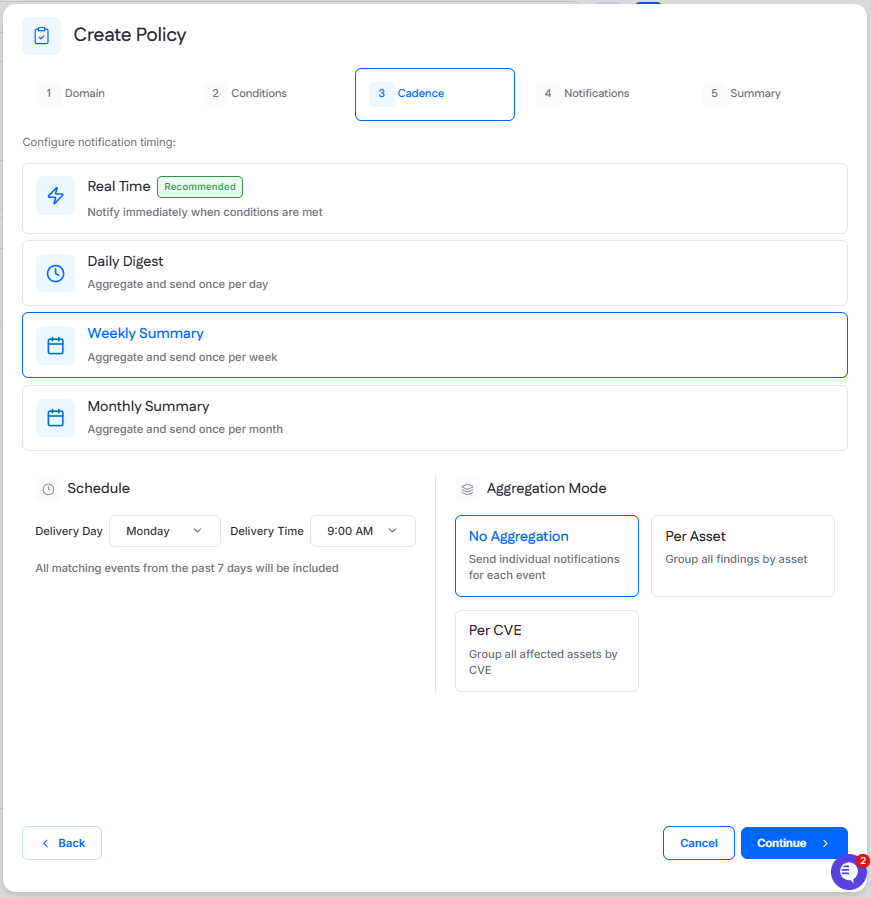
In the Cadence step, choose when notifications should be sent after a policy condition is met.
Available cadence options may include:
Real Time
Daily Digest
Weekly Summary
Monthly Summary
Real Time
Real Time sends a notification immediately when the policy conditions are met.
This option is recommended when you want to be alerted as soon as an event occurs.
Daily Digest
Daily Digest aggregates matching events and sends one notification per day at the selected delivery time.
All matching events from the past 24 hours are included.
Aggregation Mode options for supported domains include:
No Aggregation
Send individual notifications for each event.Per Asset
Group all findings by asset.Per CVE
Group all affected assets by CVE.
Weekly Summary
Weekly Summary aggregates matching events and sends one notification per week on the selected delivery day and time.
All matching events from the past 7 days are included.
Aggregation Mode options for supported domains include:
No Aggregation
Send individual notifications for each event.Per Asset
Group all findings by asset.Per CVE
Group all affected assets by CVE.
Monthly Summary
Monthly Summary aggregates matching events and sends one notification per month on the selected day of the month and time.
All matching events from the past month are included.
Aggregation Mode options for supported domains include:
No Aggregation
Send individual notifications for each event.Per Asset
Group all findings by asset.Per CVE
Group all affected assets by CVE.
Domain Support Notes
Not every domain supports the same cadence or aggregation options.
Supported behavior includes:
Vulnerability
Cadence: Real Time, Daily Digest, Weekly Summary, Monthly Summary
Aggregation: No Aggregation, Per Asset, Per CVE
Exposure
Cadence: Real Time, Daily Digest, Weekly Summary, Monthly Summary
Aggregation: No Aggregation
Agent
Cadence: Daily Digest, Weekly Summary, Monthly Summary
Aggregation: No Aggregation
Secure Baseline
Cadence: Real Time, Daily Digest, Weekly Summary, Monthly Summary
Aggregation: No Aggregation, Per Asset
Scanning
Cadence: Real Time, Daily Digest, Weekly Summary, Monthly Summary
Aggregation: No Aggregation
The available options in the drawer depend on the selected domain.
Step 4: Notifications
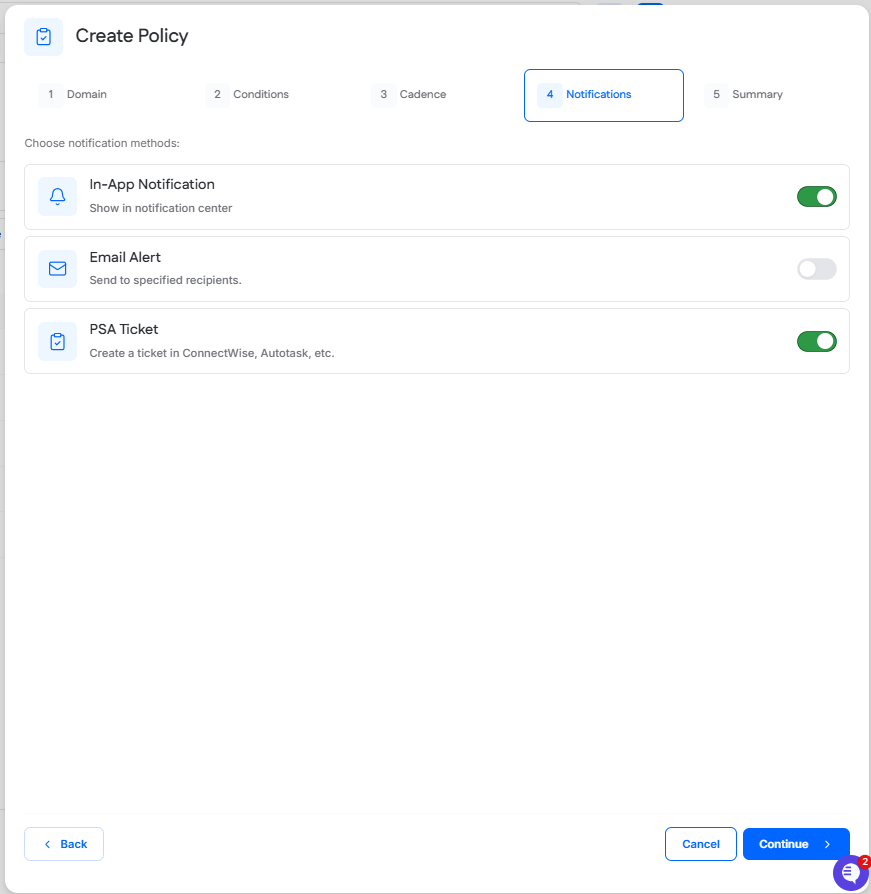
In the Notifications step, choose how the policy should send alerts when it is triggered.
Available notification methods include:
In-App Notification
Displays the alert in the Cyrisma notification center.
Email Alert
Sends an email to one or more specified recipients.
Enter recipient email addresses manually. To add multiple recipients, separate email addresses with commas.
PSA Ticket
Creates a ticket in a connected PSA platform such as ConnectWise or Autotask.
You can enable one or more notification methods for the same policy.
Step 5: Summary
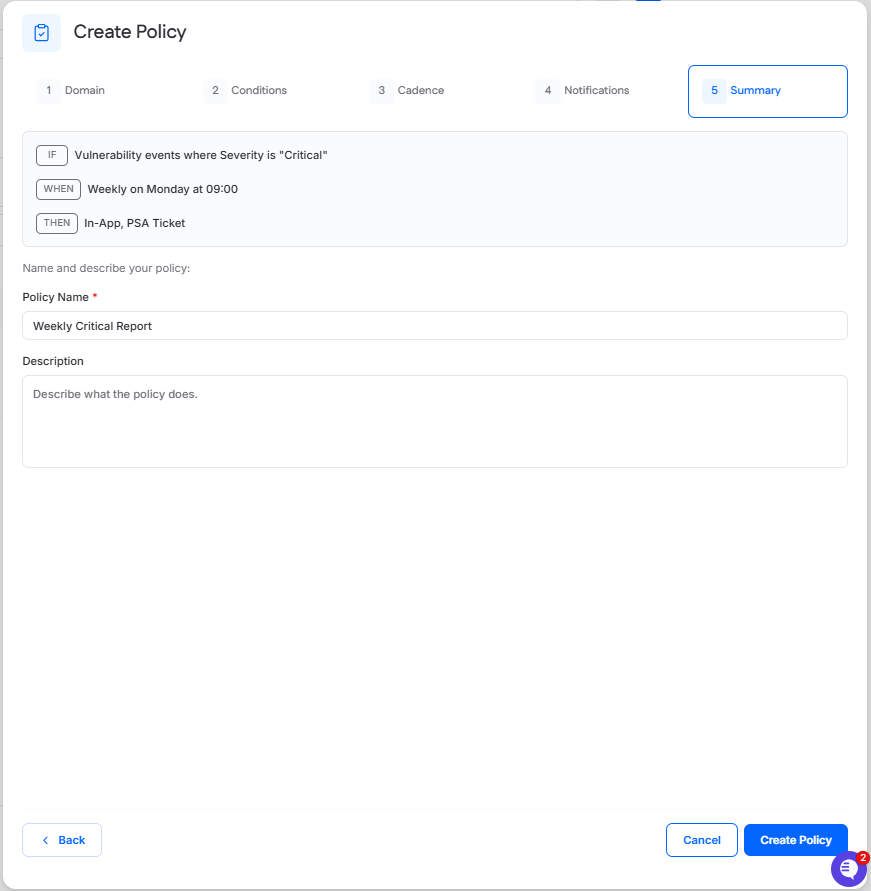
In the Summary step, review the policy configuration before creating it.
This step provides a plain-language summary of the policy, including:
what event type is being monitored
what conditions will trigger the policy
when notifications will be sent
which notification methods will be used
You must enter a Policy Name.
You can also optionally enter a Description to explain the purpose of the policy.
To finish creating the policy:
Enter a policy name.
Optionally enter a description.
Review the policy summary.
Click Create Policy.
Example Policy
A common example is a policy configured with:
Domain: Vulnerability
Condition: Severity is Critical
Cadence: Weekly Summary
Notification Methods: In-App Notification and PSA Ticket
This policy collects all matching critical vulnerability events during the week and sends the configured notification actions on the selected schedule.
Manage Existing Policies
After a policy is created, it appears in the Policies tab.
From this view, users can:
review the policy configuration
search for specific policies
apply filters
export policy data
enable or disable policies using the toggle in the Enabled column
Enabled policies remain active and can trigger according to their configured conditions and cadence.
Review Policy Activity
Use the Execution History tab to review triggered policy activity.
This view shows:
which policy triggered
the policy domain
which notification action was sent
when the notification was sent
Execution History is useful for confirming that a policy is working as expected and for reviewing recent notification activity.