Patching
Last updated: April 14, 2026
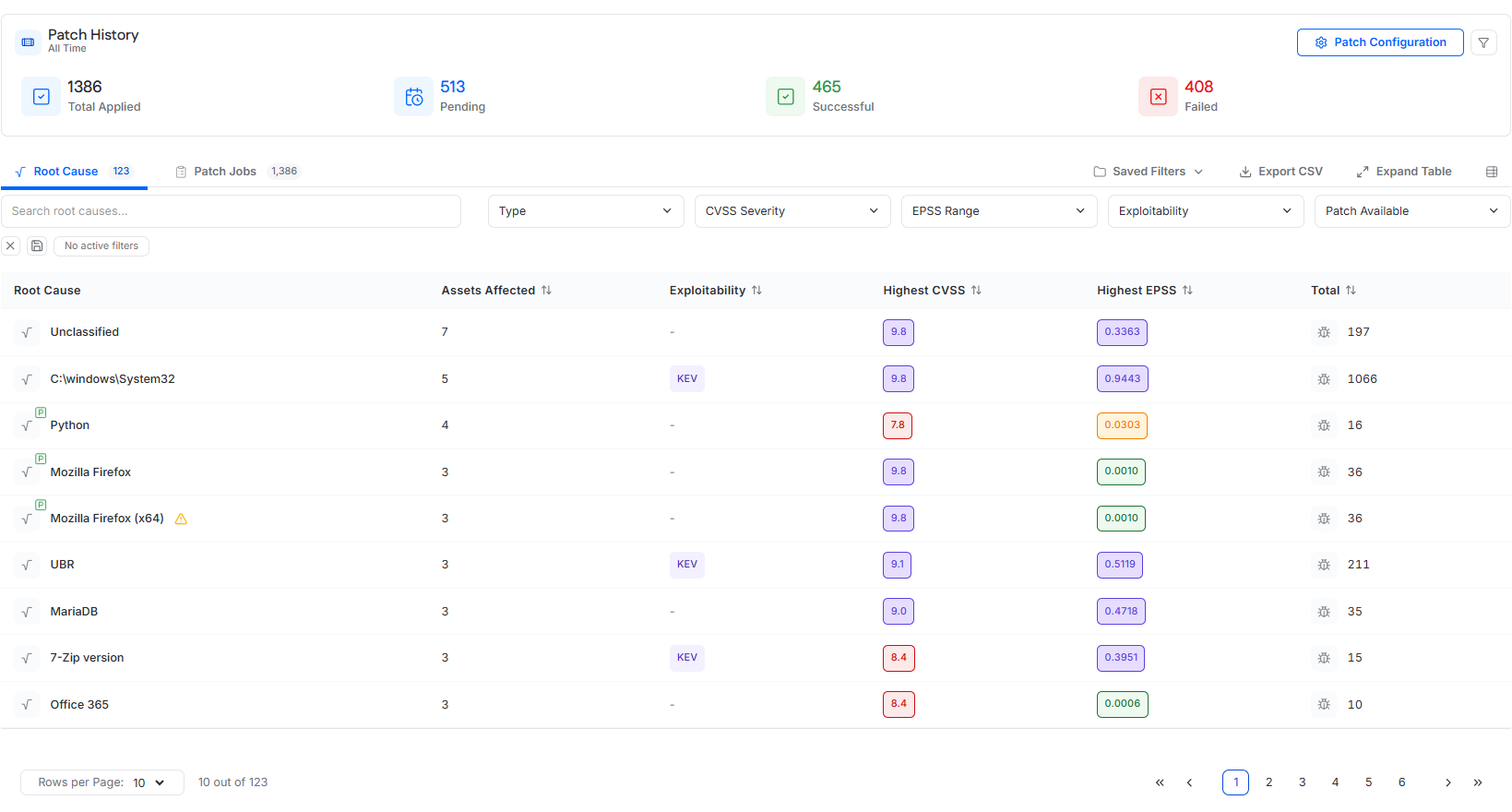
The Patch Manager enables administrators to remediate vulnerabilities by scheduling and managing patches across supported assets. Patching is driven by vulnerability root causes identified through internal authenticated scans and supports both manual patch scheduling and automated third-party patching.
The Patch Manager consists of four primary areas:
Patch History summary
Root cause-based patching
Patch Jobs tracking
Patch Configuration for automation, exclusions, and blackout hours
Patch History
The Patch History section provides a high-level summary of patch activity for the instance.
Patch History Metrics
Total Patch Jobs
Total number of patch jobs in the instance. This includes Pending, Successful, and Failed patch jobs.
Pending
Patch jobs that are scheduled but have not yet executed.
Successful
Patch jobs that completed successfully.
Failed
Patch jobs that failed or were aborted.
Selecting any metric filters the Patch Jobs table to show only patch jobs matching that status.
Root Cause View
The Root Cause tab is the primary interface for identifying and remediating patchable vulnerabilities.
Each root cause represents a software component or system area responsible for one or more vulnerabilities.
Root Cause Table
Columns
Root Cause
Name of the vulnerability root cause.
A green P icon indicates the root cause is patchable.
A yellow warning triangle indicates patching is disabled because the root cause is included in the Patch Exclusion List.
Assets Affected
Number of assets impacted by the root cause.
Exploitability
Indicates whether vulnerabilities under the root cause are associated with Known Exploited Vulnerabilities (KEV) or ExploitDB.
Highest CVSS
Highest CVSS score among vulnerabilities in the root cause.
Highest EPSS
Highest EPSS score among vulnerabilities in the root cause.
Total
Total number of CVEs associated with the root cause.
Root Cause Actions
Clicking a patchable root cause name opens the patch scheduling drawer.
Hovering over a row reveals an ellipsis menu with the option to open the Root Cause Details drawer.
Root Cause Details Drawer
The Root Cause Details drawer provides detailed information about a selected root cause.
Summary Metrics
The drawer includes summary metrics for:
Assets affected
Total vulnerabilities
Critical vulnerabilities
High vulnerabilities
Medium vulnerabilities
Low vulnerabilities
Details Section
The details section displays:
Highest CVSS score for the root cause
Highest EPSS score for the root cause
KEV indicator if any associated CVEs are known exploited
Affected Assets Tab
The Affected Assets tab lists assets impacted by the root cause, including asset name, operating system, asset grade, and asset tags.
Vulnerabilities Tab
The Vulnerabilities tab lists CVEs associated with the root cause, including CVE ID, CVE title, exploitability, EPSS score, severity, and first seen date.
Patch Scheduling Drawer
If a root cause is patchable, selecting it opens the patch scheduling drawer.
Apply to All Settings
At the top of the drawer, users can configure settings that apply to all selected assets, including:
Patch date and time
Restart toggle
When restart is enabled, a restart date and time must also be selected.
The restart time must be at least 15 minutes after the scheduled patch time.
Asset-Level Scheduling
Below the shared settings, the asset table lists all assets eligible for patching for that root cause.
All listed assets are selected by default when the drawer opens.
Assets can use the Apply to All settings or be configured individually, depending on the available scheduling options in the drawer.
Excluding Assets During Scheduling
To remove an asset from the patch schedule, clear the checkbox next to the asset name.
A red warning triangle next to an asset indicates that the target is part of the No Install List and cannot be selected for patching.
Scheduling the Patch
After the schedule is configured, click Patch to schedule patch jobs for the selected assets.
Patch Jobs
The Patch Jobs tab provides a detailed log of patch activity.
Patch Jobs Table Columns
Target
Asset name.
Patch
Software or component being patched.
Type
Patch category, such as Windows third-party, Windows system, macOS system, or Linux system.
Status
Patch state:
Pending
Successful
Failed
Aborted
Created By
User who scheduled the patch. Displays Auto if scheduled by auto-patching.
Patch Job Actions
Hovering over a row reveals an ellipsis menu.
For Pending patch jobs, Cancel is available.
For Successful, Failed, or Aborted patch jobs, See Details is available to view execution logs.
Patch jobs are ordered by status and then by time, from newest to oldest.
Patch Configuration
Selecting Patch Configuration opens the Patch Configuration drawer, which controls automation and patch eligibility.
General Settings Tab
Third-Party Auto-Patch
When enabled, third-party patches are automatically scheduled after a scan detects vulnerabilities.
Available timing options are:
12 hours
24 hours
36 hours
48 hours
72 hours
Blackout Hours
Blackout Hours defines a blocked time window during which patch installation is not allowed.
This setting applies to both manual and automatic patching.
If a patch job runs during blackout hours, the patch will not install and the job will fail.
Asset Exclusion Tab
The Asset Exclusion tab controls which assets are eligible for patching.
All Assets
Assets eligible for patching.
Excluded Assets
Assets excluded from all patching.
Managing Asset Eligibility
Select assets in All Assets and click Exclude Selected to prevent patching.
Select assets in Excluded Assets and click Include Selected to re-enable patching.
Patch Exclusion Tab
The Patch Exclusion tab controls which patch root causes are eligible for patching.
All Patches
Root causes eligible for patching.
Excluded Patches
Root causes restricted from patching.
Managing Patch Eligibility
Select items in All Patches and click Restrict Selected to exclude them.
Select items in Excluded Patches and click Allow Selected to make them patchable again.
Root causes listed under Excluded Patches cannot be scheduled for patching anywhere in the platform.