Policy Engine
Last updated: September 9, 2026
Use Policy Engine to create automated notifications for security and operational events. Policies can generate in-app notifications, send email alerts, create PSA tickets, or use multiple notification methods.
Create a Policy
Open Policy Engine.
Select Create Policy.
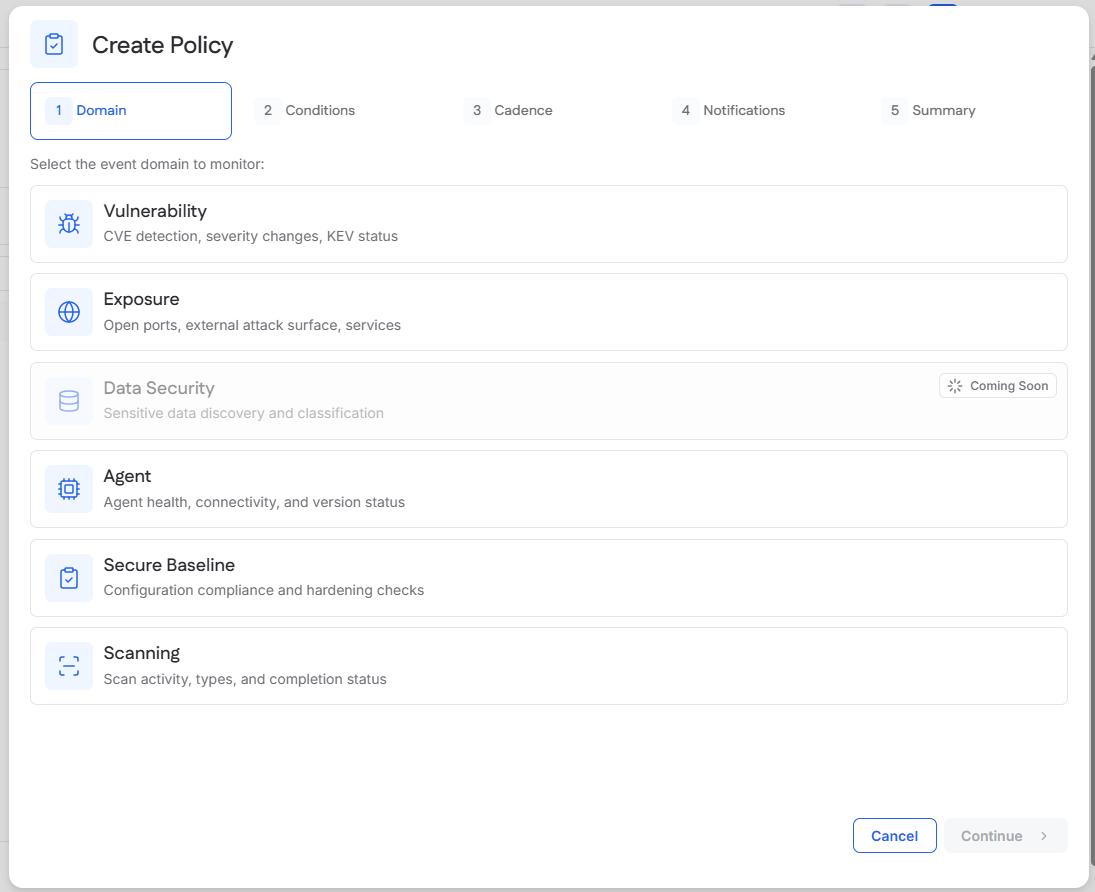
Choose the domain to monitor:
Vulnerability
Exposure
Agent
Secure Baseline
Scanning
Define the conditions that should trigger the policy.
Choose when notifications should be sent.
Select one or more notification methods.
Review the policy, enter a name, and select Create Policy.
Set Conditions
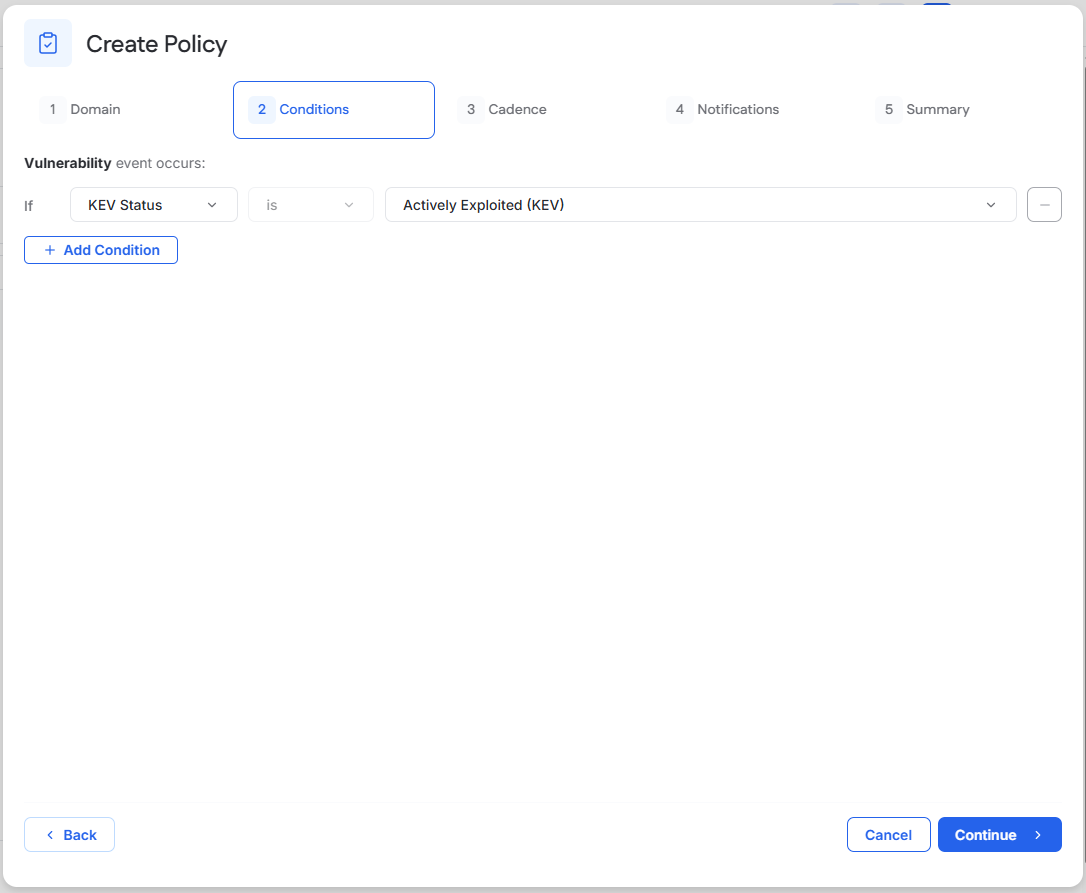
Conditions determine when a policy triggers.
Select a variable, operator, and value. Add additional conditions when needed.
The available conditions depend on the domain selected for the policy.
Choose a Notification Schedule
Choose when notifications should be delivered.
Available schedules can include:
Real Time
Daily Digest
Weekly Summary
Monthly Summary
Available options depend on the selected domain.
Choose Notification Methods
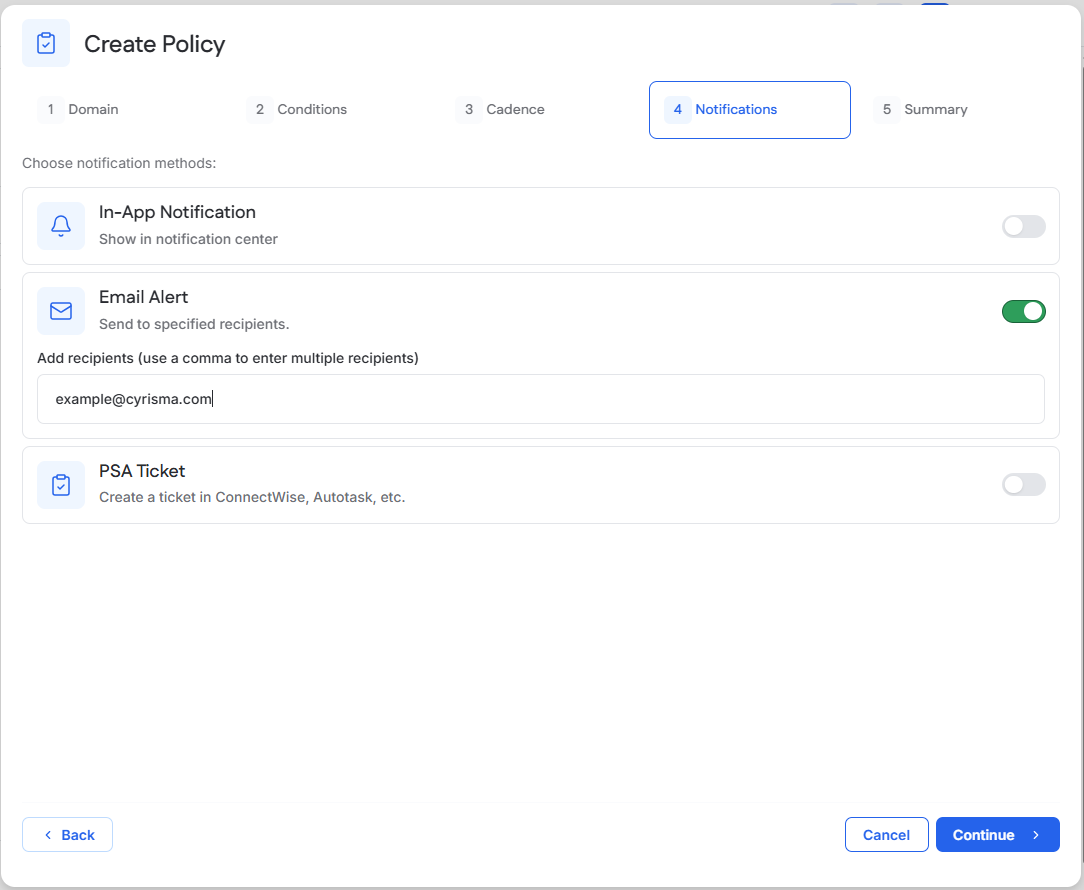
Select one or more notification methods:
In-App Notification
Email Alert
PSA Ticket
A configured PSA integration is required before PSA Ticket can be used.
See [PSA Configuration].
Review and Create the Policy
On the Summary step:
Review the policy configuration.
Enter a policy name.
Optionally enter a description.
Select Create Policy.
Manage Policies
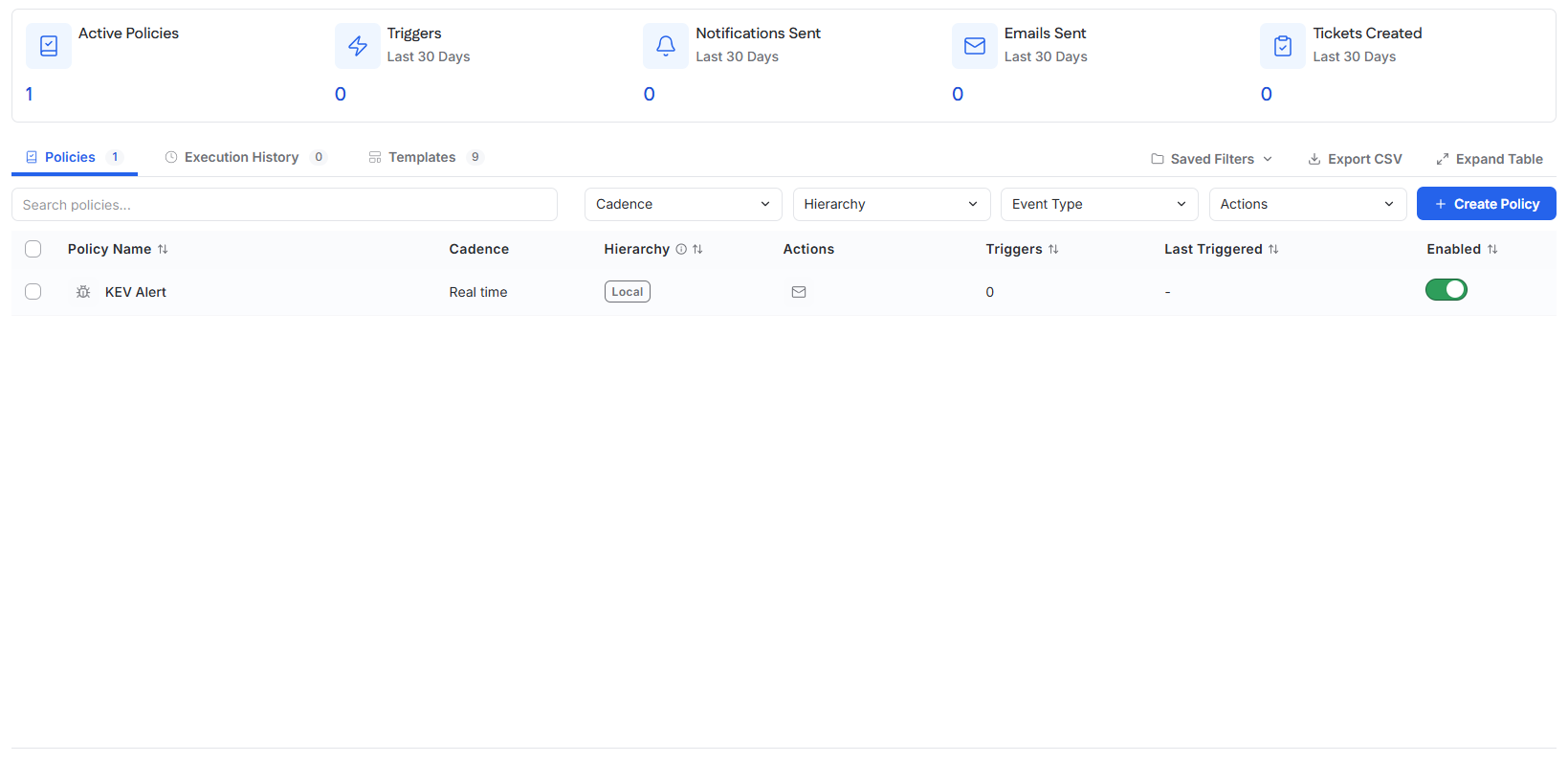
Use the Policies tab to review existing policies and enable or disable them.
Policies created at the current level appear as Local. Policies applied from a parent organization appear as Inherited.
Review Policy Activity
Use Execution History to review policy notifications that have already been triggered.