Cyrisma Setup Guide: Integrating with PSA Platforms
Last updated: April 22, 2026
Overview
PSA integration in msp.cyrisma.com is configured at the organization level. Once configured, the organization can map Cyrisma companies to PSA companies and create PSA profiles for ticketing workflows.
Supported PSA platforms include:
Autotask
ConnectWise
Halo
N-able
Syncro
Access PSA Configuration
Log in to
msp.cyrisma.com.Go to the Instances Dashboard.
Select the Organizations tab.
In the organization table, click the name of the organization you want to configure.
In the organization drawer, open the Organization Details tab.
In the PSA Configuration section, click Edit.
This opens the PSA Configuration drawer for the selected organization.

PSA Configuration Overview
PSA setup is configured for organizations only, not for individual instances.
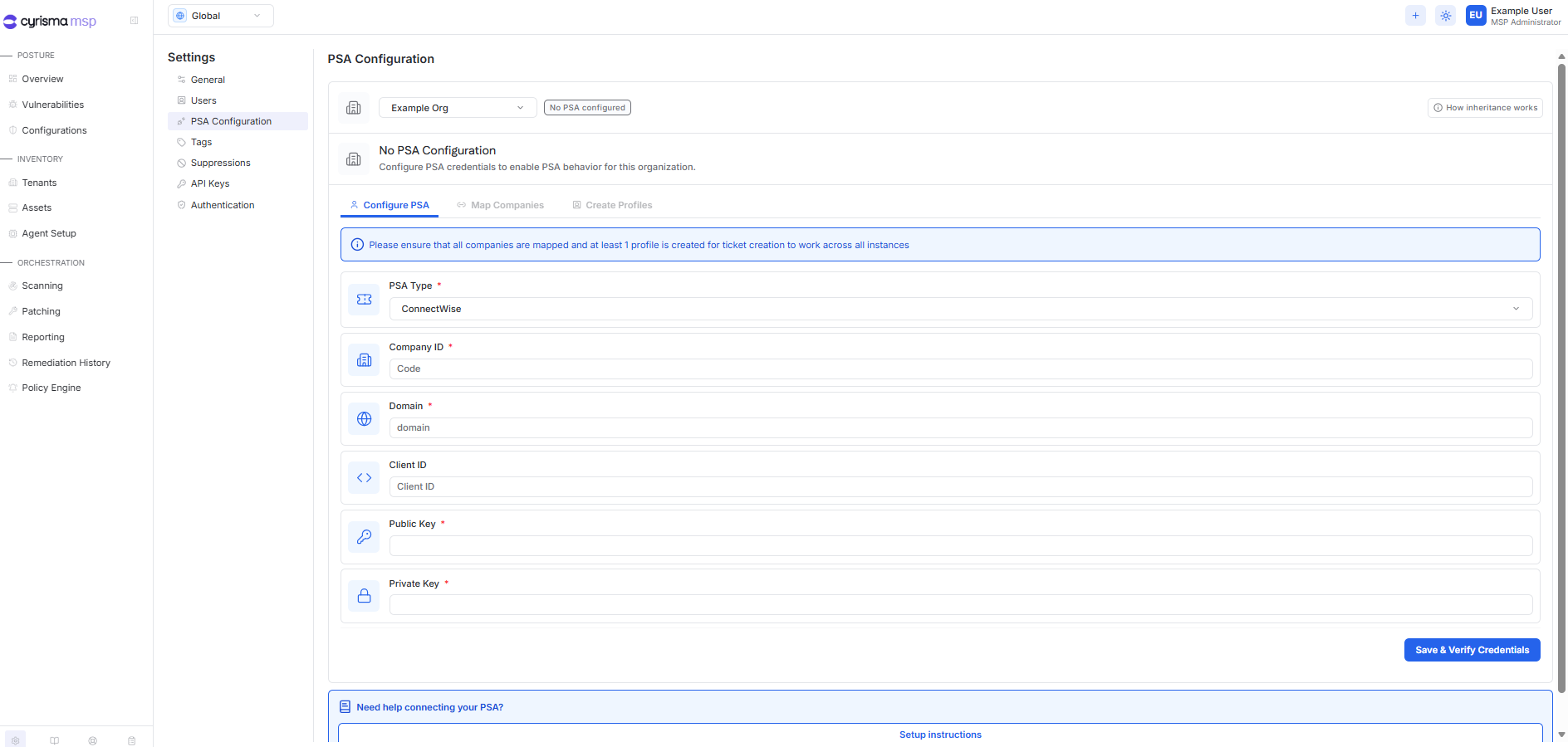
After opening the PSA Configuration drawer, select the PSA platform you want to integrate and enter the required credentials. Then use Save & Verify Credentials to confirm the connection.
Enter PSA Credentials

The credential fields shown in the Configure PSA tab depend on the PSA platform you select.
ConnectWise - ConnectWise PSA Integration Guide | Cyrisma Knowledge Base
Company ID
Domain
Public Key
Private Key
Autotask - Autotask PSA Integration Guide | Cyrisma Knowledge Base
API Integration Code
Domain
Username
Secret
Halo - Halo PSA Integration Guide | Cyrisma Knowledge Base
Domain
Client ID
Secret
Syncro - Syncro PSA Integration Guide | Cyrisma Knowledge Base
Domain
API Key
N-able - N-able PSA Integration Guide | Cyrisma Knowledge Base
Domain
Public Key
Map Companies
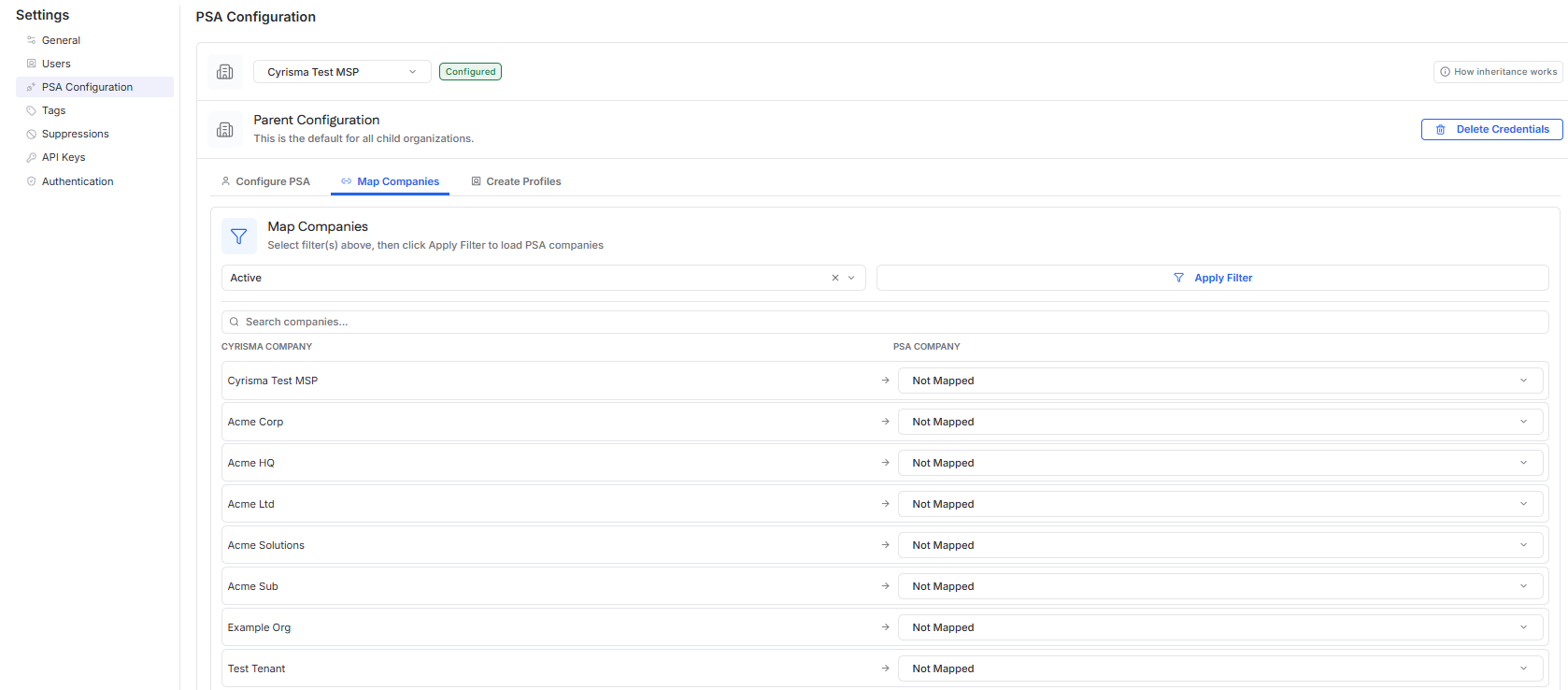
Company mapping is completed in the Map Companies tab of the PSA Configuration drawer.

In this view, Cyrisma companies are listed alongside PSA companies so you can map each Cyrisma company to its corresponding company in the PSA platform.
To load PSA companies:
Select the available filter values, such as Type and Status.
Click Apply Filter.
After the PSA companies are loaded, select the correct PSA company for each Cyrisma company, then click Save Mapping.

Create Profiles
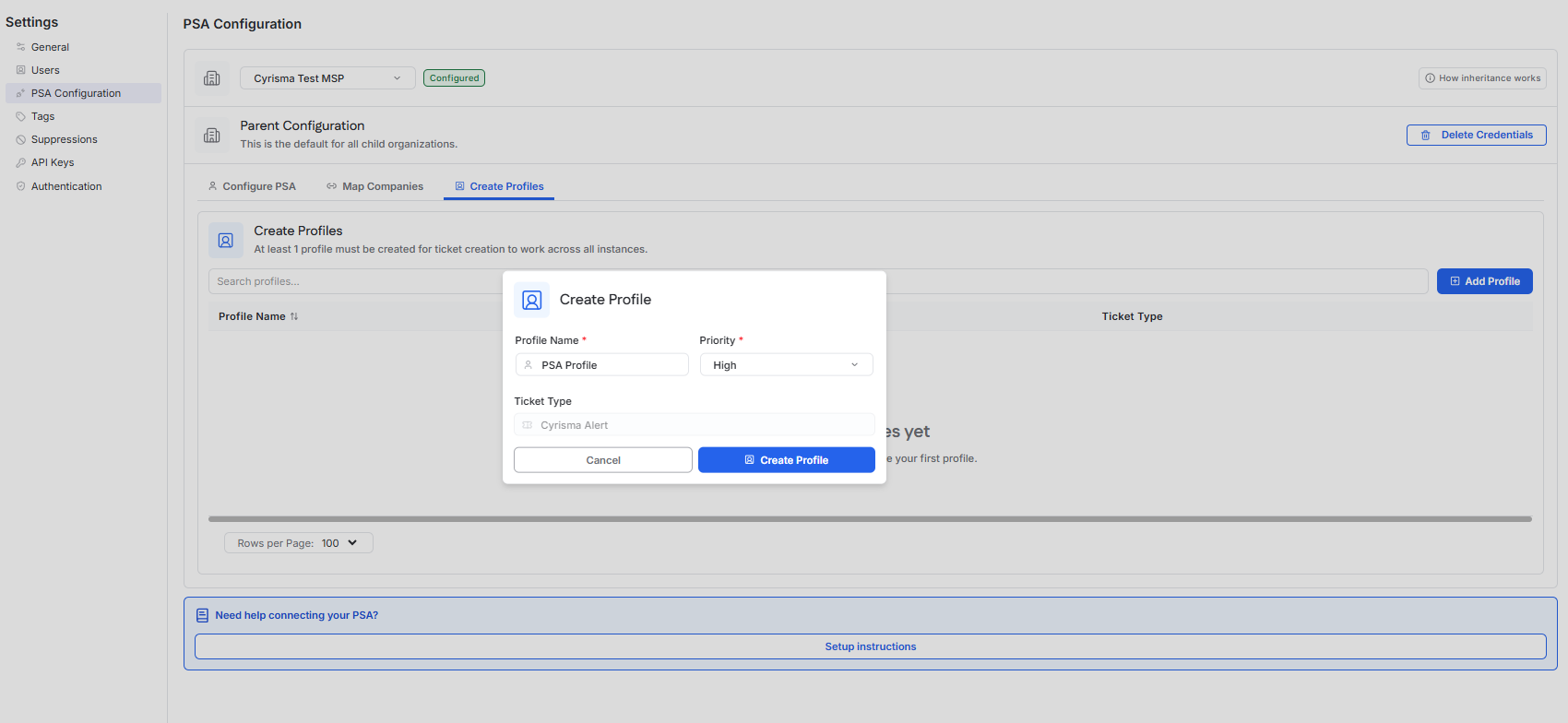
Profiles are created in the Create Profiles tab of the PSA Configuration drawer. At least one profile must be created for ticket creation to work across all instances under the organization.

To create a profile:
Open the Create Profiles tab.
Click Add Profile.
In the Create Profile dialog, enter the required profile details.
Example fields shown for ConnectWise include:
Profile Name
Priority
Boards
Types
Subtypes
After completing the required fields, click Create Profile.
Saved profiles appear in the profile list, where you can review profile details such as profile name, board, type, priority, and subtype.

Configure PSA Ticketing in the Next Gen UI
PSA ticket creation is configured through Policy Engine in the Next Gen UI.
After a PSA integration is configured for an organization in msp.cyrisma.com, and the relevant instance is mapped to a PSA company, you can create policy-driven PSA ticketing from within the instance.
To configure PSA ticket creation:
In the instance, go to Policy Engine.

Click Create Policy.
Select the policy domain you want to monitor.

Configure the policy conditions.
Set the cadence.
In step 4, Notifications, enable PSA Ticket.

Continue to Summary and create the policy.
When the policy conditions are met, Cyrisma generates a PSA ticket and sends it to the integrated PSA platform based on the organization’s PSA configuration, company mapping, and selected profile.
Verify Ticket Creation
After the policy is created and its conditions are met, verify ticket creation in your PSA platform.
Confirm that the ticket appears in the integrated PSA system according to the organization’s company mapping and selected PSA profile.