Halo PSA Integration Guide
Last updated: September 9, 2026
1. Create API Key
To establish a connection between Cyrisma and Halo, you need to generate an API key.
Steps to Create an API Key
Navigate to HaloPSA API:
In the Halo user interface, go to Configuration > Integrations > HaloPSA API.
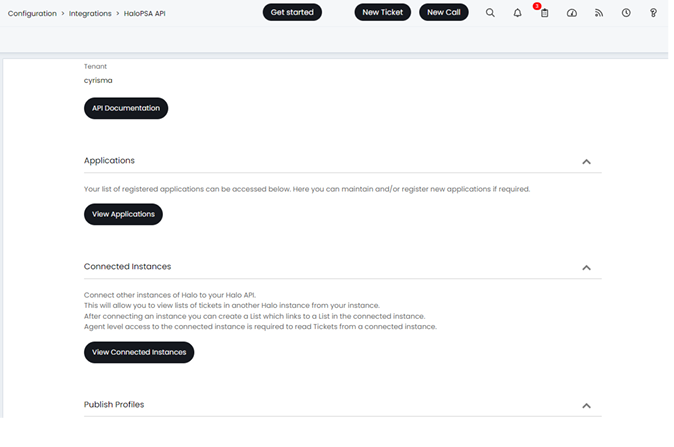
Create New API Key:
Click the ‘New’ button to begin the API key creation process.
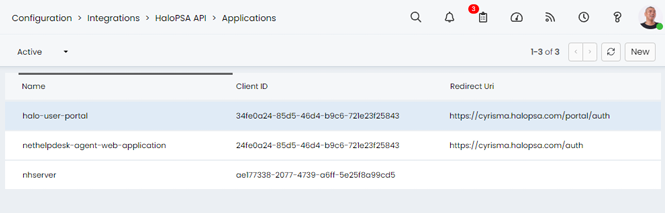
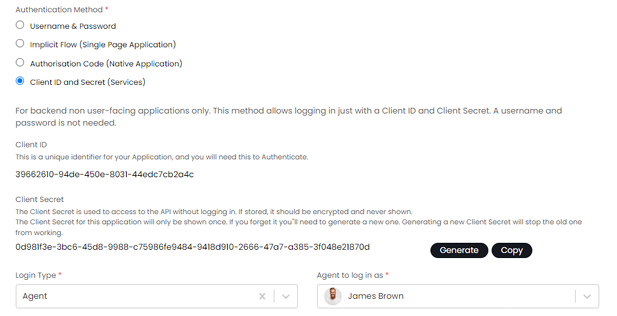
Configure API Key Details:
In the Details tab:
Set the Authentication Method to ‘Client ID and Secret (Services)’.
Set the Login Type to ‘Agent’.
Assign an agent to log in with; note that the agent cannot be set to ‘None’.
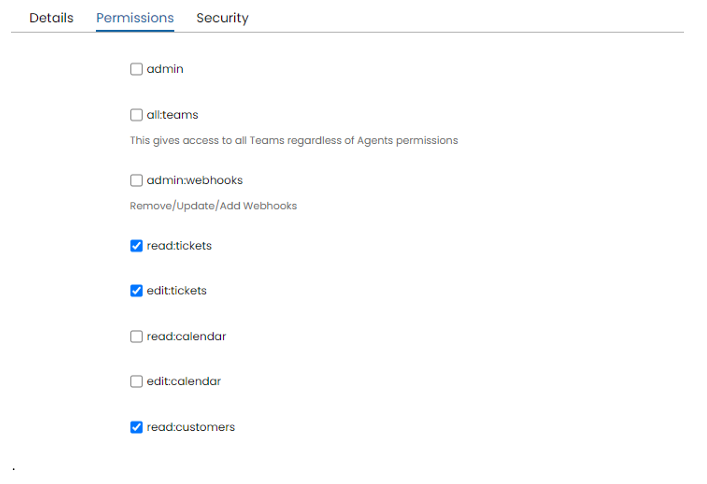
Set Permissions:
Switch to the Permissions tab and grant the following access:
Read: Customers
Read: Tickets
Edit: Tickets
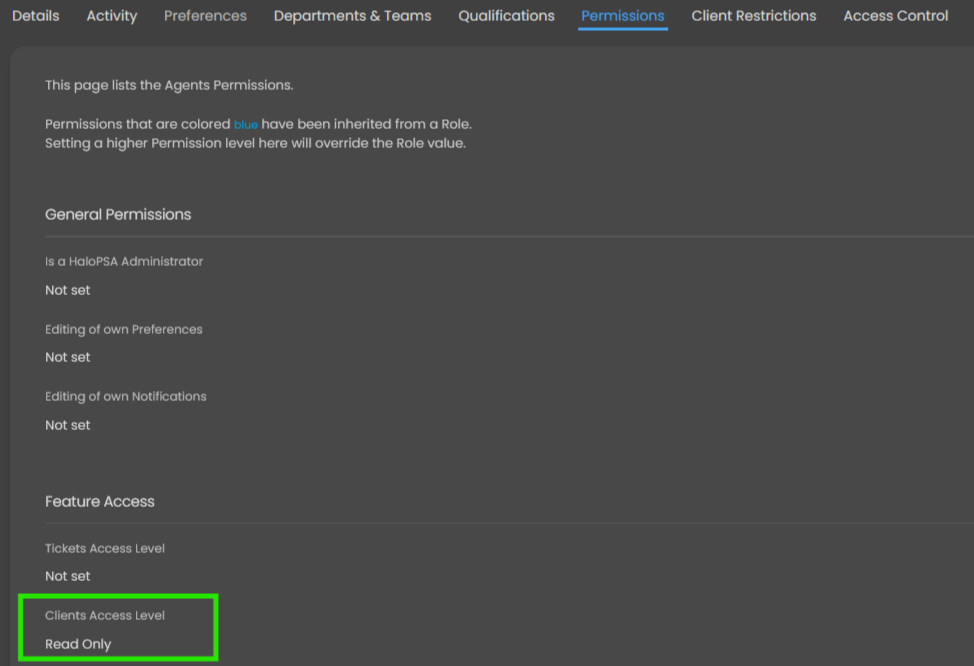
You must also set Clients Access Level to Read Only in the permissions of the agent selected for the API application. In some HaloPSA environments, this setting may appear as Clients Access Level. Without this permission, Cyrisma will receive a 403 Forbidden error when attempting to pull the list of companies through GET /api/Client.
Configure Security Settings:
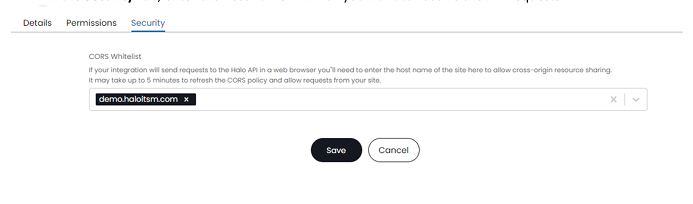
Navigate to the Security tab and enter the host name where you want to receive the API requests.
Finalize the Creation:
Once all settings are configured, finalize the creation of the API key by clicking the appropriate button to save your changes.