Cyrisma CyBroker Sensor Preperation and Setup
Last updated: December 19, 2025
The Cyrisma CyBroker Sensor is used to scan targets within the LAN subnet where the sensor is installed. Data Sensitivity scans can take place against any UNC file path hosted by a target, and Vulnerability/Baseline scans can take place against Windows, macOS, and Linux machines on the local network.
The Cyrisma Command Center web application receives scan result details from the sensor (often referred to as an “agent”) installed on a workstation or server within your local network.
Before installing the sensor, ensure the host machine meets the following requirements.
Prerequisites
Supported Operating Systems
The sensor must be installed on one of the following:
Windows Server 2012 R2, 2016, or 2019
Windows 10 or Windows 11 workstations
Network and Security Requirements
The sensor must be able to communicate with servers in the cyrisma.com domain.
Ensure any web content filters or firewalls allow communication between the local agent and cyrisma.com.
Anti-virus settings should exempt the directory:
C:\Cyrisma_AgentAnti-spam systems should allow mail from cyrisma.com.
.NET Framework Requirement
The sensor machine requires .NET Framework 4.7.2.
The installer attempts to install this if missing; however, .NET installation may require a reboot.
It is recommended to install .NET in advance and complete any required reboots prior to sensor installation.
If needed, .NET can be downloaded from:
https://portal.dataspotlite.com/jv_dl/dotnet.exe
Network Credentials for Agentless Scanning
The sensor requires rights on the local network to perform agentless scans of other machines.
Create an account with administrative rights on the network.
Have these credentials available when provisioning agents.
Generating the Installation Key
Log into the Cyrisma Command Center.
Navigate to Admin → Scan Agents.
Click Generate (or Regenerate) Installation Key for the instance.
Optionally, click the email icon to have the download link and instructions emailed.
From the desktop that will host the agent, download the installer from:
https://msp.cyrisma.com/dl/Cyrisma_Setup.exe
You may install the agent on one or multiple Windows hosts within the environment.
Installing the Agent
Copy the installer package to the host machine.
Execute the installer locally.
When prompted, enter:
The Installation Key
The instance URL to pair the agent with
Double-click the installer to enter the key and URL.
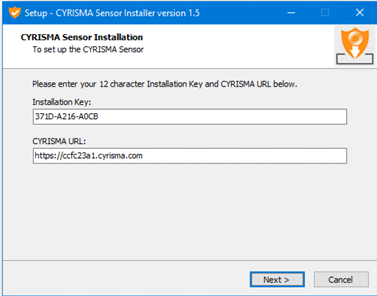
Proceed through the EULA and begin file extraction.
Once extraction completes, close the installer window. The installer will continue running in the background.
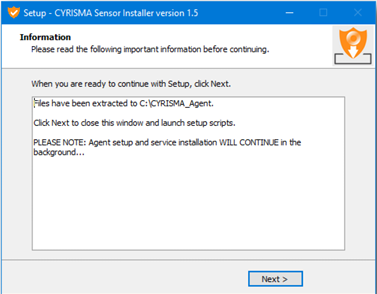
Proceed through the EULA and begin file extraction.
Once extraction completes, close the installer window. The installer will continue running in the background.
When finished, a brief notification will appear confirming the sensor installation is complete.
Command-Line Installation (Optional)
If using a software deployment tool or deploying at scale, the agent can be installed via command line:
Cyrisma_Setup /verysilent /key=nnnn-nnnn-nnnn /url=https://ccNNNNNN.cyrisma.comOptional Parameter: /role=sensor
When using the command-line option, you may also include:
/role=sensorThis installs the optional packet capture driver if the agent will be used to perform unauthenticated scans of an IP subnet.
Agent Approval and Provisioning
After installation, the agent contacts the Cyrisma Command Center for approval.
To complete provisioning:
Navigate to Admin → Scan Agents.
Scroll to New Agent.
Select the agent awaiting provisioning.
If the agent will be used as a network sensor:
Select No for “Run as System”
Enter the network service account credentials created earlier
Working with Endpoint Protection
Agent Operating Modes
The Cyrisma agent operates in two modes:
Local Scanning
The agent runs as System
Uses local machine access rights
Used for scans against the host itself
Network Scanning
The agent runs using a defined service account
Credentials are supplied during provisioning or scan execution
Used to scan other machines on the network
Endpoint Protection Considerations
Some endpoint protection solutions may flag or block parts of the Cyrisma agent. This can occur because the agent may:
Perform TCP port scanning
Attempt remote access to collect operating system, share, and security software details
Enumerate services, ports, and configurations
This behavior may appear suspicious to security software and is expected.
Cyrisma does not attempt to evade or replace endpoint protection. If blocked, endpoint protection must be configured to allow Cyrisma to operate.
Exclusions and Allow Lists
If your security policy allows directory-based exclusions, exclude:
C:\CYRISMA_AgentIf directory-based exclusions are not permitted, exclude the following executables as needed:
Cyrisma Agent Executables and Purposes
Executable Path | Executable Path |
| Main executable running as a service |
| Remote collection of target attributes |
| Secondary remote attribute collection |
| TCP port scanning |
| File reading and preparation for data sensitivity scanning |
| Agent management and upgrades |
| Compression of scan results |