Asset Inventory
Last updated: March 11, 2026
The Asset Inventory Core Security module provides centralized visibility into assets within the instance and their security posture. It helps users review asset composition, endpoint coverage, scan coverage, enrollment status, and software inventory, then drill into asset-level details for further investigation.
This module supports:
Asset discovery and inventory management
Endpoint coverage validation
Scan coverage and enrollment verification
Asset-level security investigation
Software inventory review
Agent Status
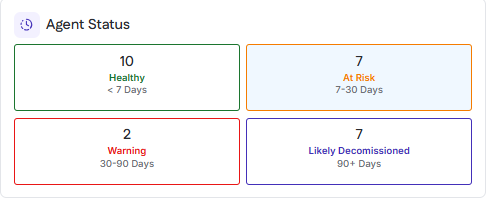
The Agent Status section categorizes deployed agents based on when they last checked in to the instance. This view helps identify agents that are actively reporting, at risk of failing, or likely no longer in use.
Agent status is determined by the time elapsed since the agent’s most recent check-in.
Status Categories
Healthy
Agents that have checked in within the last 7 days.
At Risk
Agents that last checked in between 7 and 30 days ago.
Warning
Agents that last checked in between 30 and 90 days ago.
Likely Decommissioned
Agents that have not checked in for more than 90 days.
Usage
This section is used to monitor agent health and identify assets where scanning coverage may be degraded because of agent inactivity.
Endpoint Coverage
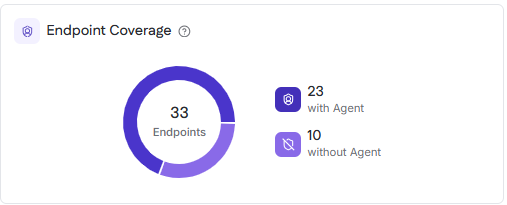
The Endpoint Coverage section shows how many endpoints in the instance have an agent installed versus how many do not. Endpoints in this view are Windows, macOS, and Linux assets that are scanned for internal authenticated vulnerabilities.
Coverage Breakdown
With Agent
Endpoints that currently have an agent installed and reporting.
Without Agent
Endpoints that do not have an agent installed.
Interaction
Selecting the count for endpoints with an agent filters the table to display only assets with agents installed.
Selecting the count for endpoints without an agent filters the table to display only assets without agents installed.
Usage
This section is used to identify gaps in endpoint agent deployment and prioritize agent installation for internal authenticated vulnerability scanning.
Asset Breakdown
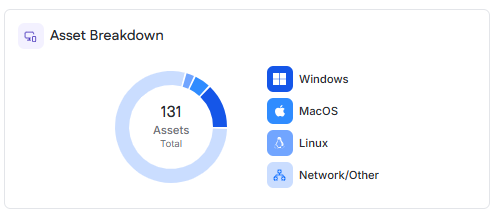
The Asset Breakdown section provides a high-level view of assets categorized by operating system or asset type. A total asset count is displayed at the center of the chart.
Asset Categories
Windows
Assets running Microsoft Windows operating systems.
macOS
Assets running Apple macOS operating systems.
Linux
Assets running Linux-based operating systems.
Network/Other
Network devices or assets that do not fall into the other operating system categories.
Interaction
Hovering over a segment displays the asset count for that category.
Selecting a segment or its corresponding legend entry filters the Asset Table to display only assets in the selected category.
Inventory Views
The table area is the primary workspace for reviewing inventory data in the module. Users can switch between All, Internal, External, and Software views to investigate assets and related software inventory.
View Types
All
Displays all available inventory records in the module.
Internal
Displays internal assets, including Windows, macOS, and Linux machines, as well as internal unauthenticated IP targets that have been scanned.
External
Displays external assets, including scanned web application URLs and external IP targets.
Software
Displays software inventory collected from scan agent host machines.
Asset Table
The Asset Table is the primary workspace for reviewing assets, scan activity, coverage, and enrollment status across the instance.
Table Data
The table includes asset identity and posture details such as asset score, operating system or type, hostname or IP address, end-of-life status, last check-in, scan coverage, and enrollment.
Scan Coverage indicates whether the asset has had a successful vulnerability, data, or secure baseline scan within the last 30 days. Coverage is shown per scan type and reflects:
Successful
Partially successful
Not scanned
Enrolled indicates whether the asset is included in any scheduled vulnerability, data, or secure baseline scans.
Search, Filters, and Table Actions
Users can search the table by asset name, hostname, or IP address.
Available filters include:
OS/Type
Agent Installed
Last Check-In
Scan Coverage
Scan Enrollment
Filters can be combined to refine results.
Columns are sortable, and the table supports saved filters, pagination, export, and expanded viewing for larger result sets.
Asset Drawer
Selecting an asset name from the Asset Table opens the asset drawer. The drawer provides asset-specific details for investigating posture, vulnerabilities, software, and secure baseline configuration results. Available tabs and details vary by asset type.
Managed Endpoint Asset Drawer
For Windows, macOS, and Linux machines, the asset drawer provides a multi-tab investigation view.
Asset Details
The Asset Details tab summarizes key asset information such as operating system, end-of-life status, security software, agent name, last agent check-in, last scan, network identifiers, target status, assigned profiles, and data scan locations.
Vulnerability
The Vulnerability tab provides vulnerability findings for the selected asset. It includes summary metrics for the asset’s current grade and vulnerability totals by severity, and supports investigation across Root Cause, CVE, and Open Ports views.
Software
The Software tab provides software inventory details for the selected asset. It lists software identified on the machine, including version and software category, and supports search, filtering, export, and pagination.
Configuration
The Configuration tab shows how the asset is complying with secure baseline configuration standards. It includes an overall compliance summary, pass and fail counts, the benchmark applied to the asset, the last scan date, and detailed benchmark results.
IP Address Asset Drawer
For IP-based assets, the asset drawer provides a more limited set of identification and vulnerability details than the drawer for managed endpoints.
Asset Details
The Asset Details tab shows asset identification and discovery information such as hostname, IP address, MAC address, MAC vendor, device fingerprint, SNMP status, certificate expiration, and self-signed certificate status, when available.
Vulnerability
The Vulnerability tab provides vulnerability findings for the selected IP-based asset.
External Asset Drawer
For external assets, the drawer reflects the type of external target and the findings available for that target.
For web application assets, the drawer shows vulnerability flaws identified through web application vulnerability scanning.
For external IP assets, the drawer shows asset details and vulnerability findings identified through external scanning.
This view helps users assess externally exposed risk based on the asset’s attack surface.
Software Table
The Software view lists discovered software and browser extensions identified on scan agent host machines.
Table Data
Each row represents a software title or extension and includes its software category and the number of host machines on which it is installed.
Installed On
The Installed On value shows the number of scan agent host machines where the software is present. Hovering over the count displays a tooltip listing the device names.
Software Drawer
Selecting a software name from the Software view opens the software drawer.
The drawer shows the assets where the software is installed and the software version identified on each asset.