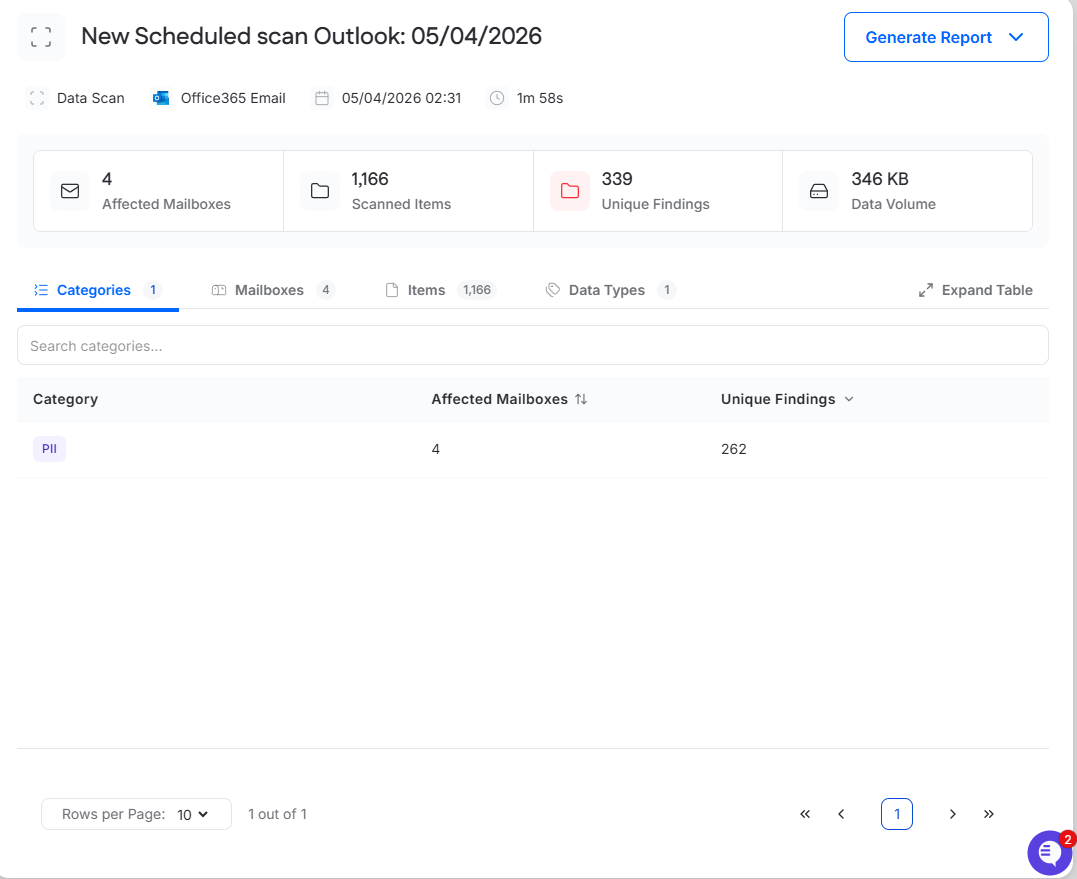
Data Sensitivity
Last updated: May 5, 2026
Data Sensitivity helps you identify, review, and manage sensitive data across connected cloud environments. Use this feature to understand where sensitive data exists, what types of data are being detected, and how findings are classified and prioritized.
The Data Sensitivity feature includes five pages:
Dashboard
Data Stores
Findings
Connectors
Classification
Use the Scanning page to create and schedule data scans. Use Data Sensitivity to review results and customize classification behavior.
Dashboard
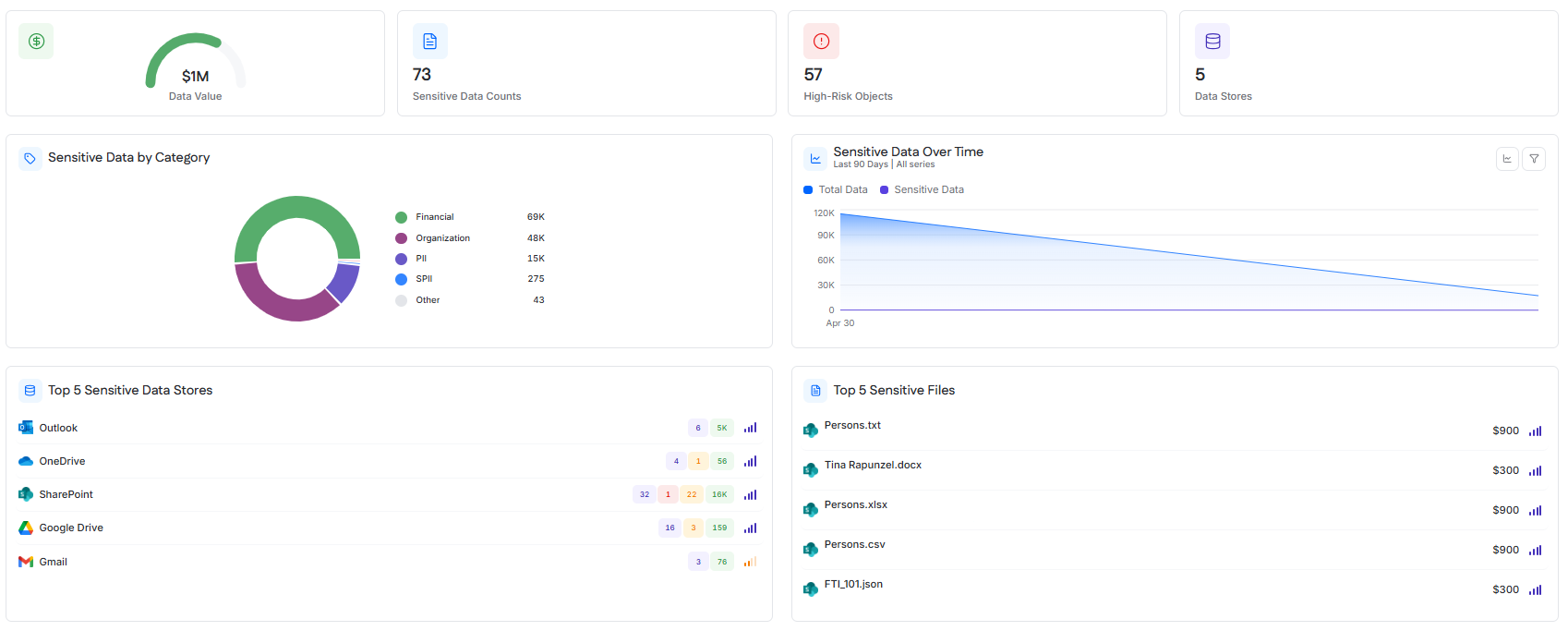
The Dashboard provides a high-level summary of sensitive data findings across connected environments.
Summary cards include:
Data Value
Sensitive Data Counts
High-Risk Objects
Data Stores
The Dashboard also includes:
Sensitive Data by Category
Sensitive Data Over Time
Top 5 Sensitive Data Stores
Top 5 Sensitive Files
Use this page to review overall trends, identify high-value or high-risk findings, and quickly open the most active data stores.
Selecting a data store in Top 5 Sensitive Data Stores opens a detail drawer for that store. The drawer includes summary metrics, findings by severity, and two tabs:
Objects
Data Types
Data Stores
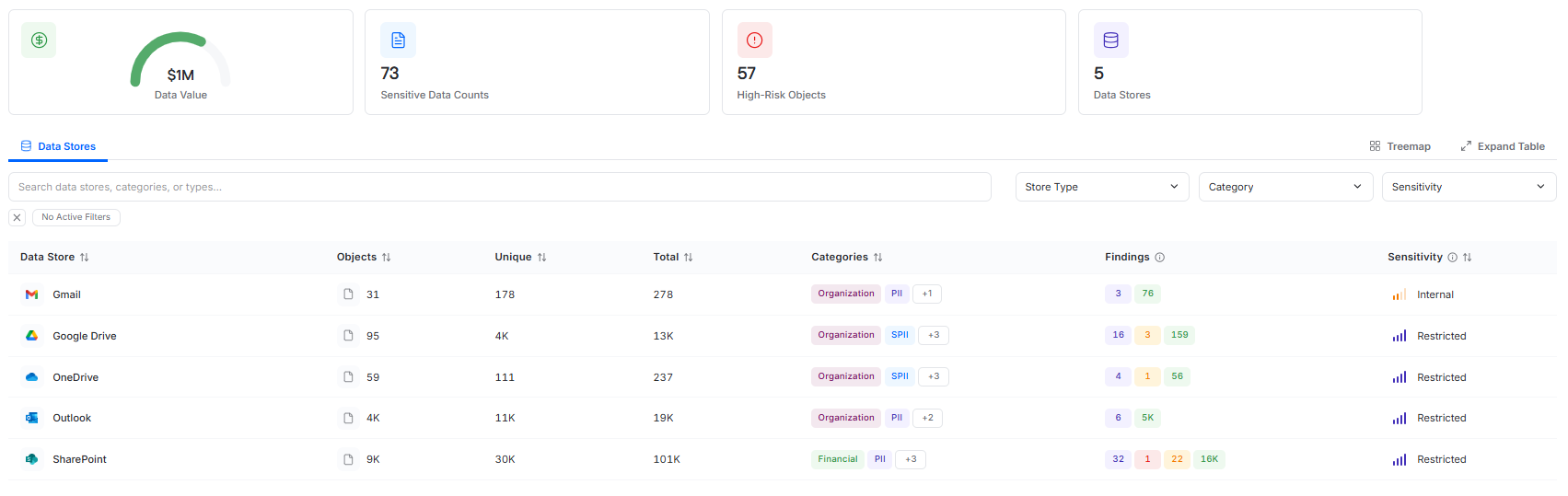
The Data Stores page shows scanned data stores and the sensitive data findings within them.
The main table allows you to review each data store by volume, categories, findings, and sensitivity. This page also supports search, filtering, treemap view, and expanded table view.
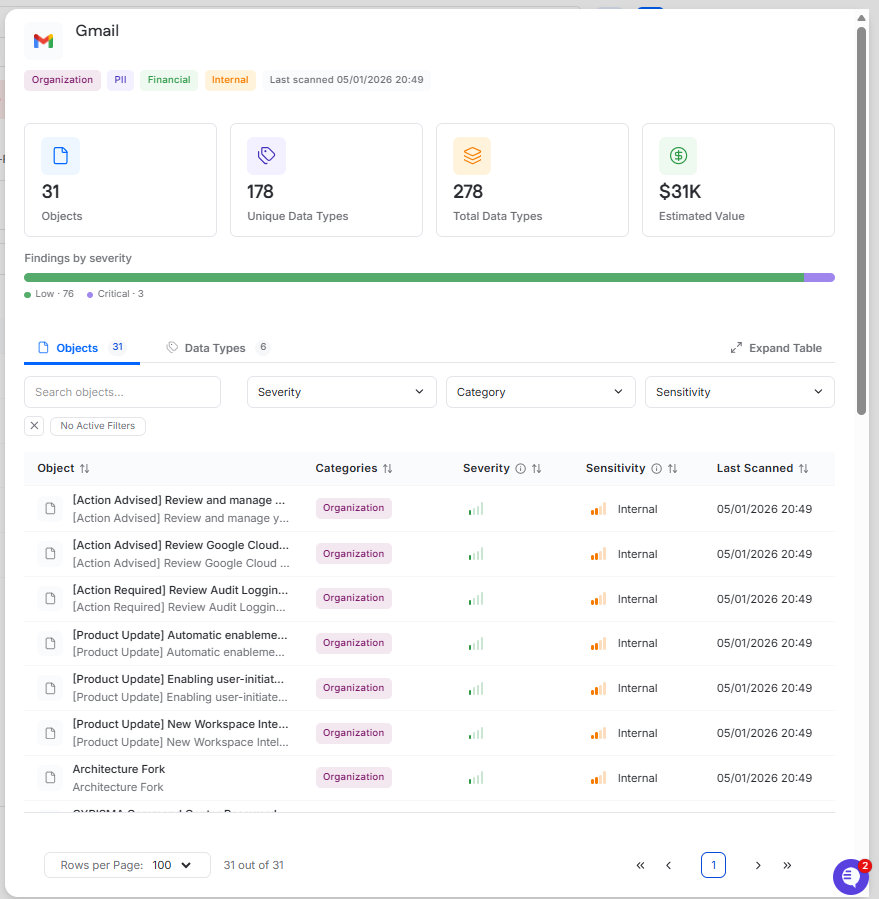
Selecting a data store opens a detail drawer for that store. The drawer includes:
summary cards for objects, unique data types, total data types, and estimated value
findings by severity
an Objects tab for reviewing files or items with sensitive data
a Data Types tab for reviewing the sensitive data types found in that store
Use this page when you want to investigate a specific source such as Outlook, OneDrive, SharePoint, Gmail, or Google Drive.
Findings
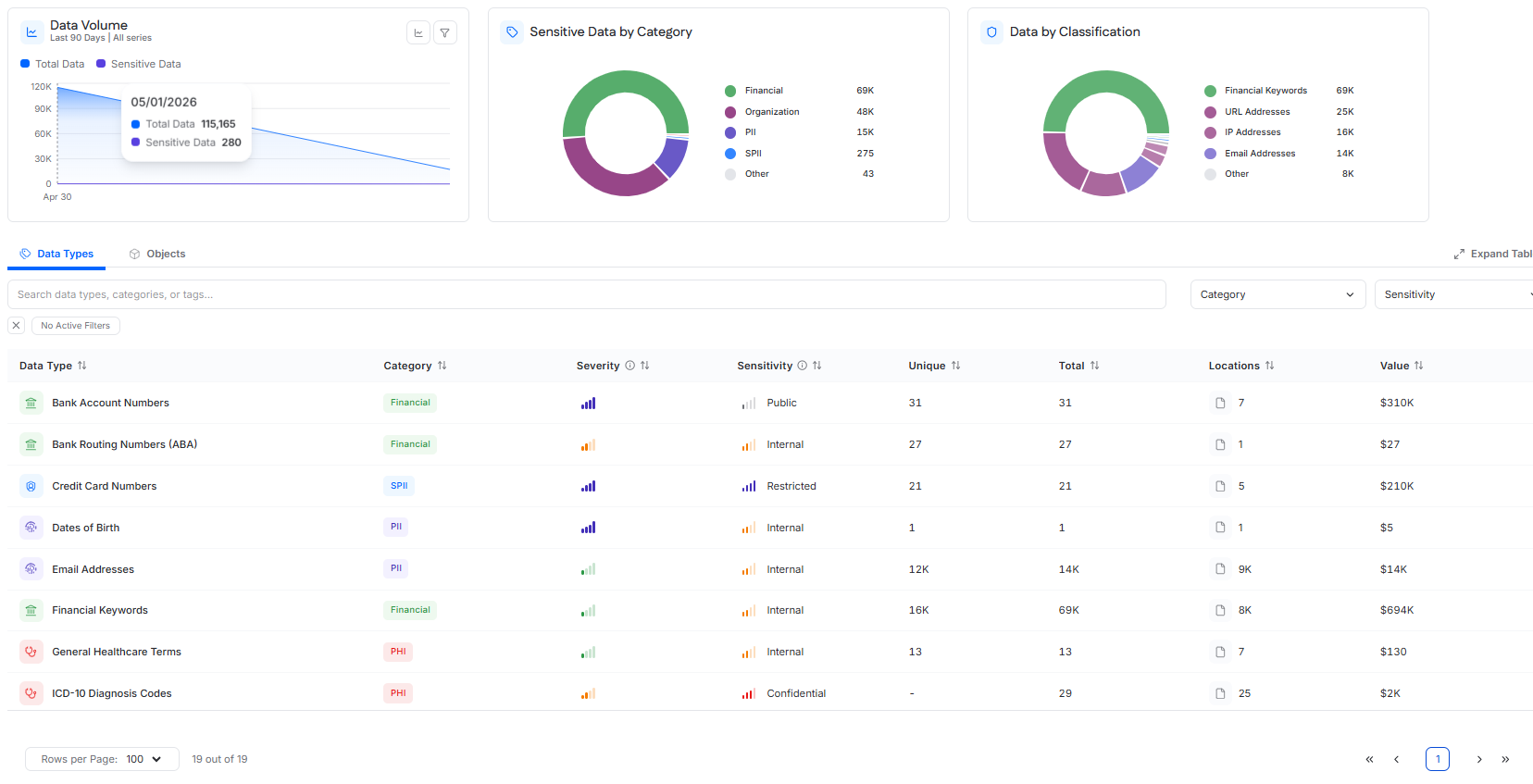
The Findings page provides a broader view of sensitive data results across all scanned environments.
At the top of the page, charts show:
Data Volume
Sensitive Data by Category
Data by Classification
Below the charts, findings can be reviewed in two tabs:
Data Types
Objects
Use the Data Types tab to review findings grouped by data type. Use the Objects tab to review findings grouped by file or object.
Clicking a category in the Sensitive Data by Category chart filters the Data Types table to that category.
Use this page to analyze findings across the environment.
Connectors

The Connectors page is used to connect the cloud environments that Data Sensitivity scans.
Supported connectors include:
Microsoft 365
Google Workspace

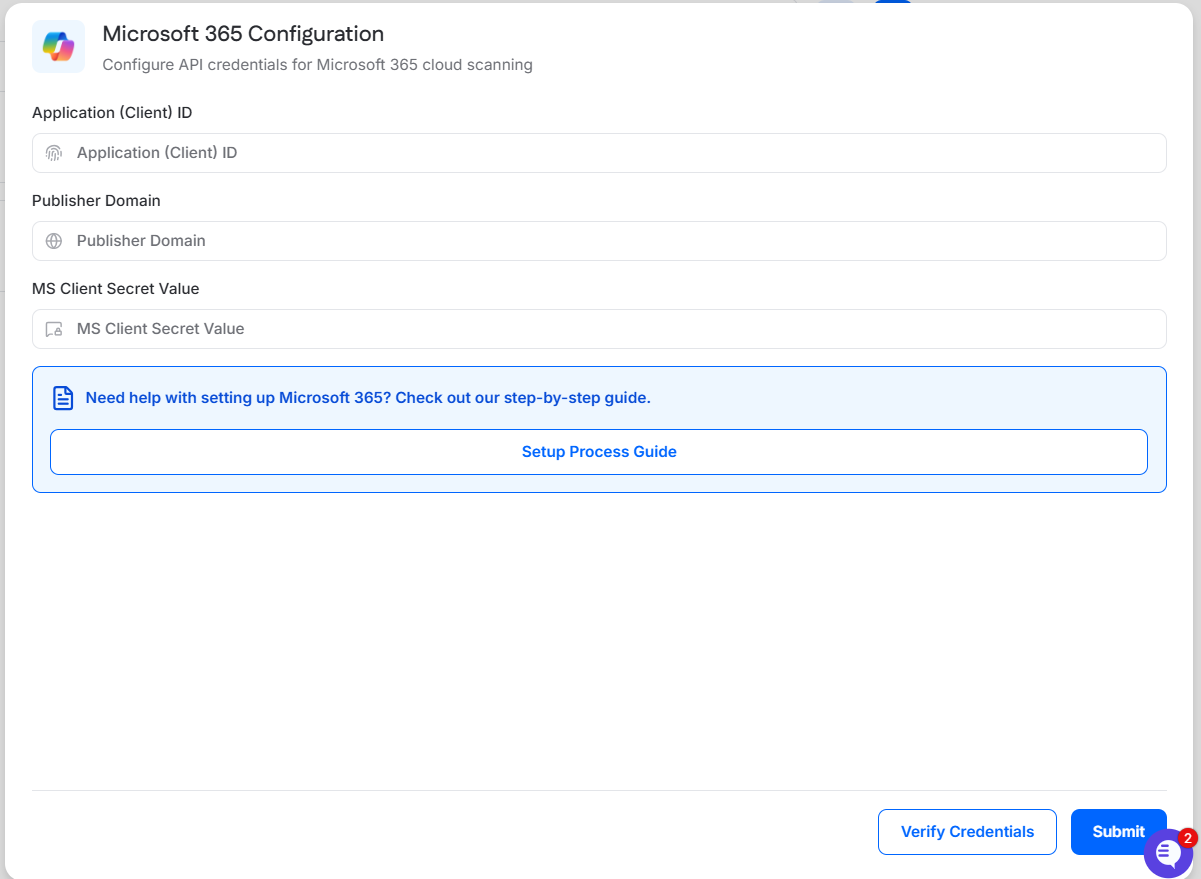
Each connector includes a Configure action. Selecting Configure opens a setup drawer for that platform.
The connector setup drawer includes:
connector-specific credential fields
a setup guide link
Verify Credentials
Submit
Connect the environment before creating a data scan.
Classification
The Classification page is used to review and customize how data is classified in Data Sensitivity.
This page includes two tabs:
Data Classification
Custom Patterns
Data Classification
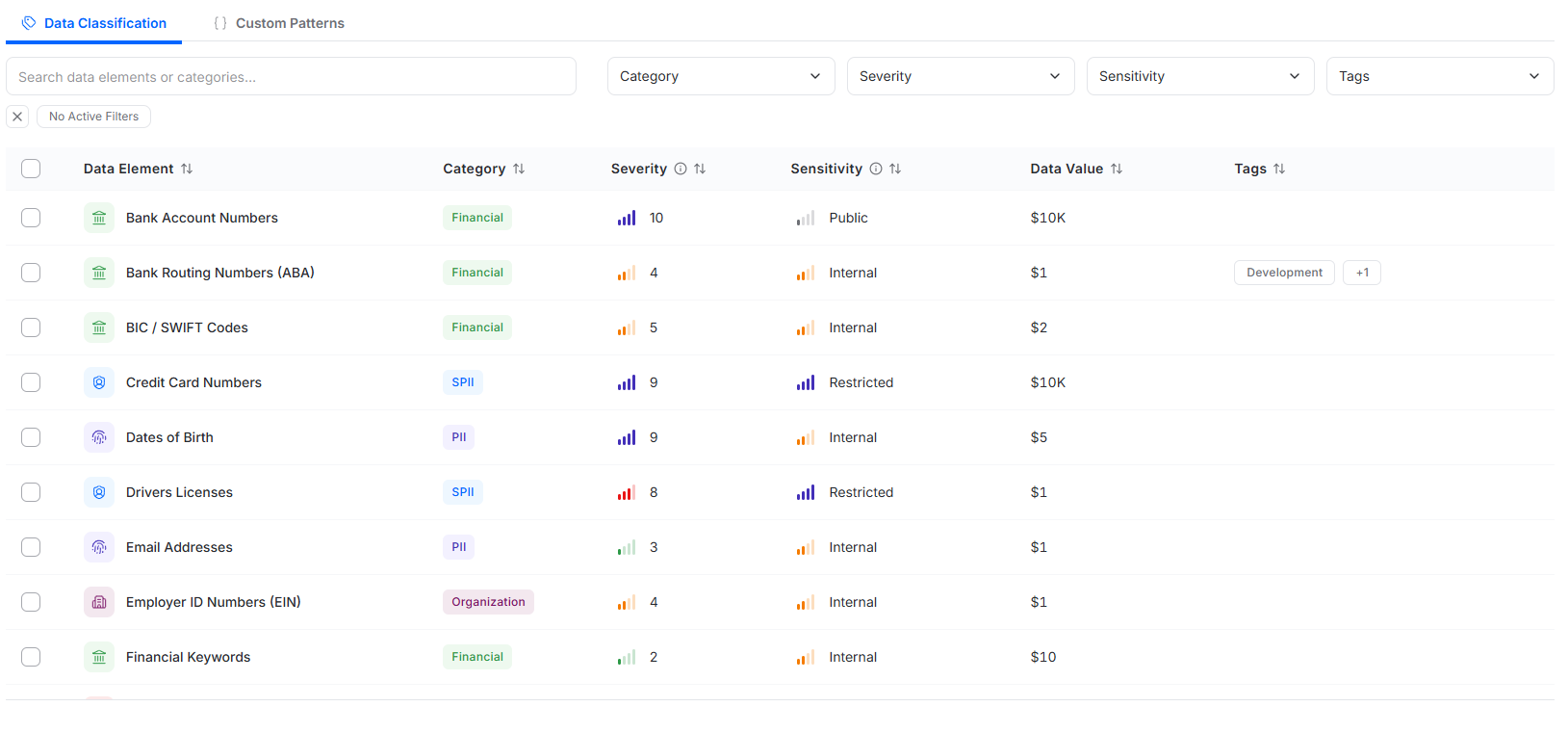
The Data Classification tab shows the built-in data elements used by Data Sensitivity.
From this page, you can review and customize:
Category
Severity
Sensitivity
Data Value
Tags
Category shows the parent category for the data element.
Severity is a customizable score from 1 to 10 used to rank findings and support prioritization:
Low: 1–3
Medium: 4–6
High: 7–8
Critical: 9–10
Sensitivity is based on disclosure risk and can be set to:
Public
Internal
Confidential
Restricted
Data Value is a customizable monetary value assigned to each data element type. It represents the value of each individual finding and uses the instance currency configured in Admin > Settings.
Tags shows the current tags assigned to the data element.
All built-in data elements have default Severity, Sensitivity, and Data Value values, but these values can be customized.
You can also select one or more data elements and click Assign Tags to apply tags to the selected items. Assigned tags replace existing tags for the selected items. If no tag is selected, existing tags are removed.
Custom Patterns
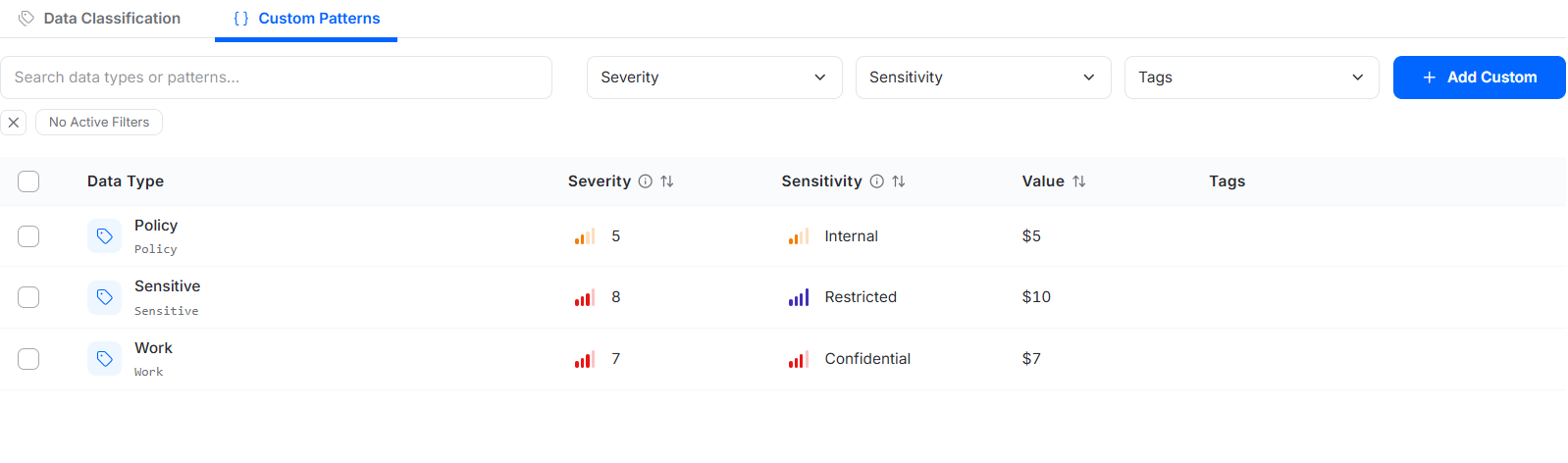
The Custom Patterns tab shows custom data types created by the instance.
This table supports search and filtering and includes an Add Custom button for creating new custom data types.
Each row also includes an ellipsis menu that allows you to edit or delete a custom pattern or keyword.
Create Custom Data Type
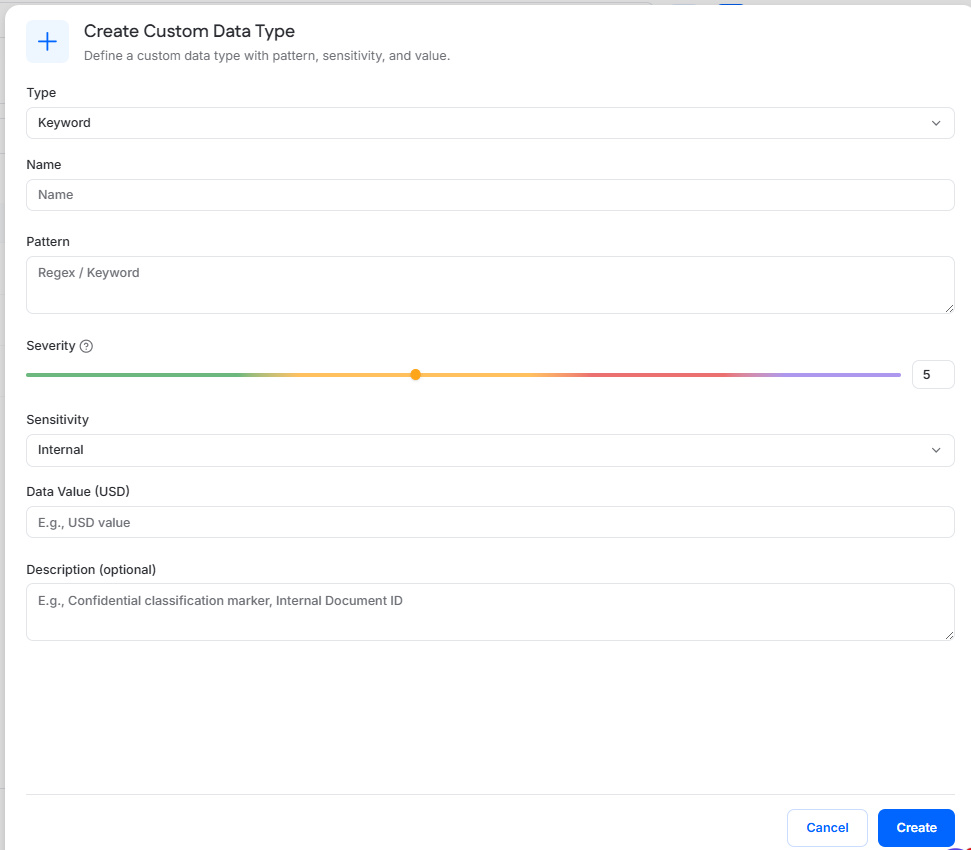
Selecting Add Custom opens the Create Custom Data Type drawer.
Use this drawer to define a custom data type with its own detection logic and classification values.
Fields include:
Type
Name
Pattern
Severity
Sensitivity
Data Value
Description
Type can be set to:
Pattern, which uses regex-based matching
Keyword, which uses keyword-based matching
Pattern is the regex or keyword that will be used for detection.
Severity, Sensitivity, and Data Value work the same way as they do for built-in data elements.
Description is optional and can be used to document the purpose of the custom pattern or keyword.
Create a Data Scan
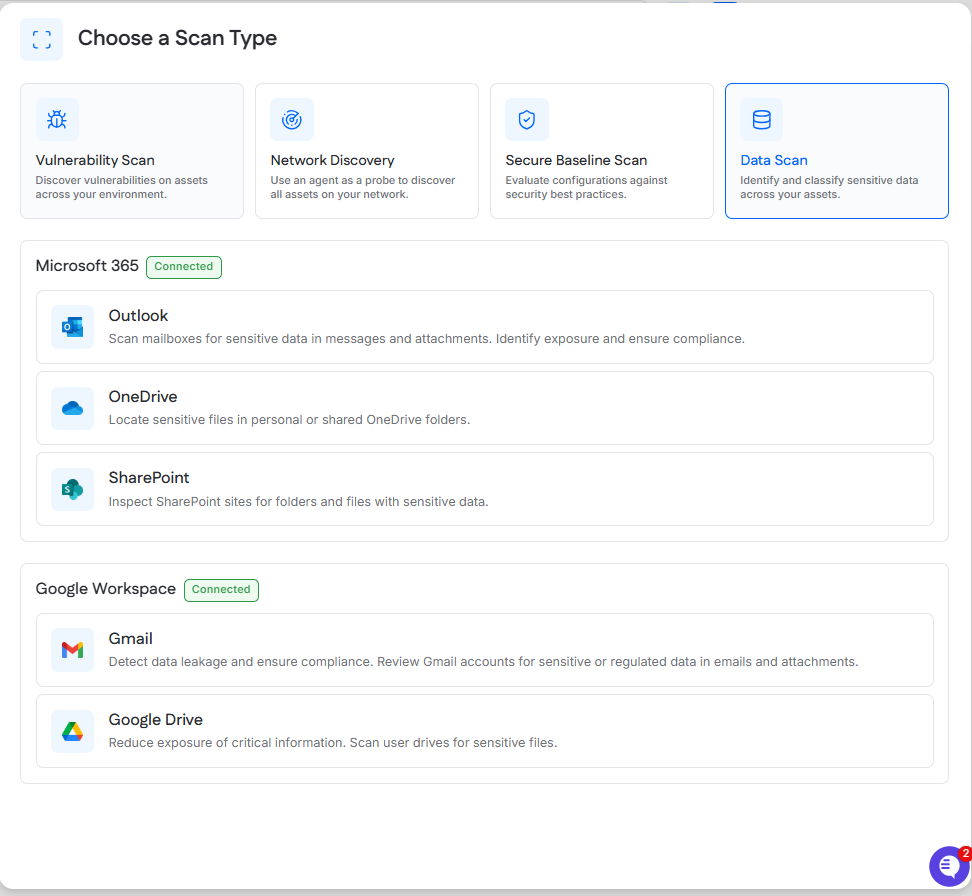
Data scans are created from the Scanning page.
To create a data scan:
Go to Scanning.
Click New Scan.
Select Data Scan.
Choose the cloud scan type.
Available cloud scan types include:
Microsoft 365
Outlook
OneDrive
SharePoint
Google Workspace
Gmail
Google Drive
Next, choose which sensitive data categories to include in the scan. Available categories may include:
Personal Identifiable Information (PII)
Healthcare (PHI)
Financial
Organization
Sensitive PII (SPII)
Custom Patterns
You can select a category directly or click Customize to choose which subcategories within that category will be scanned.
After selecting categories, choose which targets to scan. Depending on the cloud scan type, this may include mailboxes, drives, or similar targets.
You can:
scan all available targets in the connected environment
use Custom to select individual targets
You can also choose how far back the scan should search for sensitive data:
Last 30 Days
Last 60 Days
Last 90 Days
In the final step:
Enter a scan name.
Choose whether to Run Now or schedule a recurring scan.
If recurring is selected, set the frequency, day, and time.
Optionally choose a user to be notified when the scan completes.
Click Submit.
Review Data Scans
Scheduled data scans appear in the Scheduled tab on the Scanning page.
In-progress and completed data scans appear in the History tab. In-progress scans display a green icon next to the scan name.
Selecting a completed scan opens the scan details view. Depending on the scan type, this view may include tabs such as:
Categories
Mailboxes, Drives, or other target types
Items
Data Types
Use scan details to review what was scanned, which findings were identified, and which selected data types were included in the scan.