Deploying the Cyrisma Agent on Windows
Last updated: October 23, 2026
Use Agent Setup to deploy the Cyrisma Agent to Windows endpoints. You can install the agent manually using the Windows graphical installer or deploy it using a PowerShell or non-PowerShell script.
Related articles:
Before You Begin
Confirm the endpoint runs a supported Windows version.
Confirm the endpoint meets the Global Agent Requirements, including outbound network access and administrator privileges.
Make sure your EDR or antivirus allows the agent to run. See Whitelisting the Cyrisma Agent in Common Endpoint Protection Platforms.
Keep Agent Setup open in your browser. You'll need it to download the installer, copy tenant information, or obtain a deployment script.
Select the Tenant and Platform
Open Agent Setup and select the Deployment tab.
If you're using the MSP portal, choose the destination tenant. When you open Agent Setup within a tenant, that tenant is already selected.
Choose Windows (x64) or Windows (arm64) to match the endpoint.
The page displays the selected tenant's Tenant URL and Installation Key. It also prepares both script options for that tenant and platform.
Important: Check your selections before downloading or copying anything. Obtain a separate script for each tenant and architecture you deploy to.
Install Using the Windows GUI
Use this method to install the agent manually on a single endpoint.
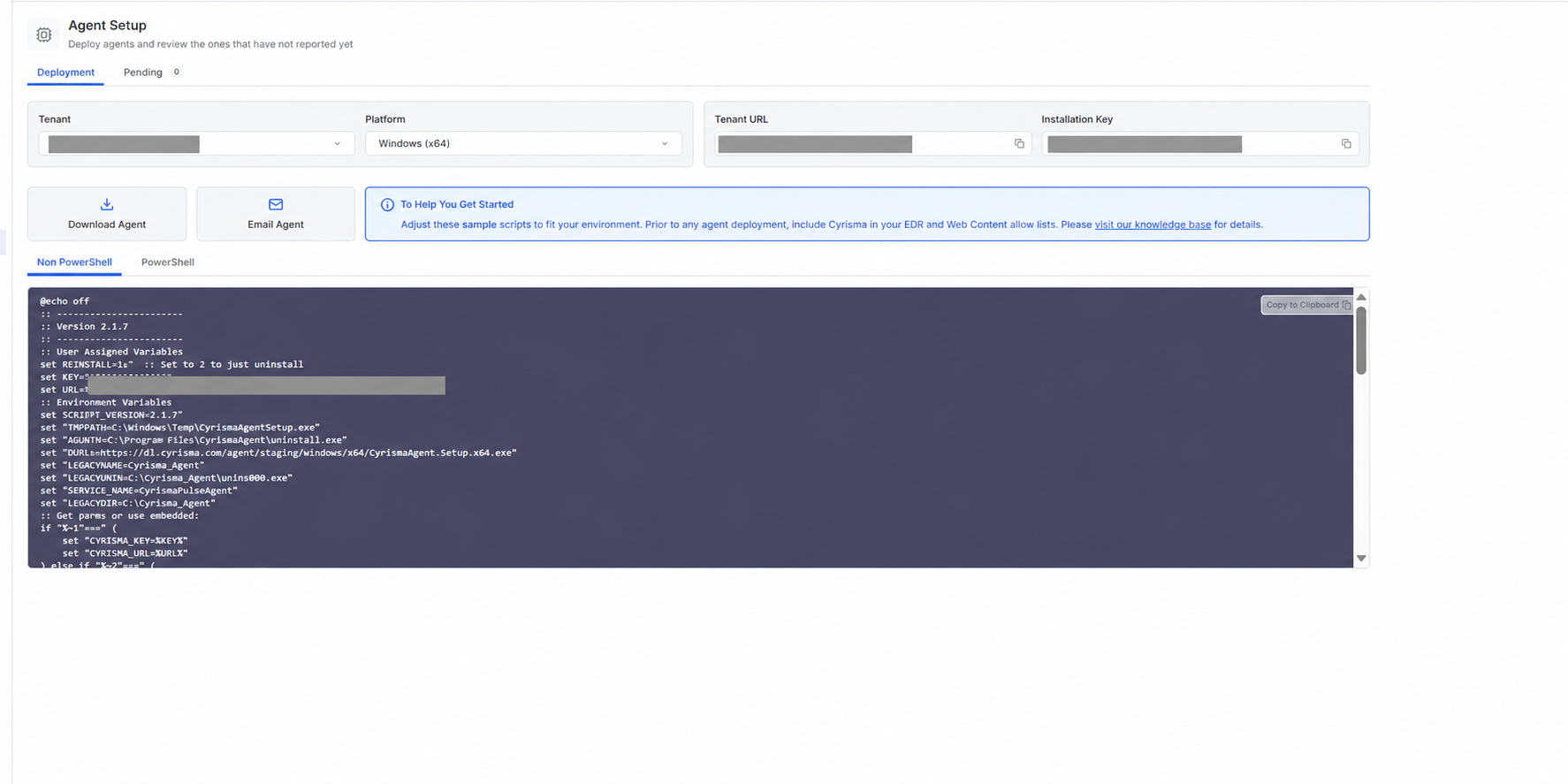
Step 1: Download the Installer
In Agent Setup, select Download Agent.
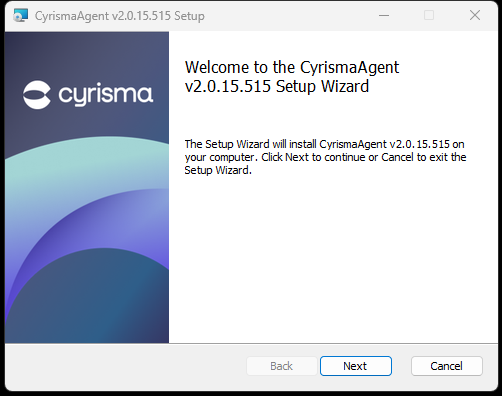
Step 2: Start the Installer
Open the downloaded installer on the endpoint and select Next.
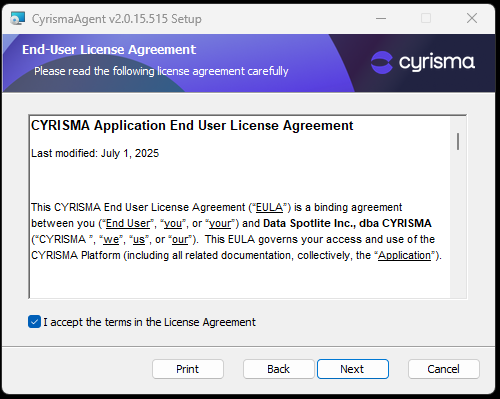
Step 3: Accept the License Agreement
Review the Cyrisma Application End User License Agreement.
Select I accept the terms in the License Agreement.
Select Next.
Step 4: Choose the Installation Folder
Keep the default installation folder, or select Change to choose a different location.
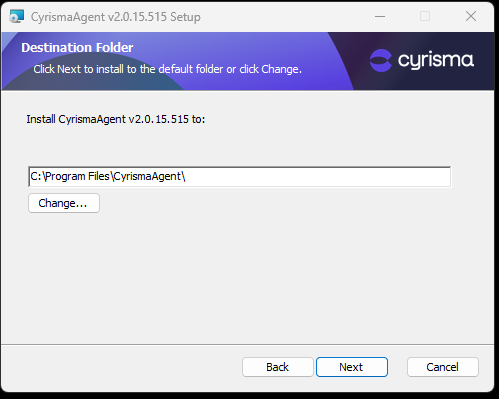
Select Next.
Tip: If you choose a non-default folder, make sure your EDR or antivirus exclusions point to that folder.
Step 5: Enter Your Tenant Information
When the installer asks for tenant information:
Go back to Agent Setup.
Copy the Tenant URL and paste it into the Tenant URL field.
Copy the Installation Key and paste it into the Installation Key field.
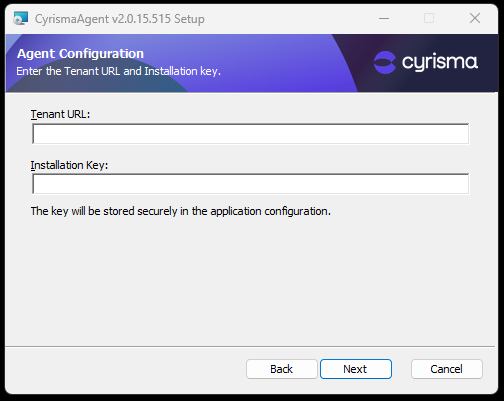
Select Next.
Important: The Tenant URL and Installation Key are unique to each tenant. Copy both values from the tenant where the endpoint should register.
Step 6: Install the Agent
Select Install and wait for the installation to finish.
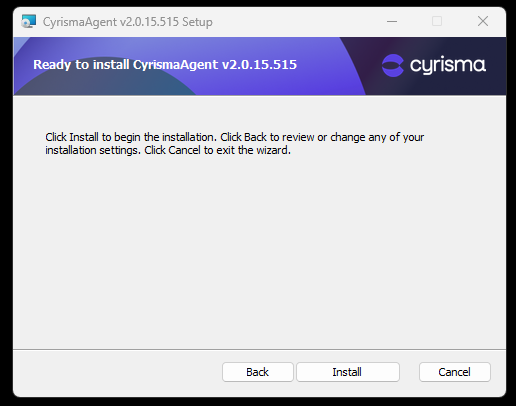
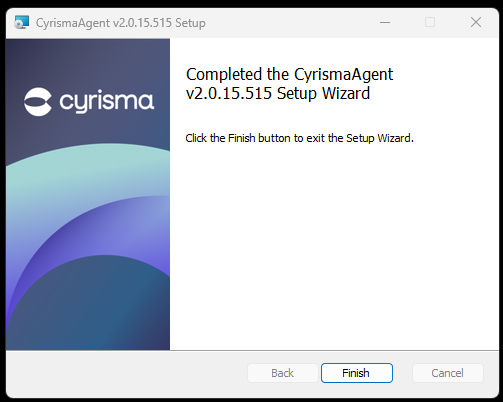
Step 7: Finish
Select Finish.
Deploy Using a Script
Step 1: Choose the Script Type
After confirming the tenant and platform in Agent Setup, open either the PowerShell or Non PowerShell script tab.
Step 2: Copy the Script
Select Copy to Clipboard. The tenant connection values are already included in the generated script.
Step 3: Review and Run the Script
Review the sample and adapt it to your deployment environment, then execute it on the intended endpoints with administrator privileges.
After Installation
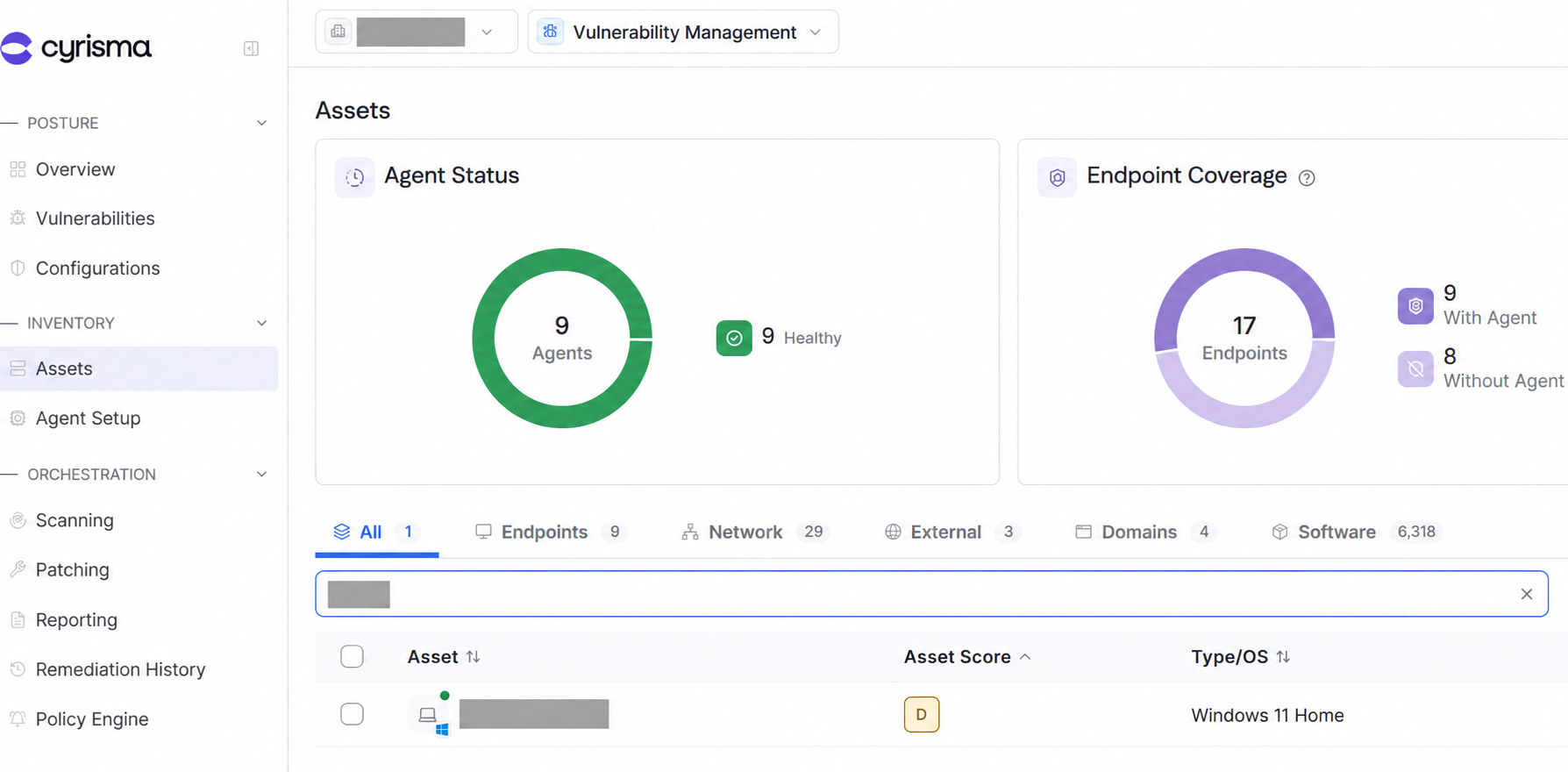
After installing through either method, open Assets in the destination tenant. The endpoint should appear in the Assets table. It can take a few minutes for the agent to start checking in and reporting data.
If the endpoint doesn't appear or doesn't check in, check the following:
Check | Where to look |
|---|---|
Tenant URL and Installation Key are correct and from the right tenant | Agent Setup |
The endpoint can reach your Tenant URL, | |
EDR or antivirus isn't blocking the agent | Whitelisting the Cyrisma Agent in Common Endpoint Protection Platforms |