Deploying the Cyrisma Agent on macOS
Last updated: October 23, 2026
The Cyrisma Agent runs on both Intel and Apple Silicon Macs. This article covers downloading the agent from Agent Setup and installing it on a device.
Before you deploy, make sure the device runs a supported macOS version. See Scan Agent Supported Operating Systems.
Before You Begin
Requirement | Details |
|---|---|
Network access | The device must be able to reach |
Privileges | Run the installation with administrator (root) privileges. |
Tenant details | Use the Tenant URL and Installation Key for the tenant the device should register to. |
The Tenant URL and Installation Key are shown in Agent Setup and are unique to the selected tenant.
For full network and system requirements, see Global Agent Requirements.
Download the Agent
Sign in to your Cyrisma tenant.
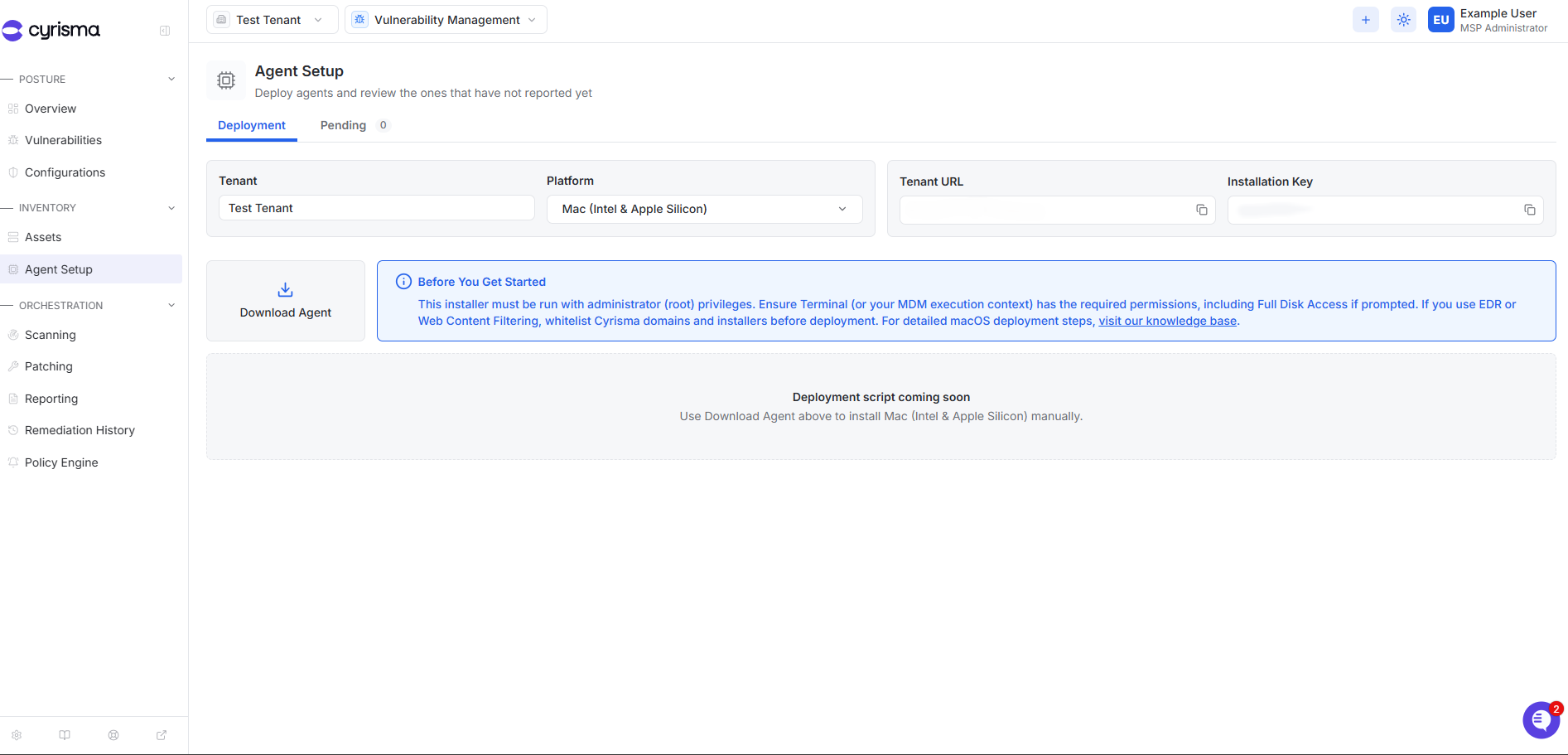
Go to Agent Setup.
Under Platform, select Mac (Intel & Apple Silicon).
Copy the Tenant URL and Installation Key shown on the page.
Select Download Agent.
Install the Agent
Run the downloaded installer with administrator (root) privileges.
Enter the Tenant URL and Installation Key from Agent Setup so the agent registers to the correct tenant.
Finish the installation.
Confirm that the device appears in Cyrisma and starts checking in.
The agent downloads and updates through dl.cyrisma.com and communicates with the Tenant URL for the selected tenant.
Tip: If your endpoint protection platform blocks the agent, see Whitelisting the Cyrisma Agent in Common Endpoint Protection Platforms.
Deployment Script
A macOS deployment script is available in Agent Setup.
Open Agent Setup and select Mac (Intel & Apple Silicon).
Copy the deployment script and save it as a
.shfile.Verify that the script contains the correct Tenant URL and Installation Key.
Run the script on the Mac with administrator (root) privileges.
After installation is complete, the device should appear in the tenant’s Assets list within a few minutes.
The script installs the agent by default. To uninstall, run it with the -uninstall option.