Deploying the Cyrisma Agent on Linux
Last updated: October 23, 2026
Use Agent Setup to deploy the Cyrisma Agent to supported Debian, Ubuntu, and RHEL systems. Agent Setup provides an installer package and a ready-to-run Bash/Shell script for each supported operating system and architecture.
Related articles:
1. Before You Begin
Check each item before you deploy:
The system runs a supported Linux version. See Scan Agent Supported Operating Systems.
The system can reach
dl.cyrisma.comto download and update the agent. For the full list of network requirements, see Global Agent Requirements.You can run the installation with root or
sudoprivileges.You know the platform and architecture of the target system.
About the Tenant URL and Installation Key
The Tenant URL and Installation Key are unique to each tenant. Agent Setup fills them in automatically in the Bash/Shell script for the tenant you select. They look like this:
CY_KEY="XXXX-XXXX-XXXX"
CY_URL="https://ccXXXXXX.cyrisma.com"
Important: Select the correct tenant in Agent Setup before you copy or deploy the script. The device registers to whichever tenant the script was generated for.
2. Deploy Using the Bash/Shell Script
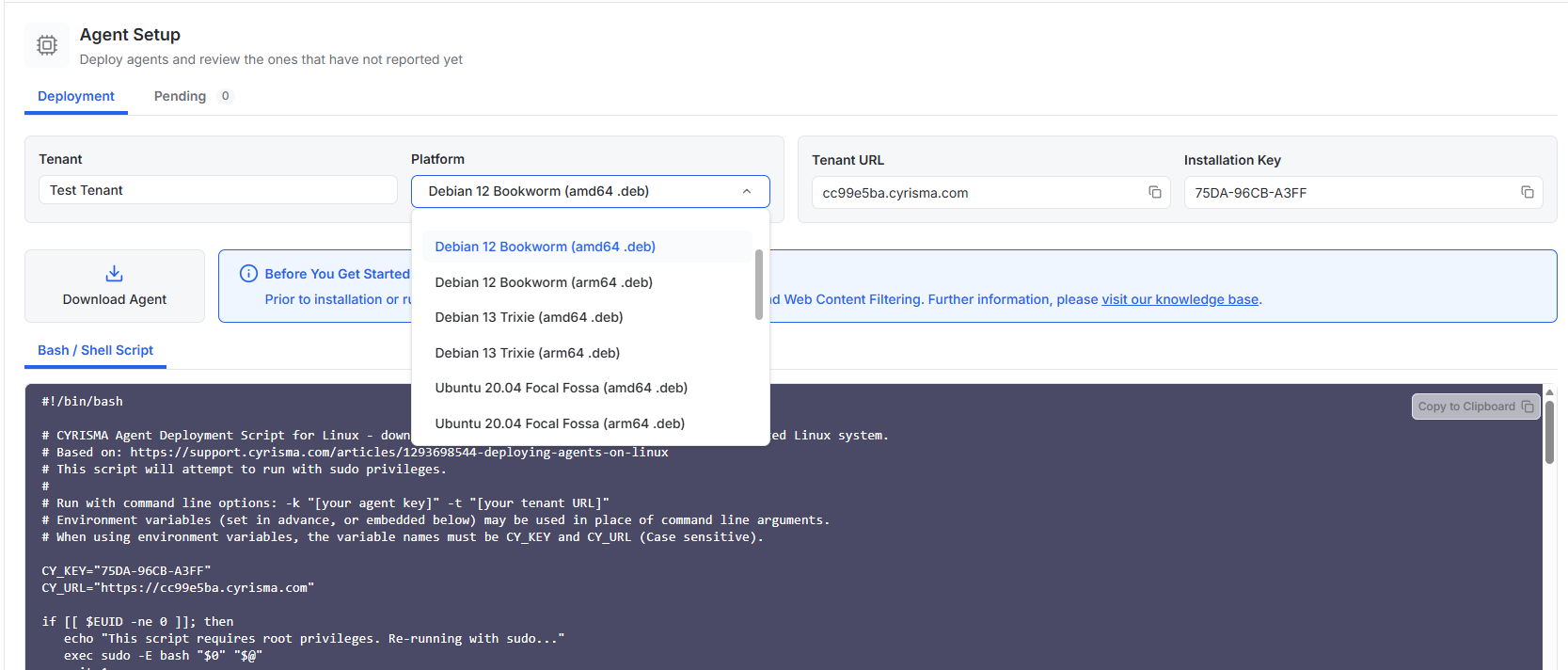
Sign in to the Cyrisma tenant and go to Agent Setup.
Select the tenant where the device should be registered.
Under Platform, select the operating system and architecture of the target system.
Under Bash / Shell Script, select Copy to Clipboard.
Run the script on the target system with root or
sudoprivileges.Confirm that the script reports the
cyrisma-agentservice started successfully.Confirm that the device appears in Cyrisma and starts checking in.
For the complete deployment commands, see the sample Bash/Shell script in Agent Setup.
Deployment options in Agent Setup
Option | What it provides |
|---|---|
Download Agent | The installer package for the selected operating system and architecture. |
Bash / Shell Script | A deployment script set up for the selected tenant and platform. |
3. What the Script Does
The script works a little differently on Debian/Ubuntu and on RHEL.
Step | Debian and Ubuntu | RHEL |
|---|---|---|
1. Privileges | Runs as root. If it isn't already root, it tries to run with | Runs as root. If it isn't already root, it tries to run with |
2. Tenant values | Uses the Tenant URL and Installation Key for the selected tenant. | Uses the Tenant URL and Installation Key for the selected tenant. |
3. Compatibility check | Detects the Linux distribution and version, and whether the system is | Checks the system architecture and GLIBC version to pick a compatible agent package. |
4. Existing agent | Checks for an existing Cyrisma Agent. Stops and removes any legacy or current agent it finds. | Checks for an existing Cyrisma Agent. Stops and removes any legacy or current agent it finds. |
5. Download | Downloads the right | Downloads the right |
6. Install | Installs the agent with the Tenant URL and Installation Key. | Installs the agent with |
7. Verify | — | Confirms the agent installation directory was created. |
8. Start | Starts the | Starts the |
Note: If the operating system or architecture isn't supported (or, on RHEL, the required GLIBC version isn't present), the script stops without installing the agent.
Order of checks: On Debian/Ubuntu, the script removes any existing agent before it detects the distribution and architecture. On RHEL, it checks architecture and GLIBC first, then removes any existing agent.
4. After Deployment
If the device doesn't appear or doesn't check in, check the following:
Check | Where to look |
|---|---|
The script was generated for the correct tenant | Agent Setup |
The system can reach | |
EDR or antivirus isn't blocking the agent | Whitelisting the Cyrisma Agent in Common Endpoint Protection Platforms |
Upgrade or update problems |