Create a Patch Schedule
Last updated: September 17, 2026
Create a patch schedule to install Windows or third-party updates automatically.
Start a Schedule
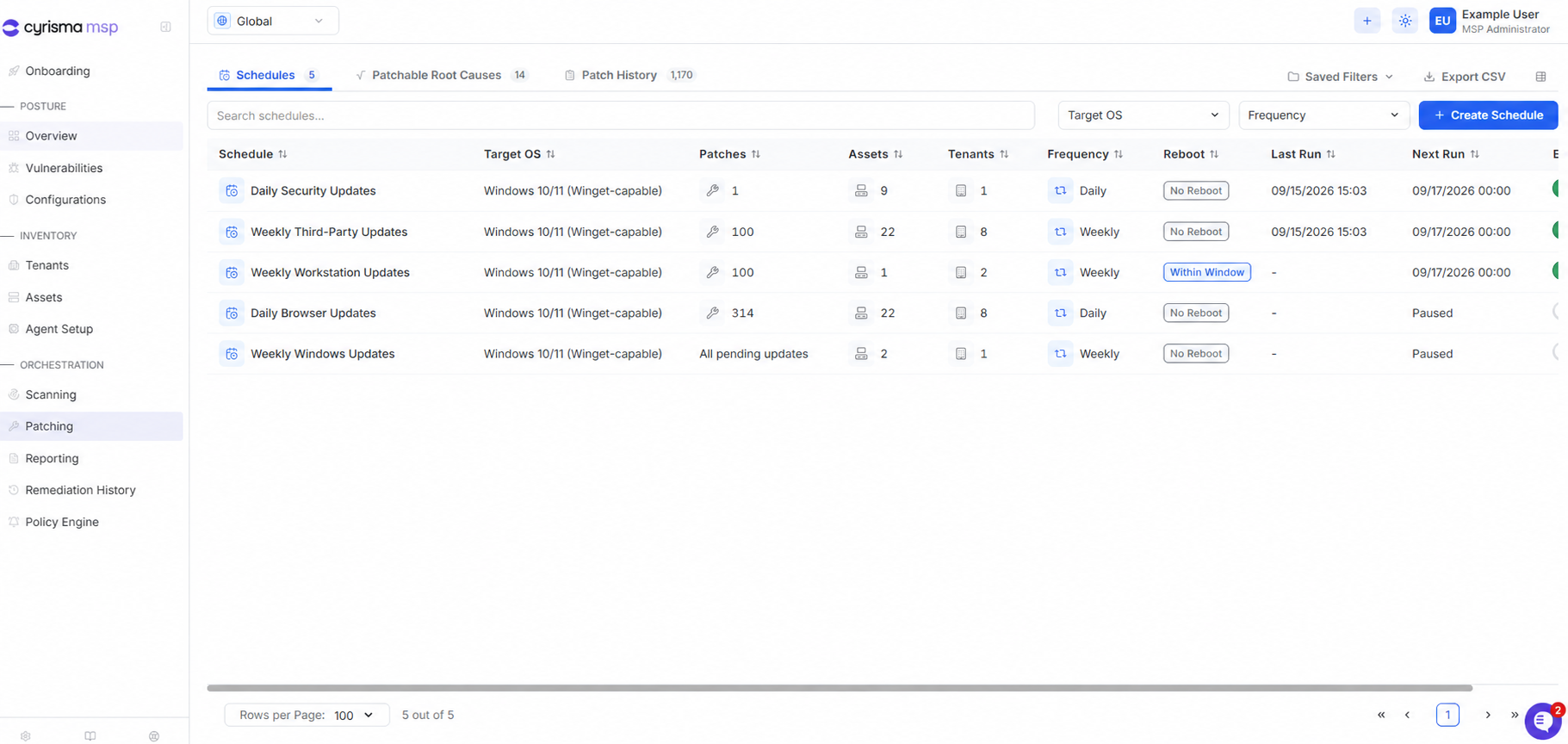
Go to Patching > Schedules.
Select + Create Schedule.
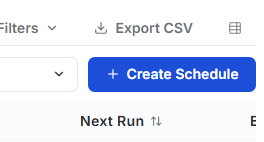
1. Targets
Select the target operating system and any optional asset tags.
MSP only: Select one or more tenants.
All Eligible Assets shows the endpoints eligible for the schedule.
At the global MSP level, this is scoped to the selected tenants.
At the tenant level, it is scoped to the current tenant.
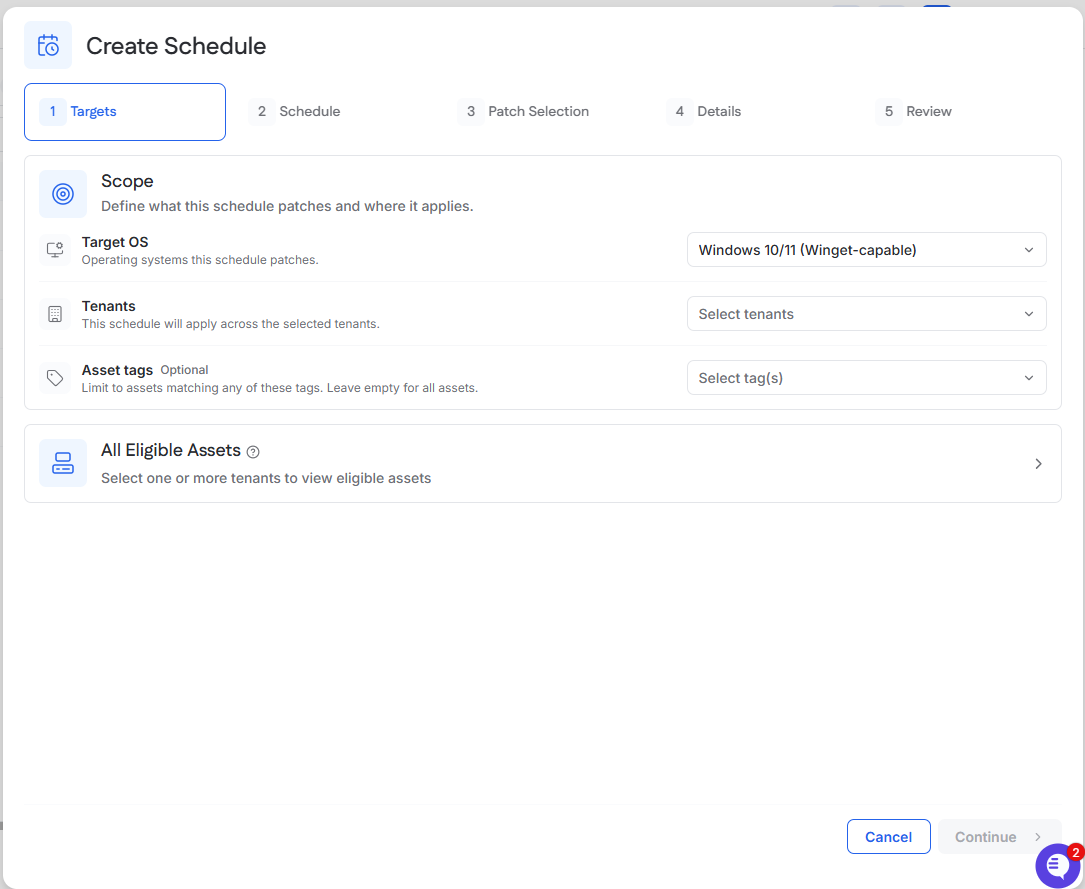
2. Schedule
Choose a recurring or one-time schedule. Configure the frequency, patching window, timezone, and reboot behavior.
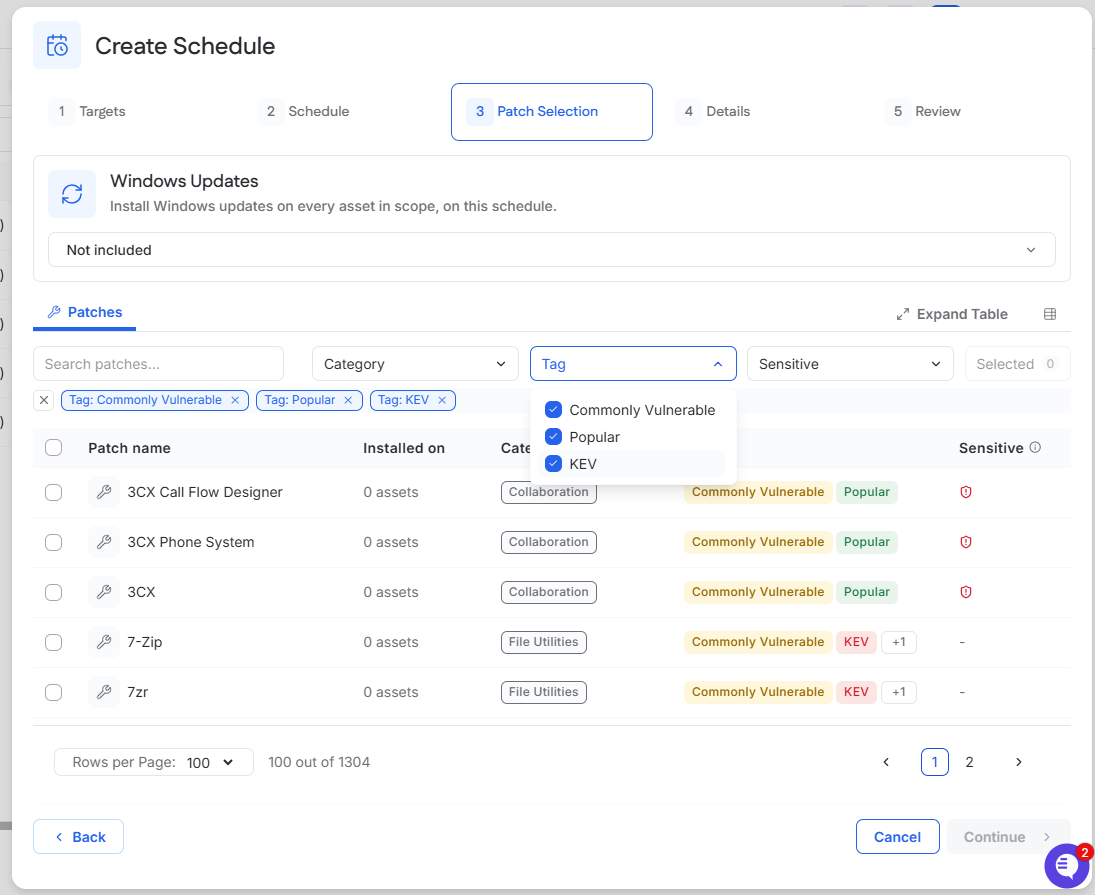
3. Patch Selection
Choose one of the following patching methods:
Windows Updates: Select All pending updates or Security updates only.
Third-party patches: Set Windows Updates to Not included, then use the checkboxes to select the patches to include.
Windows updates cannot be combined with individually selected third-party patches in the same schedule.
Tip: When choosing third-party patches, use the Tag filter to help identify which root causes to include. Commonly Vulnerable identifies commonly vulnerable root causes, Popular identifies commonly installed root causes, and KEV identifies root causes associated with Known Exploited Vulnerabilities. After applying a tag, use the checkboxes to select the patches to include.
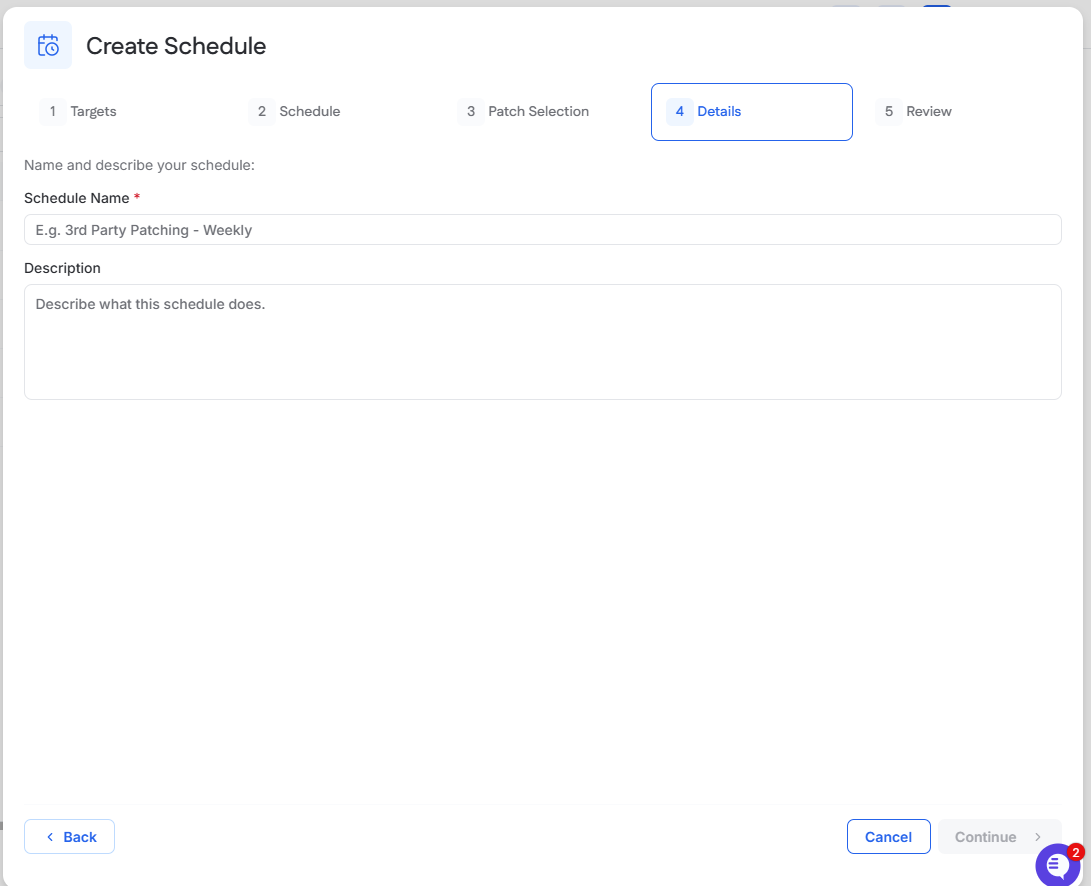
4. Details
Enter a schedule name and an optional description.
5. Review
Review the targets, schedule, patch selection, and details. Select Create Schedule when everything is correct.
The new schedule appears on the Schedules tab. Use the Enabled toggle to pause or resume it.