Whitelisting the Cyrisma Agent in Common Endpoint Protection Platforms
Last updated: October 23, 2026
The Cyrisma Agent runs continuous vulnerability monitoring, configuration audits, and other authorized security operations on your endpoints. Your endpoint protection platform (EDR or antivirus) may see this activity as suspicious and block it. Adding the right exclusions keeps the agent running normally.
This article gives you:
The Cyrisma Agent paths and processes for each operating system.
General recommendations for building safe, narrow exclusions.
Step-by-step procedures for common endpoint protection platforms.
A short checklist to confirm the exclusions are working.
Related articles:
1. Cyrisma Agent Paths and Processes
Depending on your platform, add the Cyrisma installation directory, executables, or processes to the appropriate exclusion or allowlist policy. Use the values that match the endpoint's operating system.
Windows
Type | Value |
|---|---|
Installation directory |
|
Executable |
|
Executable |
|
Linux
Type | Value |
|---|---|
Installation directory |
|
Process |
|
Process |
|
macOS
Type | Value |
|---|---|
Installation directory |
|
Application |
|
Process |
|
Process |
|
Note: You do not need to exclude the Cyrisma working or log directories.
Tie processes to their path
If your platform supports path-based process rules, link each process to its installation path or application. Do not create a broad, name-only process exclusion. This matters most for osqueryd, because other applications may also use a process with that name.
2. General Recommendations
Match the operating system. Use the values from Section 1 for the endpoint's OS.
Limit the scope. Apply exclusions only to endpoints running the Cyrisma Agent.
Keep it narrow. Use the narrowest exclusion your endpoint protection platform supports.
Test first. Try the policy on a small group of endpoints before you deploy it broadly.
Start with the folder. Add executable or process exclusions only if a folder exclusion does not stop the interference.
3. Platform Procedures
Platforms are listed alphabetically. Menu names come from each vendor's console and may vary by version.
Bitdefender GravityZone
CrowdStrike Falcon
ESET PROTECT
Huntress (Windows)
Malwarebytes Nebula
Microsoft Defender Managed Through Intune (Windows)
SentinelOne
Sophos Intercept X
ThreatLocker (Windows)
Trend Micro Apex One (Windows)
Webroot Business Endpoint Protection (Windows)
Bitdefender GravityZone
Create an antimalware folder exclusion for the Cyrisma Agent installation directory.
Sign in to GravityZone Control Center.
Go to Policies.
Open the policy assigned to the endpoints running the Cyrisma Agent.
Go to Antimalware > Settings.
Find Exclusions.
Select Add.
Select Folder (or the matching path-based exclusion type).
Enter the Cyrisma Agent installation directory for the endpoint's OS.
Enable the exclusion for the required scan types.
Save the exclusion and the policy.
If Bitdefender still blocks agent activity, create process exclusions using the executable or process values from Section 1.
CrowdStrike Falcon
Create a Sensor Visibility Exclusion for the Cyrisma Agent installation directory.
Sign in to the Falcon console.
Go to Endpoint Security > Configure > Sensor Visibility Exclusions.
Select Create exclusion.
Select the endpoint operating system.
Enter the Cyrisma Agent installation directory, using the pattern format CrowdStrike requires.
Assign the exclusion to the host groups that contain the Cyrisma Agent.
Enter a name and description.
Save the exclusion.
For Windows, the exclusion pattern can be:
C:\Program Files\CyrismaAgent\**
If you need a process-specific rule, use the executable or process values from Section 1.
ESET PROTECT
Create a file and folder exclusion for the Cyrisma Agent installation directory.
Sign in to ESET PROTECT.
Go to Policies.
Open the policy assigned to the endpoints running the Cyrisma Agent.
Select Settings.
Open the detection engine or real-time file system protection settings.
Find the performance exclusions or the file and folder exclusions.
Add the Cyrisma Agent installation directory for the endpoint's OS.
Save the policy.
Confirm the policy is assigned to the required endpoints.
If needed, add the Cyrisma executable or process through the matching ESET exclusion settings.
Huntress
Applies to Windows endpoints.
If you are using Huntress Managed Antivirus or Managed Microsoft Defender Antivirus, create organization-level exclusions for the Cyrisma Agent path and processes.
Path to exclude:C:\Program Files\CyrismaAgent\
Processes to exclude:C:\Program Files\CyrismaAgent\CyrismaAgent.Windows.exeC:\Program Files\CyrismaAgent\CyrismaPatchingExecutor.Worker.Windows.exe
Steps:
Log in to the Huntress Portal.
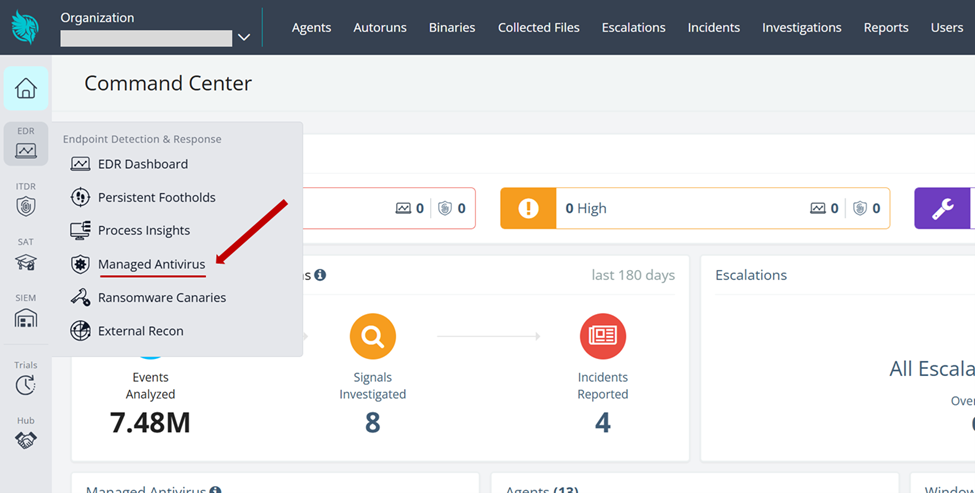
From the home page, navigate to Managed Antivirus.
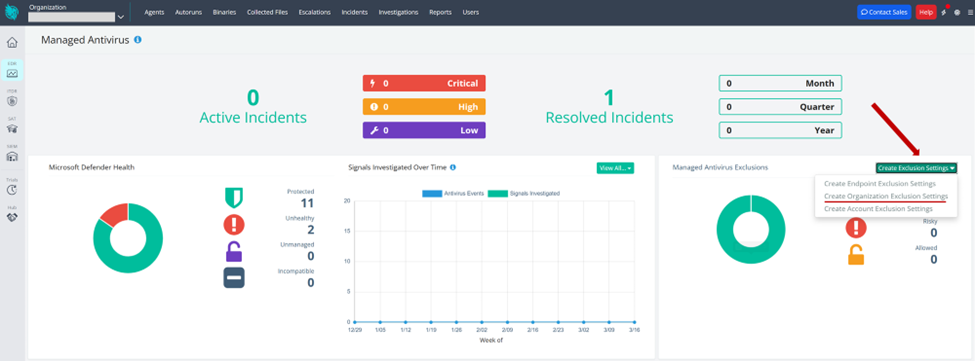
Select Create Exclusion Settings.
Select Create Organization Exclusion Settings.
Select the managed organizations you want to apply the exclusion to.
Add an exclusion type of Path and enter:
C:\Program Files\CyrismaAgent\
If needed, you can instead add the specific Cyrisma Agent executables.
Add a separate exclusion of type Process for each of the following executables:
C:\Program Files\CyrismaAgent\CyrismaAgent.Windows.exeC:\Program Files\CyrismaAgent\CyrismaPatchingExecutor.Worker.Windows.exeSave the exclusion settings.
Malwarebytes Nebula
Create Allow List entries for the Cyrisma Agent.
Sign in to Malwarebytes Nebula.
Go to Configure > Allow List.
Select New.
Select File or folder.
Enter the Cyrisma Agent installation directory for the endpoint's OS.
Select the operating system and the exclusion options your policy requires.
Assign the exclusion to the appropriate groups.
Save the entry.
If required, create additional entries for the executable or process values from Section 1.
Microsoft Defender Managed Through Intune
Applies to Windows endpoints.
Create antivirus exclusions for the Cyrisma Agent installation directory and processes.
Sign in to the Microsoft Intune admin center.
Go to Endpoint security > Antivirus.
Open an existing Microsoft Defender Antivirus policy, or create a new one.
Go to Configuration settings.
Find Excluded Paths.
Add:
C:\Program Files\CyrismaAgent\Find Excluded Processes.
Add:
C:\Program Files\CyrismaAgent\CyrismaAgent.Windows.exe
C:\Program Files\CyrismaAgent\CyrismaPatchingExecutor.Worker.Windows.exe
Assign the policy to the device groups that contain the Cyrisma Agent.
Review and save the policy.
SentinelOne
Create a path exclusion for the Cyrisma Agent installation directory.
Sign in to the SentinelOne Management Console.
Select the required scope.
Go to Sentinels > Exclusions.
Select New Exclusion.
Select Path.
Select the endpoint operating system.
Enter the Cyrisma Agent installation directory for that OS.
Select the exclusion mode recommended by your SentinelOne administrator.
Enter a description.
Save the exclusion.
If the agent is still blocked, create additional process exclusions using the executable or process values from Section 1.
Legacy navigation: If your console uses the older layout, go to Policy > Exclusions and create the same exclusions there.
Sophos Intercept X
Create a scanning exclusion for the Cyrisma Agent installation directory.
Sign in to Sophos Central.
Go to Endpoint Protection.
Open Policies.
Select the threat protection policy assigned to the endpoints.
Open the scanning exclusion settings.
Select Add Exclusion.
Select the appropriate file or folder exclusion type.
Enter the Cyrisma Agent installation directory for the endpoint's OS.
Save the exclusion and the policy.
If an executable-specific protection still interferes with the agent, add the executable or process through the matching Sophos application or mitigation policy.
ThreatLocker
Applies to Windows endpoints.
Create an allow policy for the Cyrisma Agent installation directory and executables.
Sign in to the ThreatLocker portal.
Go to Application Control.
Select the organization that contains the endpoints.
Create an application or path-based allow policy.
Add this installation directory:
C:\Program Files\CyrismaAgent\Add these executables:
C:\Program Files\CyrismaAgent\CyrismaAgent.Windows.exe
C:\Program Files\CyrismaAgent\CyrismaPatchingExecutor.Worker.Windows.exe
Assign the policy to the required computers or computer groups.
Set the action to Permit.
Save and deploy the policy.
For Linux or macOS endpoints, check with your ThreatLocker administrator before creating equivalent policies.
Trend Micro Apex One
Applies to Windows endpoints.
Create scan exclusions for the Cyrisma Agent installation directory and executables.
Sign in to the Apex One console.
Go to Policies > Policy Management.
Open the policy assigned to the endpoints.
Go to Real-Time Scan Settings.
Find Scan Exclusions.
Add this directory:
C:\Program Files\CyrismaAgent\If required, add these files:
C:\Program Files\CyrismaAgent\CyrismaAgent.Windows.exe
C:\Program Files\CyrismaAgent\CyrismaPatchingExecutor.Worker.Windows.exe
Apply the exclusions to the required scan types.
Save and deploy the policy.
Webroot Business Endpoint Protection
Applies to Windows endpoints.
Create folder and file overrides for the Cyrisma Agent.
Sign in to the Webroot Management Console.
Select the required site.
Go to Overrides.
Create a new file or folder override.
Add this installation directory:
C:\Program Files\CyrismaAgent\If required, add these executables:
C:\Program Files\CyrismaAgent\CyrismaAgent.Windows.exe
C:\Program Files\CyrismaAgent\CyrismaPatchingExecutor.Worker.Windows.exe
Set the determination or action to Good or Allow.
Assign the override to the required endpoints.
Save the override.
4. Verify the Exclusions
After you deploy the exclusions:
Confirm the policy has reached the endpoint.
Check that the Cyrisma Agent service is running.
Confirm the endpoint is checking in to Cyrisma.
Review your endpoint protection console for any detections involving the Cyrisma Agent.
Watch an authorized Cyrisma operation to confirm the agent works correctly.
Still blocked? Review the event details in your endpoint protection console. They will show which path or process needs an additional product-specific policy.