Microsoft 365 Integration Guide
Last updated: April 22, 2026
Microsoft 365 integration is configured from the instance settings and is used to support Microsoft 365 cloud scanning for Data Scans.
To begin setup:
In the instance, go to Settings.
Select the Integrations tab.
On the Microsoft 365 row, click Configure.
This opens the Microsoft 365 Configuration drawer, where you can enter the required Microsoft 365 API credential details, including:
Application (Client) ID
Publisher Domain
MS Client Secret Value
After entering the required information, use Verify Credentials to validate the configuration before selecting Submit.
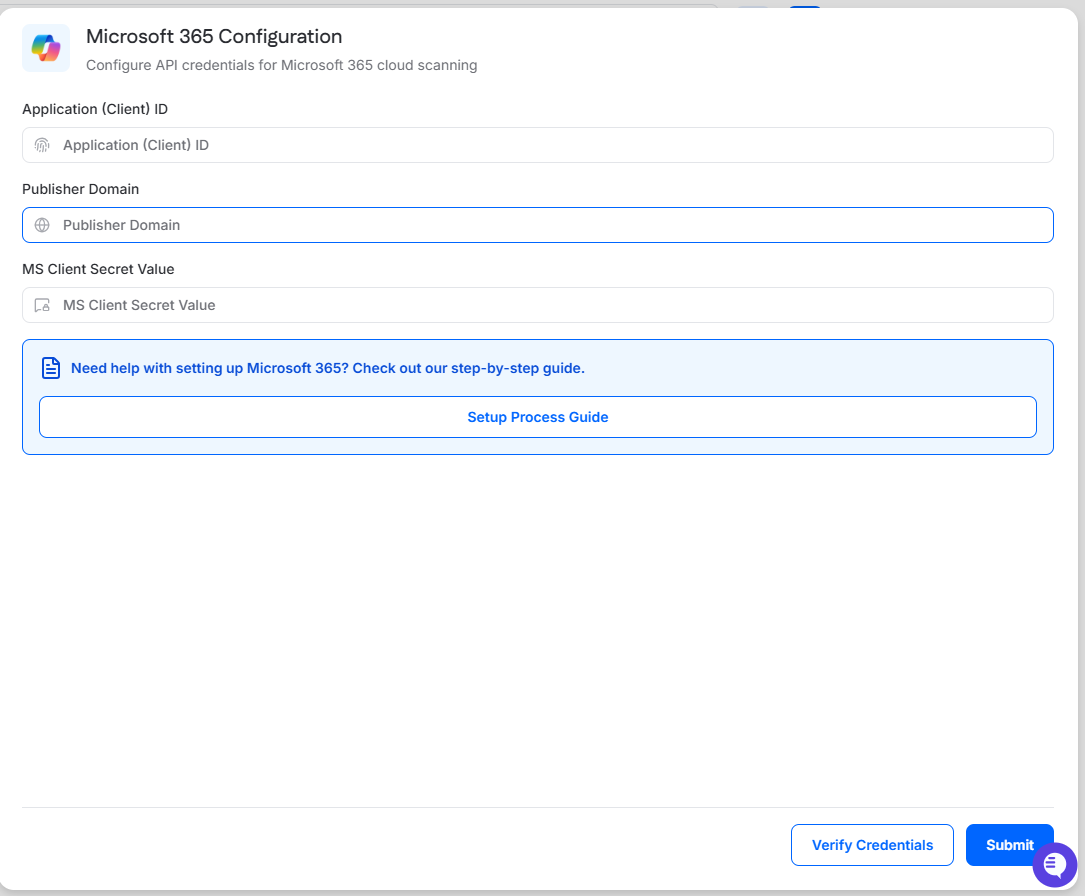
Setting up and running a data scan in your Office 365 (O365) environment involves configuring integrations and assigning permissions. Follow the detailed guide below to ensure a seamless process.
Set Up Process for Office 365 Credentials
Azure Configuration
Log in as a local administrator to the organization’s Azure Portal at portal.azure.com.
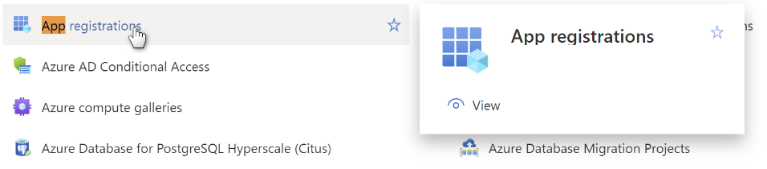
Search for App → App registrations.
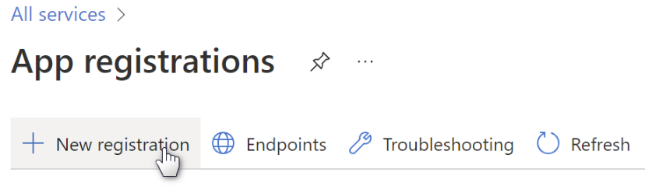
Click on + New registration.
Name it Cyrisma.
Select:
Accounts in this organizational directory only ([organization_Name].com only – Single tenant)
as shown here, and then click the Register button at the bottom of the page.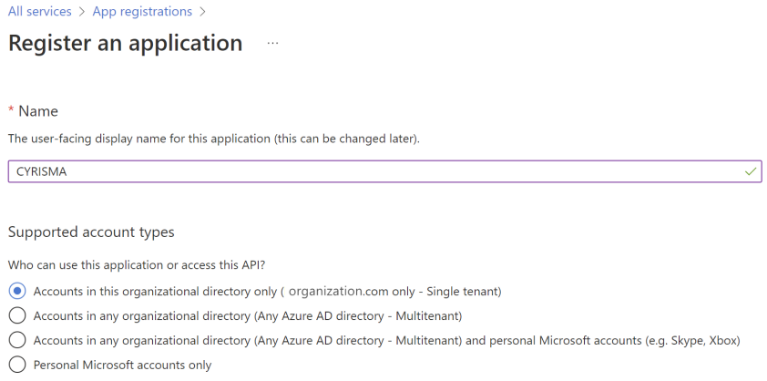
A registration object has been created. Now assign it appropriate permissions.
Assign API Permissions
On the left Azure menu, follow the link:
API Permissions → Add a Permission
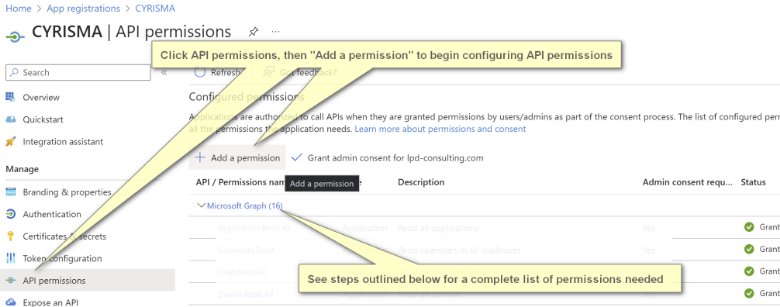
Select Microsoft Graph API.
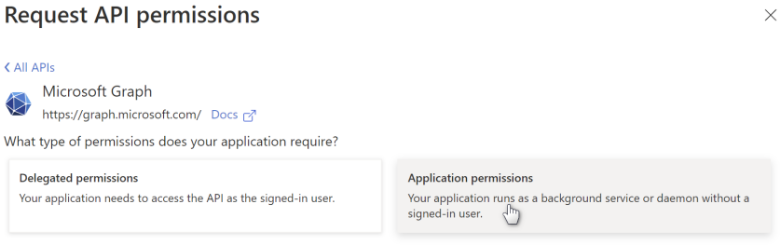
A list of application permissions is offered. Open EACH REQUIRED permission and select the checkbox for Read All as shown to the right.
For example:
Open Application, select Read All
Open AuditLog, select Read All
Open Calendars, select Read All
Continue FOR EACH required permission
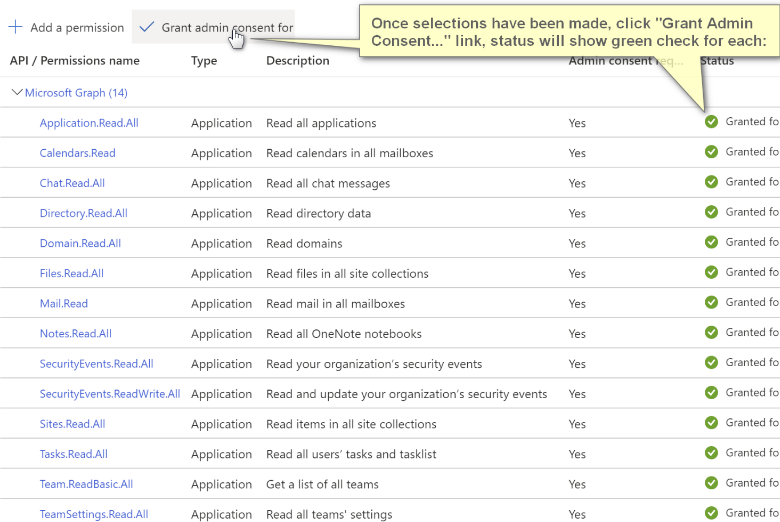
The complete list of required permissions that must be set to Read All is shown below.
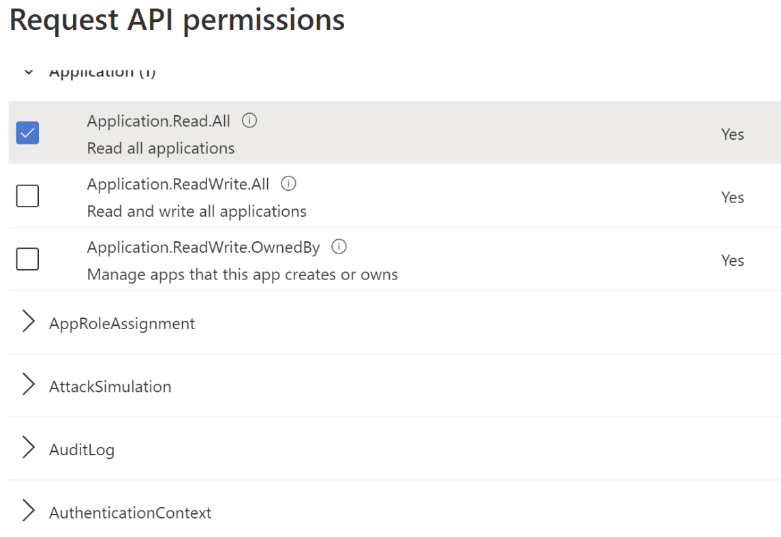
Continue through the API permission list and make sure the following have been selected.
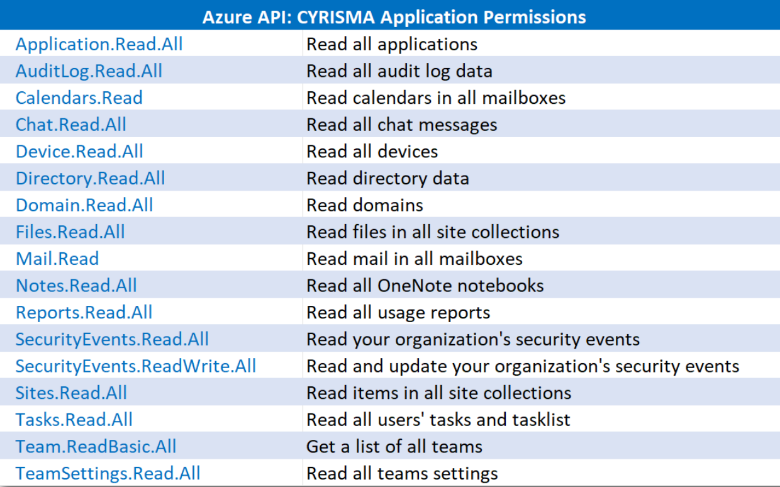
When all permissions have been assigned, click on the Grant Admin link to accept all permission changes. Permission indicators will turn into green checkmarks.
Generate Client Secret
Generate a Client Secret which will be needed by the agent to authorize its access.
Go to Certificates and Secrets
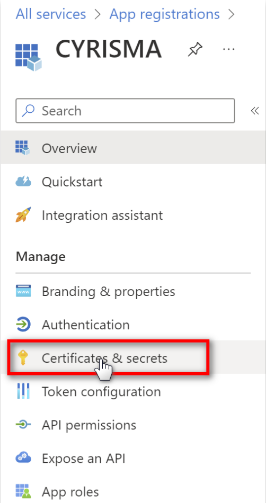
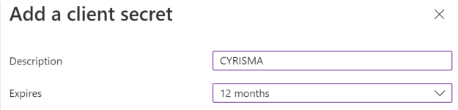
Click + New client secret
Provide the name Cyrisma
Set expiration to 12 months, as shown
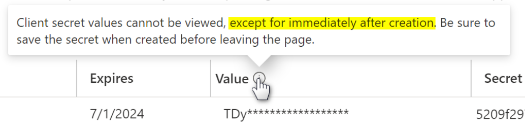
IMPORTANT NOTE:
When a secret is generated, it is only shown ONE TIME at the time of generation.
PLEASE RECORD this secret
Do NOT copy the secret ID
Copy the secret VALUE
Collect Required Identifiers
Along with the secret recorded above, collect the following:
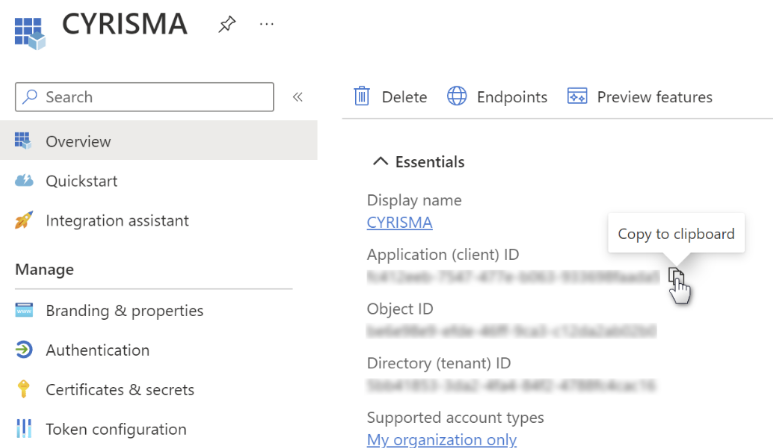
Client ID
Click Overview on the left menu
Copy the Application (client) ID
Paste and record this value for future use
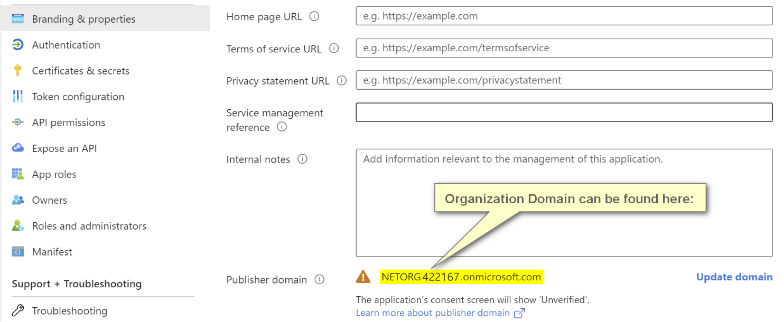
Netorg URL
Found at the upper right of the Azure web page under the user name
A convenient copy can also be found by clicking Branding & Properties on the left menu
Enter Credentials in Cyrisma
In the Microsoft 365 Configuration drawer, enter the following:
Application (Client) ID
Publisher Domain
MS Client Secret Value
After entering the required values, select Verify Credentials to validate the configuration, then select Submit to save it.