Autotask PSA Integration Guide
Last updated: June 8, 2026
1. Create API User
To set up a secure API user in Autotask, follow these steps from the admin console of the Autotask Web interface.
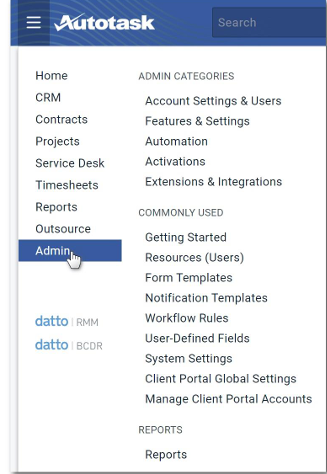
Steps to Create a Secure API User:
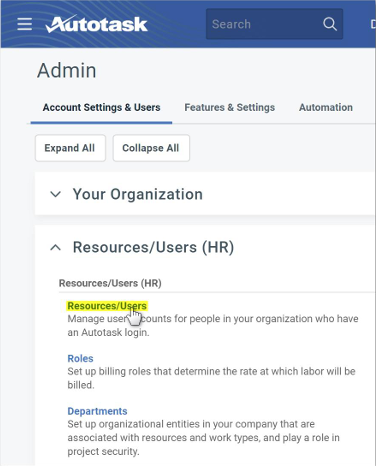
Access Users:
Navigate to Resources > Users under Account Settings in the Autotask Web interface.
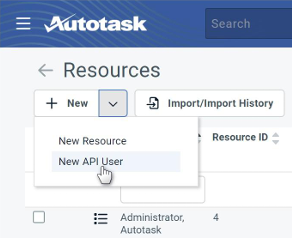
Select New API User:
From the New drop-down selector, choose “New API User”.
Choose Security Level:
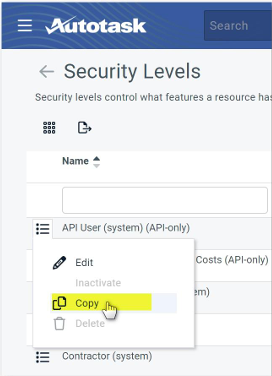
Autotask typically provides a preconfigured “API User” role. If this role is too permissive for your needs:
Go to Security Levels.
Use the copy feature to duplicate the “API User (system)” security level.
Make appropriate adjustments to the access privileges as required.
Add API User:
In the Add API User panel, select the appropriate Security Level from the drop-down menu.
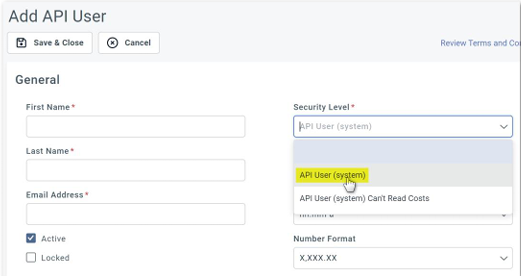
Complete Required Fields:
Fill in the remaining required fields in the Add API User panel (indicated by asterisks).
Set API Tracking Identifier:
In the API tracking identifier section, select “Custom (Internal Integration)” and define a name indicating the integration purpose, such as Cyrisma. A Tracking Identifier will be generated; you will need this for configuring Cyrisma later.
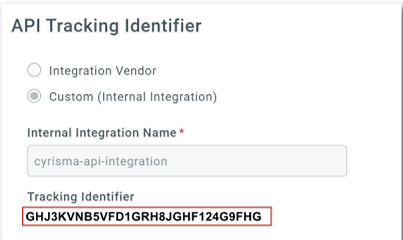
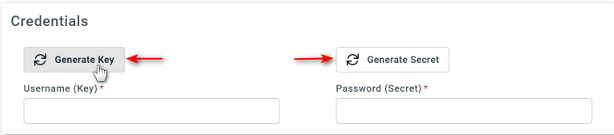
Generate Credentials:
In the Credentials section of the Add API User panel, click on the Generate Key and Generate Secret buttons to create a key and secret pair for this API.
Securely Store the Secret Key:
Please note: The Secret Key will only be shown at the time of generation. It is essential to record this value securely, as it cannot be retrieved later. You will need both the Key and Secret during the Cyrisma configuration.
Autotask Domain Field
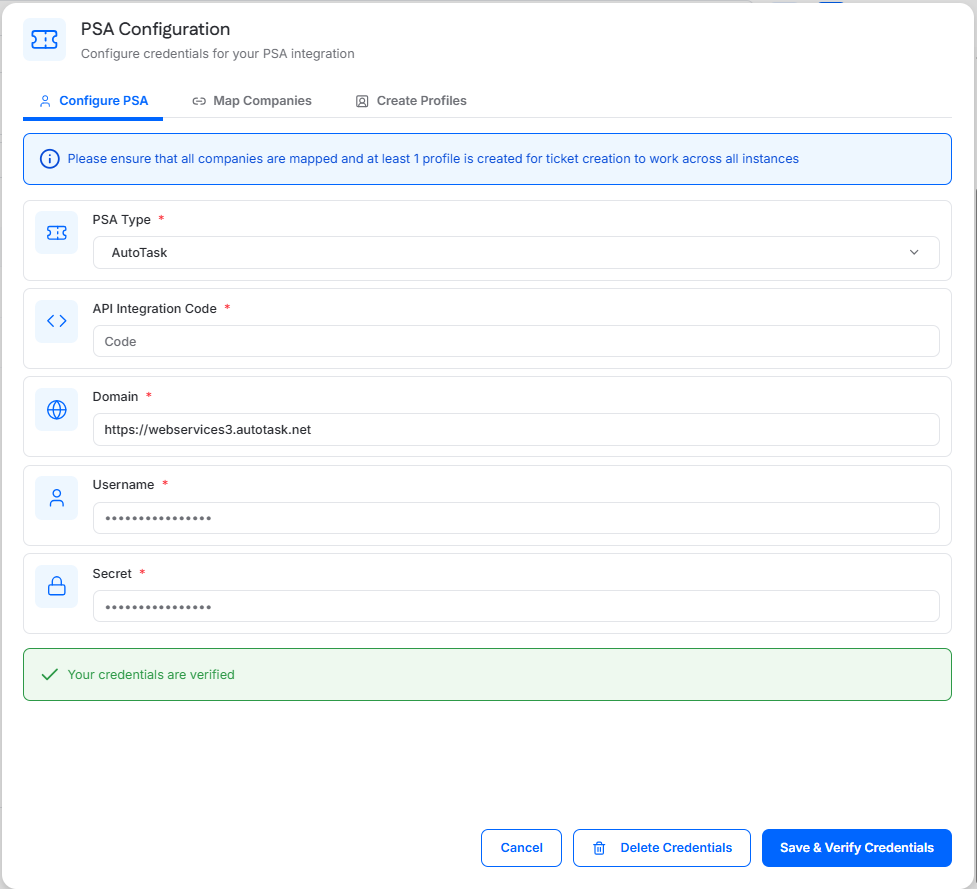
When configuring the Autotask PSA integration in Cyrisma MSP, the Domain field must use the Autotask Web Services/API endpoint for your Autotask zone.
Use this format:
https://webservices[zone-number].autotask.net
The zone number is taken from your Autotask portal URL.
Examples
Autotask portal URL | Cyrisma Domain value |
|---|---|
|
|
|
|
For example, if your Autotask portal URL is https://ww5.autotask.net, enter the following value in the Cyrisma Domain field:
https://webservices5.autotask.net
After entering the Domain value, continue entering the API username, secret, and API integration code to complete the integration setup.