Agent Setup
Last updated: February 18, 2026
Agent Setup provides a centralized workflow for deploying, provisioning, and managing Cyrisma scan agents across Windows, macOS, and Linux systems. This module supports both direct deployment and controlled provisioning to ensure agents are correctly associated with the intended instance and scan configuration.
Agent Setup consists of two primary areas:
Deployment
Provisioning
Deployment
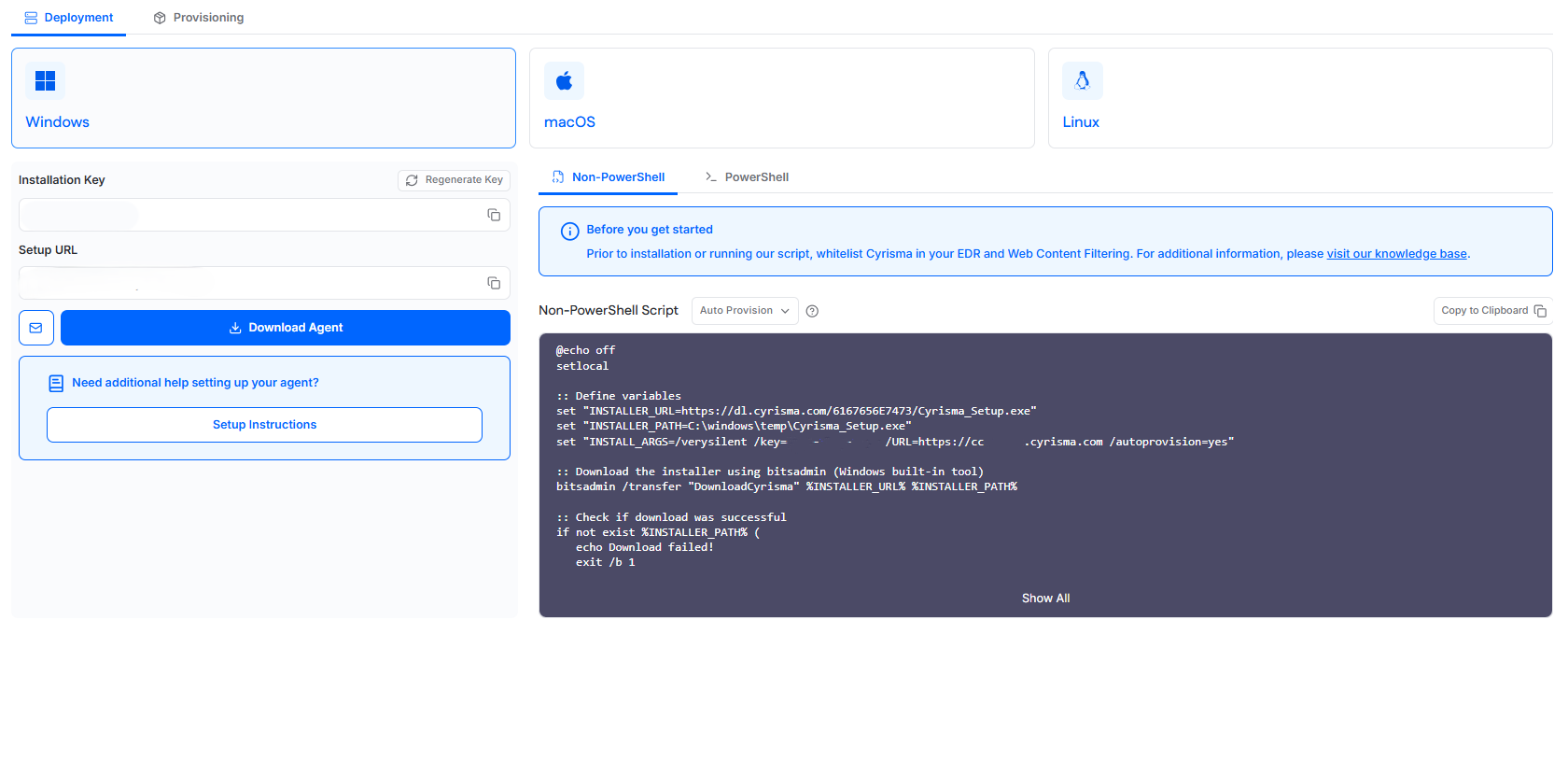
The Deployment tab is used to install new scan agents and attach them to the correct Cyrisma instance. Users select an operating system, obtain the required installation details, and deploy agents using installers or scripts.
Deployment Methods
Users can select one of the following operating systems:
Windows
macOS
Linux
Each operating system presents OS-specific installers and deployment scripts.
Installation Key and Setup URL
All deployment methods require two instance-specific values:
Installation Key
A unique key used by the agent to register with the Cyrisma instance.
Setup URL
The instance URL the agent connects to after installation.
These values ensure agents attach to the correct tenant and instance.
An email icon is available to send agent download links and setup details to recipients via email.
Regenerate Installation Key
The Regenerate Key button generates a new installation key for future agent deployments.
When selected, users are shown the following confirmation message:
Regenerate Installation Key?
This will change the installation key for all future installations. The previous key will no longer work, but all previously deployed agents will remain intact.
Key behavior:
Previously deployed agents remain connected and unaffected
Only new agent installations require the regenerated key
Windows Deployment
Windows deployment supports both installer downloads and scripted deployment.
Download Agent
The Download Agent button downloads the Windows agent executable directly to the local system.
Setup Instructions
The Setup Instructions link opens the Cyrisma knowledge base article for Windows agent installation.
Scripted Deployment
Windows deployments support both script-based options:
Non-PowerShell Script
PowerShell Script
Each script includes an Auto Provision dropdown with the following options:
Auto Provision
Agents are deployed directly into the instance upon installation.
Manual Provision
Agents appear in the Provisioning tab and must be reviewed and approved before becoming active in the instance.
macOS Deployment
macOS deployment supports architecture-specific installers and script-based installation.
Select Chipset
Users must select the target chipset:
Apple Silicon
Intel
The installer and script automatically adjust based on the selected chipset.
Download Agent
The Download Agent button downloads the appropriate macOS installer package for the selected chipset.
Setup Instructions
The Setup Instructions link opens the Cyrisma knowledge base article for macOS agent installation.
Terminal / MDM Script
The Terminal / MDM Script is provided for:
Manual terminal installation
MDM-based deployments
The script must be executed with administrator (root) privileges. Full Disk Access may be required depending on macOS security settings.
Linux Deployment
Linux deployment supports script-based installation.
Download Agent
The Download Agent button downloads the Linux agent installer where applicable.
Setup Instructions
The Setup Instructions link opens the Cyrisma knowledge base article for Linux agent installation.
Bash / Shell Script
A Bash / Shell script is provided for deploying the agent on supported Linux distributions. The script installs and registers the agent using the Installation Key and Setup URL.
Provisioning
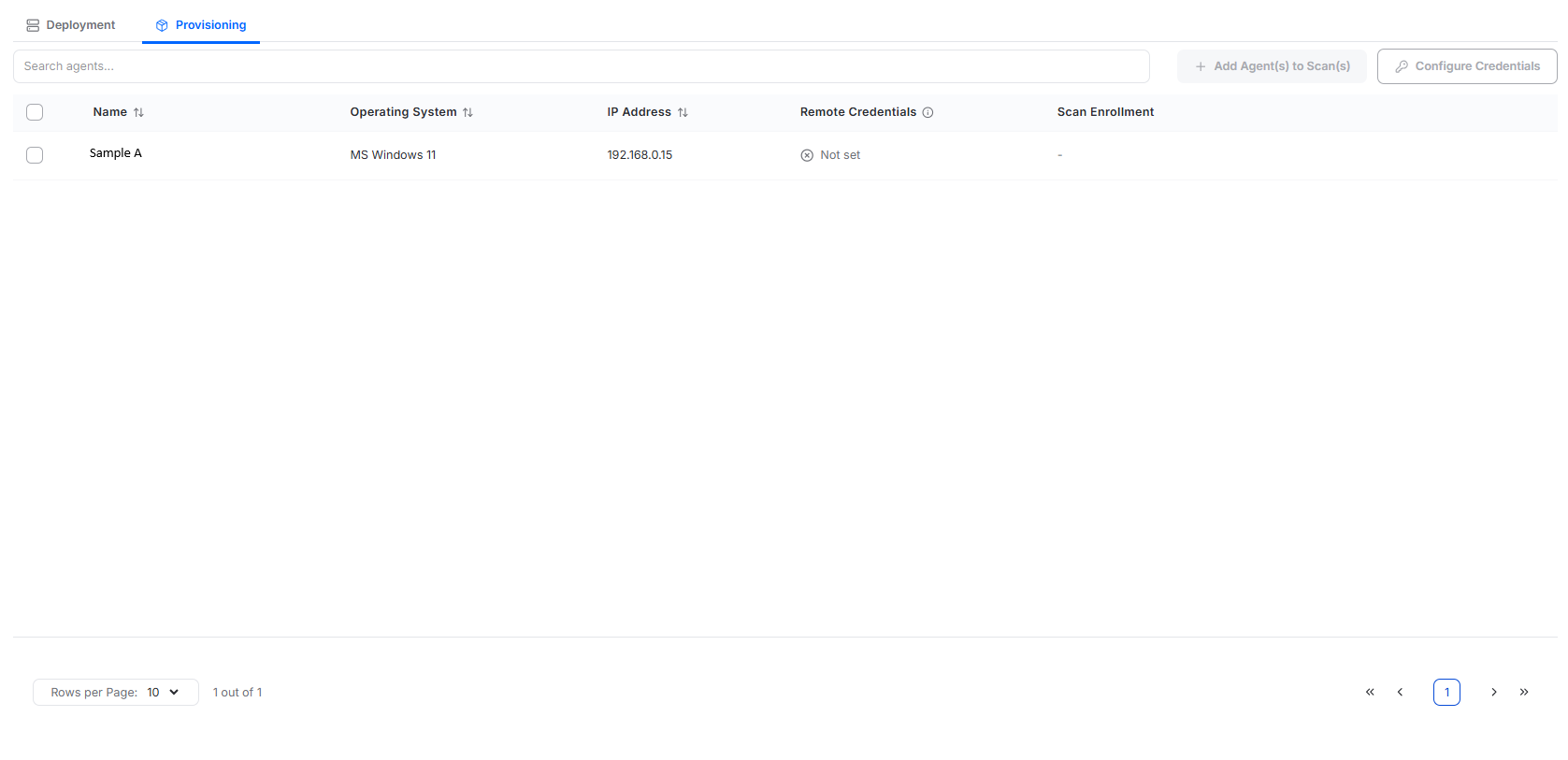
The Provisioning tab lists agents that have been installed using Manual Provisioning and are awaiting approval before becoming active in the instance.
Provisioning Table
The provisioning table displays:
Agent name
Operating system
IP address
Remote credentials status
Scan enrollment
Scan enrollment shows which recurring scans the agent will be enrolled in once provisioning is complete.
Provisioning Actions
Selecting one or more agents using the checkbox enables additional actions.
Add Agent(s) to Scan(s)
Opens a modal that allows selected agents to be assigned to:
Recurring internal authenticated vulnerability scans
Recurring secure baseline scans
These scan enrollments are applied when the agent is provisioned.
Configure Credentials
Opens a modal for configuring remote scan credentials.
Users can:
Select an agent type
Provide a username and password
Provide a domain for Windows credentials, when applicable
Configured credentials allow an agent to remotely scan systems it has access to.
Provision
Selecting Provision opens a confirmation dialog:
Provision Agents?
Are you sure you want to provision X agent(s)? This action will provision the selected agents and assign them to configured scans.
Users may cancel or proceed with provisioning.
Once provisioned:
The agent becomes active in the instance
Configured scan enrollments are applied
The agent no longer appears in the Provisioning tab