Cyrisma MSP Portal Overview
Last updated: March 12, 2026
The Cyrisma MSP portal provides a centralized workspace for managing customer organizations, tenant instances, vulnerability exposure, and MSP user accounts. It is designed to give service providers a single place to review operational posture, prioritize risk, and administer access across the managed environment.
The portal includes three primary areas:
Instances Dashboard
Global Vulnerability
User Management
Instances Dashboard
The Instances Dashboard is the primary workspace for managing organizations and instances in the MSP portal. It provides a high-level summary of the managed environment and supports direct access to tenant instances, organization management, and deployment actions.
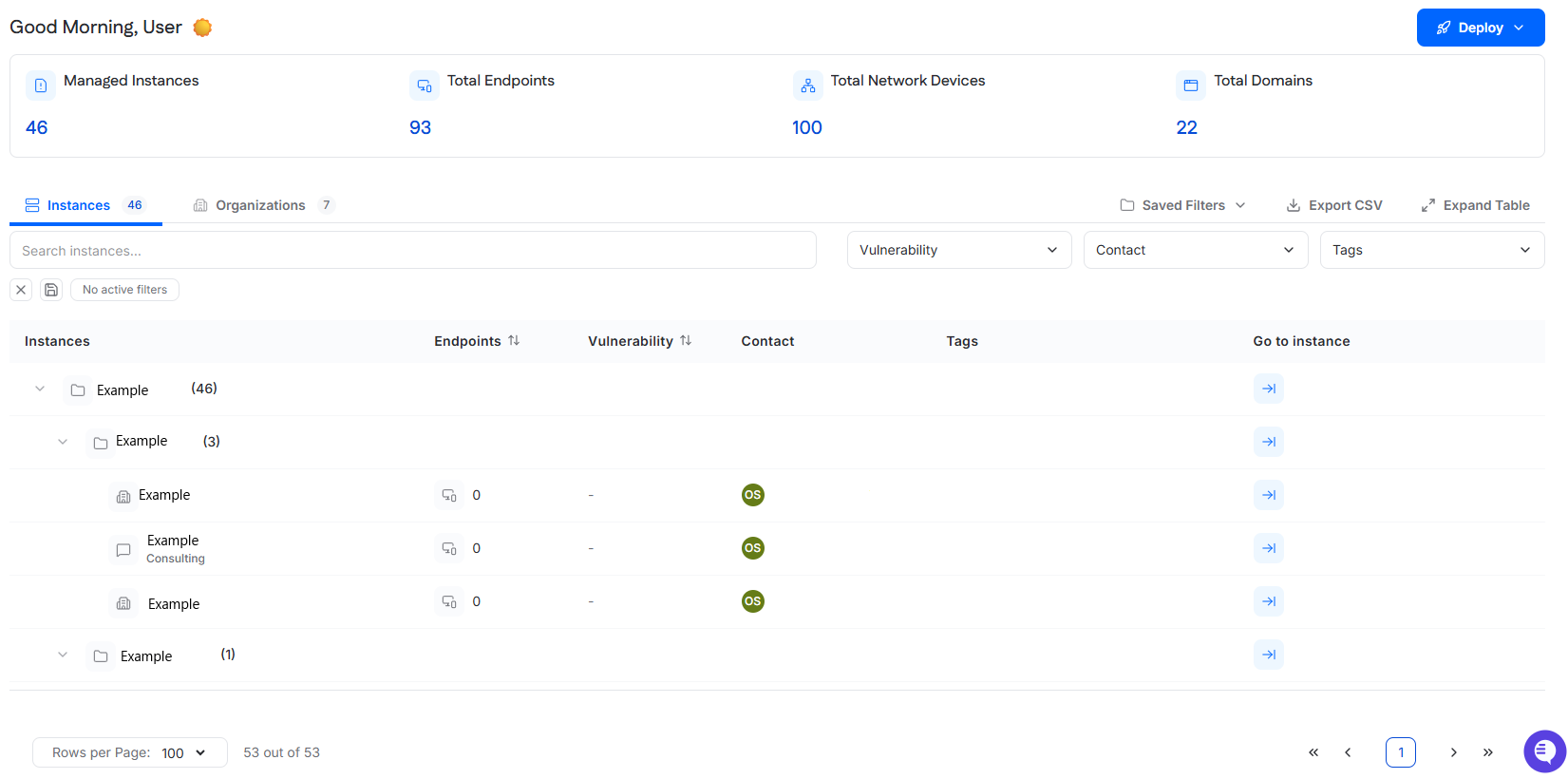
The dashboard includes two views:
Instances
Organizations
It also includes a Deploy menu for creating new instances and organizations.
Dashboard summary
At the top of the page, summary cards provide a quick view of the managed environment:
Managed Instances
Shows the total number of managed instances available in the MSP portal.
Total Endpoints
Shows the total number of endpoints across managed instances.
Total Network Devices
Shows the total number of network devices across managed instances.
Total Domains
Shows the total number of domains across managed instances.
These values provide a quick operational summary of the current MSP footprint.
Deploy menu
The Deploy button is used to create new organizations and instances.
Selecting Deploy opens a menu with these options:
Instance
Organization
Selecting either option opens the corresponding deployment drawer.
Add Organization
The Add Organization drawer is used to create a new organization.
It includes fields for:
Organization Name
Custom Name
Parent Organization
Address
Type
Industry
Email
Organization Name is the official organization name.
Custom Name is the display name used in lists as a nickname.
Parent Organization is optional and can be used to place the organization under an existing parent organization.
Add Instance
The Add Instance drawer is used to create a new instance.
It includes fields for:
Instance Name
Custom Name
Address
Instance Type
Assigned Tech
Assigned Organization
Industry
Instance Name is the official instance name.
Custom Name is the display name used in lists as a nickname.
Assigned Organization determines which organization the instance belongs to.
Instances view
The Instances view displays the instances that belong to your organizations.
The table includes a search field for locating instances and supports filtering by:
Vulnerability
Contact
Tags
Additional table actions include:
Saved Filters
Export CSV
Instances are listed beneath their parent organization to reflect the organization hierarchy.
For each instance, the table displays:
Instance name
Endpoint count
Vulnerability grade score
Contact
Custom tags
Go to instance action
Selecting the arrow in the Go to instance column logs the user directly into that instance.
Instance row actions
Hovering over an instance row reveals an ellipsis menu with these options:
View Details
Edit
Delete
Selecting View Details opens the instance drawer.
Selecting Edit opens the Edit Instance view.
Instance drawer
The instance drawer provides a summary of the selected instance and access to instance-level management options.
At the top of the drawer, it displays:
Overall Posture score
Vulnerability score
Secure Baseline score
Data Sensitivity score
Endpoint count
Total vulnerabilities
Critical vulnerability count
High vulnerability count
Medium vulnerability count
Low vulnerability count
The Go to Instance button logs the user directly into the selected instance.
Enable Support
The drawer includes an Enable Support toggle.
Support is enabled by default for instances. When enabled, Cyrisma can access the instance for support purposes.
Instance Overview
The Instance Overview section displays core information about the instance, including:
Address
Industry
Instance label
Type
This section also supports the following management actions:
Organization
Reassigns the instance to a different organization.
Contact
Reassigns the instance contact.
MDR/XDR Tenant
Sets the unique ID used to match the instance to the client ID in the MDR/XDR solution or provider.
Instance Access URL
Displays the unique URL that can be shared with the client to access the instance.
Edit Instance
Selecting Edit opens the Edit Instance view, where users can update:
Instance logo
Instance label
Organization name
Address
Instance type
Industry
Email
The instance label is used as the display name in reports and as the instance nickname shown within the tenant.
Organizations view
The Organizations view displays organizations in a table and provides visibility into structure, tenant count, endpoint count, and vulnerability posture.
The table includes a search field and supports filtering by:
Vulnerability
Contact
Tags
Additional table actions include:
Saved Filters
Export CSV
For each organization, the table displays:
Organization
Sub-Organizations
Tenants
Endpoints
Vulnerability
Contact
Tags
Sub-Organizations shows how many child organizations belong to the parent organization.
Tenants shows the number of tenant instances that belong to the organization.
Organization row actions
Hovering over an organization row reveals an ellipsis menu with these options:
View Details
Edit
Delete
Selecting View Details or Edit opens the organization drawer.
Organization drawer
The organization drawer provides a summary of the selected organization and access to organization information and related tenant instances.
At the top of the drawer, it displays:
Overall Posture score
Vulnerability score
Secure Baseline score
Data Sensitivity score
Endpoint count
Sub-organizations count
Tenants count
The Tenants value represents the number of instances that belong to the parent organization.
The Go to Instance button logs the user directly into the organization’s instance context.
The drawer includes two tabs:
Instances
Organization Details
Instances tab
The Instances tab provides visibility into the organization hierarchy and the tenant instances associated with that organization.
It includes an expandable Sub-Organizations section that users can expand to view child organizations.
Below that, the instances table lists:
Instance name
Endpoint count
Vulnerability score
Contact
Organization Details tab
The Organization Details tab displays core organization information, including:
Organization name
Address
Email
Industry
Type
Selecting Edit allows users to update these fields.
The tab also provides these management options:
Parent Organization
Reassigns the organization to a different parent organization.
IT Owner
Reassigns the organization’s IT owner.
PSA Configuration
Configures PSA integrations and client mappings.
MDR/XDR Tenant
Sets the unique ID used to match the organization or client to the corresponding client ID in the MDR/XDR solution or provider.
Access URL
Displays the unique URL that can be shared with the client for access.
Global Vulnerability
The Global Vulnerability dashboard provides a centralized view of vulnerability exposure across the managed MSP environment. It helps users identify important trends, prioritize remediation, and investigate findings across instances and assets.
The dashboard combines prioritization metrics, exploitability analysis, and detailed investigation views for both root causes and CVEs.
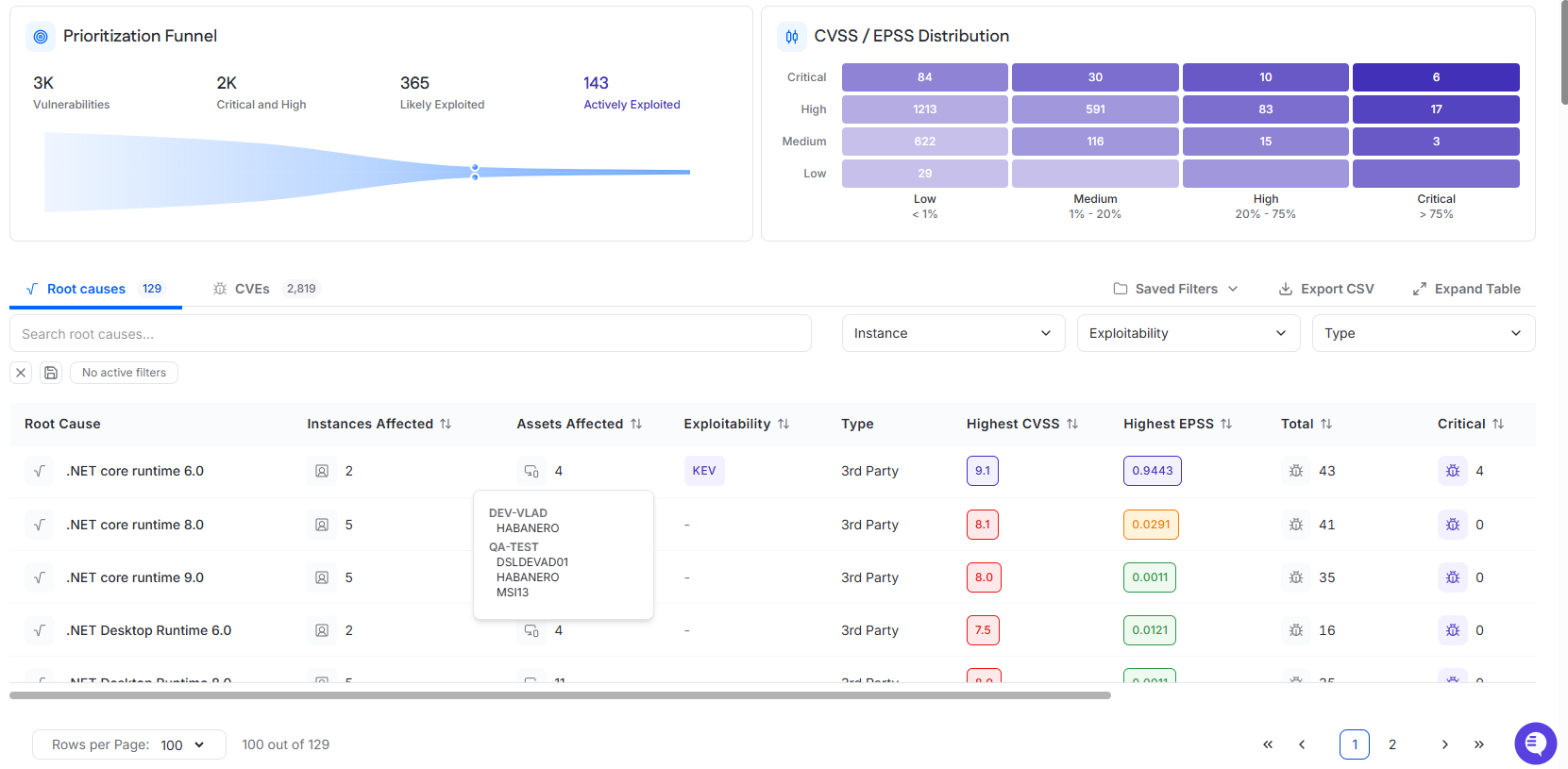
Prioritization Funnel
The Prioritization Funnel provides a summarized view of vulnerability exposure across the environment.
It displays four metrics:
Vulnerabilities
Shows the total count of vulnerabilities across the managed environment.
Critical and High
Shows the count of vulnerabilities with Critical or High severity.
Likely Exploited
Shows the count of vulnerabilities with an EPSS score between 0.05 and 1.
Actively Exploited
Shows the count of vulnerabilities associated with KEV or Exploit DB.
This section is intended to move users from total exposure to the subset of findings most likely to require urgent attention.
CVSS / EPSS Distribution
The CVSS / EPSS Distribution chart shows vulnerability counts by severity and exploitability likelihood.
The vertical axis represents CVSS severity.
The horizontal axis represents EPSS range.
Each cell shows the count of vulnerabilities that match the corresponding CVSS severity and EPSS range combination.
Investigation views
Below the charts, the dashboard provides two investigation views:
Root Causes
CVEs
Both views support search, filtering, saved filters, CSV export, and expanded table viewing.
Root Causes view
The Root Causes view groups vulnerabilities by the underlying software, component, or issue responsible for one or more findings. This view is useful for identifying remediation opportunities that can reduce multiple vulnerabilities at once.
The Root Causes table includes a search field and supports filtering by:
Instance
Exploitability
Type
The table displays:
Root Cause
Instances Affected
Assets Affected
Exploitability
Type
Highest CVSS
Highest EPSS
Total
Critical
Root Cause drawer
Selecting a root cause name opens the root cause drawer.
The drawer summarizes the selected root cause and displays:
Instances affected
Assets affected
Total vulnerabilities
Critical vulnerability count
High vulnerability count
Medium vulnerability count
Low vulnerability count
The Details section shows the highest CVSS score, highest EPSS score, and exploitability indicators such as KEV when present.
The drawer includes two tabs:
Affected Assets
Lists the assets impacted by the root cause and supports search, filtering, export, and expanded table viewing. The table displays Asset, Type/OS, Instance, Asset Score, and Exploitability.
Vulnerabilities
Lists the vulnerabilities associated with the selected root cause.
CVEs view
The CVEs view lists individual vulnerabilities across the environment and supports direct investigation at the CVE level.
The CVEs table includes a search field and supports filtering by:
CVSS Severity
EPSS Range
Exploitability
The table displays:
CVE
CVE Title
Instances Affected
Assets Affected
First Seen
Exploitability
CVSS Score
EPSS Score
CVE drawer
Selecting a CVE name opens the CVE drawer.
The CVE drawer summarizes the selected vulnerability and displays:
Instances affected
Assets affected
The Details section shows the CVSS score, EPSS score, and vulnerability description.
Below the details section, the drawer includes an affected assets table with search, filtering, export, and expanded table options.
Available filters include:
Instance
Type/OS
Asset Score
The affected assets table displays:
Asset
Instance
Type/OS
Asset Score
This drawer is used to review how a specific CVE is distributed across the managed environment and identify which assets are affected.
User Management
The User Management page is used to view, filter, and manage MSP user accounts in the Cyrisma MSP portal. It provides a centralized table of users, their assigned organizations, roles, recent login activity, and account status.
This page is also where new MSP users are created and existing user accounts are updated.
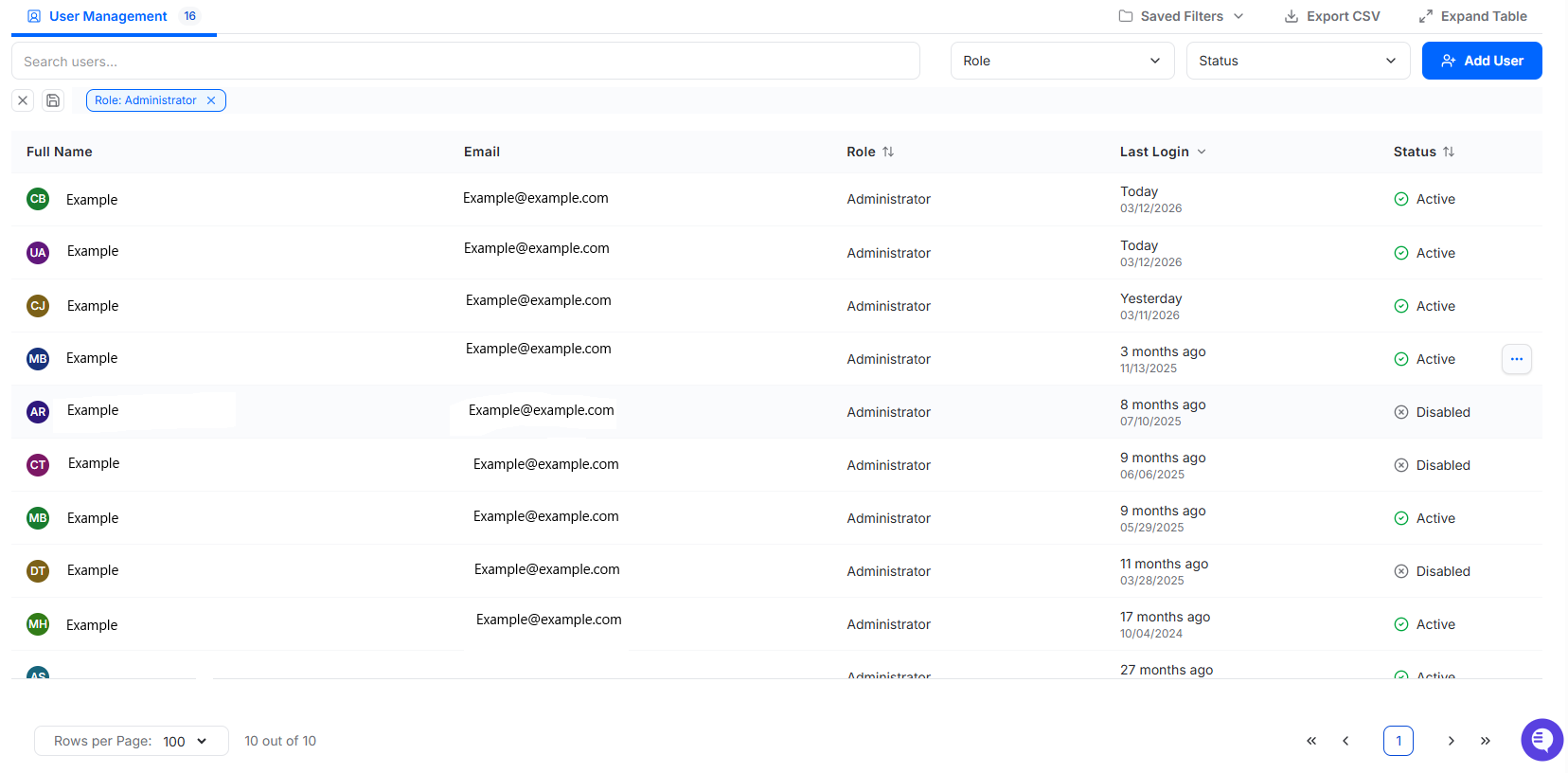
User table
The User Management table includes a search field for locating users and supports filtering by:
Role
Status
Additional table actions include:
Saved Filters
Export CSV
The table displays:
Full Name
Email
Role
Last Login
Status
Full Name shows the user’s name and assigned organization.
Last Login shows when the user last logged in, along with the calendar date of that login.
Status shows whether the user account is Active or Disabled.
Row actions
Hovering over a user row reveals an ellipsis menu with these options:
Edit
Delete
Selecting Edit opens the Edit User drawer.
Selecting Delete removes the user account.
Add User
The Add User button opens the Add New User drawer, where MSP user accounts are created.
The Add New User drawer includes these fields:
First Name
Last Name
Organization
User Role
Email
Password
The email address entered here is the email the user will use to sign in to the MSP portal.
Selecting Create User creates the new MSP user account.
Edit User
Selecting Edit from a user row opens the Edit User drawer.
The Edit User drawer allows users to update:
First Name
Last Name
Organization
User Role
Email
Password
It also includes an Enable Account toggle, which is used to enable or disable the user account.
Selecting Save Changes updates the user account.