Whitelisting the Cyrisma Agent in Common Endpoint Protection Platforms V2
Last updated: March 27, 2026
The Cyrisma Agent performs local scanning, configuration auditing, and secure communication with the Cyrisma cloud platform. Some endpoint protection tools may interfere with these operations by blocking agent executables, quarantining files, or restricting access to required folders.
Whitelisting the Cyrisma Agent directory helps prevent false detections and avoids disruptions to Cyrisma functionality.
Folder to whitelist
For all platforms listed below, whitelist:
C:\CYRISMA_Agent\
Notes:
Use the full Cyrisma Agent folder path.
Apply exclusions only where needed and scope them to the smallest practical set of devices or policies.
Validate exclusions on a test group before broad deployment.
Executable-based whitelisting
If your endpoint protection platform does not support directory-based exclusions, or if it requires more granular allow rules, you may also need to whitelist these Cyrisma Agent executables:
Executable Path | Purpose |
| Main agent service |
| Remote collection of target attributes |
| Secondary method for remote target attribute collection |
| TCP port scanning |
| Reads file content for sensitivity scanning |
| Agent management and upgrades |
| Compresses scan results |
Additional note for application control tools:
Some products, such as ThreatLocker and similar EDR or allowlisting tools, may also require a process-based exception so that child processes started by
C:\CYRISMA_Agent\DataSpotliteAgent.exeare allowed to execute.
1. Bitdefender GravityZone
1. Bitdefender GravityZone
Use an antimalware folder exclusion for the Cyrisma Agent directory.
Path to exclude:C:\CYRISMA_Agent\
Steps:
Log in to GravityZone Control Center.
Go to Policies.
Select the policy assigned to the endpoints running the Cyrisma Agent.
If needed, create a dedicated policy for Cyrisma-managed endpoints or duplicate an existing policy and assign it to those endpoints.
Edit the selected policy.
Open Antimalware.
Go to Exclusions.
In the In-policy exclusions section, enable in-policy exclusions.
Add a new exclusion rule.
For exclusion type, select Folder.
Enter the folder path:
C:\CYRISMA_Agent\Select the scanning methods the exclusion should apply to, based on your policy.
Add the rule and save the policy.
Confirm that the updated policy is assigned to the intended endpoints and verify the exclusion on a test device.
Note:
Bitdefender supports folder exclusions that apply to files and subfolders under the excluded path.
If needed, Bitdefender also supports process-based exclusions and exclusions
2. CrowdStrike Falcon
Use a Sensor Visibility Exclusion for the Cyrisma Agent directory.
Path to exclude:C:\CYRISMA_Agent\**
Steps:
Log in to the Falcon console.
Go to Endpoint Security.
Select Configure.
Open Exclusions.
Go to Sensor Visibility Exclusions.
Select Create exclusion.
Choose the hosts to target:
All hosts, or
Groups of hosts
Select Next.
In the Exclusion Pattern field, enter the Cyrisma Agent path using CrowdStrike’s supported Glob syntax:
C:\CYRISMA_Agent\**If needed, select Apply to all descendant processes.
In the Pattern Test field, enter a sample path and test the pattern to confirm it matches the intended folder.
Add a comment for the audit log if desired.
Select Create exclusion.
In the confirmation window, select Confirm and Create.
Notes:
The exclusion pattern should include subfolders under the Cyrisma Agent directory.
Scope the exclusion only to the devices or host groups that require Cyrisma.
Test the pattern before saving to help confirm the exclusion applies to the intended path.
If applications experience compatibility issues in environments using CrowdStrike, review relevant prevention policy settings in addition to the exclusion.
3. ESET PROTECT
Add a Performance exclusion for the Cyrisma Agent directory.
Path to exclude:C:\CYRISMA_Agent\
Steps:
Log in to the ESET PROTECT Web Console.
Go to Policies.
Select the policy applied to client computers and choose Edit.
Go to Settings.
Select Detection Engine.
Expand Exclusions.
Select Edit next to Performance exclusions.
Select Add.
In the Path field, enter:
C:\CYRISMA_Agent\Add a comment if desired.
Select OK.
Select Save.
Select Finish to apply the policy change.
Notes:
Use a Performance exclusion for the Cyrisma Agent folder path.
Wildcards for directories are not supported in these paths.
Apply the updated policy to the appropriate endpoint groups and verify the exclusion on a test system before broad deployment.
4. Huntress
If you are using Huntress Managed Antivirus or Managed Microsoft Defender Antivirus, create organization-level exclusions for the Cyrisma Agent path and process.
Path to exclude:C:\CYRISMA_Agent\
Process to exclude:C:\CYRISMA_Agent\DataSpotliteAgent.exe
Steps:
Log in to the Huntress Portal.
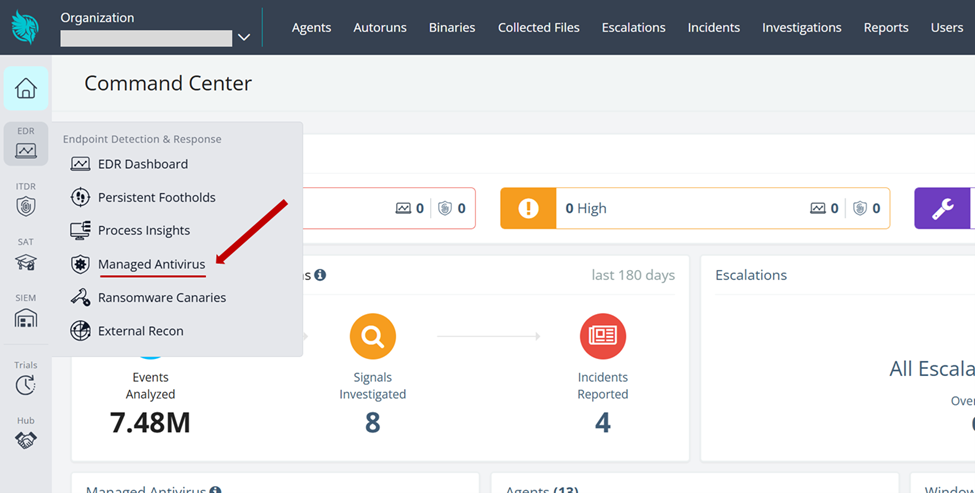
From the home page, navigate to Managed Antivirus.
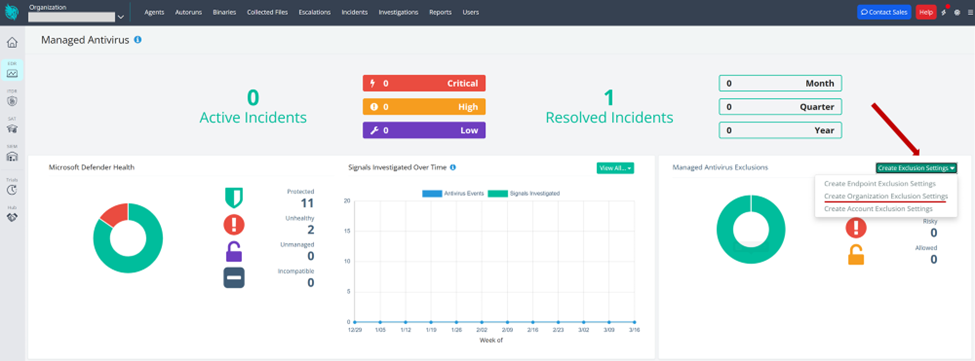
Select Create Exclusion Settings.
Select Create Organization Exclusion Settings.
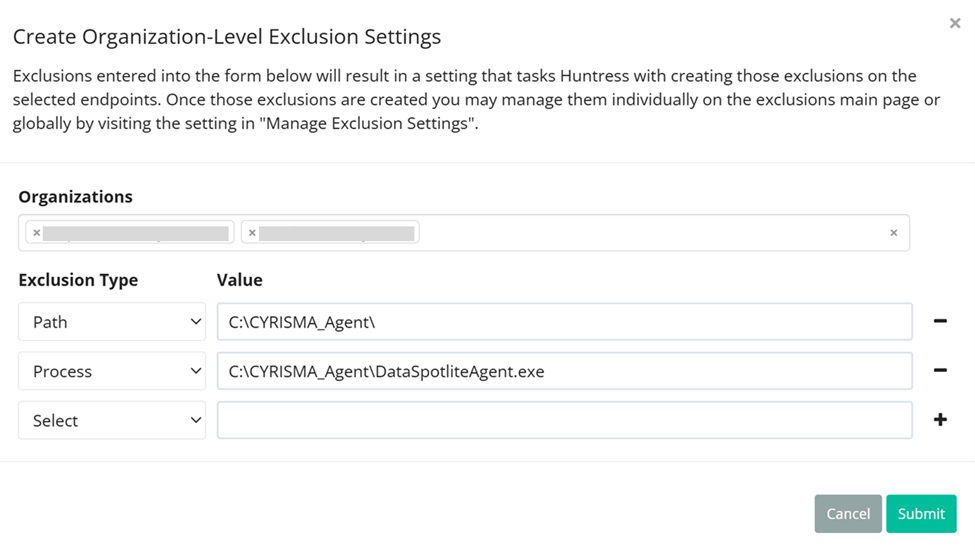
Select the managed organizations you want to apply the exclusion to.
Add an exclusion type of Path and enter:
C:\CYRISMA_Agent\If needed, you can instead add the specific Cyrisma Agent executables.
Add an exclusion type of Process and enter:
C:\CYRISMA_Agent\DataSpotliteAgent.exeSave the exclusion settings.
5. Malwarebytes Nebula
Create an exclusion for the Cyrisma Agent directory.
Path to exclude:C:\CYRISMA_Agent\
Steps:
Log in to the Nebula Console.
Go to Configure.
Select Exclusions.
Select New exclusion.
In the Add Exclusions window, enable the exclusion.
Enter the Cyrisma Agent folder path on its own line:
C:\CYRISMA_Agent\Choose whether the exclusion applies to:
All endpoints, or
Specific policies
Add a comment if needed.
Select Validate.
Review the exclusion details, including the exclusion type, scope, and affected protection layers.
Select Save.
Notes:
Exclusions can be scoped globally or to specific policies.
Review the protection layers affected by the exclusion and confirm they align with how Cyrisma is used in your environment.
Changes are typically applied within minutes, provided endpoints are communicating with Nebula.
6. SentinelOne
Create an exclusion for the Cyrisma Agent directory.
Path to exclude:C:\CYRISMA_Agent\
Steps:
Log in to the SentinelOne Management Console.
Go to Policy Settings or Global Settings, depending on where exclusions are managed in your environment.
Select the appropriate site, group, or device policy for endpoints running the Cyrisma Agent.
For environments using the new exclusions experience:
4. Create a new exclusion.
5. Set Exclusion Type to Agent Interoperability.
6. Set Operating System to Windows.
7. Select Continue.
8. Enter the Cyrisma Agent path using the path format supported by your SentinelOne environment.
9. Enable Include Subfolders.
10. Enable Apply to child processes.
11. Set Exclusion Mode to Interoperability.
12. Save the exclusion.
13. Allow time for the exclusion to propagate to endpoints.
14. Restart the device or the relevant Cyrisma service if needed, then verify the exclusion on a test endpoint.
For environments using the legacy exclusions experience:
4. Ensure the tenant is using the Legacy Exclusions Experience.
5. Create a path exclusion for alerts and mitigations.
6. Enter the Cyrisma Agent path using the path format supported by your SentinelOne environment.
7. Enable Include Subfolders.
8. Set Exclusion Mode to Interoperability - extended.
9. Save the exclusion.
10. Allow time for the exclusion to propagate to endpoints.
11. Restart the device or the relevant Cyrisma service if needed, then verify the exclusion on a test endpoint.
Notes:
SentinelOne’s exclusion workflow differs between the new and legacy exclusions experiences.
In environments that support Agent Interoperability, that exclusion type is generally the most relevant for preventing interference with legitimate management and scanning tools.
If the Cyrisma Agent still encounters blocking after the exclusion is applied, review whether child processes are also allowed and whether a more permissive performance-focused mode is needed in your environment.
Verify the exact path syntax accepted by your SentinelOne tenant before finalizing the exclusion.
7. Sophos Intercept X (Sophos Central)
Create a file or folder exclusion for the Cyrisma Agent directory.
Path to exclude:C:\CYRISMA_Agent\
Steps:
Log in to Sophos Central.
Select the General Settings icon.
Under General, select Global Exclusions.
Select Add Exclusion.
In Exclusion Type, select File or folder (Windows).
Enter the Cyrisma Agent folder path:
C:\CYRISMA_Agent\In Active for, choose whether the exclusion applies to:
Real-time scanning
Scheduled scanning
Both
Select Add to save the exclusion.
Notes:
Sophos supports both global exclusions and policy-based exclusions.
Global exclusions apply to all users, computers, and servers in the tenant.
If you want the exclusion to apply only to specific devices or groups, use a policy-based exclusion instead of a global exclusion.
If excluded files still trigger exploit-related detections, separate exploit-related exclusion types may be required depending on the detection category.
8. ThreatLocker
Create an allow policy for the Cyrisma Agent directory.
Path to allow:C:\CYRISMA_Agent\
Steps:
Log in to the ThreatLocker Portal.
Go to the Application Control area.
Open the policy management view for the organization, group, or computer where the Cyrisma Agent should be allowed.
Create a new allow policy for the Cyrisma Agent folder path.
Enter the Cyrisma Agent folder path:
C:\CYRISMA_Agent\Scope the policy to the appropriate organization, group, or devices.
Save the policy and deploy the change.
Verify the policy on a test endpoint before broad deployment.
Notes:
ThreatLocker uses an allowlisting model, so software must be explicitly permitted to run.
ThreatLocker policies can be applied at different levels, including organization, group, and computer scope.
In some environments, a folder allow rule may not be sufficient by itself. Additional process-based rules may be needed so that child processes launched by
C:\CYRISMA_Agent\DataSpotliteAgent.exeare also allowed to run.Use the smallest practical scope and validate the result carefully before wider rollout.
9. Trend Micro Apex One
Add the Cyrisma Agent directory to the scan exclusion list.
Path to exclude:C:\CYRISMA_Agent\
Steps:
Log in to the Apex One Console.
Go to Agent Management.
In the agent tree, select the root icon to include all Security Agents, or select the specific groups or Security Agents that should receive the exclusion.
Go to Settings.
Select Scan Exclusion Settings.
Select the check box to enable scan exclusion.
In the Scan Exclusion List (Files) section, enter the Cyrisma Agent directory path:
C:\CYRISMA_Agent\Select Add.
Select Save.
If you selected the root icon, choose how the exclusion should be applied:
Apply to All Agents
Apply to Future Groups Only
Verify the exclusion on a test group or endpoint before broad deployment.
Notes:
Excluding a directory also excludes its subdirectories from scanning.
Trend Micro requires a full file path or directory path; file name only is not supported.
Depending on your Apex One deployment and version, scan exclusions may also be managed through broader scan exclusion list settings.
Apply the exclusion to a test group first, then verify agent functionality before broad deployment.
10. Webroot Business Endpoint Protection
Create a good file override for the Cyrisma Agent folder path.
Path to allow:C:\CYRISMA_Agent\
Steps:
Log in to the OpenText Management Console or the Endpoint Protection console.
Choose the override scope you want to manage:
Global overrides, if the allow rule should apply broadly across sites that use global overrides
Site-level overrides, if the allow rule should apply only to a specific site or endpoint policy
Open the file overrides area for that scope.
Create a new good file override.
Add the Cyrisma Agent folder path:
C:\CYRISMA_Agent\Save the override.
Allow endpoints to check in so the change is applied.
Verify the override on a test endpoint before broad deployment.
Notes:
Good file overrides allow a file or folder path to execute regardless of cloud classification.
OpenText supports both global overrides and site-level overrides.
Site-level overrides are more targeted and take precedence over global overrides.
Policy-assigned overrides take precedence over site-level overrides.
File and folder path overrides are supported on OpenText Core Endpoint Protection version 9.0.1 or later.
OpenText recommends validating the need for overrides through testing rather than adding them automatically based only on vendor recommendations.
New overrides become active as devices check in to the OpenText Management Console.
11. Microsoft Defender (Managed via Intune)
Create a Microsoft Defender Antivirus exclusions policy and add the Cyrisma Agent directory as an excluded path.
Path to exclude:C:\CYRISMA_Agent\
Steps:
Log in to the Microsoft Intune admin center.
Go to Endpoint security.
Select Antivirus.
On the Summary tab, select Create policy in the AV policies section, or open an existing policy whose policy type is Microsoft Defender Antivirus exclusions.
When creating a new policy:
Select Platform: Windows
Select Profile: Microsoft Defender Antivirus exclusions
Select Create
On the Basics tab, enter a name for the policy and, if desired, a description.
On the Configuration settings tab, go to Excluded paths.
Select Add.
Enter the Cyrisma Agent folder path:
C:\CYRISMA_Agent\Select Next.
Configure scope tags if needed.
On the Assignments tab, assign the policy to the appropriate device groups.
Review the policy settings and select Save.
If you are editing an existing exclusions policy:
Open the policy from Endpoint security > Antivirus.
Select Edit next to Configuration settings.
In Excluded paths, add:
C:\CYRISMA_Agent\Continue through the review screen and save the changes.
Notes:
Microsoft Defender exclusions can be configured for paths, extensions, and processes. For Cyrisma, the primary requirement is an excluded path for the Cyrisma Agent directory.
Custom exclusions apply to scheduled scans, on-demand scans, and always-on real-time protection and monitoring.
Microsoft recommends using exclusions sparingly and reviewing them periodically.
Excluded files can still generate other Microsoft Defender alerts in some cases, such as behavioral or heuristic detections.
If exclusions are configured from multiple policy sources, Intune supports policy merge for excluded paths, excluded extensions, and excluded processes.